
How to set up application passwords
Updated about 1 month ago
Browse All
An application password is a password you hand to one app or device instead of your real one. It signs in for that app, and you can revoke it later without touching the password you use everywhere else.
Before you start
- Be logged in to your site's dashboard.
- Your site needs to use HTTPS — the small padlock next to the address in your browser.
Steps
Create the password
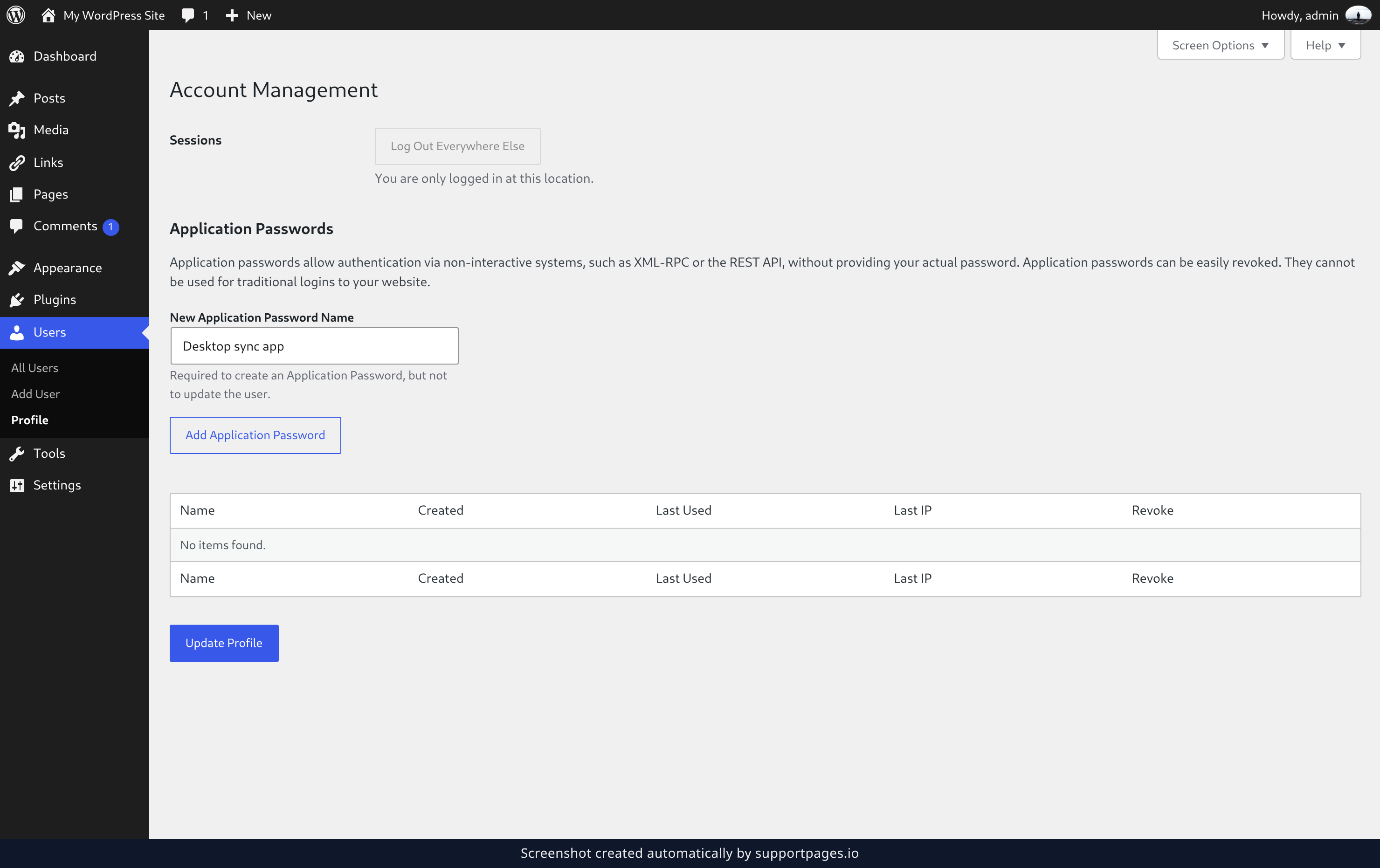
In the dashboard sidebar, click Users, then click Profile, and scroll down to the Application Passwords section.
In the New Application Password Name box, type a name that tells you which app will use it, like Desktop sync app. Then click Add Application Password.
Save the password
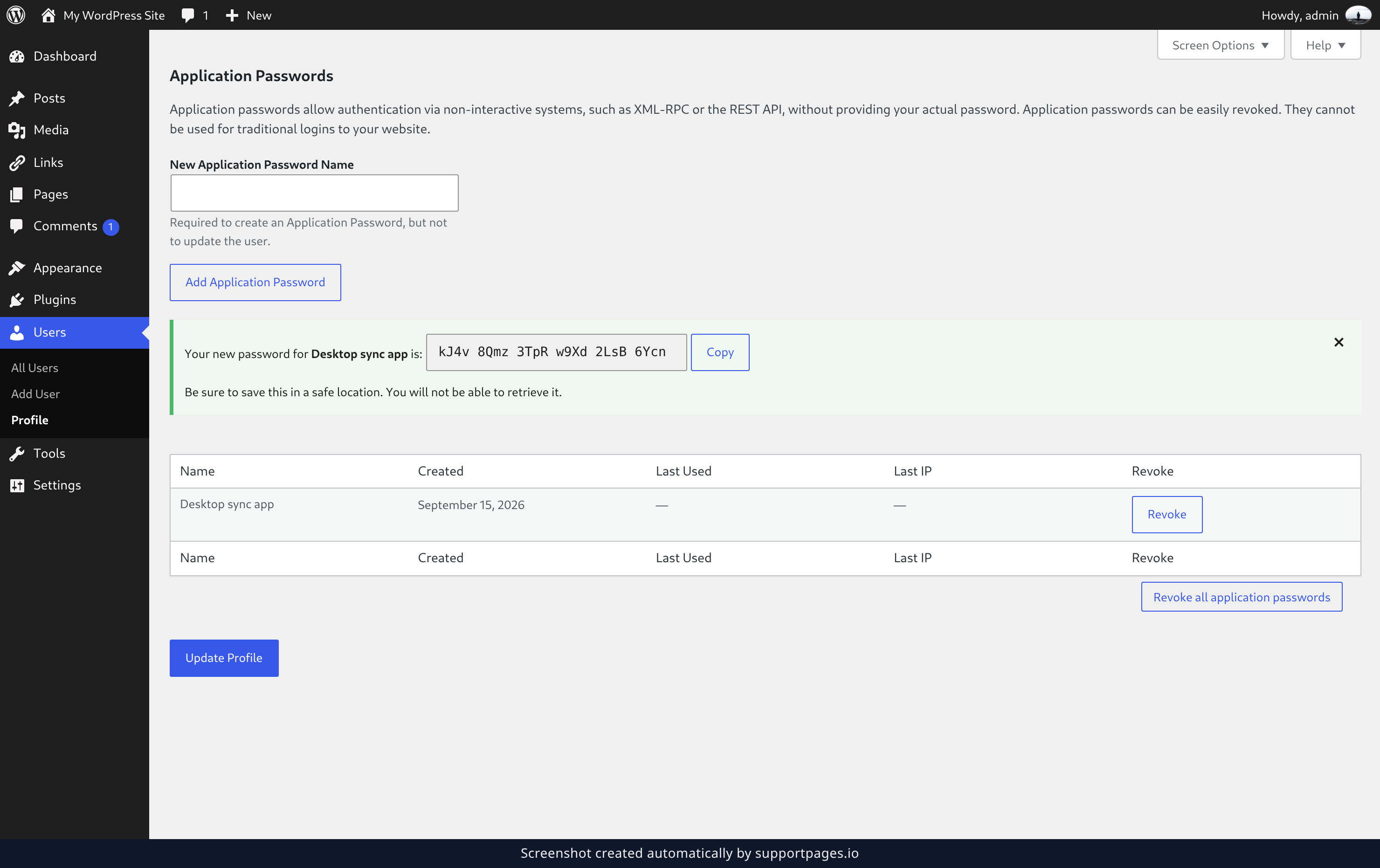
WordPress shows the new password once, just above the list. Click Copy, then paste it into the app or device you're setting up.
Put it somewhere safe before you move on — once you dismiss this message, the password can't be shown again.
Revoke it when you no longer need it
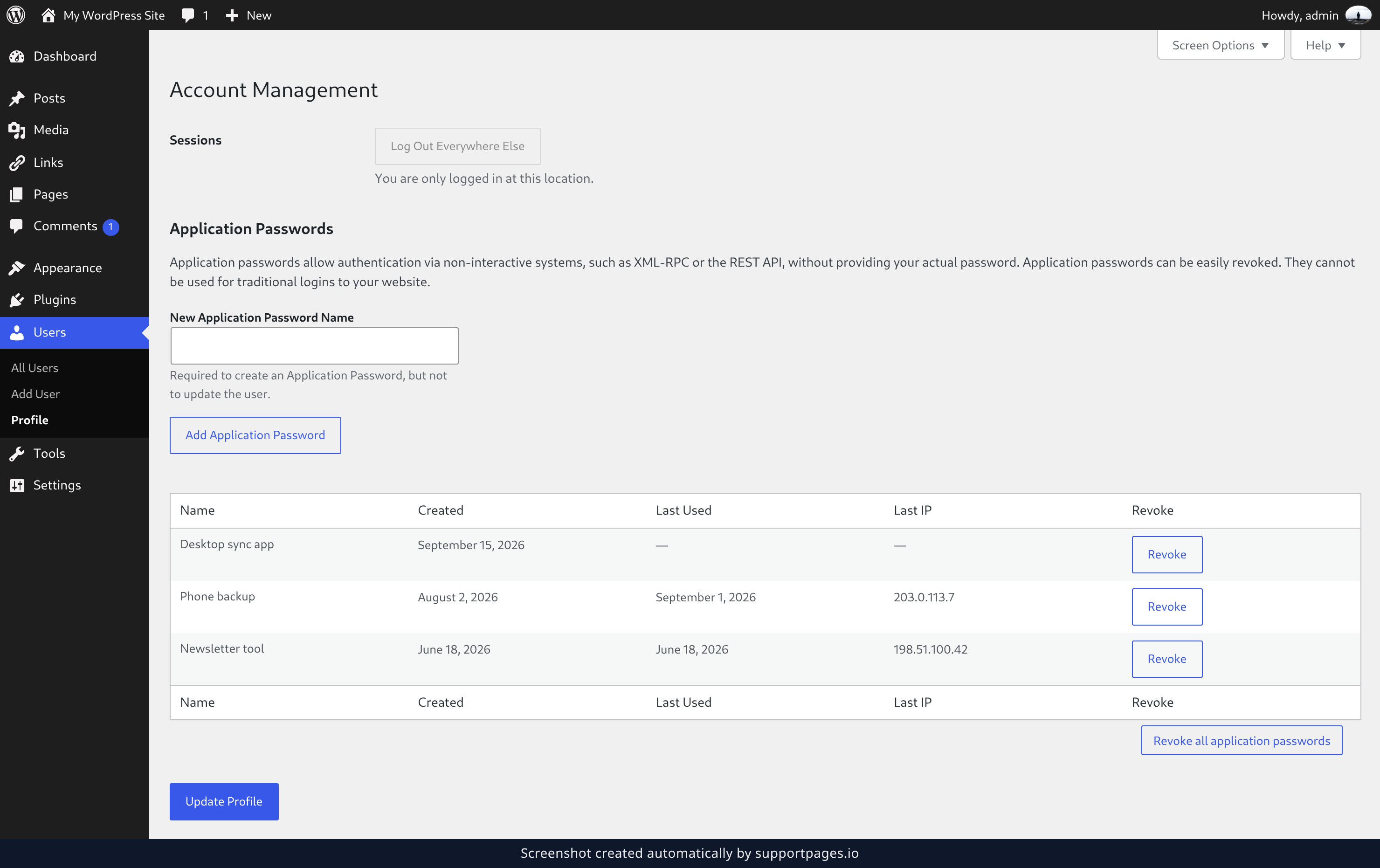
Every password you've created stays in the list below, with the date it was Created and when it was Last Used.
To disconnect an app or device, find its name in the list and click Revoke. Confirm the prompt and that app can no longer sign in — your main password is unchanged.
Tips
- Give each app its own application password, so you can disconnect one device without affecting the others.
- Check the Last Used and Last IP columns to see whether a password is still in use before you revoke it.
Summary
You've created a separate password for an app or device. Come back to Users → Profile any time to add another one or revoke one you're finished with.
Was this article helpful?
Built with supportpages.io — SaaS documentation software.
Have a question?
Search our articles, or ask and get an answer straight away.