
How to set up comment moderation rules
Updated about 1 month ago
Browse All
Comment moderation rules do the first pass for you: hold the iffy comments back, bin the obvious junk, and let the people you already trust comment freely. You only have to set them up once.
Before you start
- You're signed in as an administrator — only admins can see the Discussion settings.
- A rough list of the words or phrases you never want to see. You can add more later.
Steps
Open the Discussion settings
In your dashboard, open Settings and choose Discussion. This one page holds every comment rule your site uses.
Hold suspicious comments for review
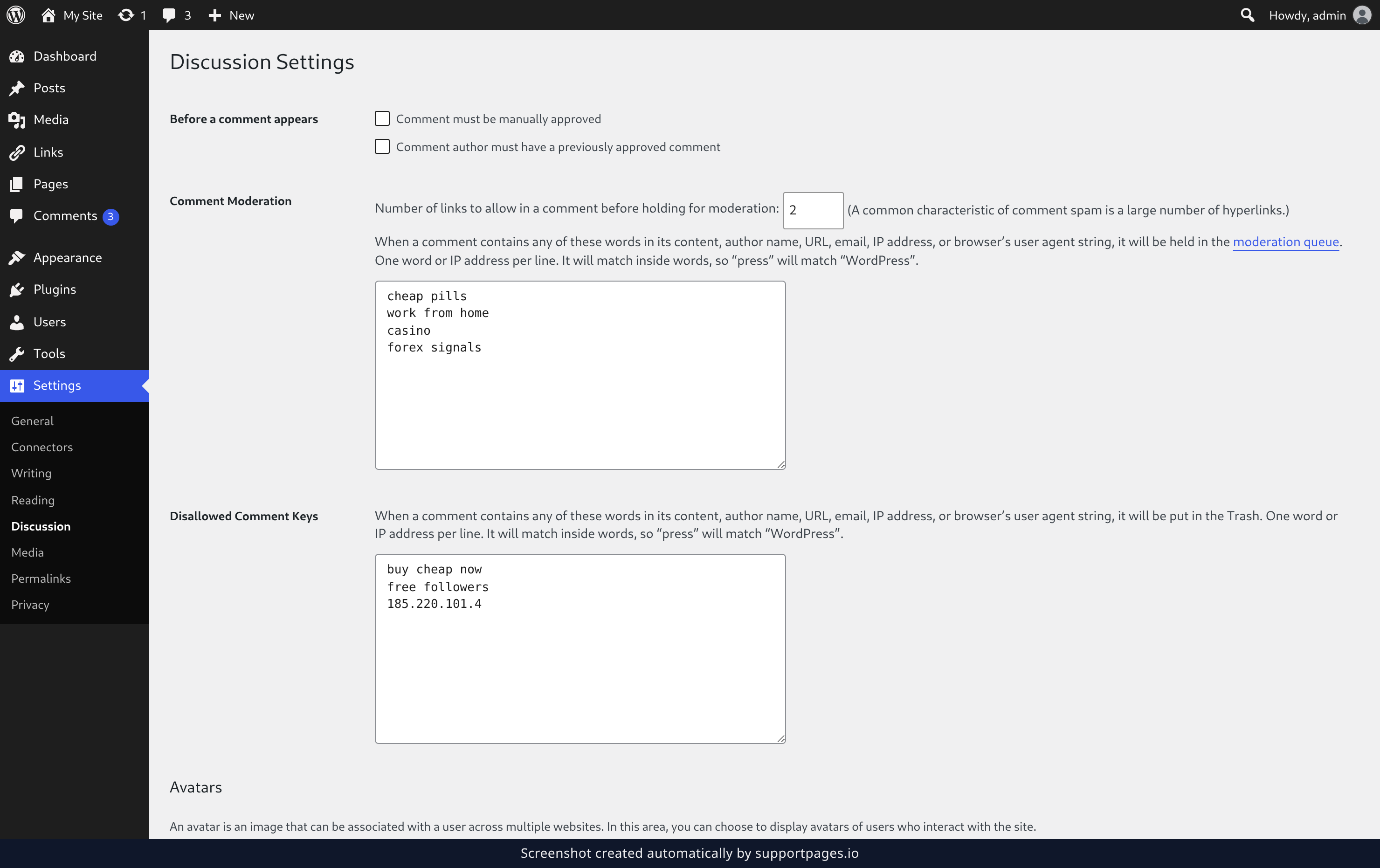
Under Comment Moderation, lower the Number of links to allow in a comment before holding for moderation: to a small number like 2. Most genuine replies link to nothing at all, while spam is usually stuffed with links.
Then type the words you want flagged into the box below it, one per line. A comment containing any of them waits for you instead of appearing on your site straight away.
Block words you never want to see
In the Disallowed Comment Keys box, list the words and phrases that always mean junk, one per line. Comments containing them go straight to the Trash, so they never reach your queue at all.
Let your regulars comment freely
Under Before a comment appears, tick Comment author must have a previously approved comment. Someone commenting for the first time is held back, but anyone you've approved before posts right away — no waiting on you.
Save your changes
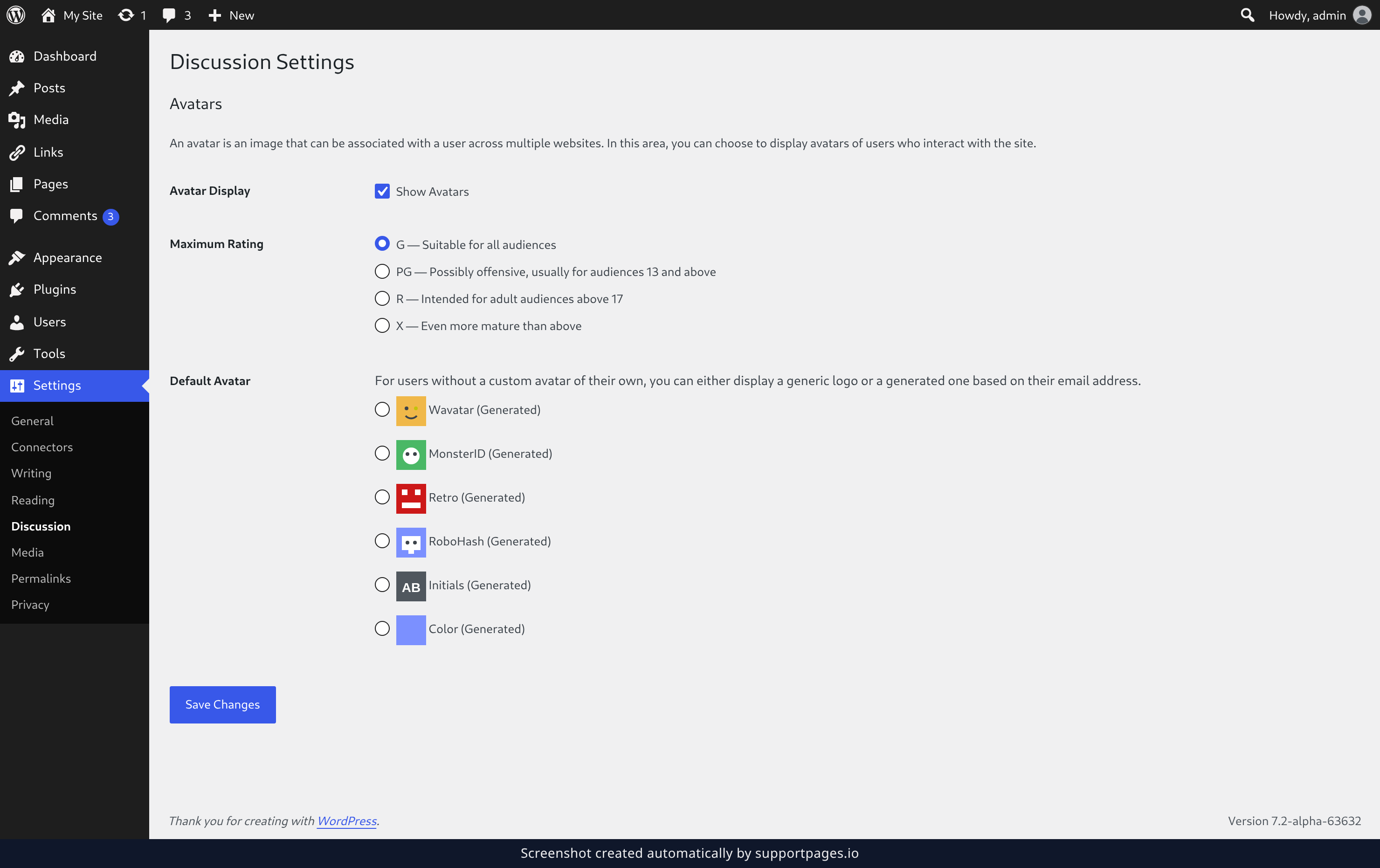
Scroll to the bottom of the page and click Save Changes. Your rules start working on the very next comment.
Tips
-
Both keyword boxes match inside words, so a line like
pressalso catchesWordPress. Use whole phrases when a short word is too broad. - You can add IP addresses to either box, one per line, if the same troublemaker keeps coming back.
- Want to read everything before it goes live? Tick Comment must be manually approved under Before a comment appears as well.
- Comments held for review wait in the Pending view of your Comments screen until you approve them, so nothing gets lost.
Summary
Your site now screens comments before they appear: link-heavy ones and keyword hits wait for your approval, blocked words are trashed, and trusted commenters sail through. You only read what actually needs a human eye.
Was this article helpful?
Help centre by supportpages.io — AI-generated documentation for SaaS.
Have a question?
Search our articles, or ask and get an answer straight away.