
How to set your category and tag URL bases
Updated about 1 month ago
Browse All
Your category and tag pages sit at web addresses that start with a word you get to choose. Here's how to swap the default category and tag for words that sound like your site — no code needed.
Prerequisites
- An account that can manage your site's settings — the Administrator role.
- Your permalinks set to something other than Plain, for example Post name. The category and tag bases only show up in links that use a readable structure.
Steps
Open the Permalink Settings screen
In the left-hand menu, choose Settings, then Permalinks. The Permalink Settings screen opens with your current link structure at the top.
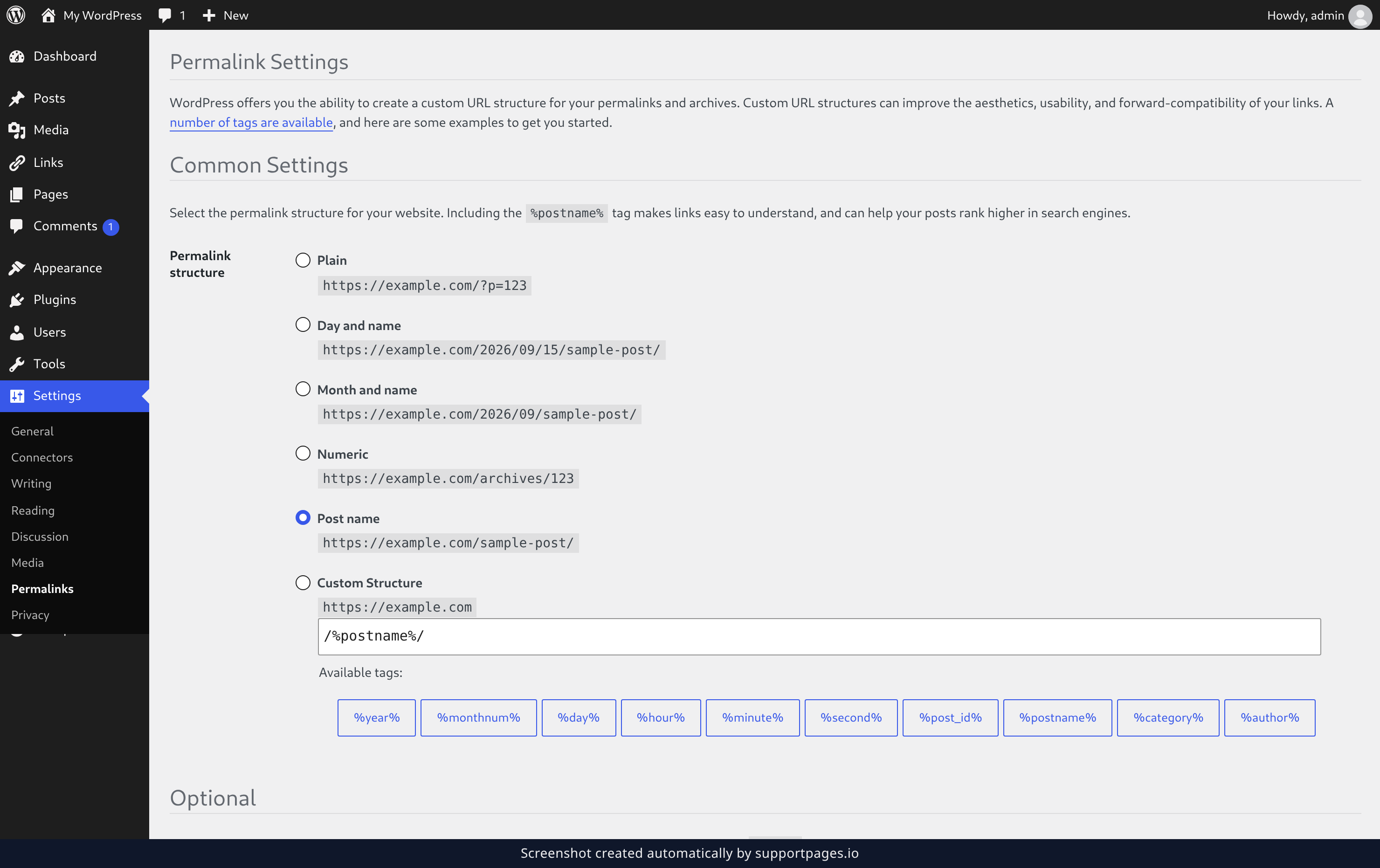
Fill in your category and tag bases
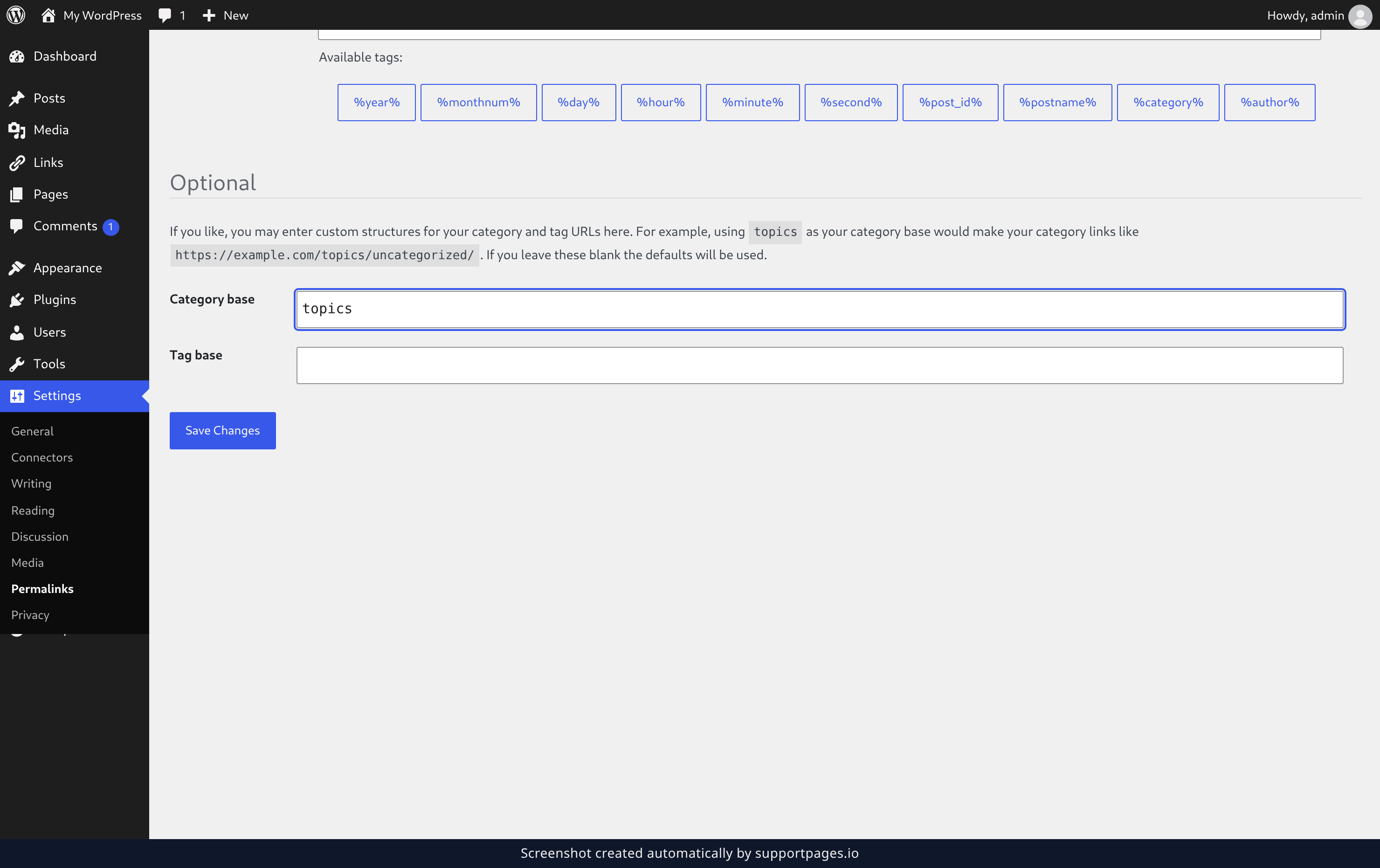
Scroll down to Optional and type the words you want your archive links to start with into the Category base and Tag base fields. Using topics as your category base, for example, makes your category links read /topics/uncategorized. Then click Save Changes.
What you'll see after saving
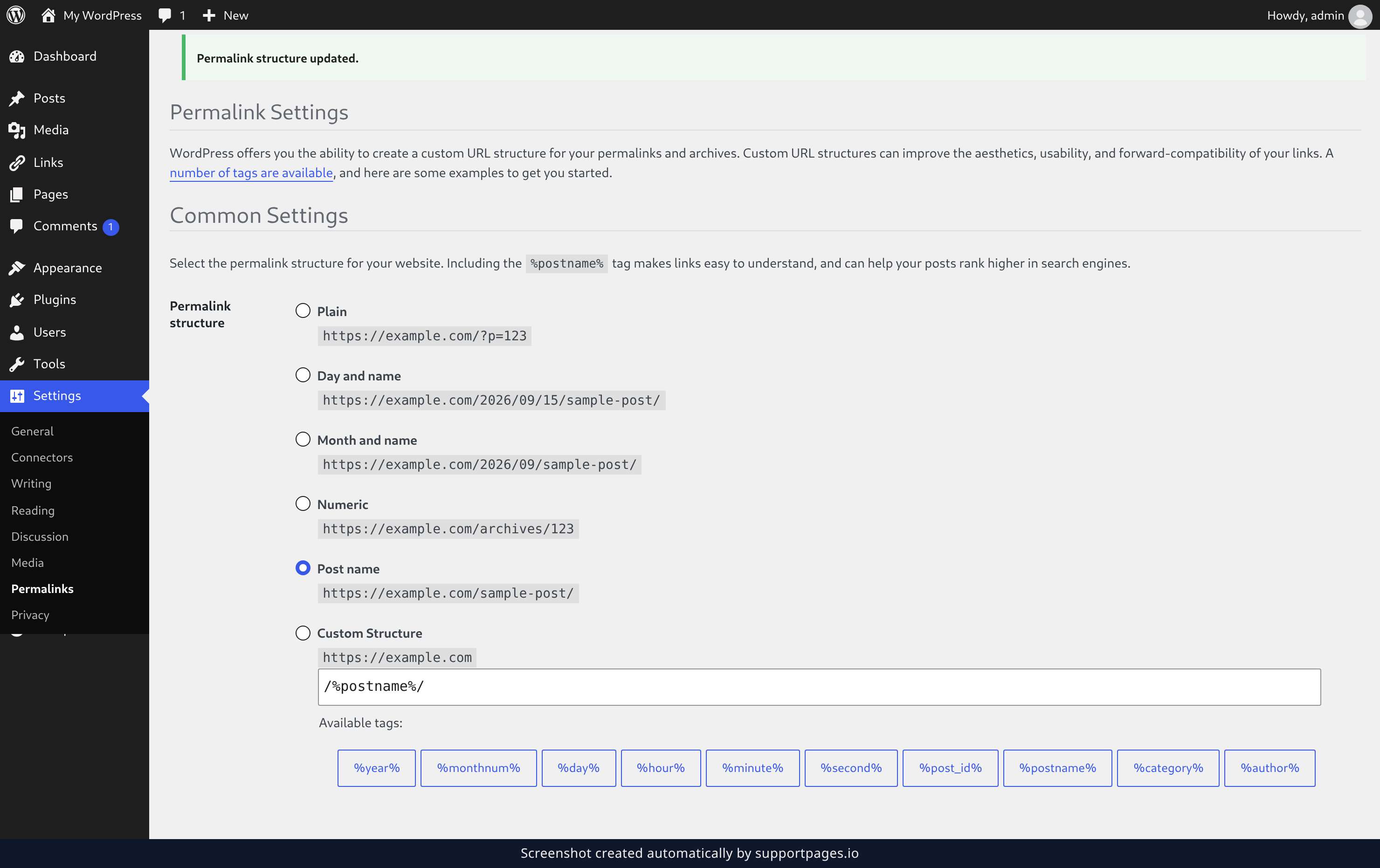
WordPress returns you to the same screen with Permalink structure updated at the top. The Category base and Tag base fields now hold the words you typed, and your archive links use them.
Tips
- Keep the words short and lowercase — they become part of every category and tag link on your site.
- If you leave these blank the defaults will be used, so you can always clear a field to go back to the original word.
- Changing a base changes the addresses people had bookmarked, so it's worth mentioning the new links to your readers.
Summary
Open Settings, then Permalinks, fill in the Category base and Tag base fields under Optional, and click Save Changes. Your archives now use the words you chose.
Was this article helpful?
Kept in sync by supportpages.io — continuous documentation for your product.
Have a question?
Search our articles, or ask and get an answer straight away.