
How to log out of your site
Updated about 1 month ago
Browse All
Signing out is the simplest way to keep your site safe — especially on a computer you share or use somewhere public. It takes two clicks from the toolbar at the top of your screen.
Before you start
- You're already signed in to your site.
- Your username and password, in case you want to sign back in.
Steps
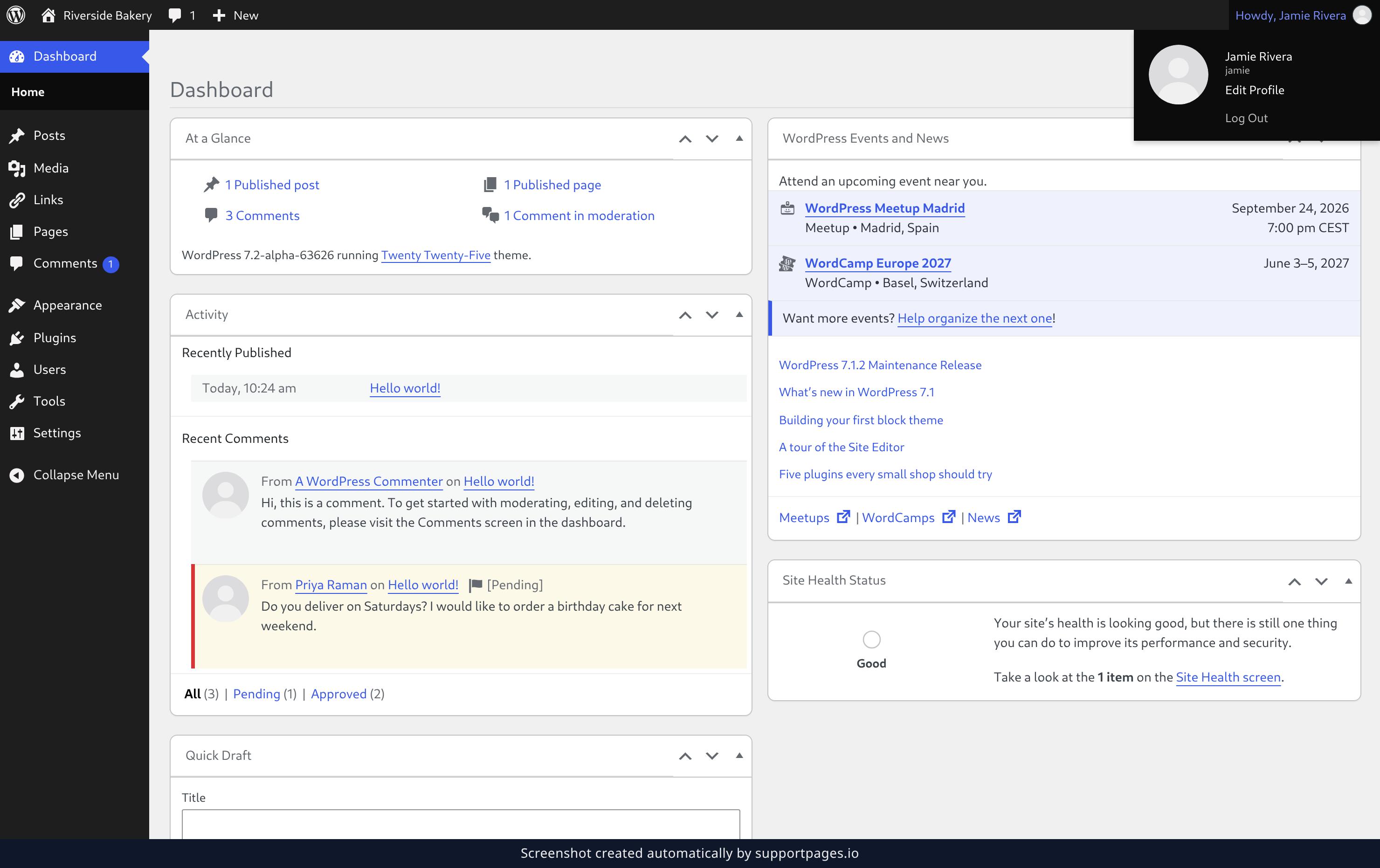
Open your account menu and click Log Out
Look in the top-right corner of the toolbar. Click Howdy, followed by your name and picture to open your account menu, then choose Log Out at the bottom of the menu. Your session ends right away, and nothing else on your site changes.
Check that you're signed out
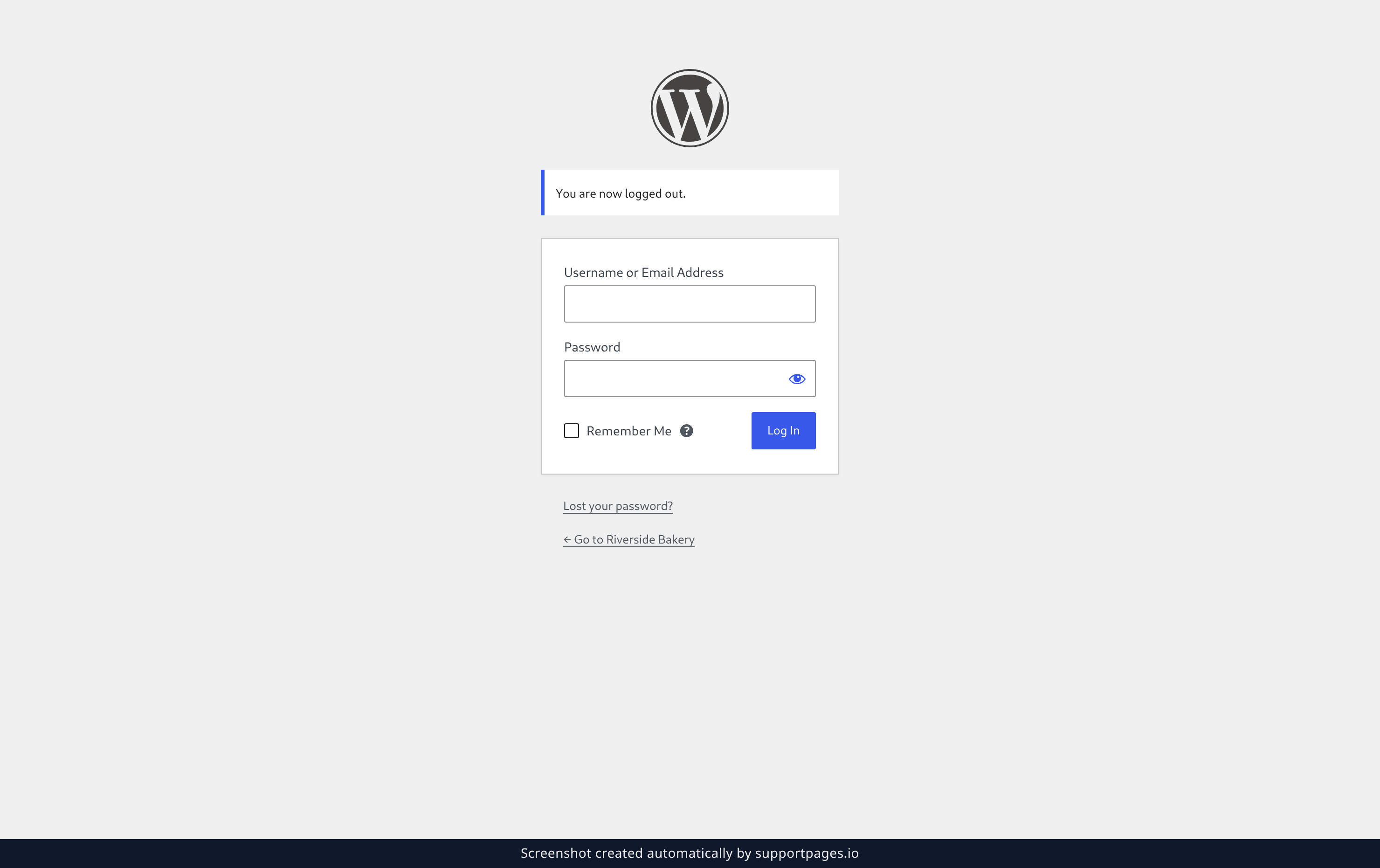
You'll land back on your site's login screen with the message You are now logged out. Anyone using this browser now has to sign in before they can reach your site.
Tips
- Log Out ends your session in this browser only. Any other device where you're signed in stays signed in.
- On a shared or public computer, close the browser window once you're logged out.
Summary
That's it — you're signed out and your site is safe. Nothing in your content has changed, and you can sign back in any time with your username and password.
Was this article helpful?
Kept in sync by supportpages.io — continuous documentation for your product.
Have a question?
Search our articles, or ask and get an answer straight away.