
How to edit your site with the Site Editor
Updated about 1 month ago
Browse All
The Site Editor is where you change how your whole site looks — the layout of your pages, your header and footer, and the colors and fonts used everywhere. It all happens inside WordPress, so there's no code to write.
Before you start
- A WordPress account that's allowed to change your site's design.
- A theme that works with the Site Editor. If yours does, you'll see the Editor item under Appearance — the Twenty Twenty-Five theme that comes with WordPress is one of them.
- JavaScript turned on in your browser, since the Site Editor runs in it.
Steps
Open the Site Editor
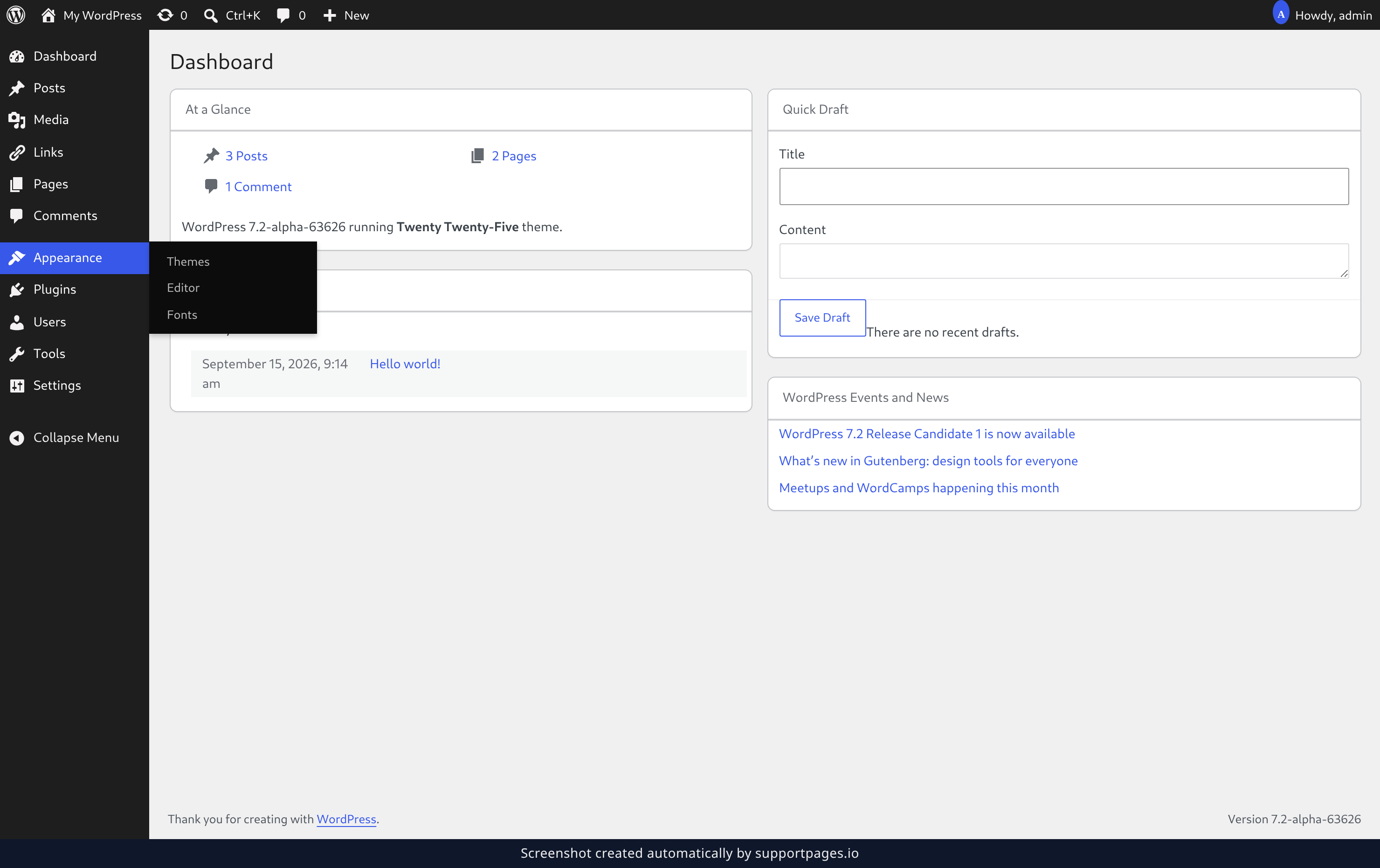
In your WordPress dashboard, open the Appearance menu in the left-hand sidebar, then click Editor. The Site Editor opens in full screen with a preview of your site.
See what you can change
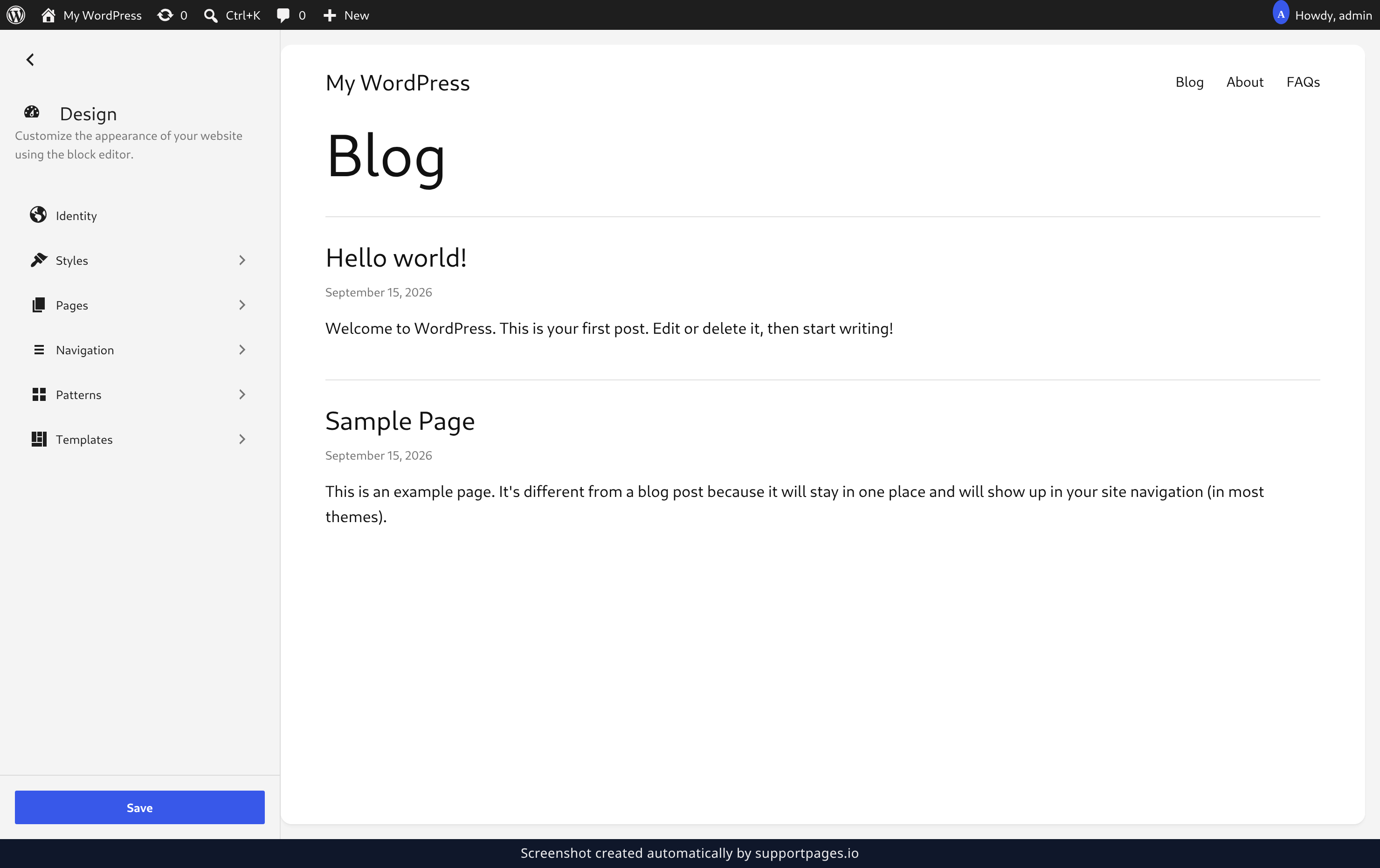
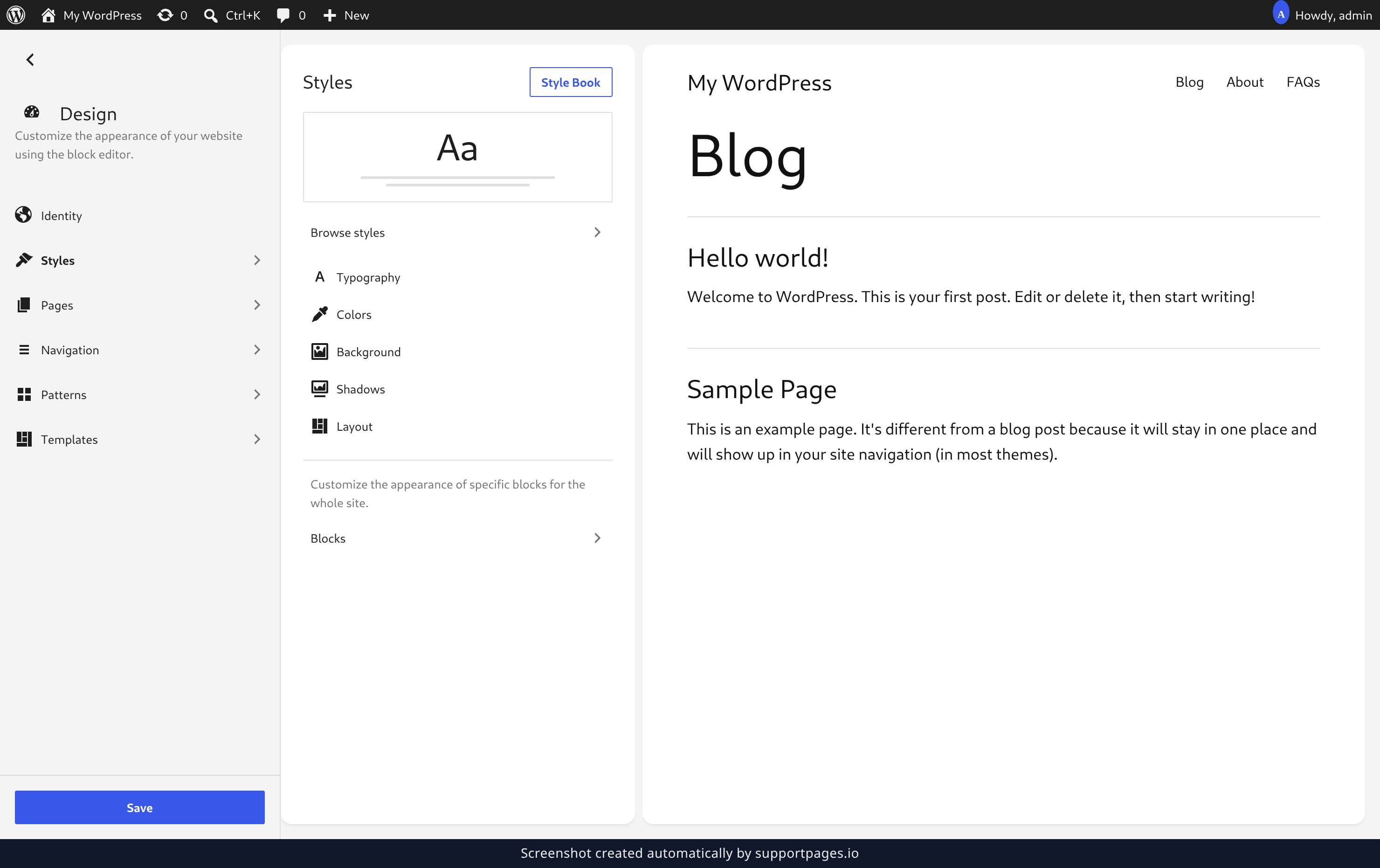
The Design screen is your starting point. Choose Templates to change how your pages and posts are laid out, Patterns to work on your header, footer and other template parts, or Styles to set the colors, fonts and spacing for your whole site.
Edit a template
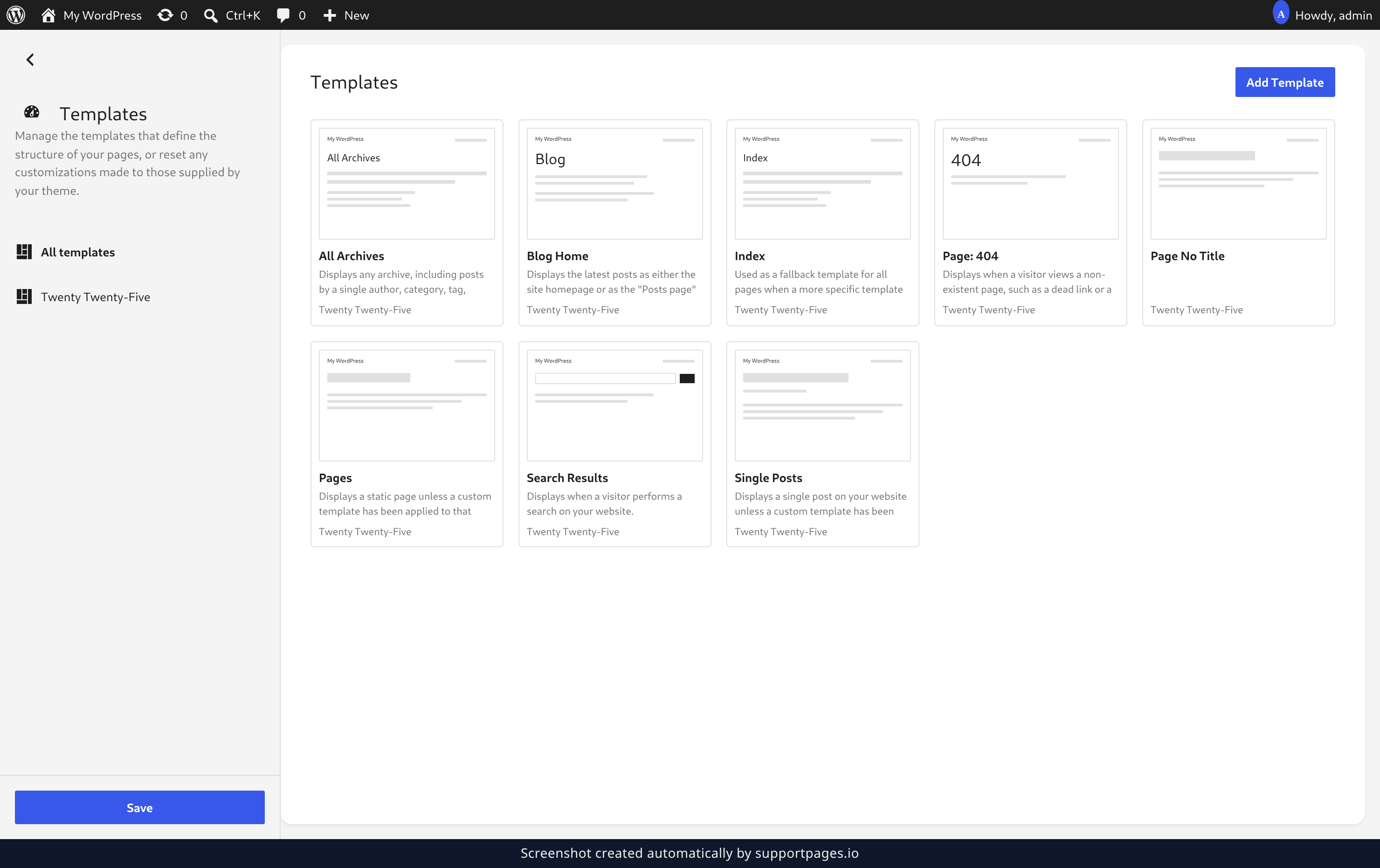
Choose Templates and pick the one you want to change — Blog Home holds the page your visitors land on. Click the words on the page and start typing to replace them with your own.
Your templates use the same blocks you already know from writing posts, so you can add an image, a button or a whole new section the same way.
Edit a template part
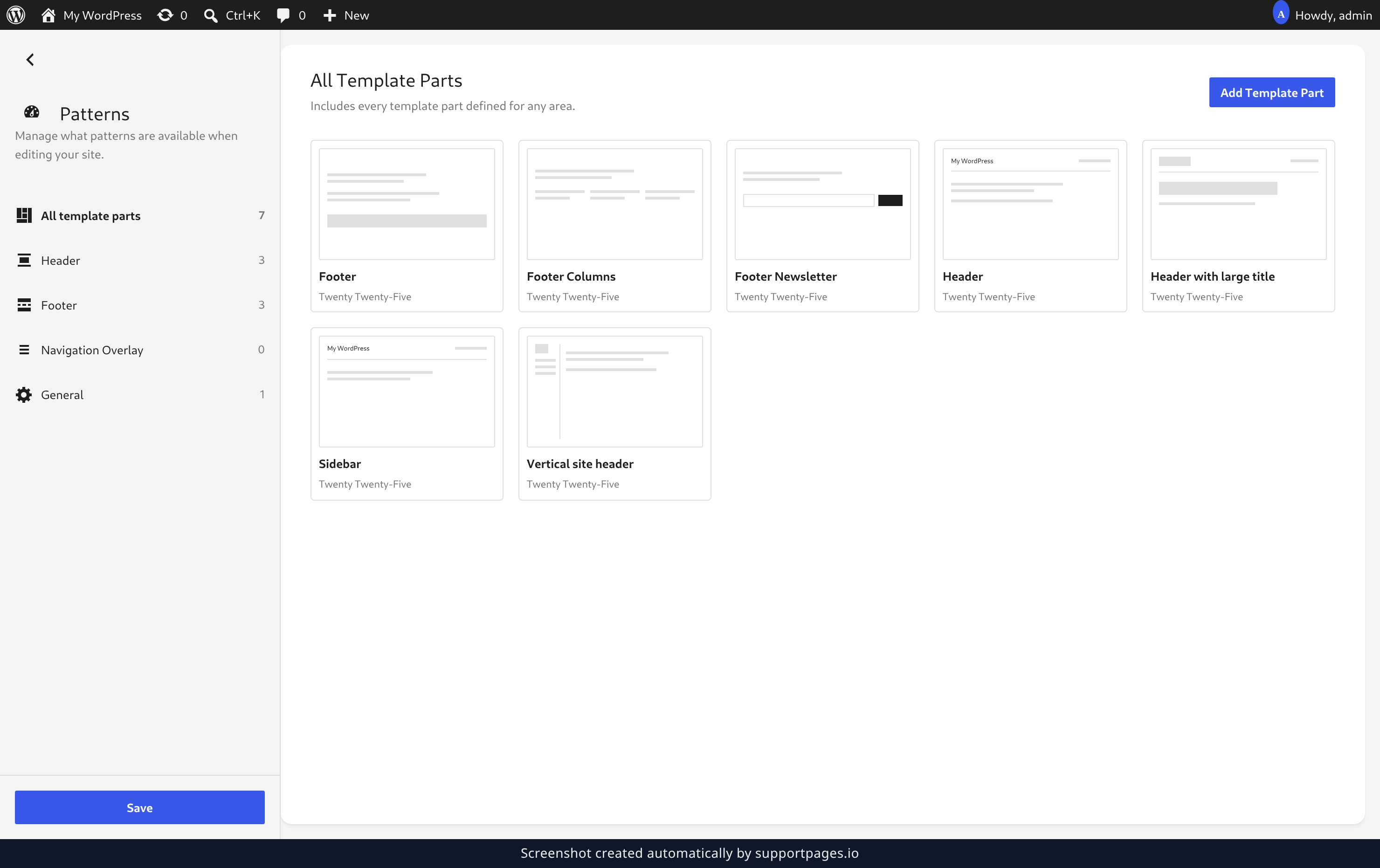
Template parts are the pieces that repeat on every page — your header, your footer, your sidebar. Choose Patterns, then select Header in the sidebar to see the ones your theme provides.
Open a part and change it the same way you edited the template.
Change your site's colors and fonts
Choose Styles to shape how the whole site looks at once. Open Colors to pick a fresh palette, Typography to set your fonts, or Layout to adjust the width and spacing of your content.
Save your changes
Click Save at the bottom of the left sidebar. Your changes go live on your site straight away, and the button reads Saved once everything is in.
Tips
- Not sure where a piece of your page lives? If it repeats on more than one page, it's probably a template part — look under Patterns.
- Open Browse styles in the Styles panel to try a ready-made variation of your theme's design before you pick your own colors.
-
Changed your mind before saving? Undo with
Ctrl+Z, orCmd+Zon a Mac.
Summary
Templates for layouts, Patterns for the pieces that repeat, and Styles for colors and fonts — the Site Editor keeps all of it in one place. Make your changes, click Save, and your site updates everywhere at once.
Was this article helpful?
Made by supportpages.io — turning pull requests into automated user documentation.
Have a question?
Search our articles, or ask and get an answer straight away.