
How to share your site’s details with support
Updated about 1 month ago
Browse All
WordPress keeps a tidy summary of how your site is set up — your WordPress version, your server, your plugins, and plenty more. Handing that summary to support saves you a round of back-and-forth questions before anyone can help.
Before you start
- An administrator account on your site — Site Health is only visible to administrators.
- The support request you're writing open in another tab, so you can paste straight into it.
Steps
Open Site Health
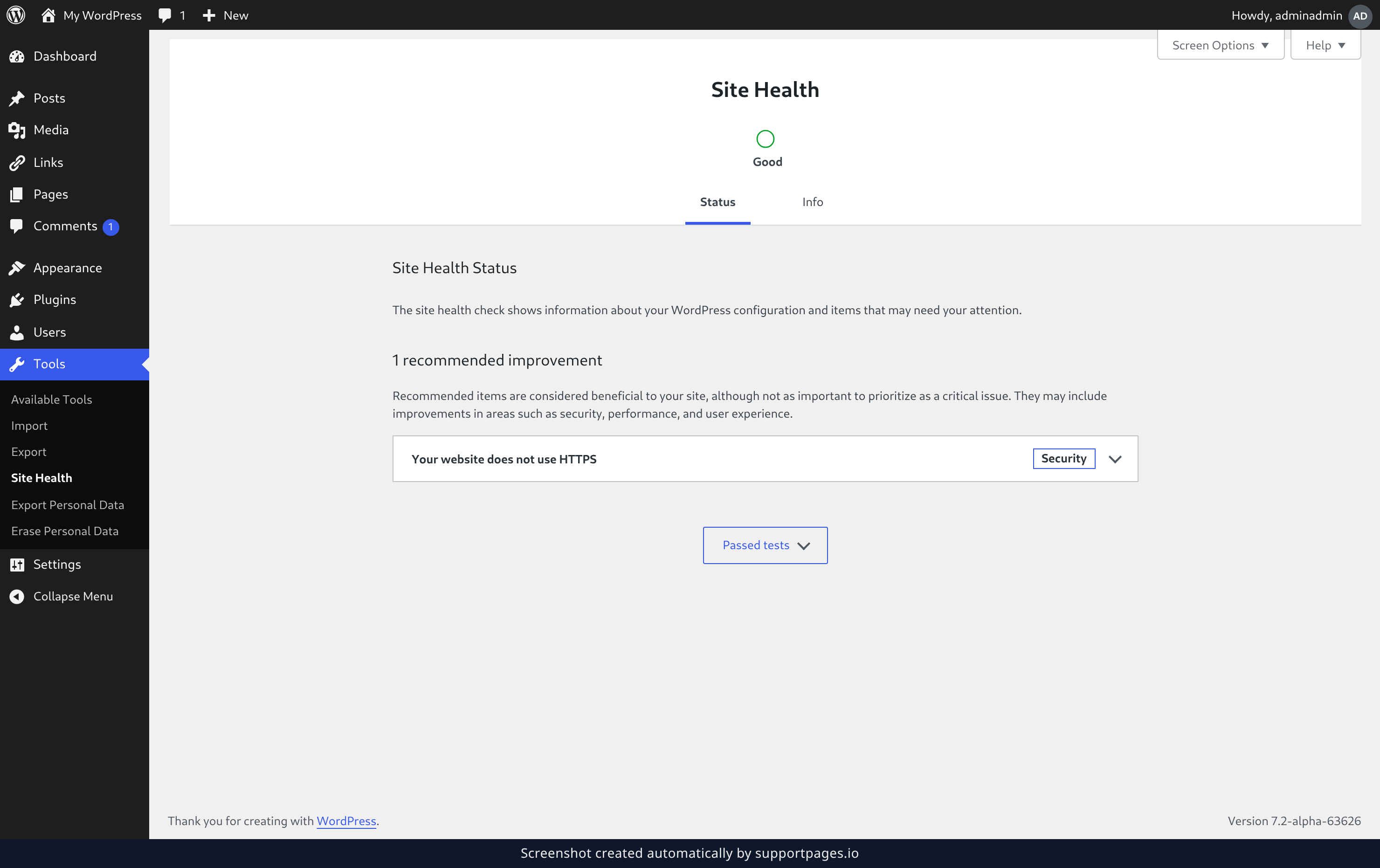
In the left-hand menu of your dashboard, hover over Tools and choose Site Health. It opens on the Status tab, which is WordPress's own check-up of your site.
Open the Info tab
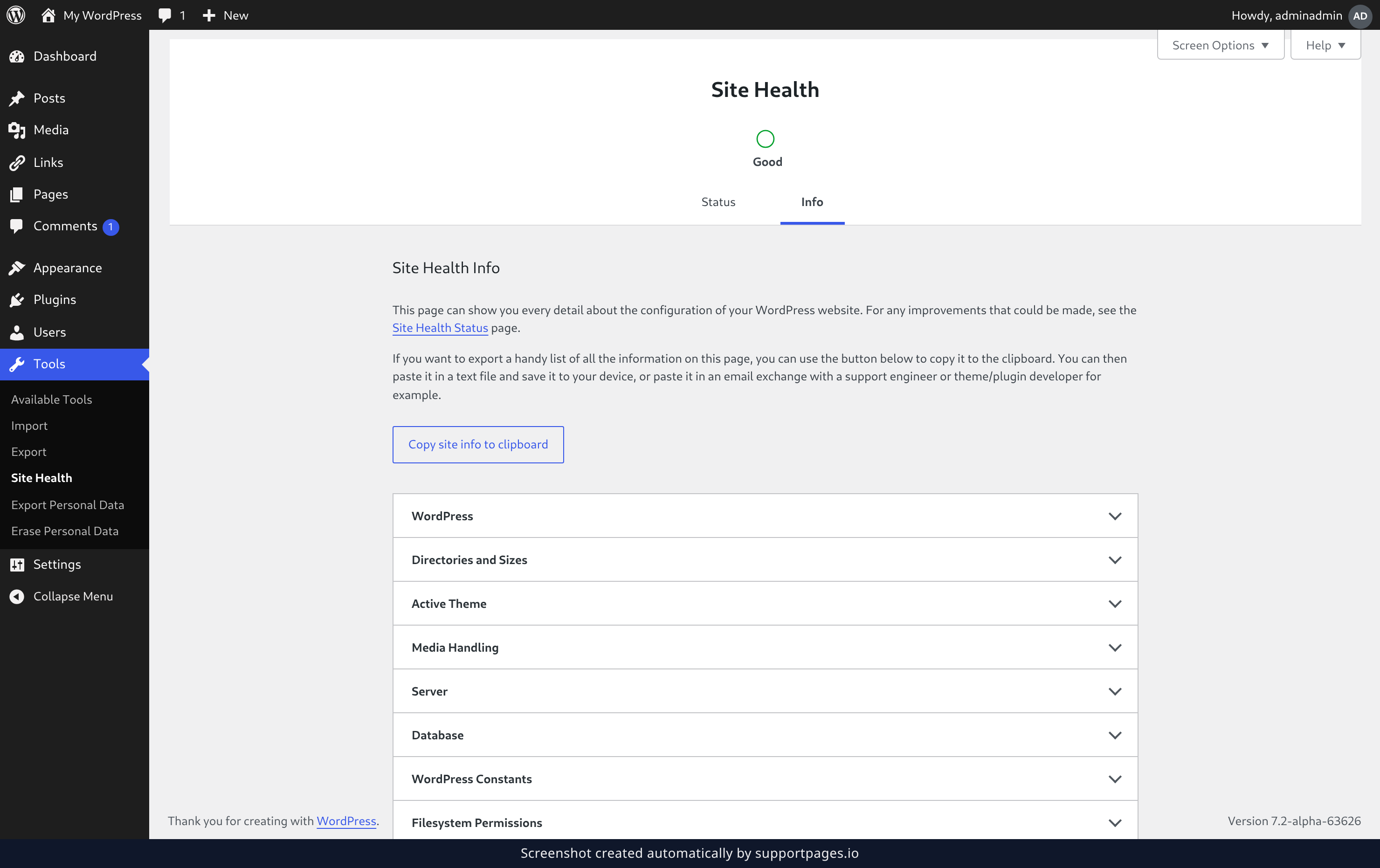
Click the Info tab at the top of the screen. Everything WordPress knows about your setup lives here, grouped into sections you can open one at a time.
Look through the details
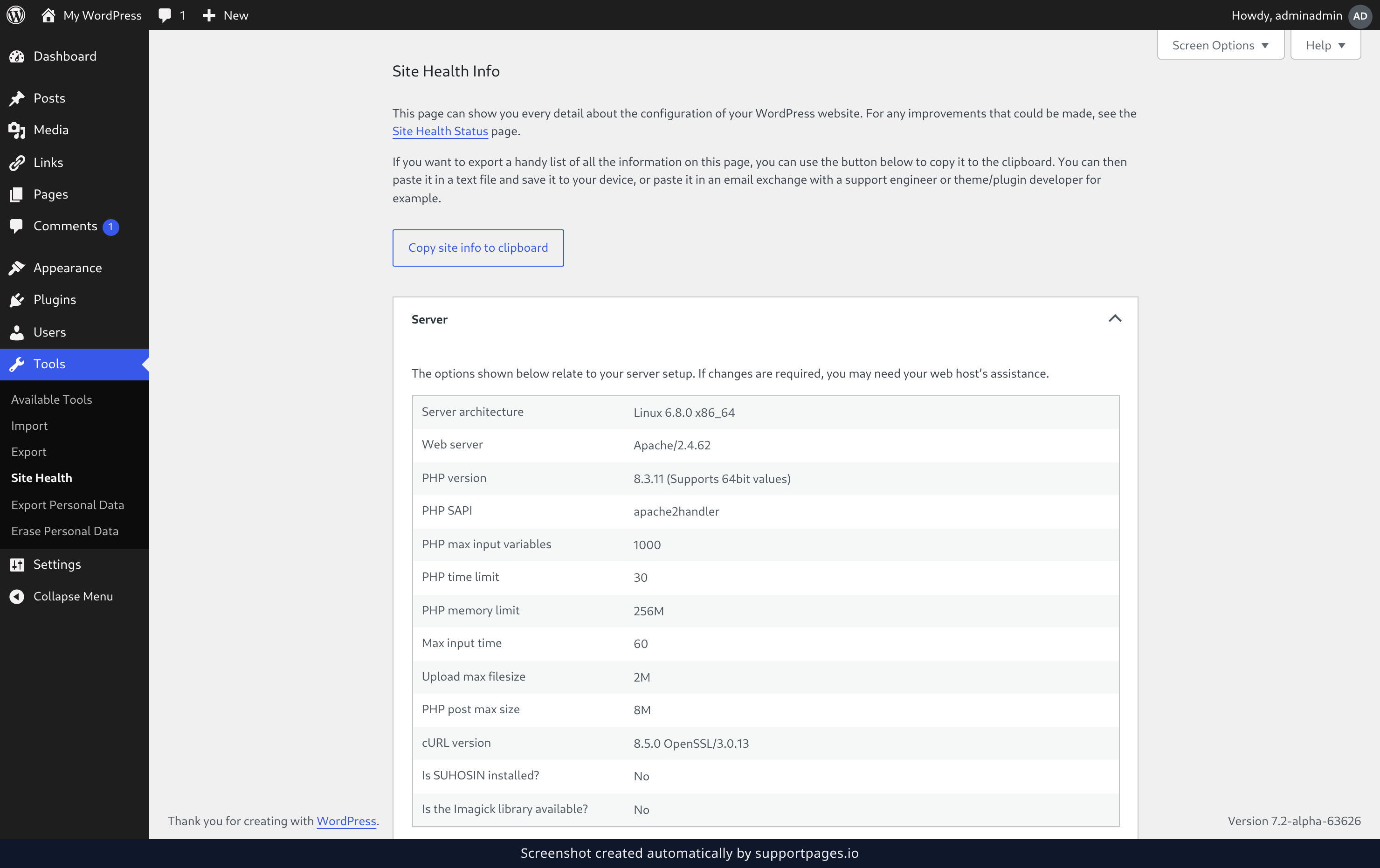
Click a section heading, such as Server or WordPress, to open it. Each section lists the plain facts your support contact is likely to ask about — your PHP version, your Web server, and whether your site is using HTTPS.
Copy all of it
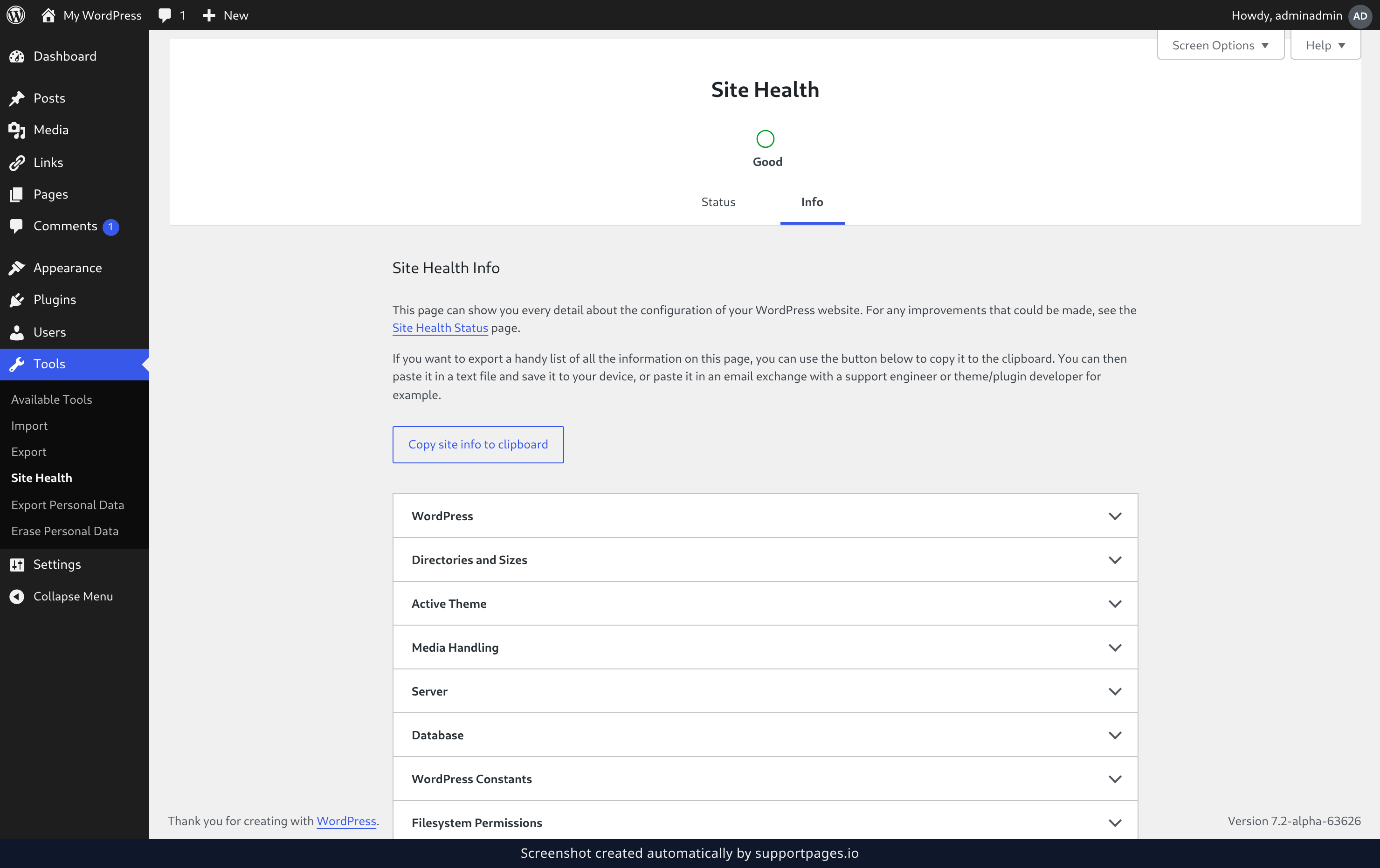
Click Copy site info to clipboard. You'll see Copied! appear next to the button, which tells you the whole list is now on your clipboard as plain text.
Tips
- Copy the whole list rather than picking out lines you think matter — support often spots the cause in a section you hadn't considered.
- It's plain text, so you can paste it into an email, a support form, or a text file and save it for later.
- Come back before each new support request and copy a fresh version — the details change as you update WordPress, your theme, and your plugins.
Summary
The Info tab on the Site Health screen gathers everything about your setup in one place, and one click copies all of it. Send that copy along with your question and support can get straight to work.
Was this article helpful?
Built with supportpages.io, a help centre generator for developers — written from your codebase.
Have a question?
Search our articles, or ask and get an answer straight away.