
How to manage your site’s fonts
Updated about 1 month ago
Browse All
Your site's fonts live in one place in the dashboard, and you can change them without editing a single theme file. Install a family from the font library or upload your own files, then decide which styles each family offers.
Before you start
- An administrator account on your site.
-
Your font files, if you're adding your own (
.ttf,.otf,.woff, or.woff2). - An internet connection for the first time you install from the font library.
Steps
Open your site's fonts
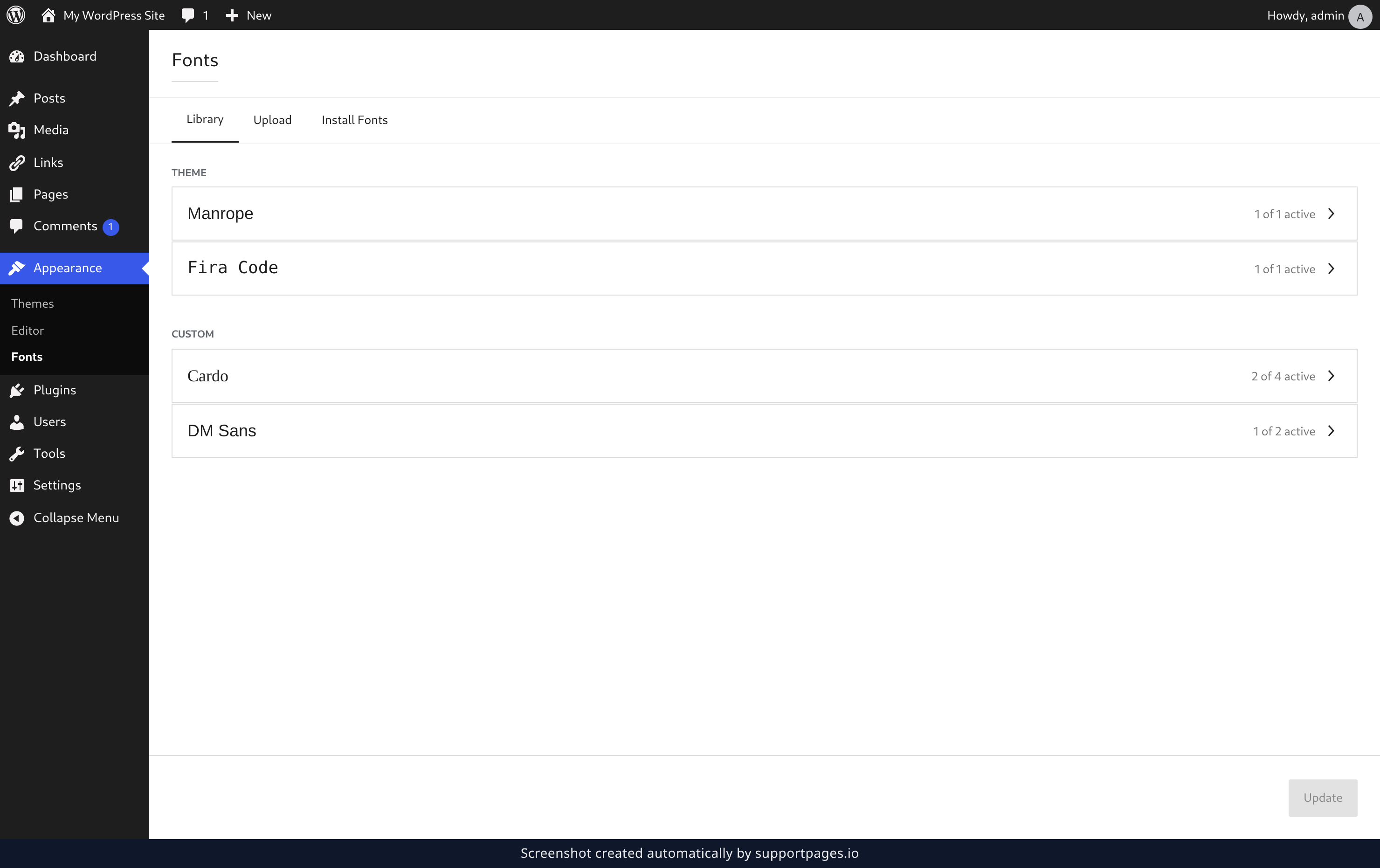
In the dashboard, open Appearance in the left-hand menu and select Fonts. The Library tab appears first, listing every font family already available on your site.
Upload your own font files
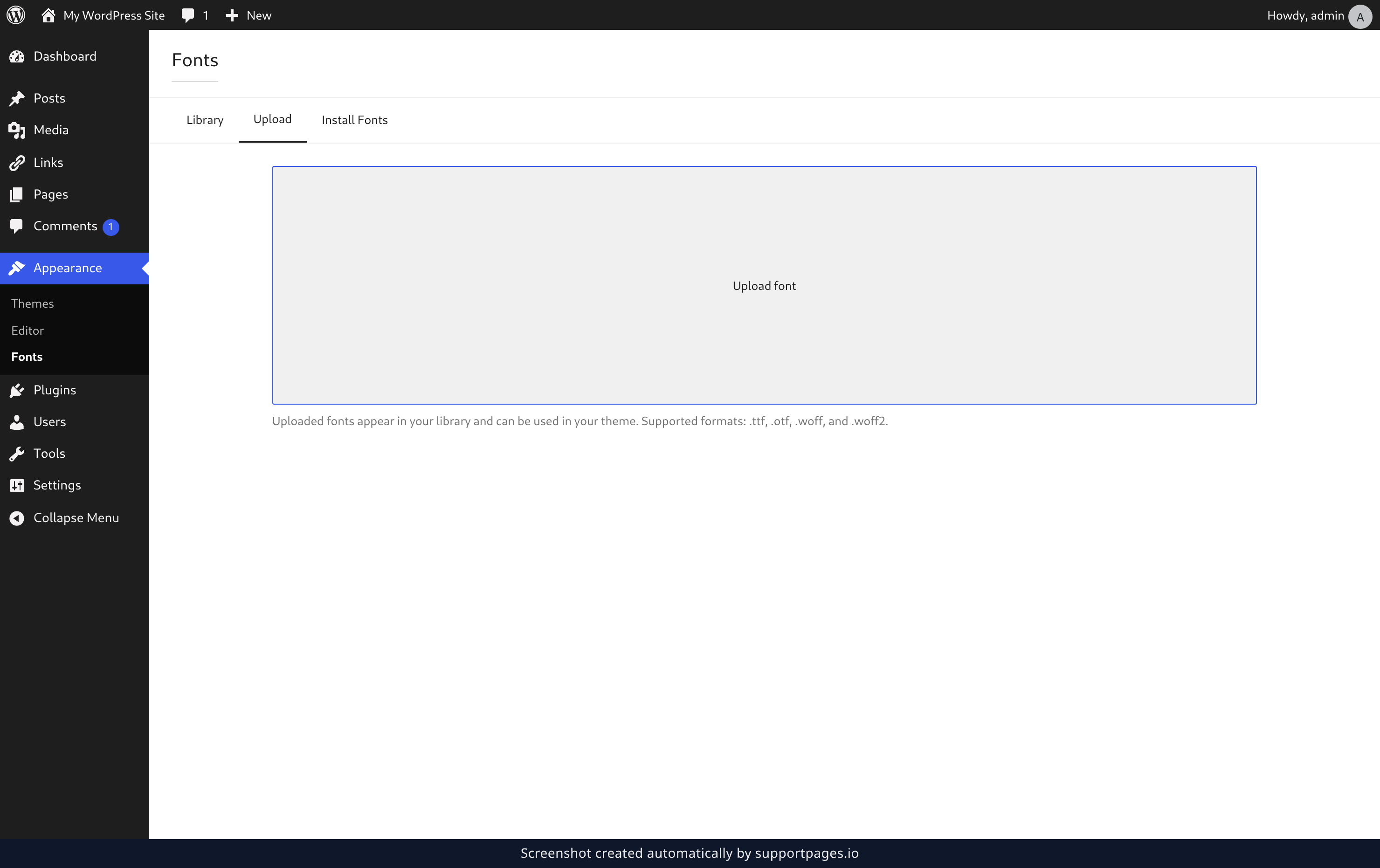
Select the Upload tab, then select Upload font and choose one or more files from your computer. You can also drag your files straight onto the upload area. New fonts land in the Library tab under Custom.
Allow access to the font library
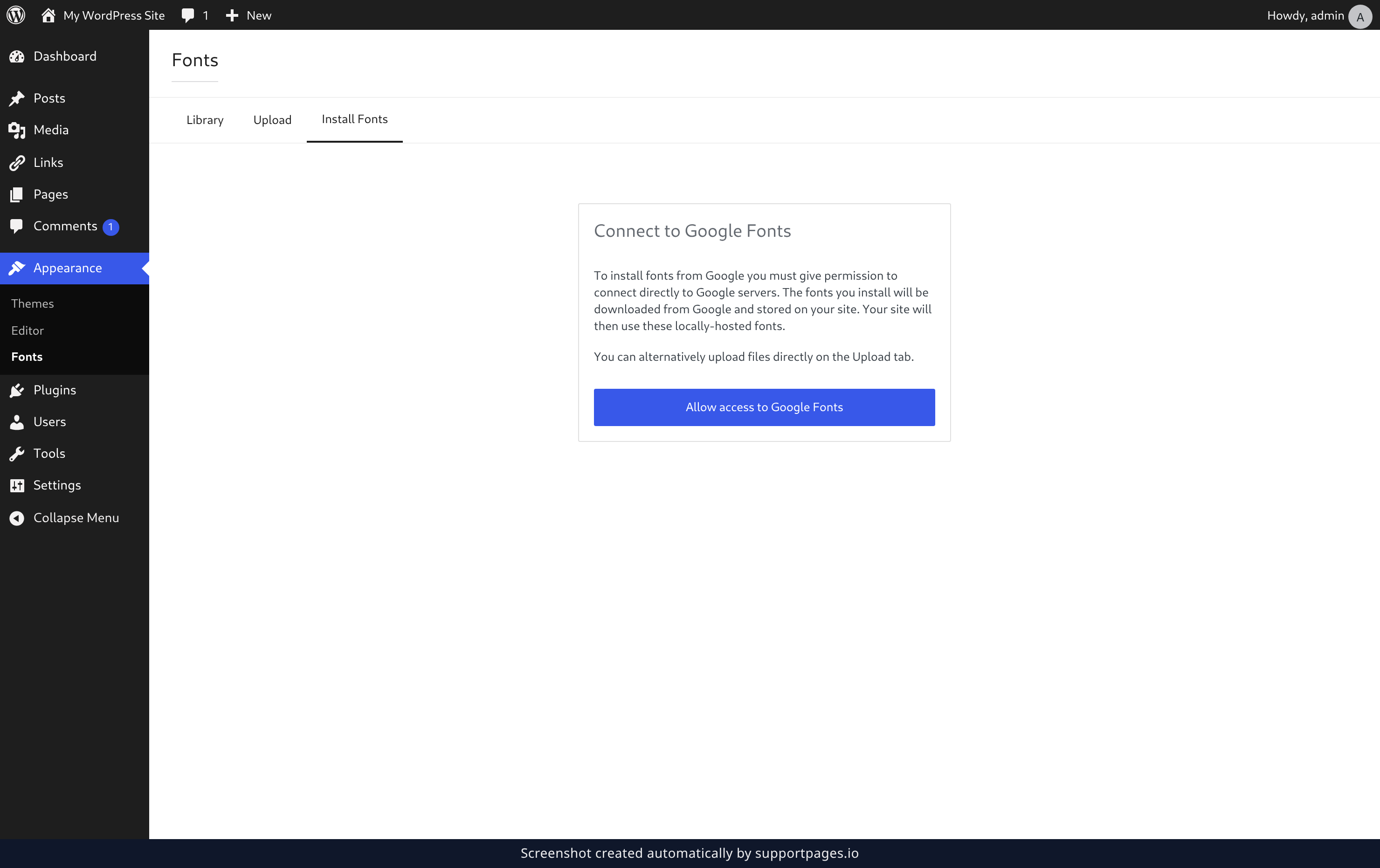
Open the Install Fonts tab. The first time you use it, select Allow access to Google Fonts so WordPress can download the fonts and store them on your own site.
Find a font family you like
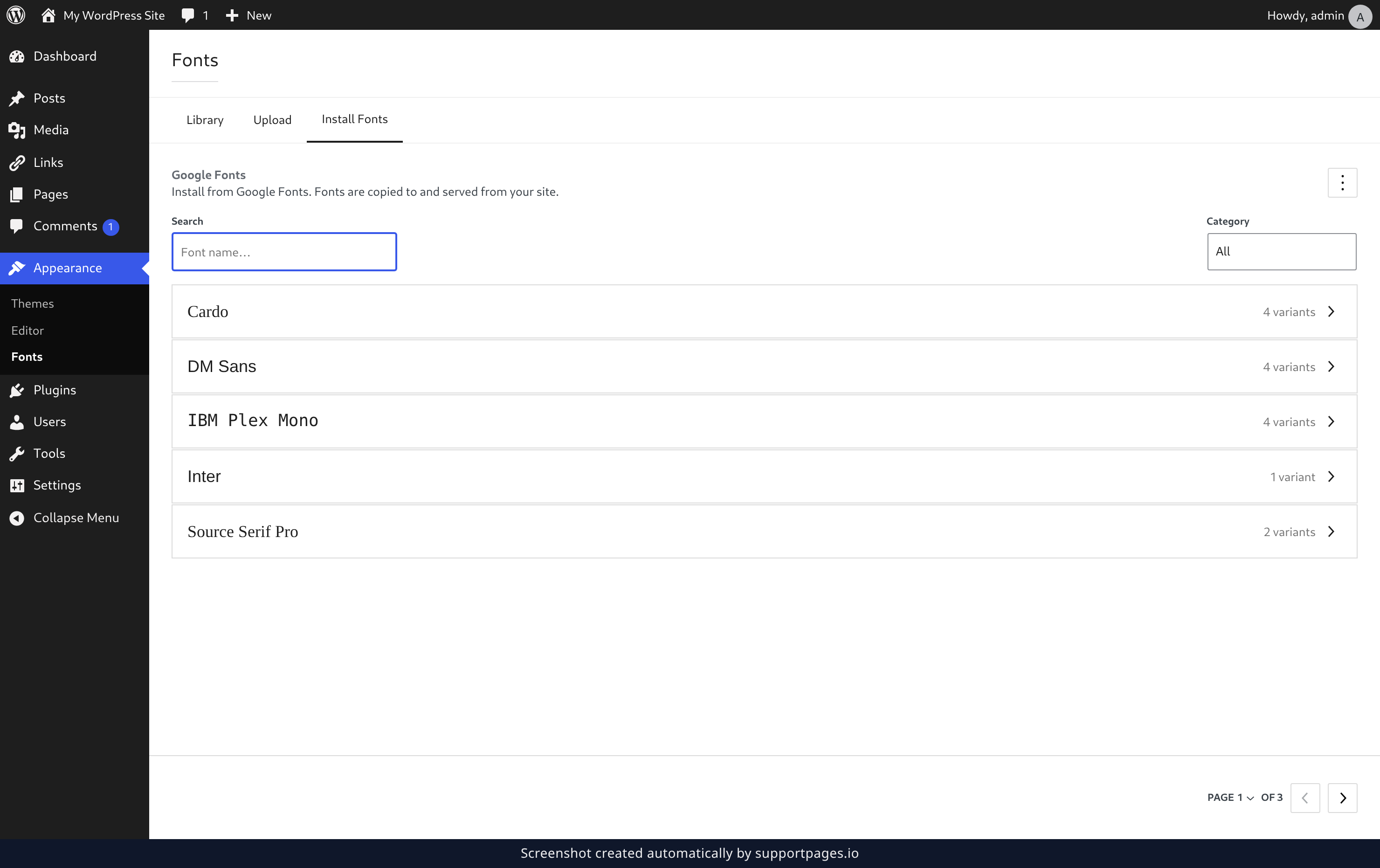
Browse the list, or type a name into Search to narrow it down. Select the family you want to open its styles.
Install the styles you need
Tick the styles you'll actually use, or choose Select all to take the whole family. Then select Install to add them to your site.
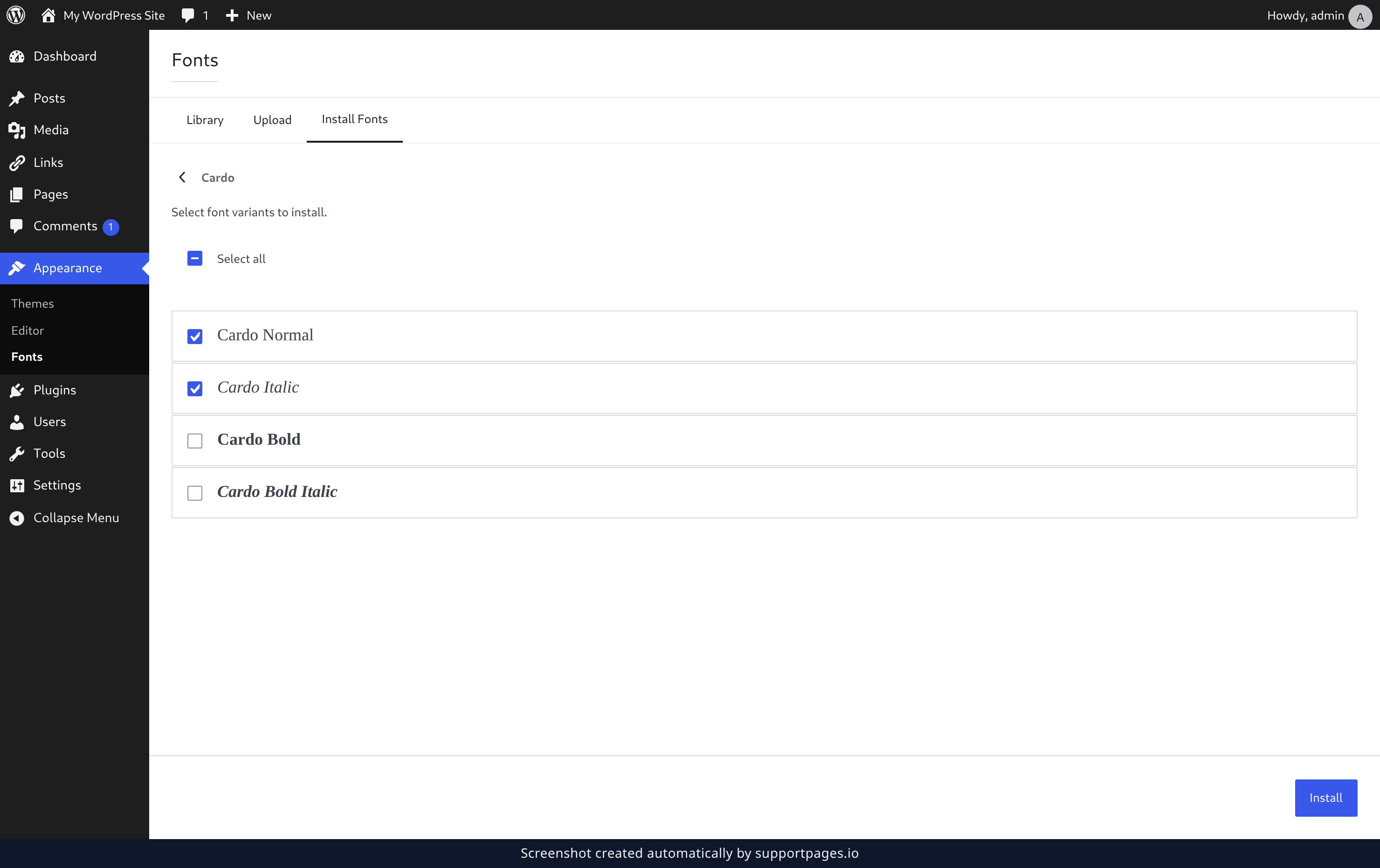
Keep each family tidy
Back in the Library tab, select a font family to manage its styles. Tick or untick the variants you want your site to use, then select Update to save your choice. To remove a family you uploaded, select Delete on the same screen.
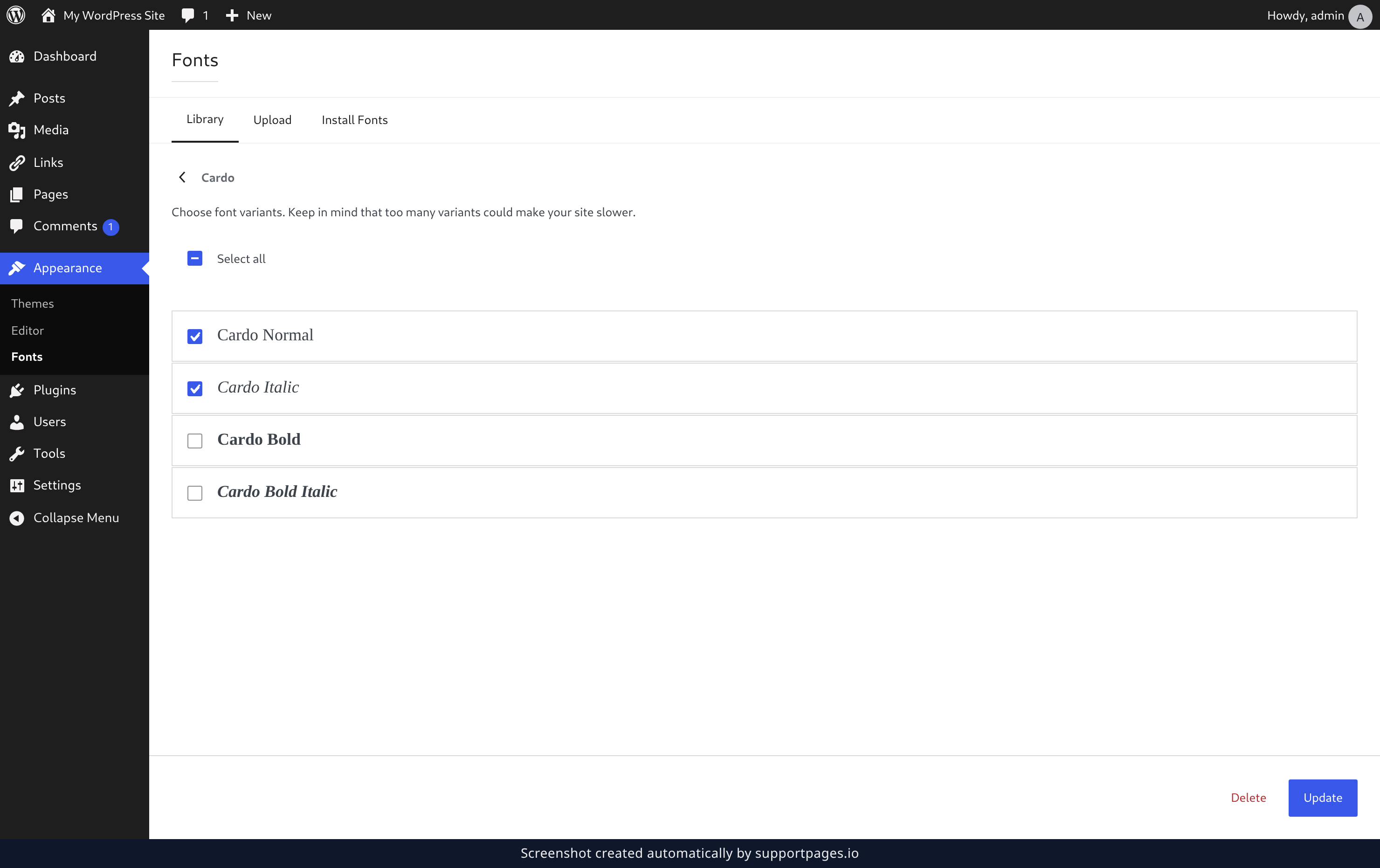
Tips
- Fonts you install from the library are copied to your site and served from there, so your pages keep working even if the library is unavailable.
- Your theme's own fonts stay listed under Theme, and anything you add yourself shows up under Custom, so you can always tell them apart.
- Going easy on variants keeps your site quick — every style you turn on is another file visitors have to download.
Summary
That's the whole font workflow: install a family from the library or upload your own files, then keep each one tidy by choosing the styles you really use.
Was this article helpful?
Generated by supportpages.io, an AI changelog generator for SaaS teams.
Have a question?
Search our articles, or ask and get an answer straight away.