
How to make quick and bulk edits to posts
Updated about 1 month ago
Browse All
You don't have to open a post in the editor just to fix a typo in its title or move it into another category. The Posts list lets you change a post's details right in the row, or apply the same change to a whole batch of posts at once.
Prerequisites
- An account that's allowed to edit posts on the site.
- A few posts in your list to work with.
Steps
Open your Posts list
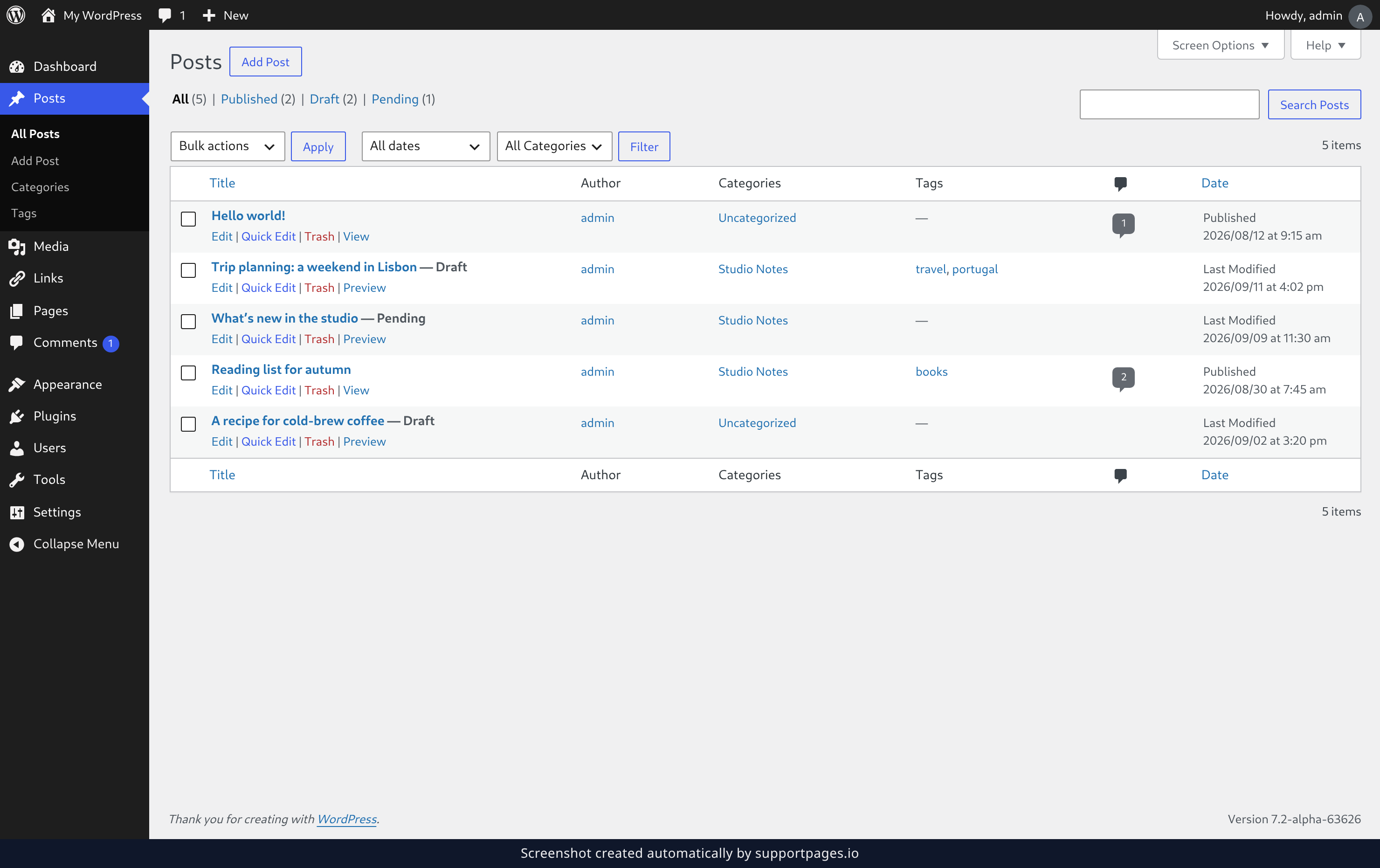
In the left sidebar, select Posts. That brings you to the list of every post on your site, with the newest at the top.
Open Quick Edit on a post
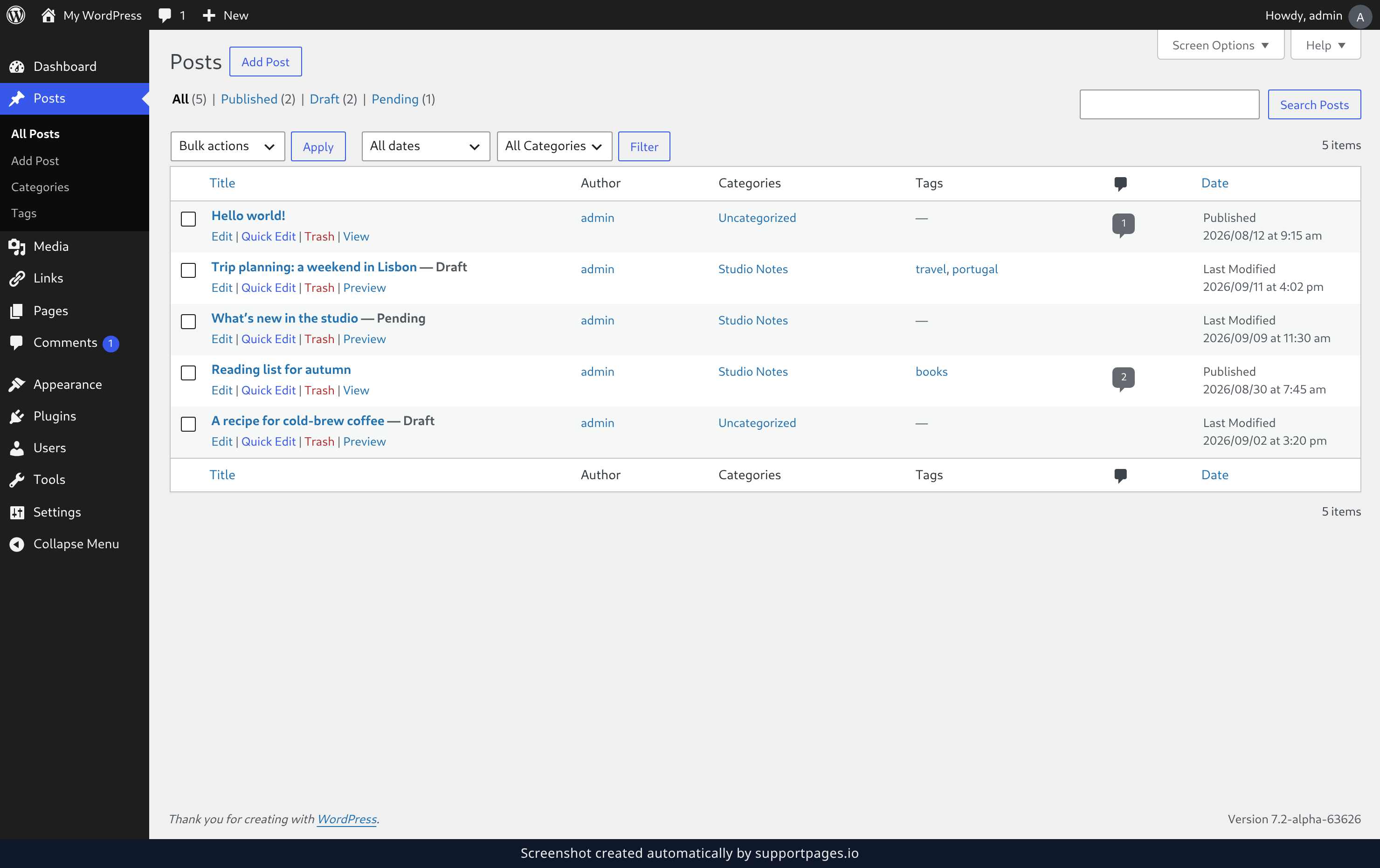
Point at the post you want to change. A row of links appears under its title — select Quick Edit. The post opens into a form right there in the list, so you never leave the screen.
Change the details you need
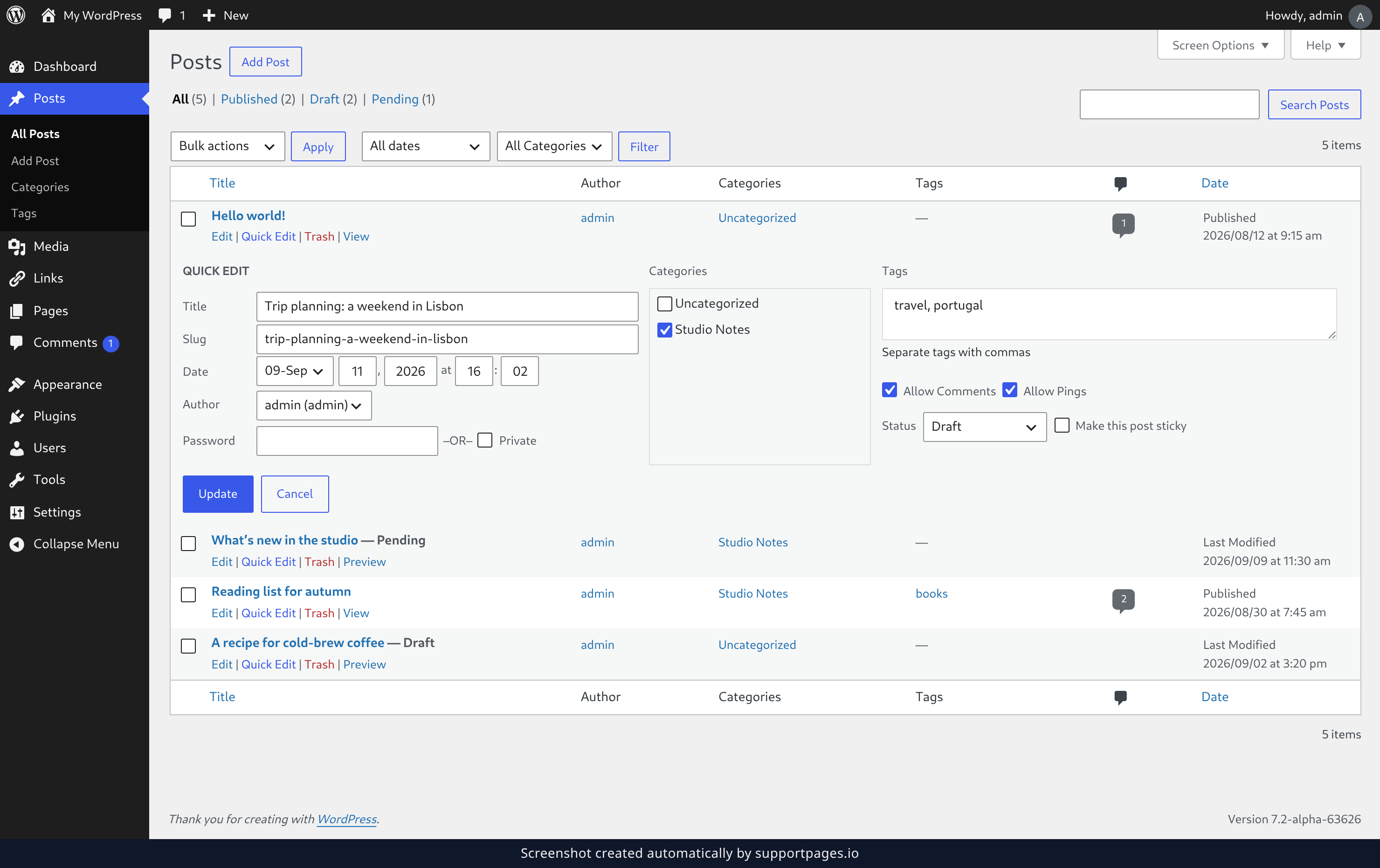
The form already has the post's current details filled in. Change the Title or the Slug, and set a new Status if you want to publish the post or move it back to a draft.
When everything looks right, select Update. The row closes and your change shows up in the list straight away.
Select the posts you want to change
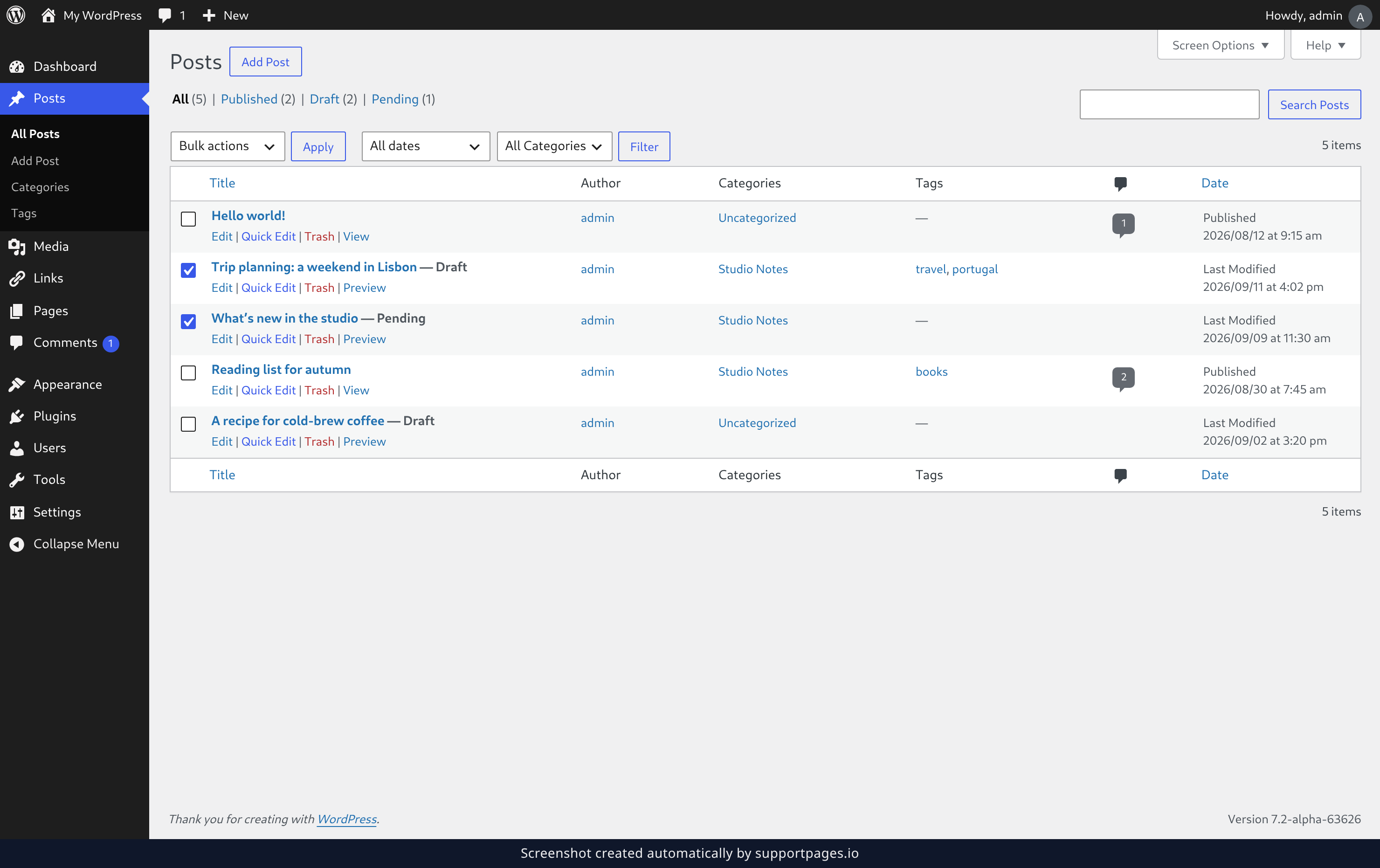
To change several posts at once, tick the checkbox beside each one. Want the whole page? Tick the checkbox at the top of the column to select them all.
Choose Bulk edit
Open the Bulk actions menu above the list, choose Bulk edit, then select Apply. A single editing form opens above your posts, ready for the change you want to make across all of them.
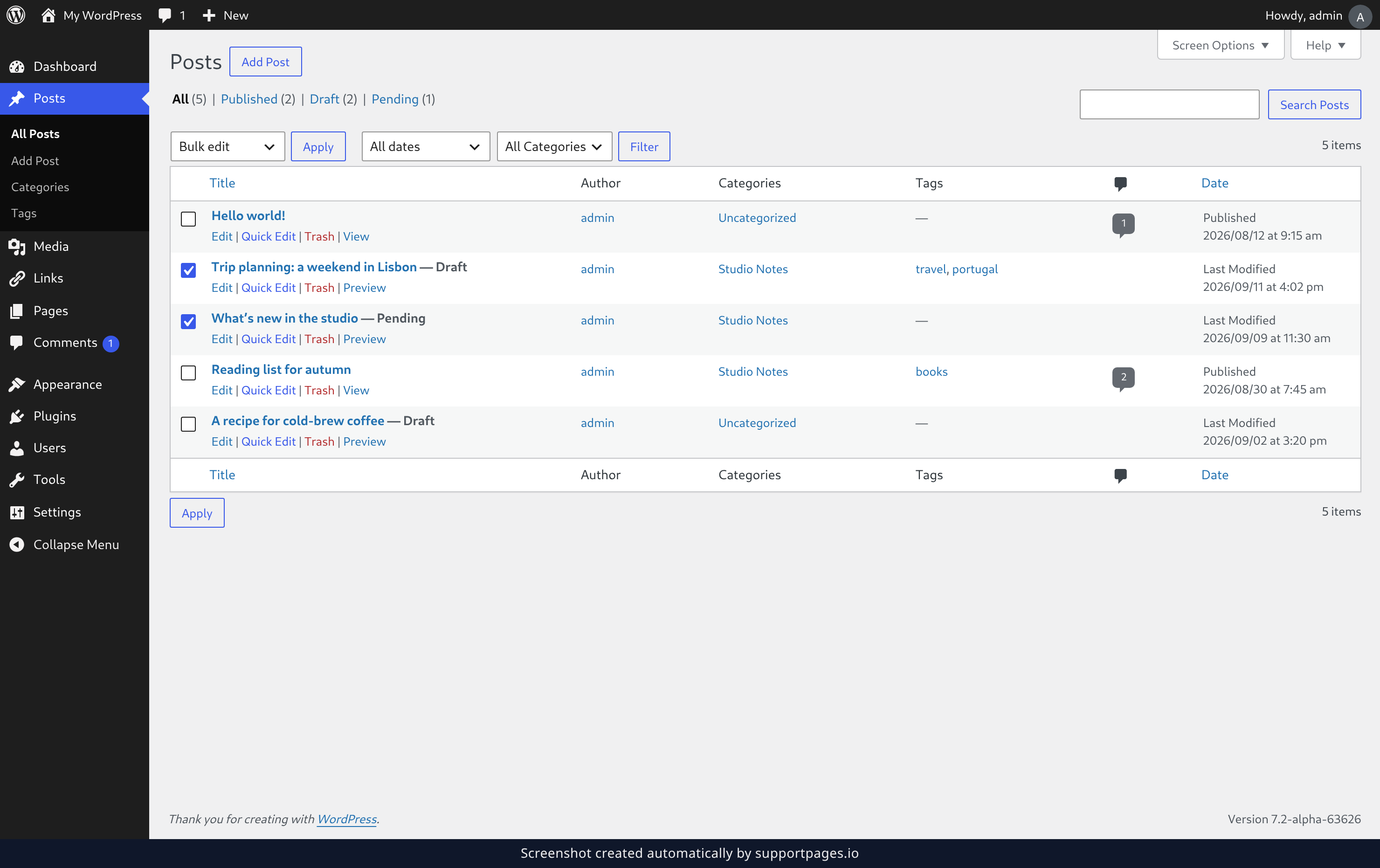
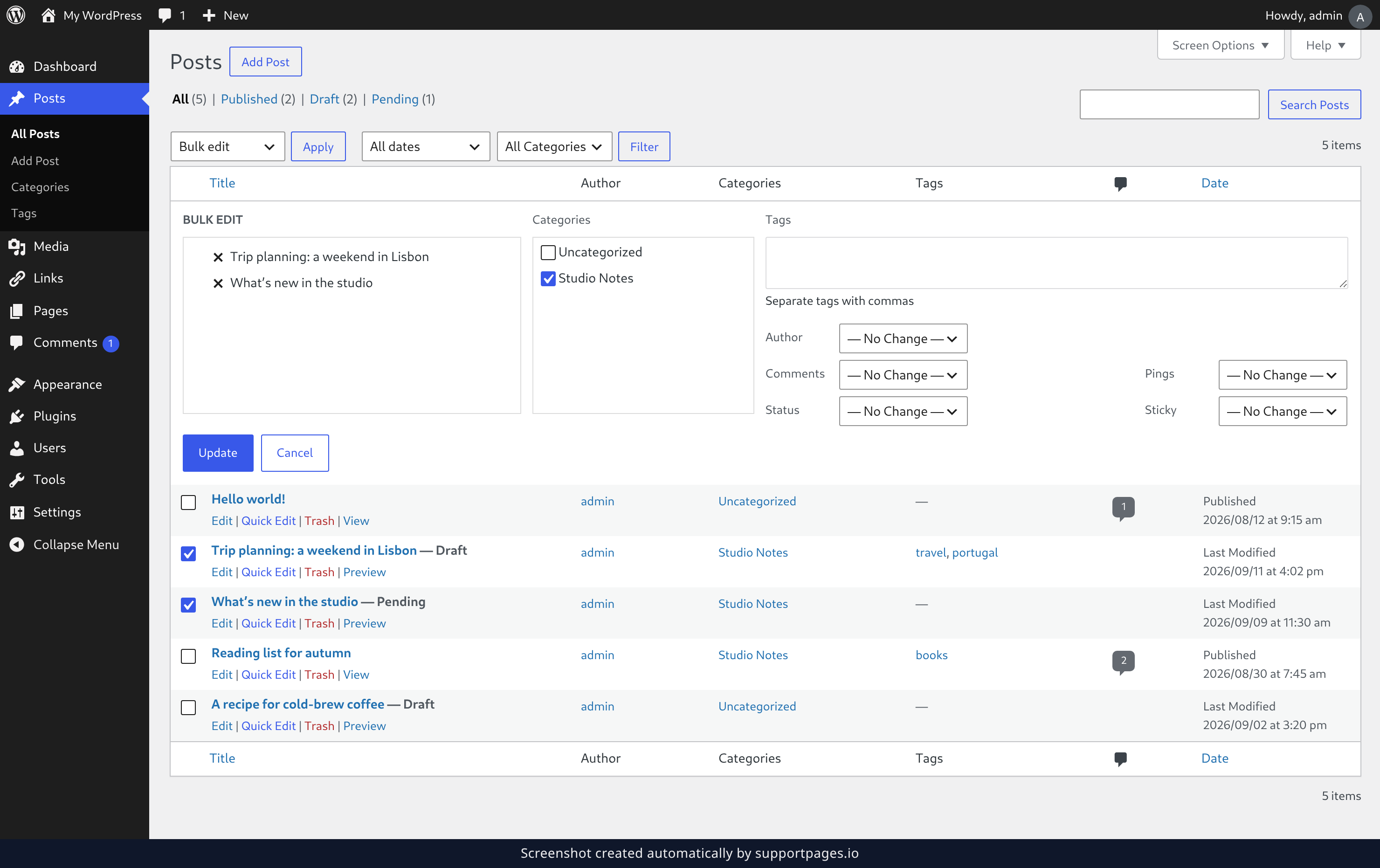
Apply one change to all of them
The posts you selected are listed at the top of the form, so you can see exactly what's about to change.
Fill in only the fields you want to change — pick a new Author or a new Status, for example. Anything you leave untouched stays exactly as it was. Select Update to save the change on every selected post.
Tips
- Quick Edit is great for a single post; Bulk edit is the shortcut when the same change applies to a whole set.
- Not sure which posts to change? Use the status links at the top of the list to show only drafts, or the category menu to narrow things down first.
- Filter the list first, then tick the top checkbox — that selects just the posts you're looking at.
Summary
Use Quick Edit to change one post's details without leaving the list, and Bulk edit to make the same change across everything you've selected. Both save from the same screen you started on.
Was this article helpful?
Help centre by supportpages.io — AI-generated documentation for SaaS.
Have a question?
Search our articles, or ask and get an answer straight away.