
Understanding the WordPress admin area
Updated about 1 month ago
Browse All
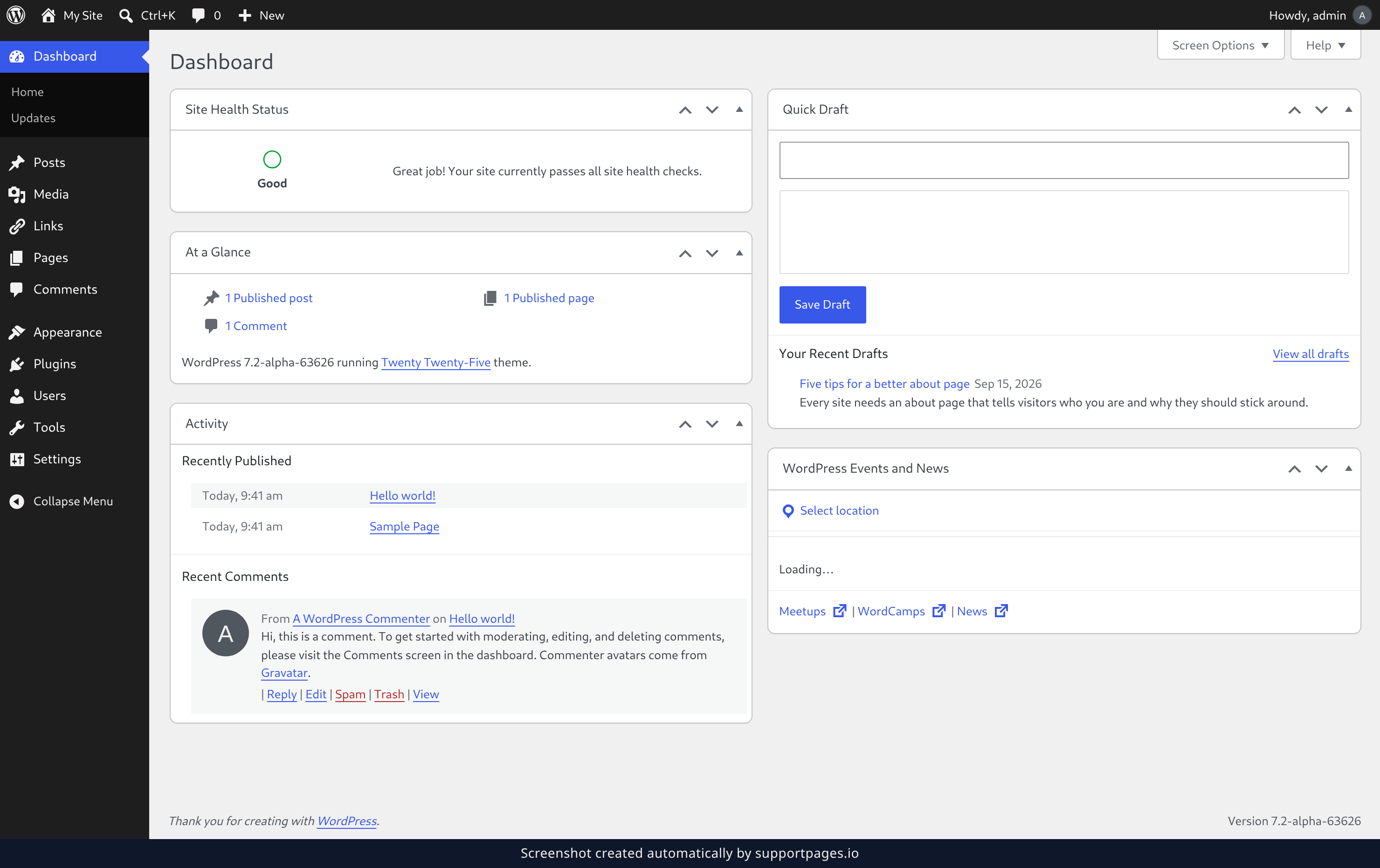
When you log in to WordPress you land in the admin area — the control room behind your site. Everything you need lives in three places: the panels on the Dashboard, the toolbar across the top, and the menu down the left.
The Dashboard panels
The Dashboard is the first screen you see after logging in, and it gives you a quick snapshot of your site.
Site Health Status tells you whether anything needs your attention. At a Glance counts your posts, pages, and comments, and each count links to that list. Activity shows what you have published and what visitors are saying about it. Quick Draft is a scratchpad: type a title and some text, then save it as a draft without leaving the page. WordPress Events and News brings you the latest from the WordPress project.
The panels are yours to arrange. Drag a panel by its title bar to move it somewhere that suits you, or use Screen Options in the top right of the screen to hide the panels you do not need.
The toolbar across the top
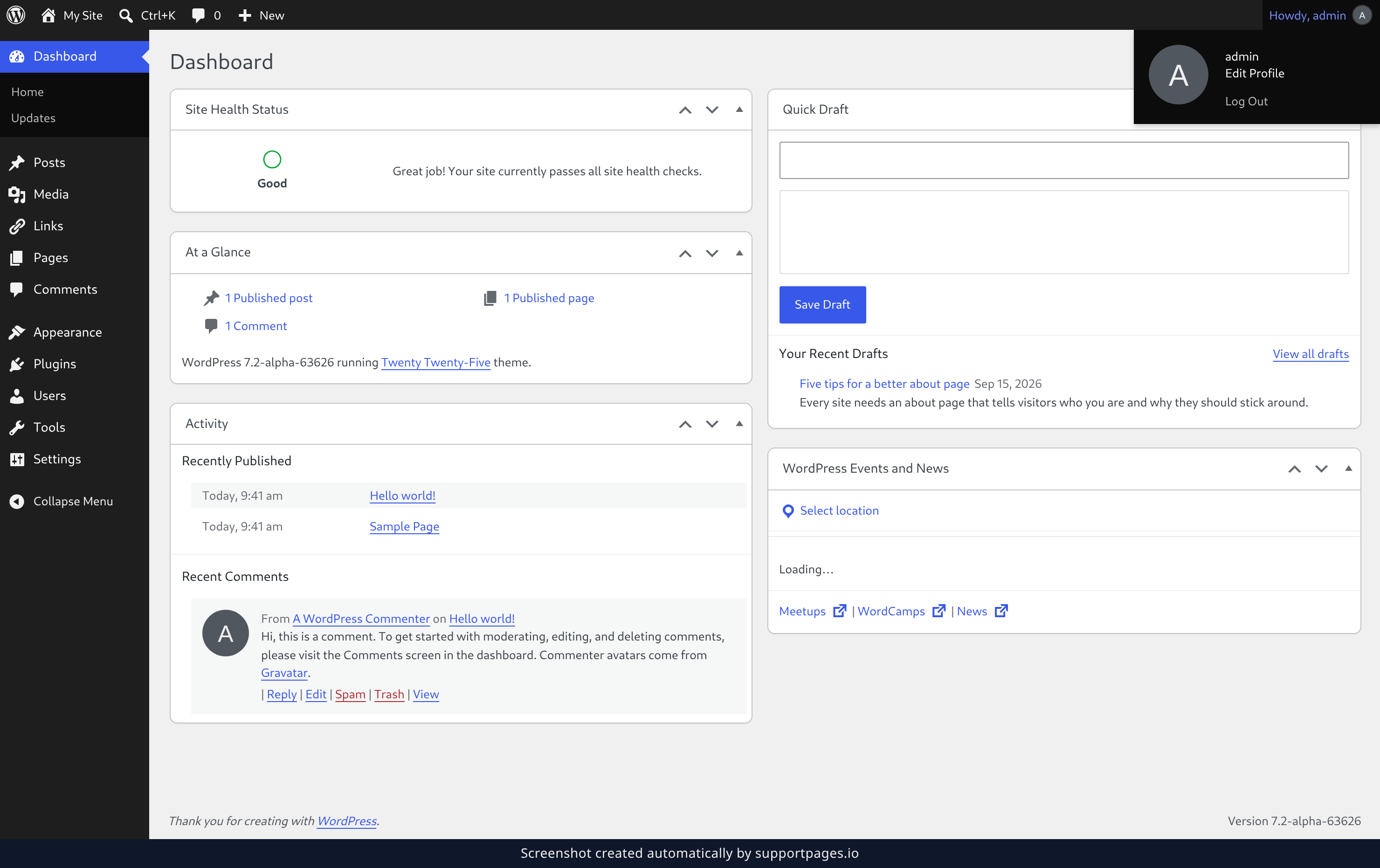
The dark bar across the top of every admin screen is the toolbar, and it stays with you wherever you go.
On the left, the WordPress logo holds links about WordPress itself, and My Site takes you to the public side of your site. New starts a post, a page, an upload, or a user without leaving what you are doing. The comments bubble beside it keeps count of the comments waiting for you to read.
On the far right, Howdy, admin is your account. Open it for Edit Profile and Log Out.
The menu down the left
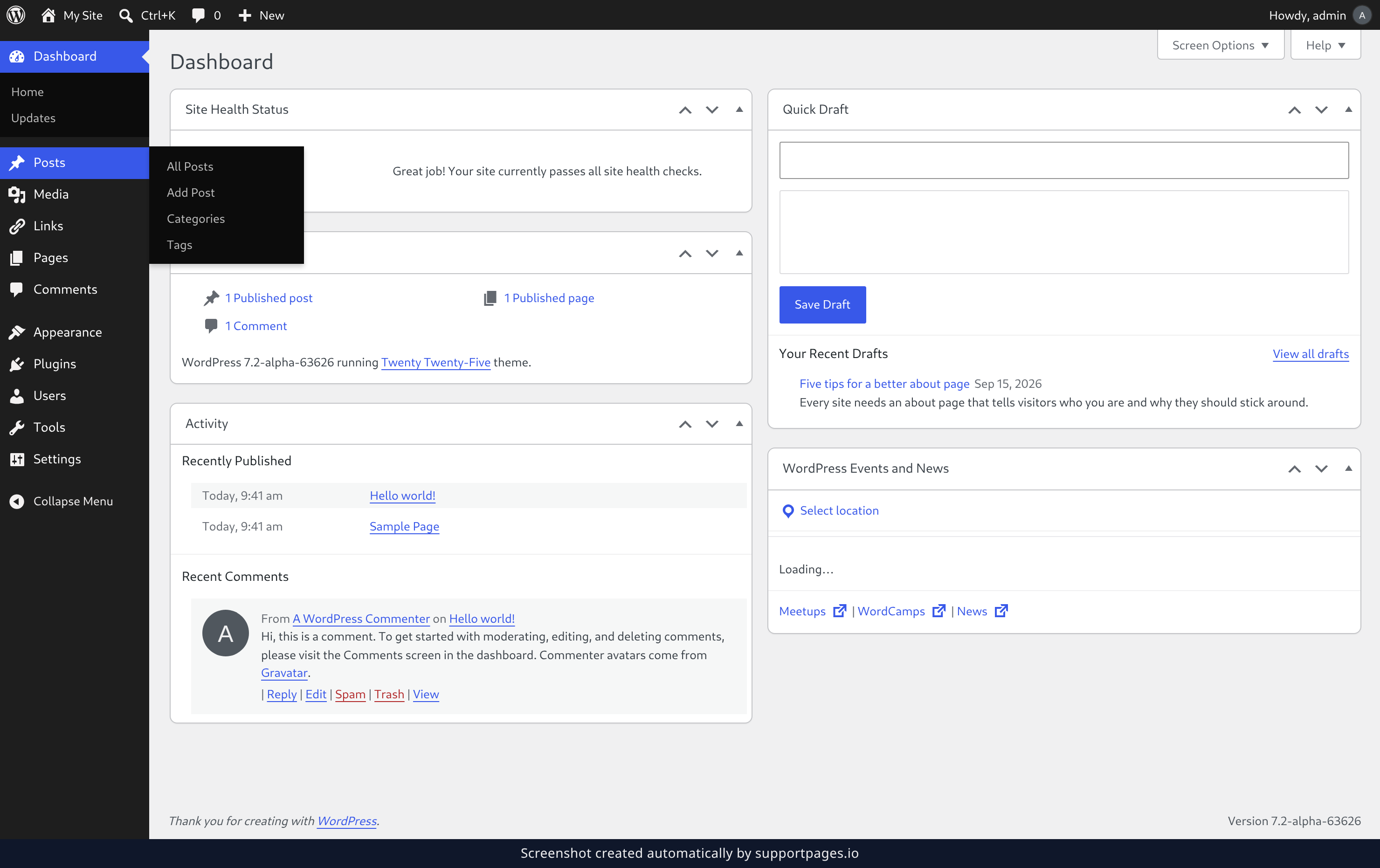
The menu down the left-hand side is how you move around the admin area. Every item opens its own screen, and hovering over one reveals its submenu — hover Posts and you will see All Posts, Add Post, Categories, and Tags.
A number beside an item, like the one on Comments, shows how many things are waiting for you.
At the bottom of the menu, Collapse Menu shrinks it down to a strip of icons so your content gets more room. Click it again to bring the labels back.
Tips
- Prefer the keyboard? Ctrl+K opens the command palette, which jumps to any admin screen by name.
- The toolbar follows you onto the public side of your site, so there is always a way back to the admin area.
- Help in the top right of any screen explains what that screen does.
Summary
That is the whole admin area: the menu on the left to get around, the toolbar across the top for quick actions, and the Dashboard panels for a snapshot of your site. From here you can find whatever you need.
Was this article helpful?
Generated by supportpages.io, an AI changelog generator for SaaS teams.
Have a question?
Search our articles, or ask and get an answer straight away.