
How to change your site language
Updated about 1 month ago
Browse All
WordPress can run your whole site in a language other than English — menus, buttons, dates, and the emails it sends. You can even keep your own dashboard in one language while your visitors read your site in another.
Before you start
- An account that can manage your site's settings, such as an administrator account.
- A moment to spare — WordPress downloads the translation files for you.
Steps
Change your site's language
In the dashboard, find Settings in the left-hand menu and select General. Open the Site Language list and pick your language — some of them aren't on your site yet, and WordPress fetches those translation files for you. Scroll to the bottom of the screen and select Save Changes.
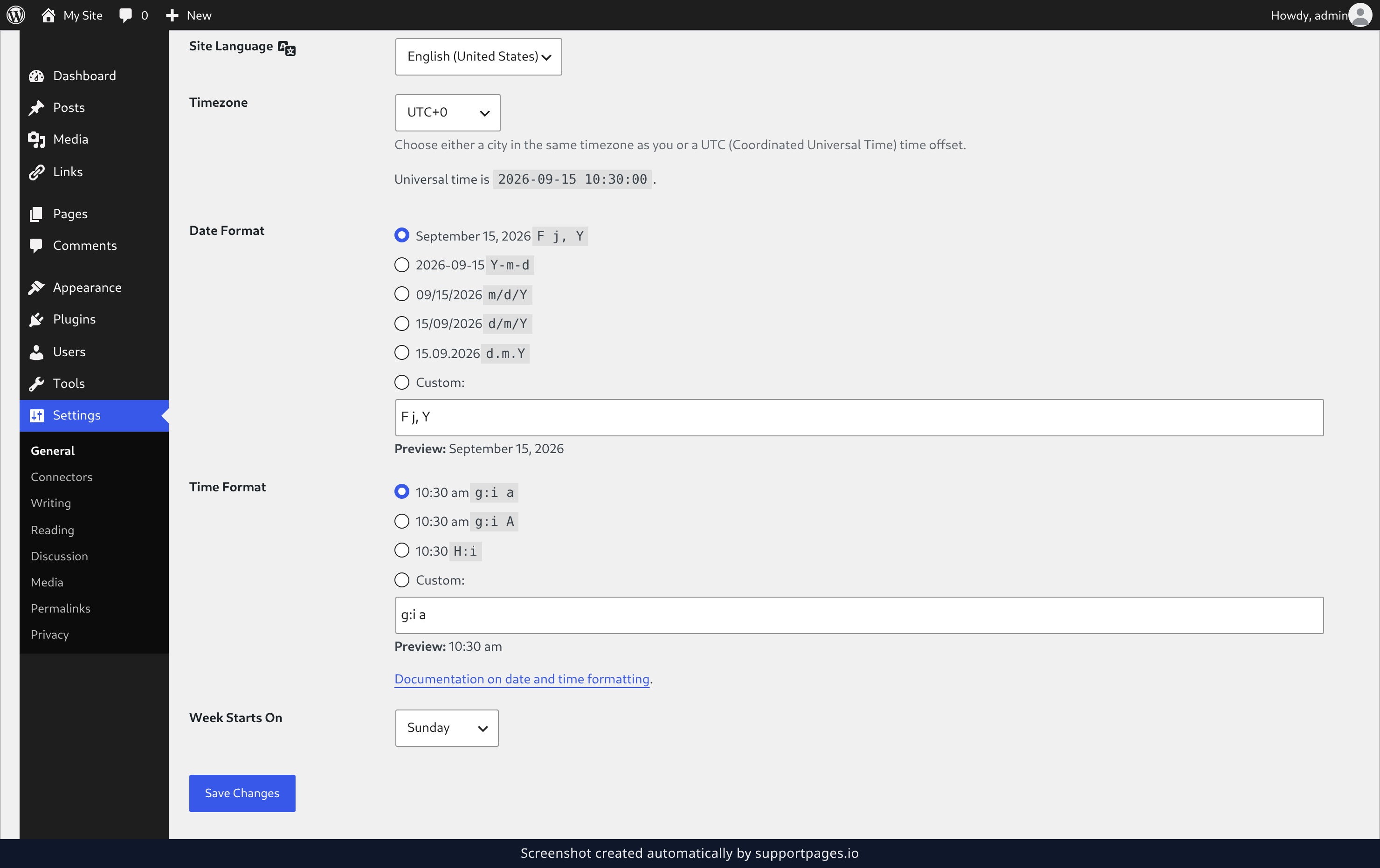
Set a different language for just yourself
To work in one language while your visitors read another, open your own profile: select Users, then Profile. Under Personal Options, find the Language list and choose the language you want to work in.
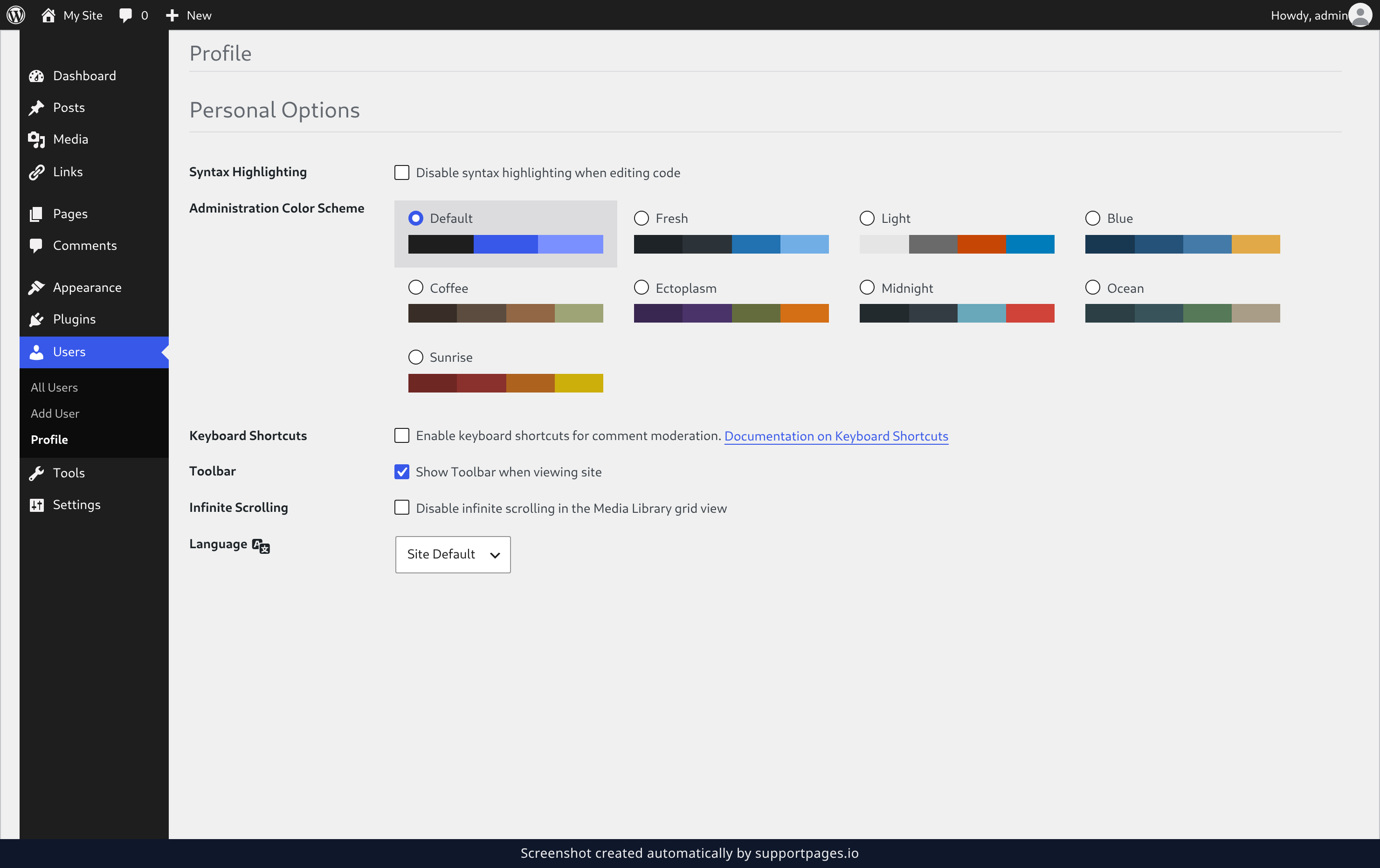
Save your profile
Scroll to the bottom of the page and select Update Profile. From now on only your own dashboard changes — your site stays in the language you picked in Settings.
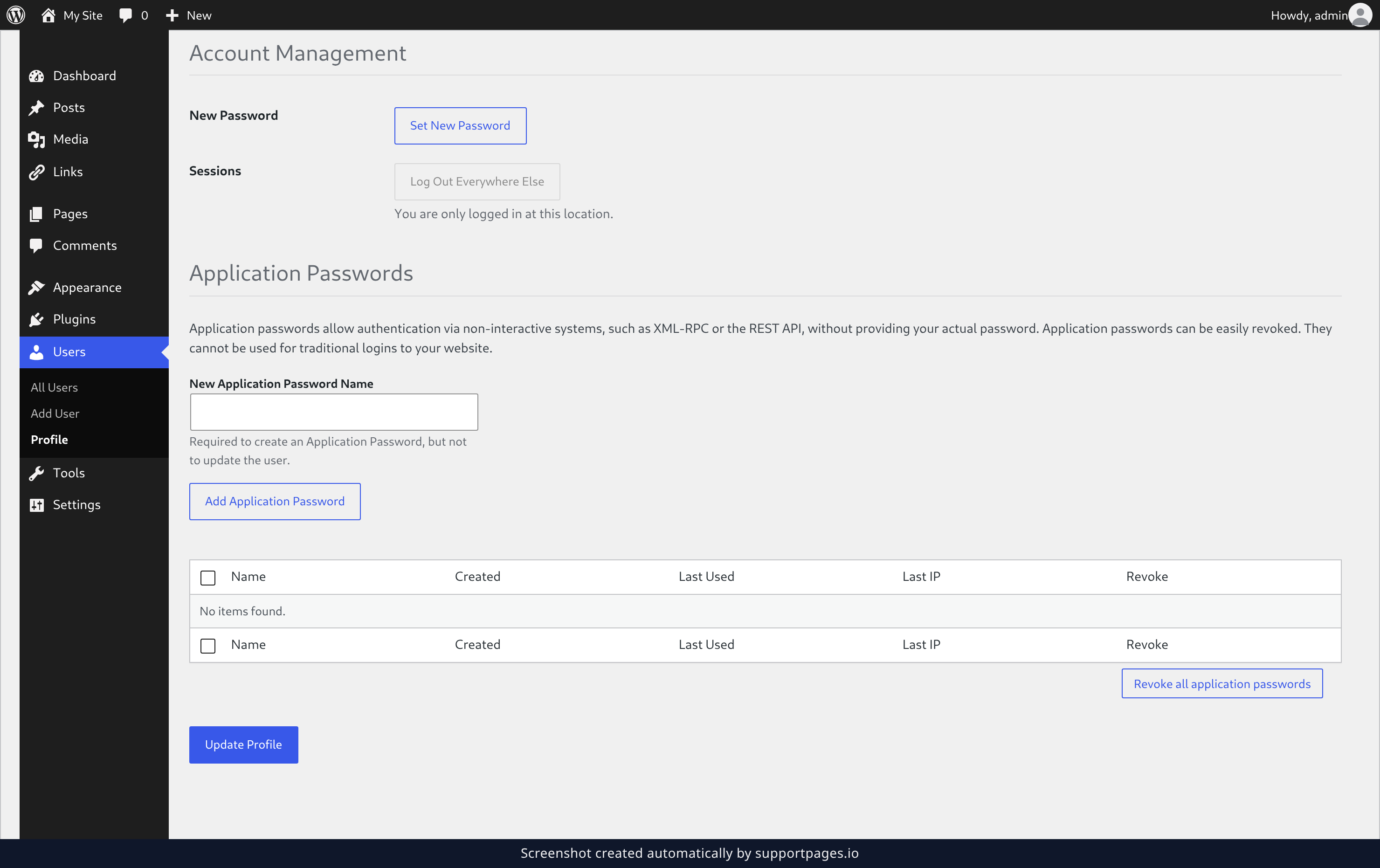
Tips
- Your language choice changes the text WordPress itself provides. The words you typed into your own posts and pages stay exactly as you wrote them.
- Only change your own Language in your profile when you want a personal view. The Site Language under Settings is what your visitors see.
- Changed your mind? Go back to Settings, then General, and pick another language at any time — nothing you've written is affected.
Summary
You've set the language for your whole site under Settings, then General, and saved it with Save Changes. If you also picked a language in your profile, you're now working in one language while your visitors read another.
Was this article helpful?
Written with supportpages.io. More on documentation automation on our blog.
Have a question?
Search our articles, or ask and get an answer straight away.