
How to use Screen Options on an admin screen
Updated about 1 month ago
Browse All
Every admin screen in WordPress remembers how you like it. The Screen Options tab is where you turn the boxes, columns, and page lengths on or off, and the Help tab sits right beside it whenever you want a quick word about the screen you're on.
Before you start
- You're logged in to your site and can see the admin menu on the left.
- You're on the screen you want to tidy up — the Dashboard is a good place to try this first.
Steps
Open Screen Options
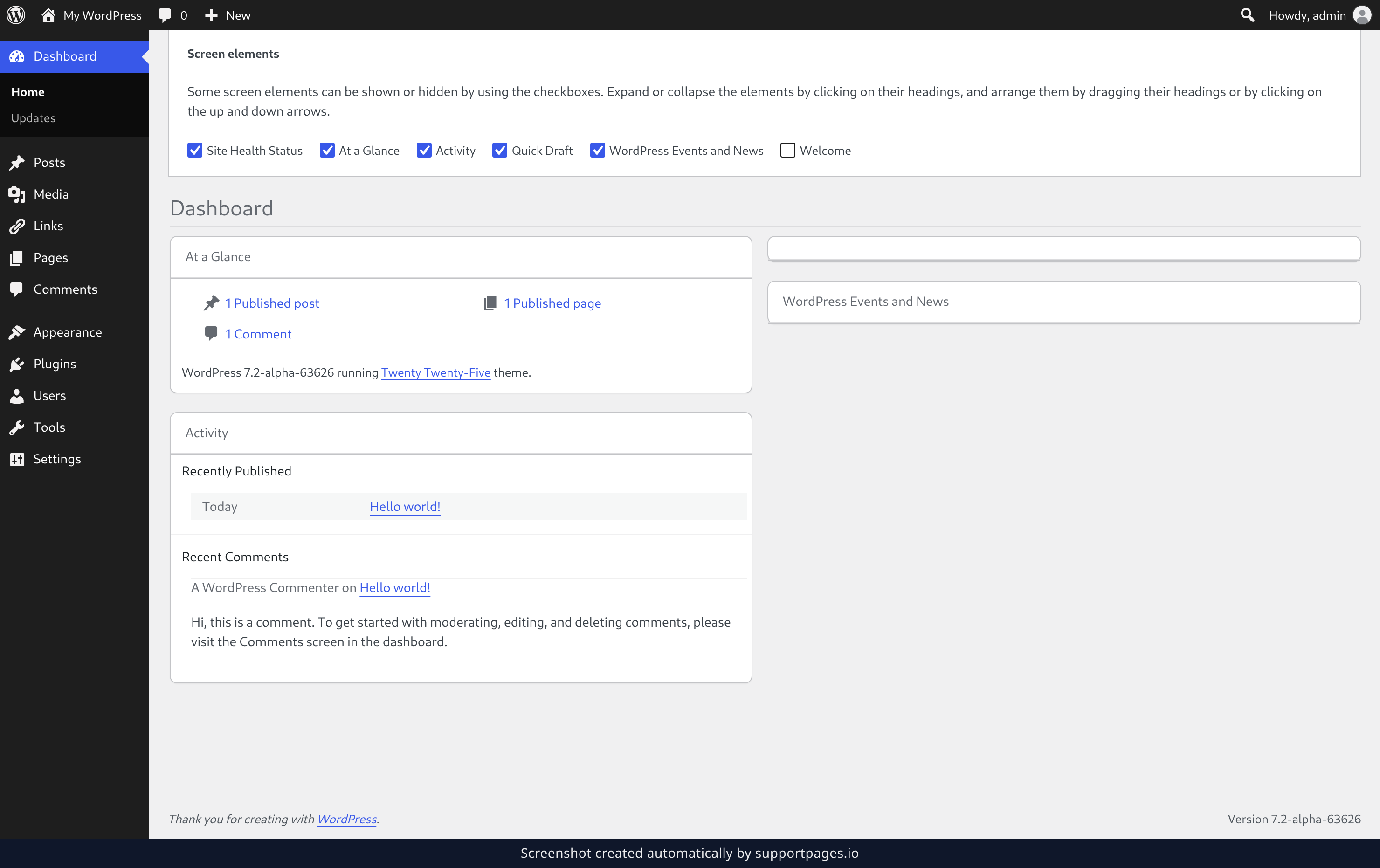
Click Screen Options in the top right corner of the screen. A panel slides open just below the toolbar, listing everything on this screen you can show or hide. Under Screen elements, clear the checkbox next to a panel to hide it, or tick it to bring it back — your choice saves straight away, so try switching off Activity if you'd rather see At a Glance and Quick Draft first.
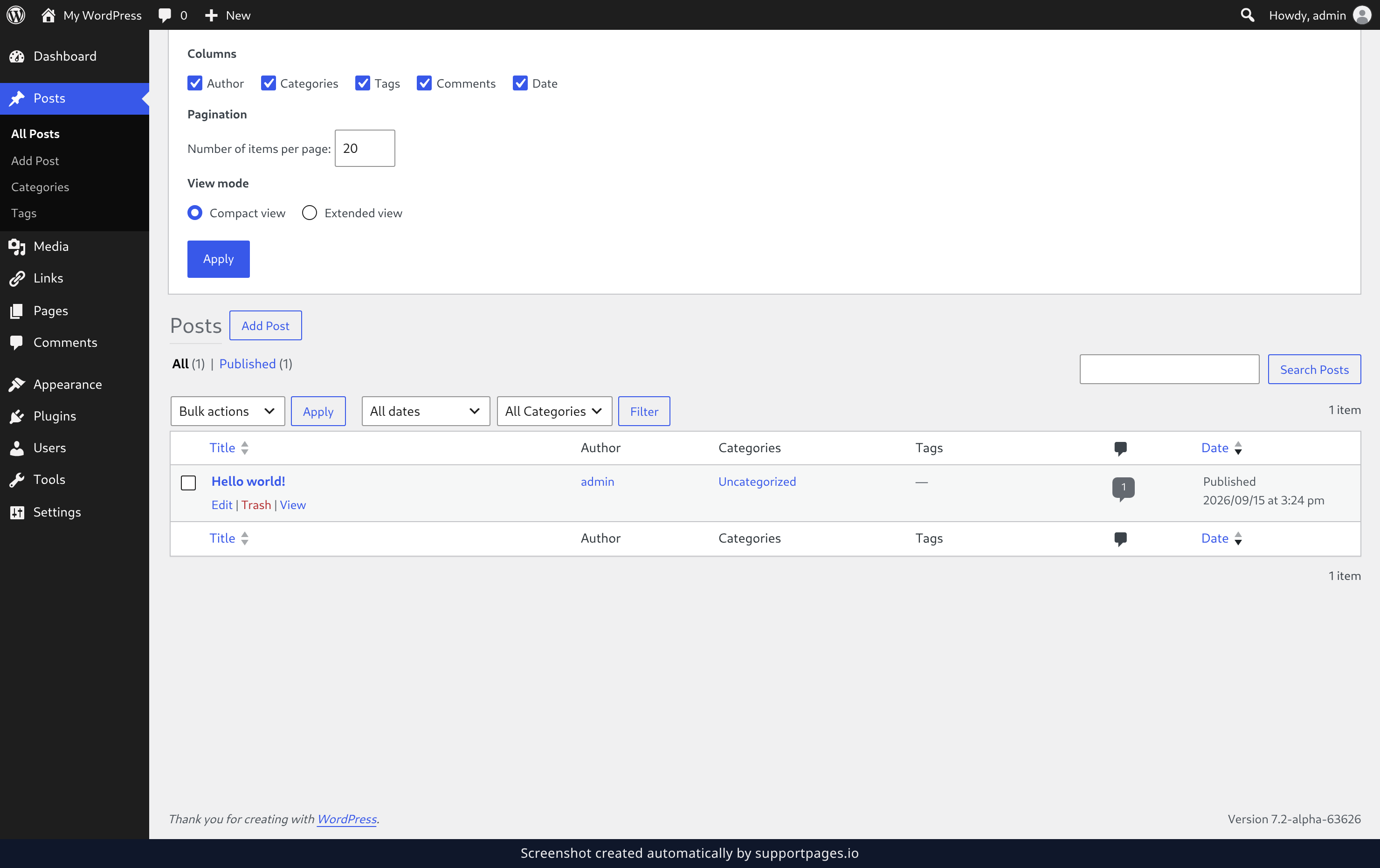
Choose columns and page length on a list screen
Click Posts in the left-hand menu and open Screen Options again. List screens such as Posts, Pages, and Media keep their own settings, so nothing you chose on the Dashboard changes here. Under Columns, tick a column to add it to the table or clear it to take it away, then type a new figure into Number of items per page: under Pagination and click Apply.
Open the Help tab
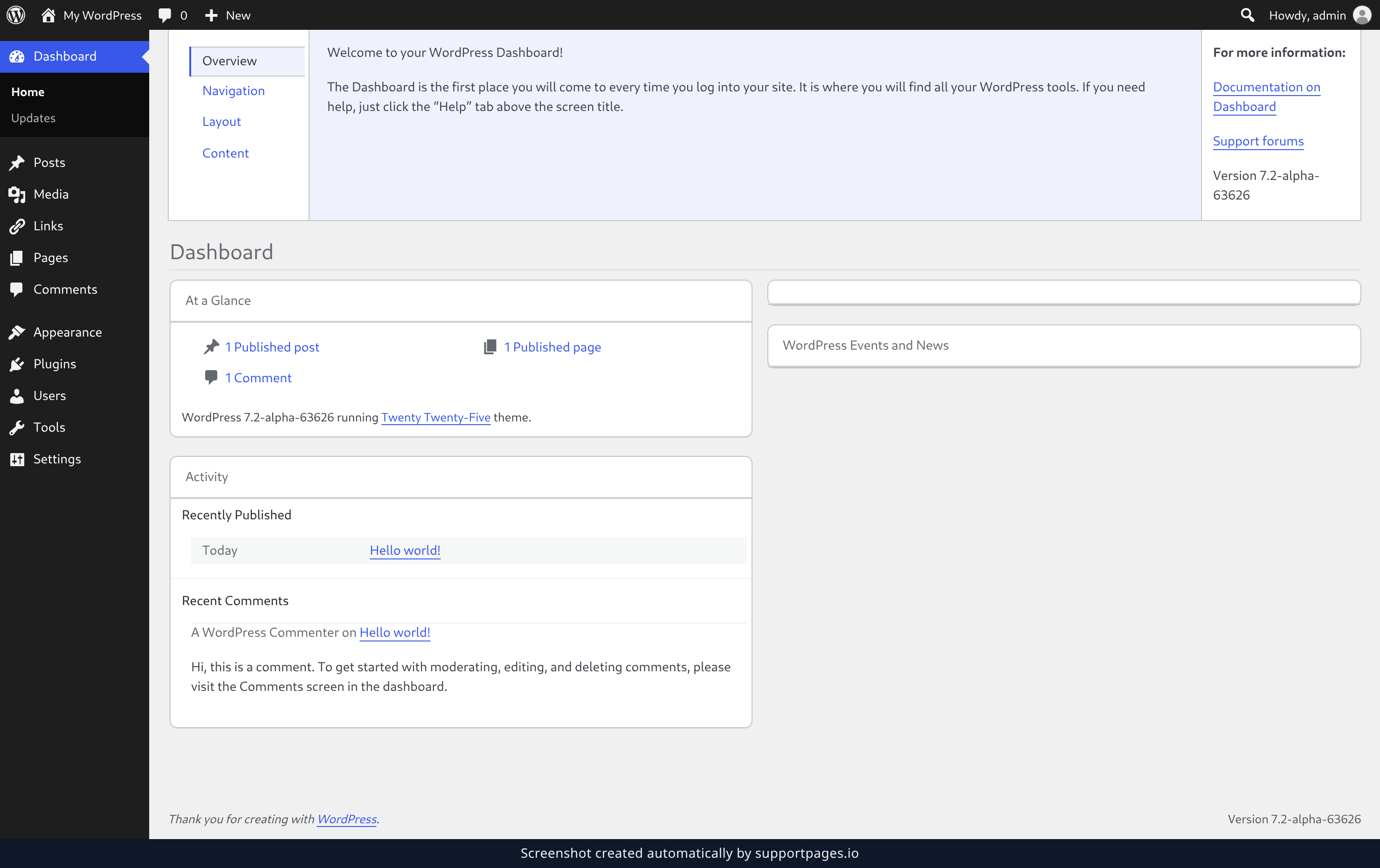
Back on the Dashboard, click Help next to Screen Options. The panel shows a short guide to the screen you're on, plus a For more information: column with links to the WordPress documentation and support forums. Click any topic in the left column — Overview, Navigation, Layout, or Content — to read it, and click Help again to close the panel.
Tips
- Screen Options are saved per person, so hiding a box doesn't change the screen for anyone else on your site.
- Each screen keeps its own settings — hiding columns on Posts won't affect Pages or Comments.
- Rearranging boxes is separate from Screen Options: drag a box by its title bar to move it, or click the title bar to collapse it.
- If a screen looks emptier than you remember, open Screen Options first — something may simply be switched off.
Summary
You now know how to open Screen Options to show or hide panels, columns, and page lengths on any admin screen, and how to reach for the Help tab when you want guidance. Both live in the top right corner, and both remember what you chose.
Was this article helpful?
Generated automatically by supportpages.io — AI knowledge base software for SaaS teams.
Have a question?
Search our articles, or ask and get an answer straight away.