
How to build your navigation menu from the Menus screen
Updated about 1 month ago
Browse All
Your menu is the short list of links visitors use to find their way around your site. This is how to build one from scratch on the Menus screen — gathering your pages, posts, categories, and custom links, putting them in order, and telling WordPress where the menu should show up.
Before you start
- An account that can edit menus (Administrators can, straight out of the box).
- The pages, posts, or categories you want to link to, already published.
- A theme that supports menus — every theme that ships with WordPress does.
Steps
Open the Menus screen
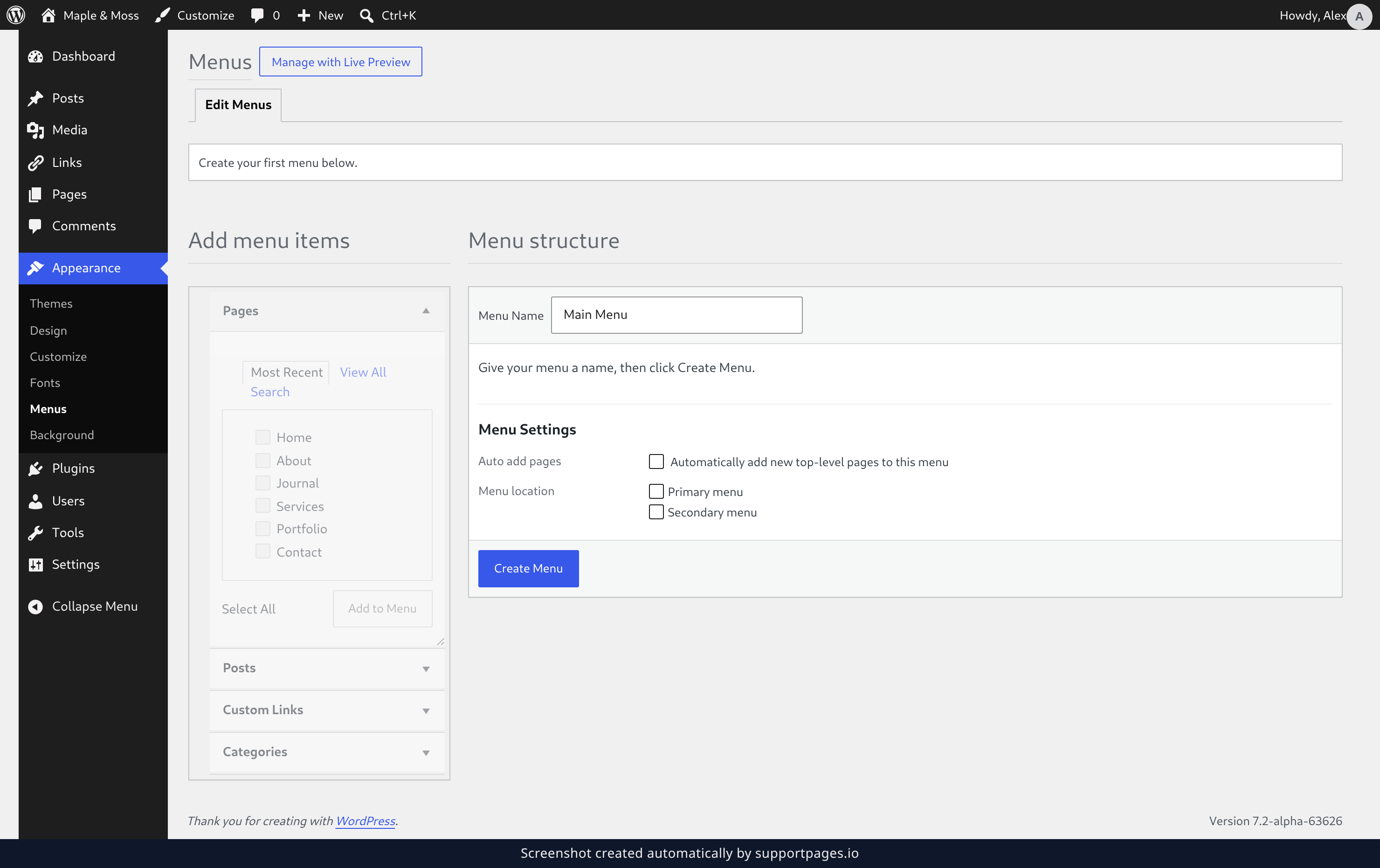
In the admin sidebar on the left, open Appearance and click Menus. If you have not built a menu before, WordPress takes you straight to a screen that is ready for your first one. Type a name into Menu Name — something that tells you what the menu is for, like Main Menu — then click Create Menu.
Add your pages and posts
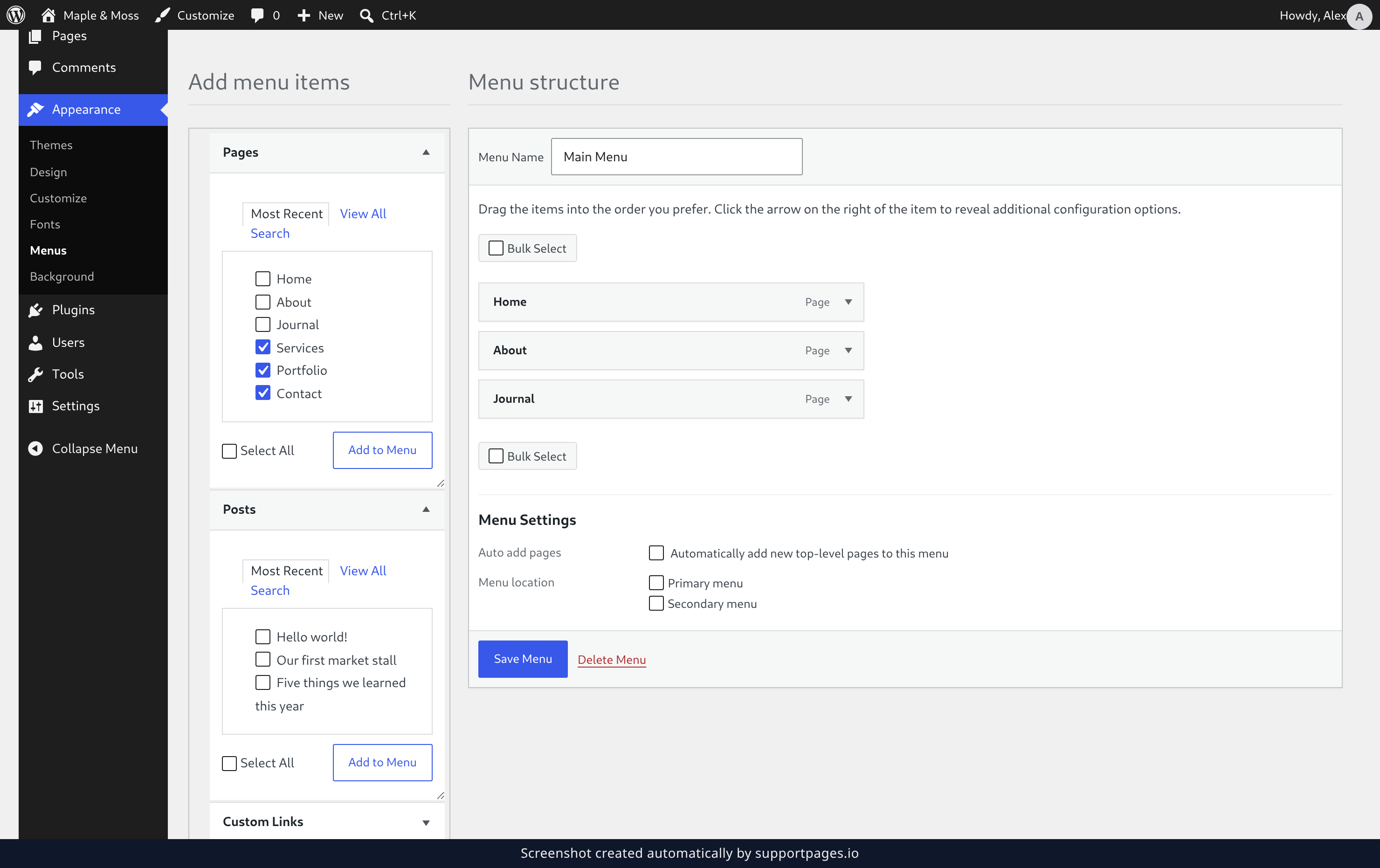
Open Pages in the Add menu items column on the left, tick the box beside each page you want in the menu, then click Add to Menu. Open Posts and do the same for any posts you want visitors to reach — each one moves across into Menu structure on the right. Drag the items there into the order you want visitors to meet them, dropping one slightly to the right of the item above it to make it a submenu.
Add categories and custom links
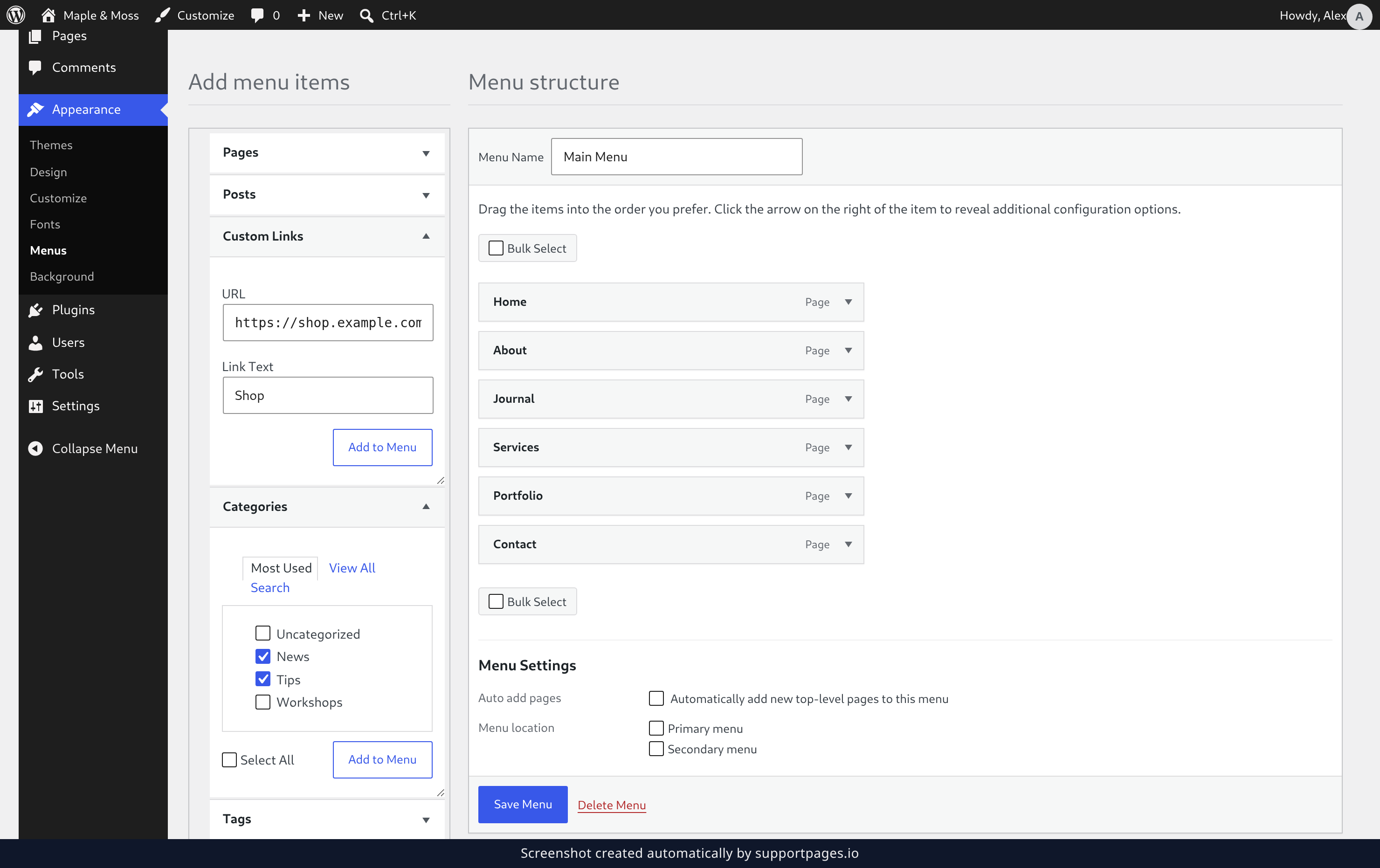
Open Categories and tick the categories you want people to browse. Then, for anything outside your site, open Custom Links, paste the web address into URL, type the words visitors will click into Link Text, and click Add to Menu. Click Save Menu at the top of the editor when you are finished adding items — nothing appears on your site before you do.
Choose where the menu appears
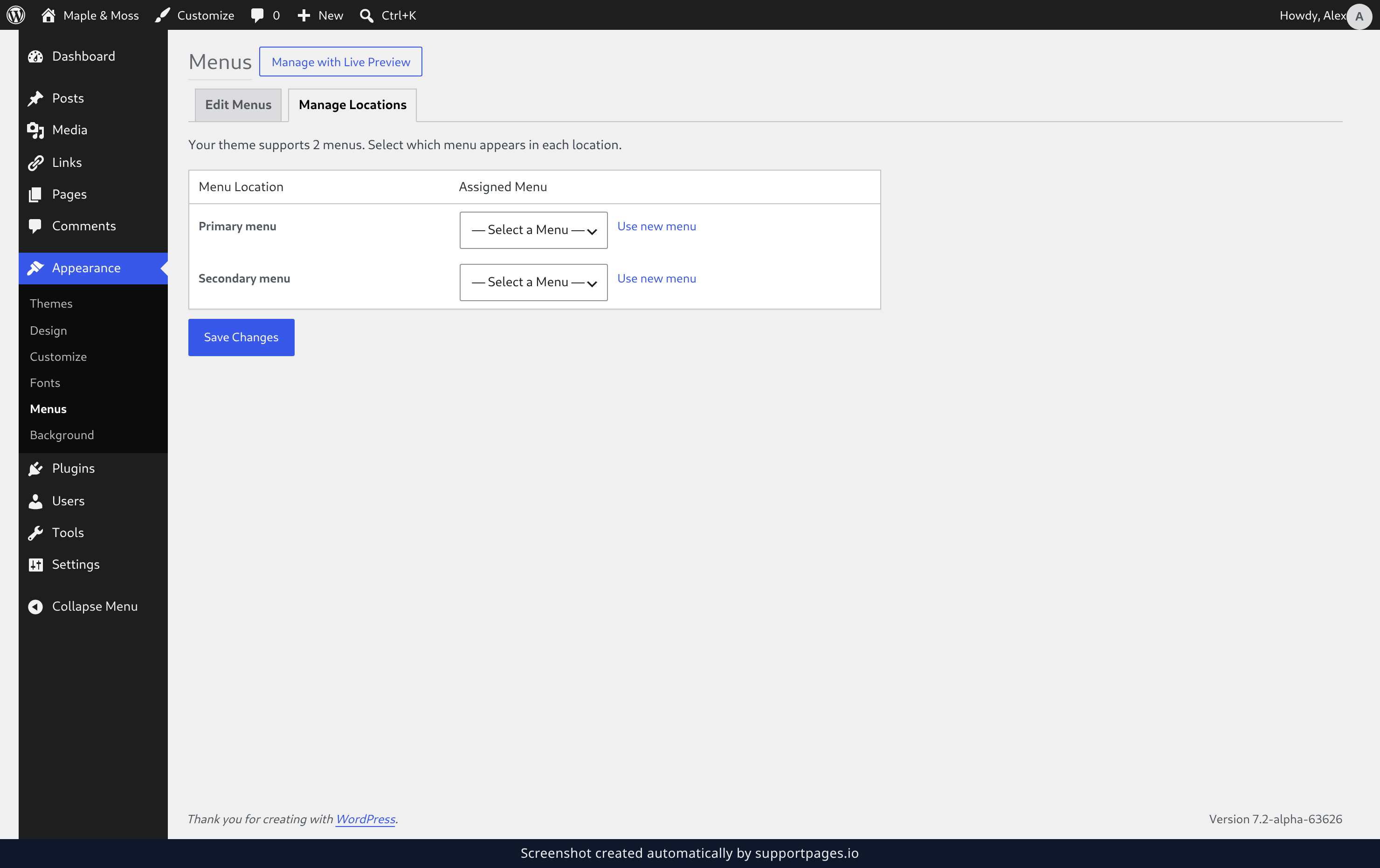
Open the Manage Locations tab at the top of the screen. Find Primary menu and choose your menu from the dropdown beside it, then click Save Changes. Use Secondary menu too if you want the same links in your footer.
A few things worth knowing
- The same menu can be assigned to more than one location, so your header and footer can share one set of links.
- Nest items a little to the right in Menu structure to keep a long menu from sprawling across the page.
- Nothing here is permanent — you can come back and change any of it later from Appearance → Menus.
Summary
You now have a real menu: pages, posts, categories, and custom links, arranged in the order you want and assigned to a spot in your theme. Save your changes and your visitors will see it on their next visit.
Was this article helpful?
Powered by supportpages.io — help centre software for SaaS.
Have a question?
Search our articles, or ask and get an answer straight away.