
How to switch your site’s theme
Updated about 1 month ago
Browse All
Your theme is the design your visitors see — the colours, the type, the layout. WordPress lets you try a different one on before you commit, so nothing changes for your visitors until you say so.
Before you start
- An administrator account, or another role that's allowed to manage themes.
- Any extra themes you want to try already installed on your site.
Steps
Open the theme's details
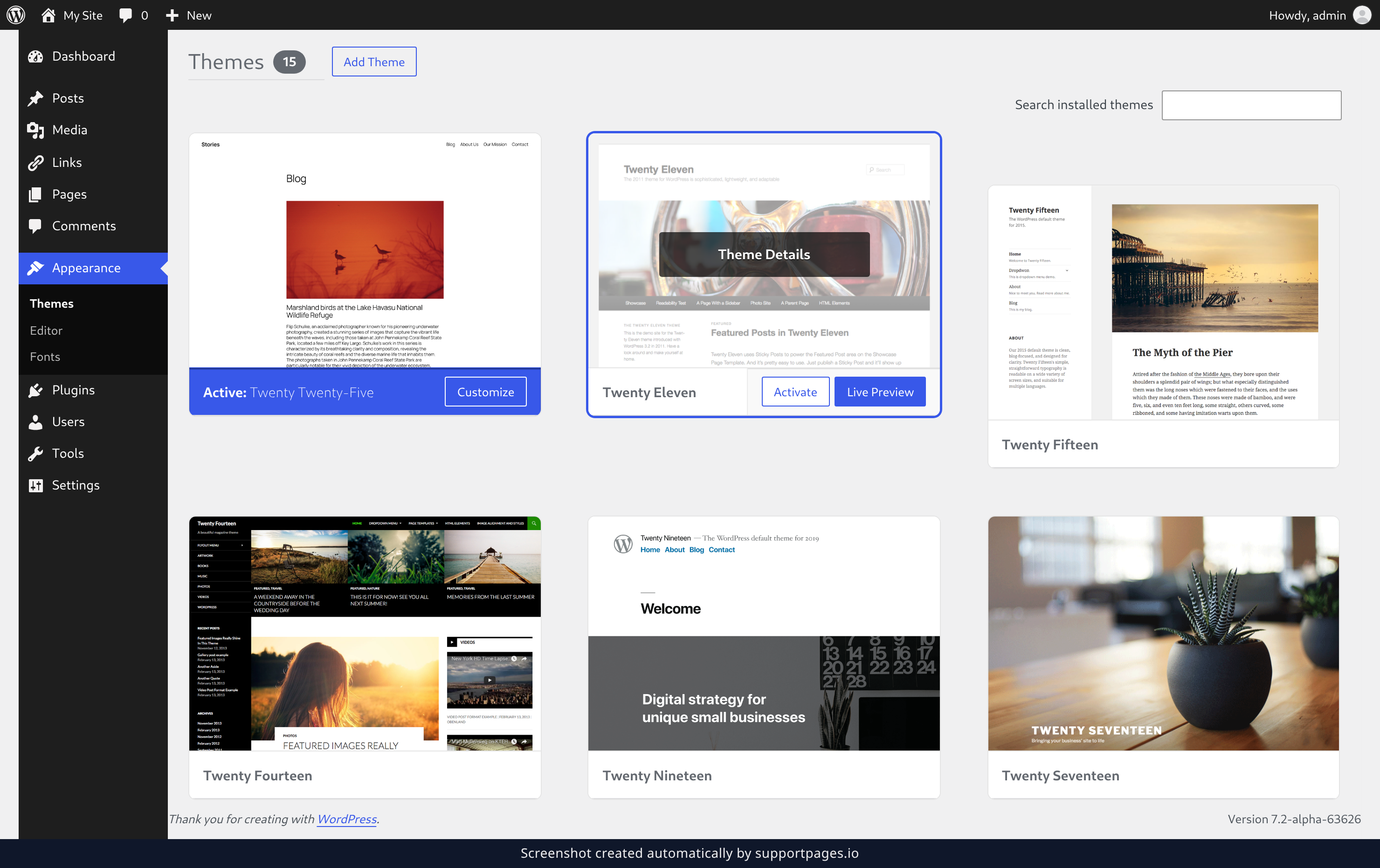
In the dashboard, find Appearance in the left-hand menu and click it, then click Themes. Hover over the theme you're curious about and click Theme Details on its card.
Preview it, then make it yours
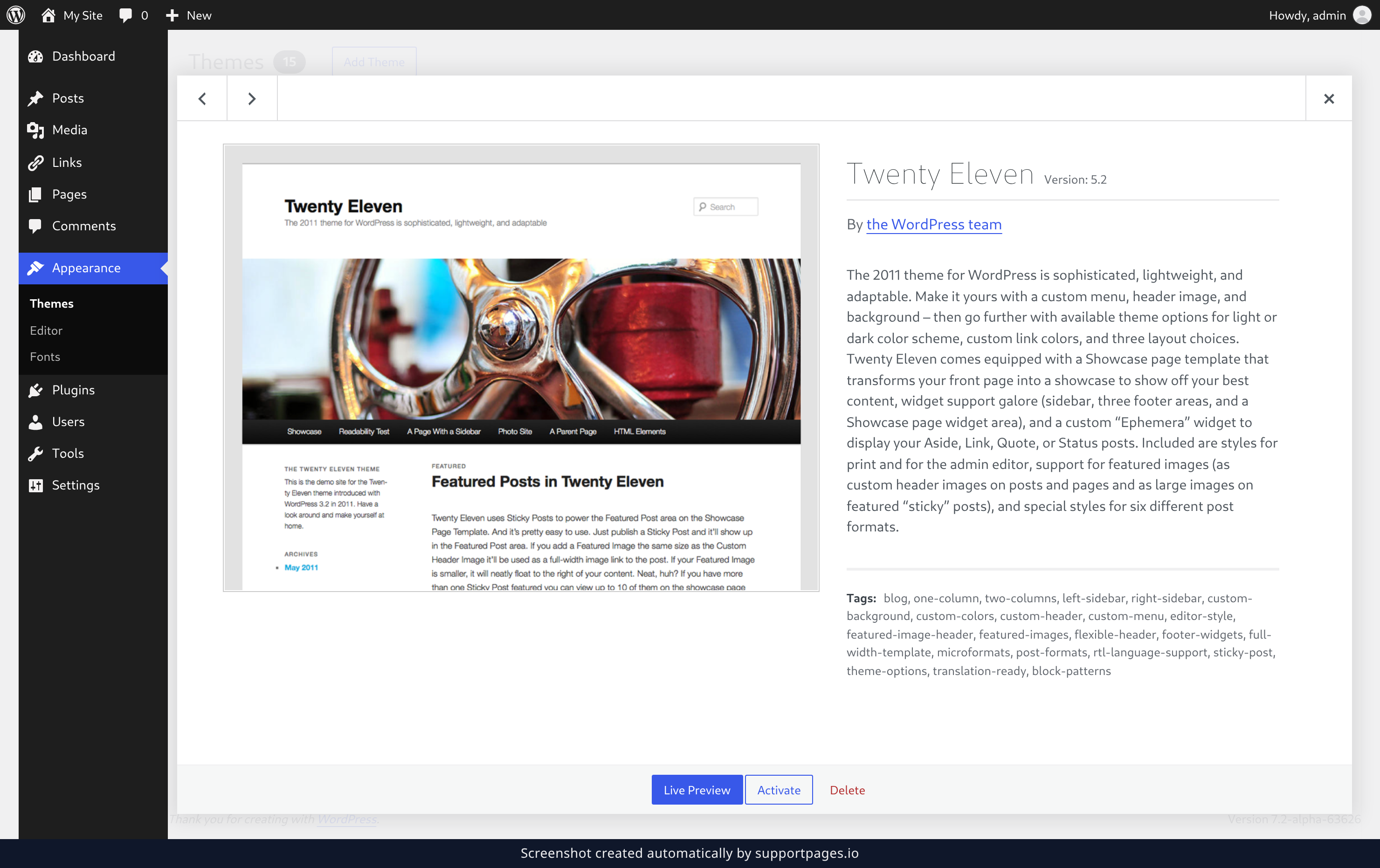
Click Live Preview to walk through your own site wearing the new theme — your visitors still see the old one. When you're happy, click Activate to switch your site over. To remove a theme you're finished with instead, click Delete.
A few things worth knowing
- Your content comes with you. Posts, pages, menus, and media all stay exactly where they are when you switch.
- You can't delete the theme you're currently using. Switch to another one first, then come back and remove it.
- Changed your mind? The old theme is still installed, so you can switch straight back to it.
Summary
Try any installed theme on your live site before you commit, switch to it when you're happy, and tidy up by deleting the ones you're done with — all from Appearance → Themes.
Was this article helpful?
Generated by supportpages.io, automating product documentation from your codebase.
Have a question?
Search our articles, or ask and get an answer straight away.