
How to update WordPress
Updated about 1 month ago
Browse All
A WordPress update brings you the newest features and the latest security fixes. It usually takes a minute or two, and WordPress does almost all of the work for you.
Before you start
- An administrator account. Only administrators see the update buttons.
- A recent backup of your site. Most hosting companies can make one for you in a few clicks.
- A quiet moment. Your site shows visitors a short maintenance message while it updates.
Steps
Open the Updates screen
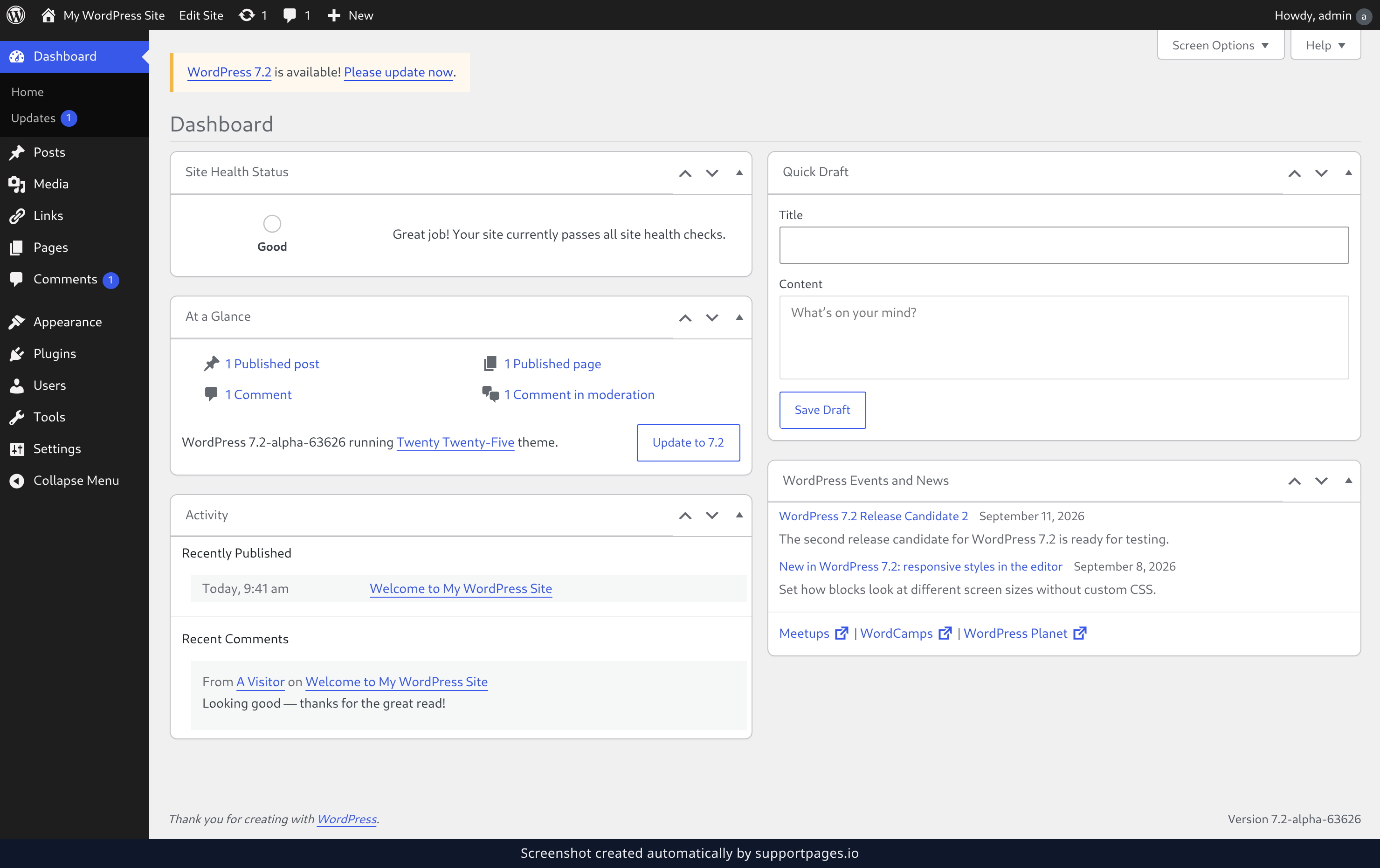
Sign in to your site and look at the left-hand menu. Click Dashboard, then click Updates. When a new version is ready, you can also click Please update now in the notice at the top of your dashboard.
Check for a new version
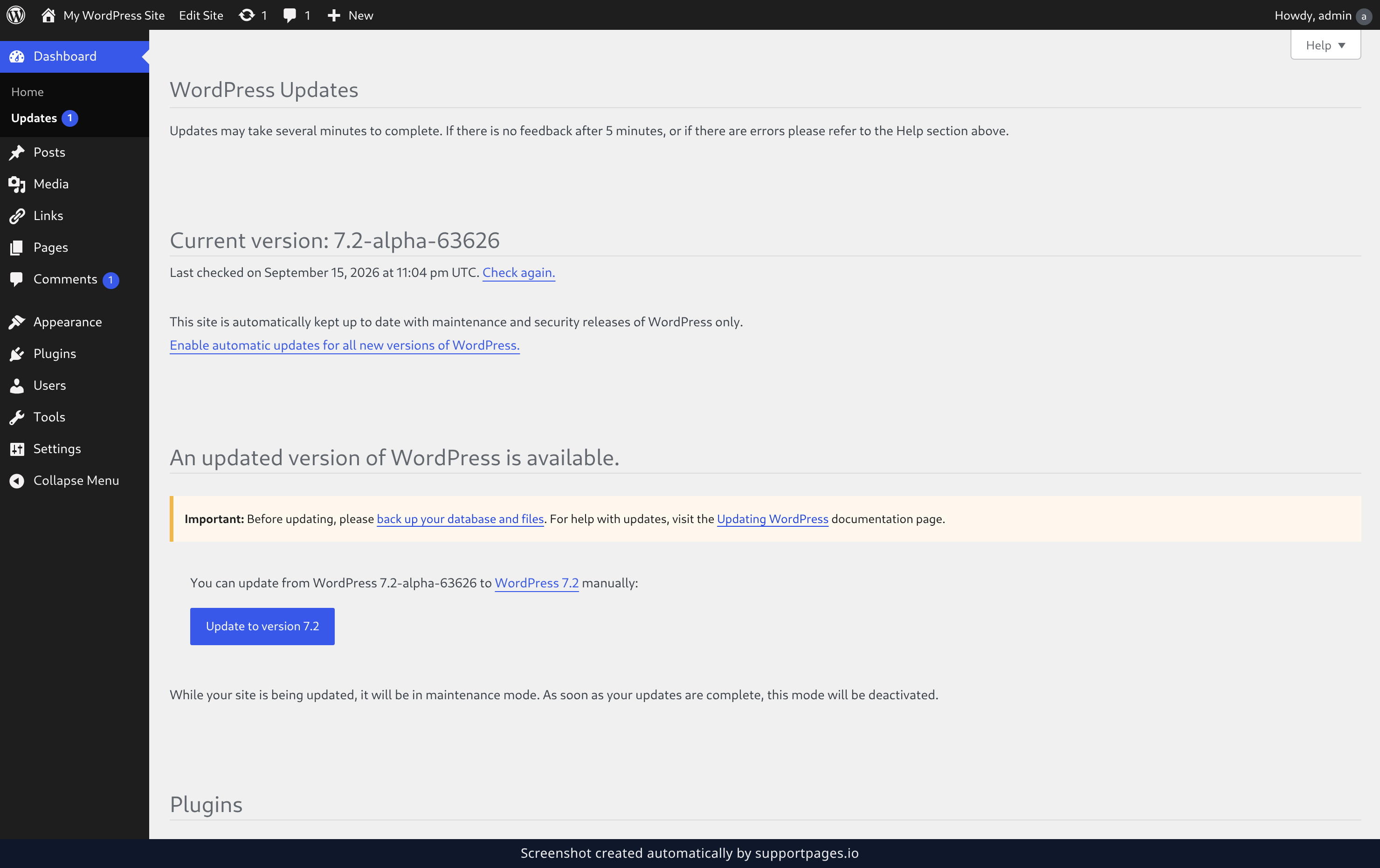
The Updates screen tells you which version you're running and which one is ready to install. If it has been a while since the last check, click Check again. to ask for the newest release.
Start the update
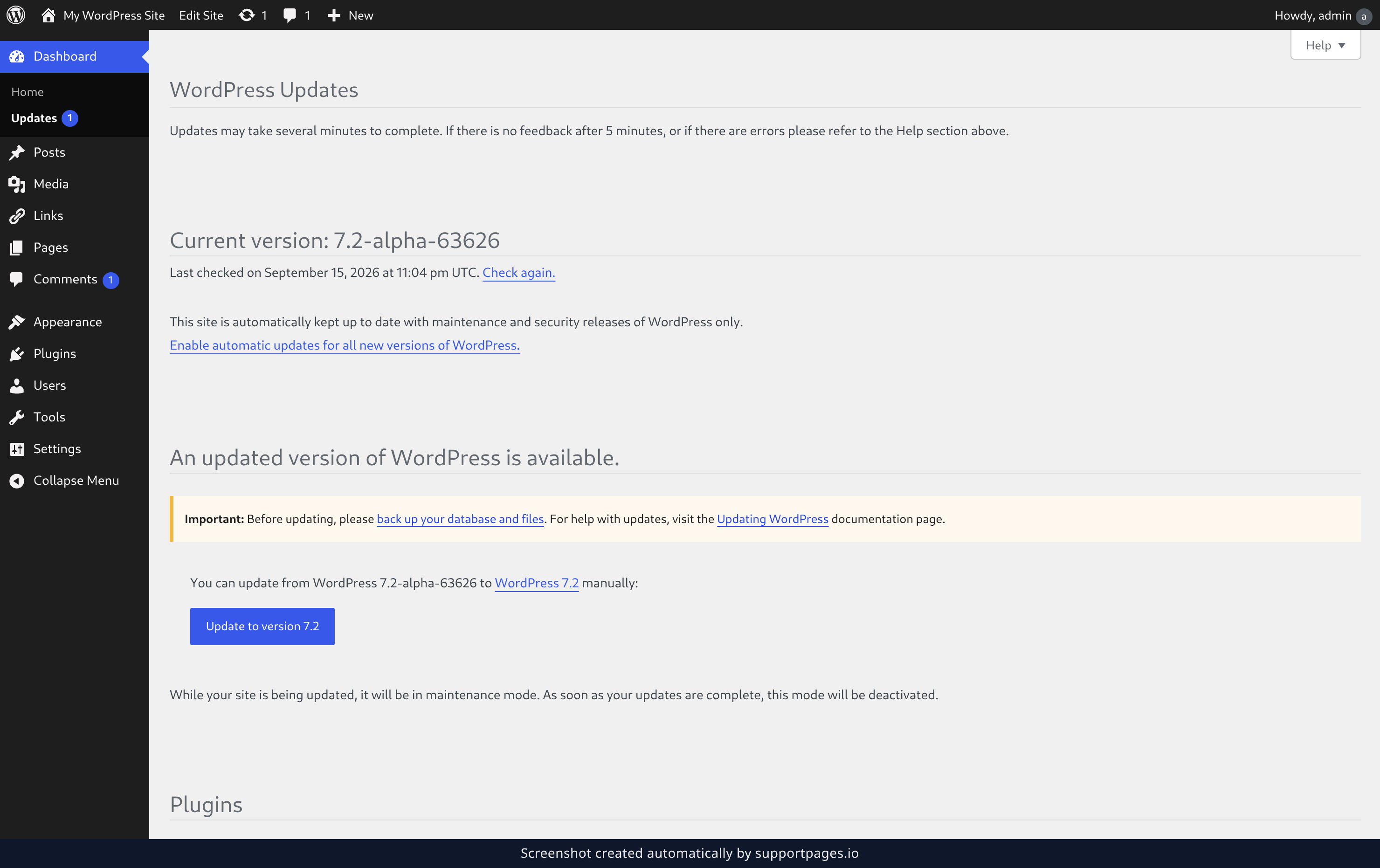
Click Update to version 7.2 and WordPress takes it from there. It downloads the new version and installs it for you, so stay on the page until it finishes.
Let WordPress update itself
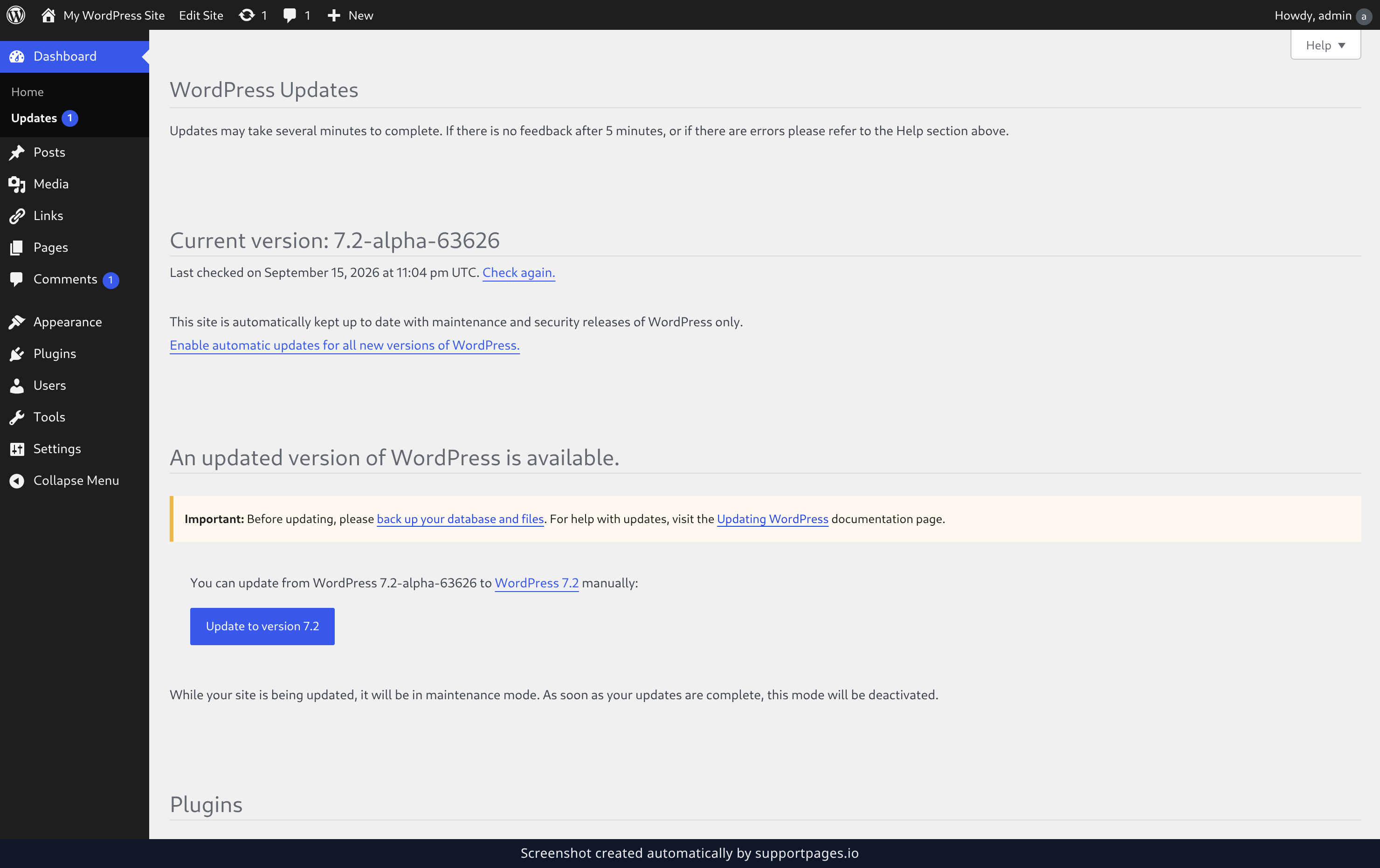
WordPress already installs security and maintenance releases on its own, so the small fixes reach you without you lifting a finger. To let it install every new version, major releases included, click Enable automatic updates for all new versions of WordPress on the Updates screen. You can change your mind whenever you like.
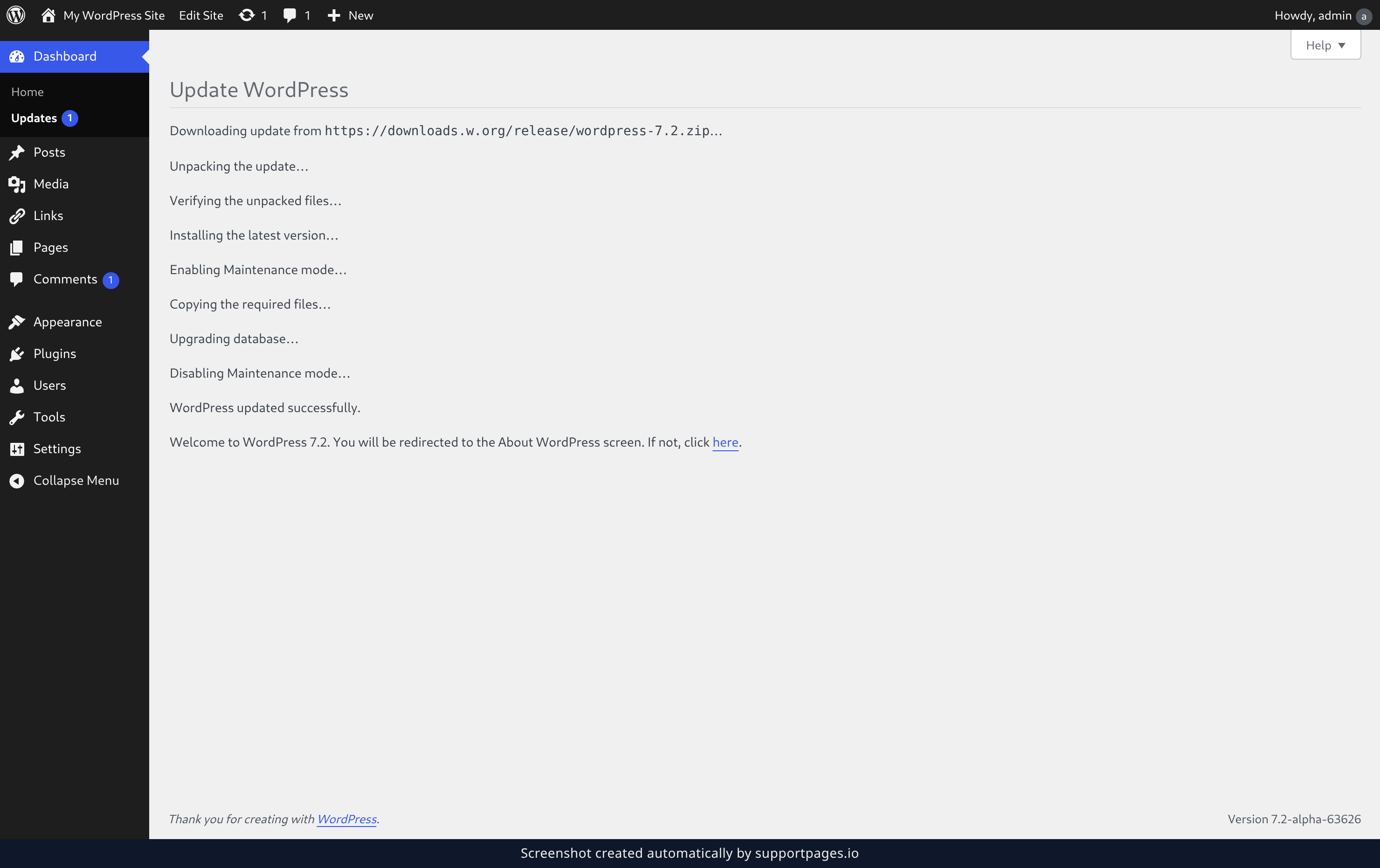
Wait for the update to finish
WordPress shows you each step as it works through the update. Once you see WordPress updated successfully., the new version is live and your site is open again.
Tips
- The same screen lists updates for your themes, plugins and translations. Those install separately from WordPress itself.
- If your dashboard says You have the latest version of WordPress., there's nothing to do — you're already up to date.
- Updating is safest right after a backup. If anything looks wrong afterwards, restore that backup and try again.
Summary
That's the whole job — WordPress downloads the new version and installs it while you watch. Come back to Dashboard → Updates any time you want to check again.
Was this article helpful?
Generated automatically by supportpages.io — AI knowledge base software for SaaS teams.
Have a question?
Search our articles, or ask and get an answer straight away.