
How to publish posts by email
Updated about 1 month ago
Browse All
You can publish a post without opening the dashboard at all — just send an email. Point WordPress at a private mailbox, and every message that arrives there turns into a new post on your site.
Before you start
- An administrator account on your site — only administrators can change these settings.
- A private email account that WordPress is allowed to check, along with its mail server address, port, login name, and password.
- The category you want posts from that mailbox to be filed under.
Steps
Open the Writing settings
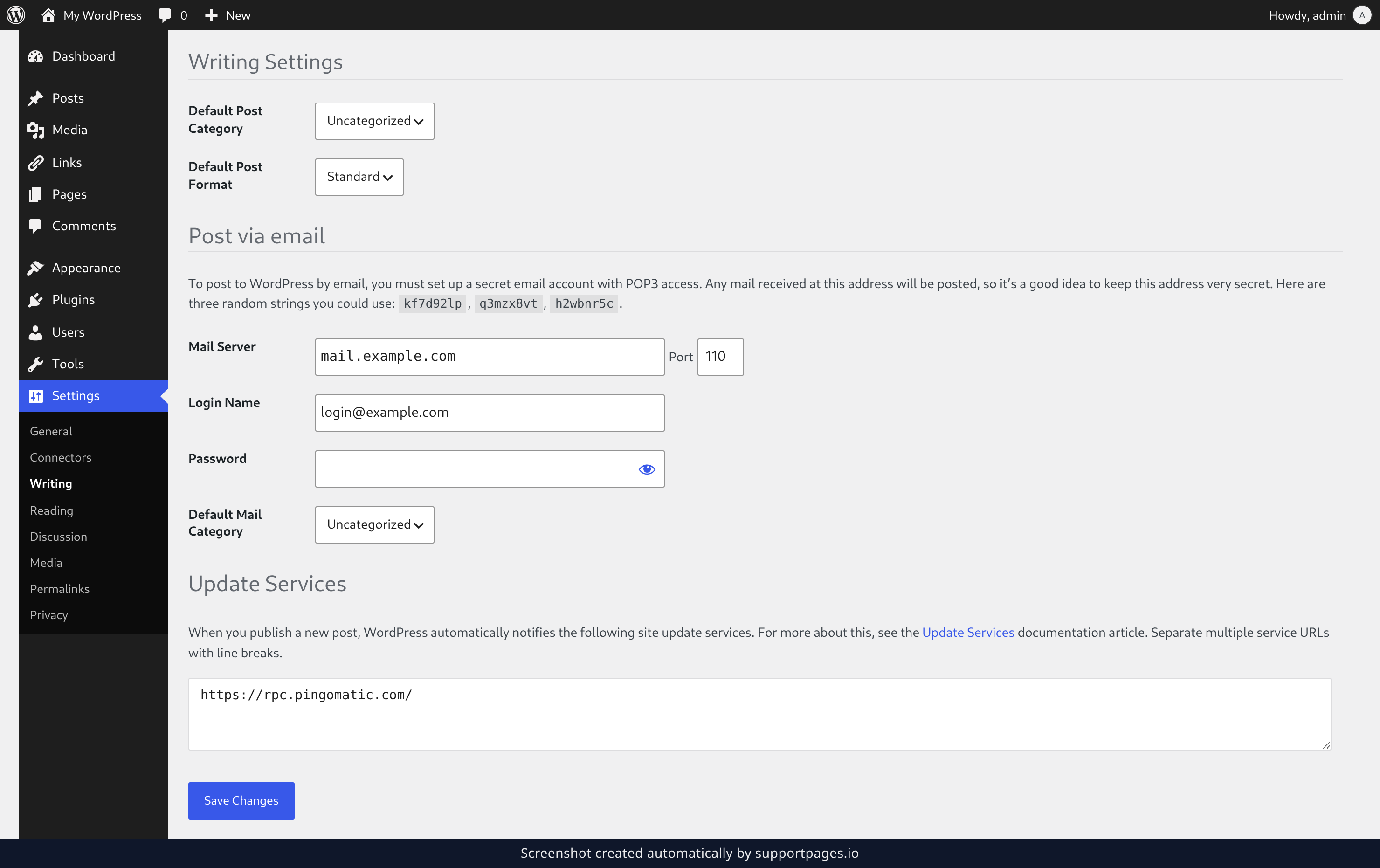
In the left-hand menu of your dashboard, click Settings, then click Writing. The Writing Settings page opens.
Fill in your mailbox details
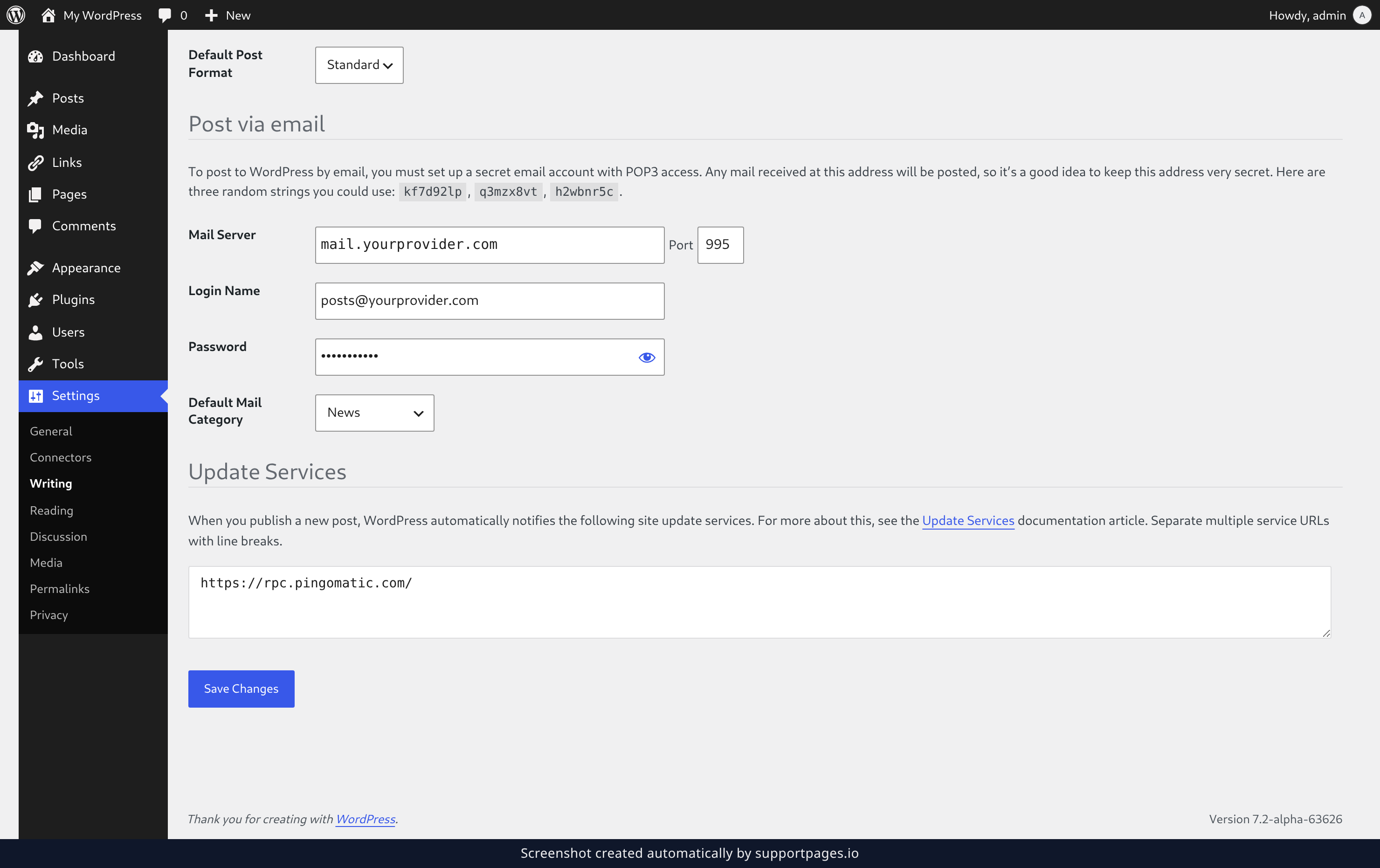
In the Post via email section, type the mail server address in Mail Server and its port number in Port. Add the mailbox username in Login Name, then its password in Password.
Open Default Mail Category and choose where posts arriving by email should be filed, then click Save Changes.
Send your first post
Write an email from any mail app and send it to that mailbox. The subject line becomes your post title, and the message itself becomes the body of the post.
Check that it arrived
WordPress checks the mailbox on a schedule, so give it a few minutes, then look for your new post in your site's post list. It will be sitting in the category you chose.
Tips
- Keep the address private. Every message that reaches that mailbox becomes a post, so don't use it to sign up for newsletters or updates.
- Send from the email address on your WordPress account and the post is credited to you. Send from any other address and it's posted under the site administrator's name.
- If your provider lists a secure POP3 option, make sure the port you enter matches the one it gives you.
Summary
With the mailbox connected and saved, anything you send to that address becomes a post in the category you picked — which means you can publish from your phone, from a train, or from anywhere else a mail app works.
Was this article helpful?
Powered by supportpages.io — help centre software for SaaS.
Have a question?
Search our articles, or ask and get an answer straight away.