
How to update your plugins
Updated about 1 month ago
Browse All
Plugin updates are small releases that fix bugs and close security holes, and WordPress tells you the moment one is waiting. Here's how to see what needs updating, read what changed, and update one plugin or all of them at once.
Before you start
- An account that can manage plugins. Administrator accounts can do this by default.
- A couple of minutes. Most plugin updates finish in seconds.
- A recent backup, if your hosting plan includes one. It's cheap insurance.
Steps
See which plugins have new versions
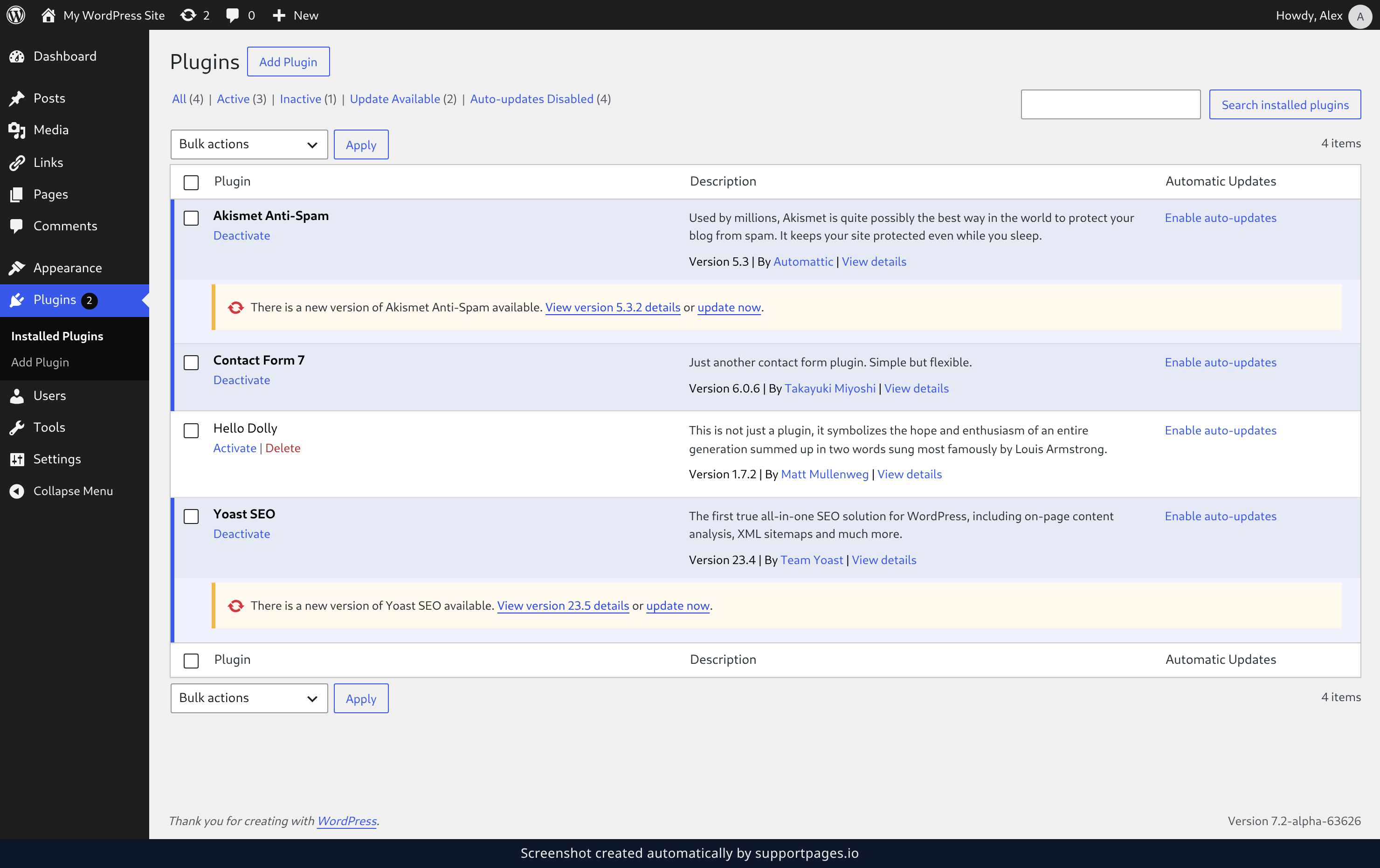
Go to Plugins in the left-hand menu and open Installed Plugins. Every plugin with a version waiting gets an Update Available row, and the Update Available link at the top of the list hides everything else. To take just that one, click update now in its row.
Read what changed first
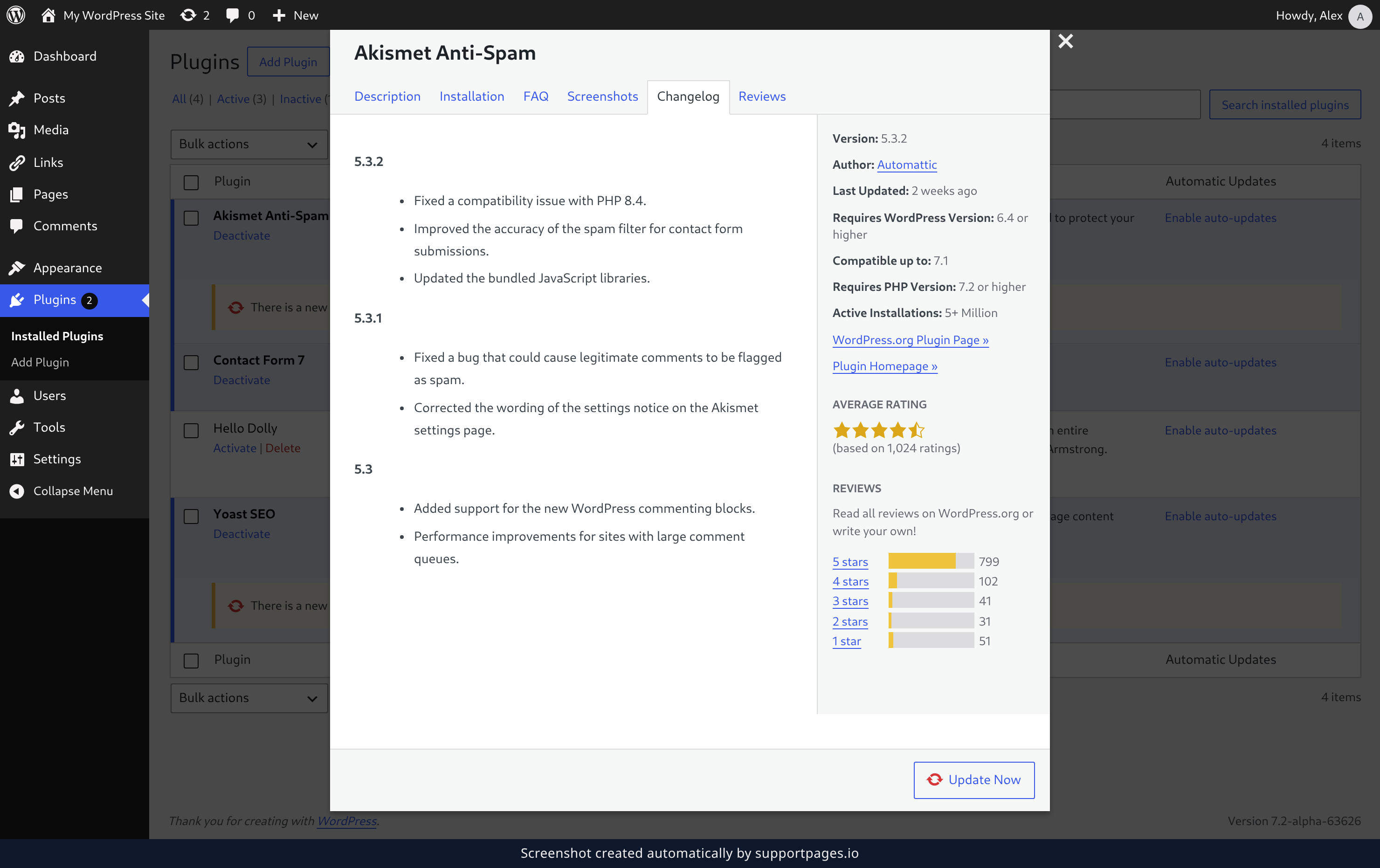
Curious before you commit? Each update row has a View version 5.3.2 details link. Click it to open the plugin's page, then open the Changelog tab to see what the new release fixed and added.
Update everything at once
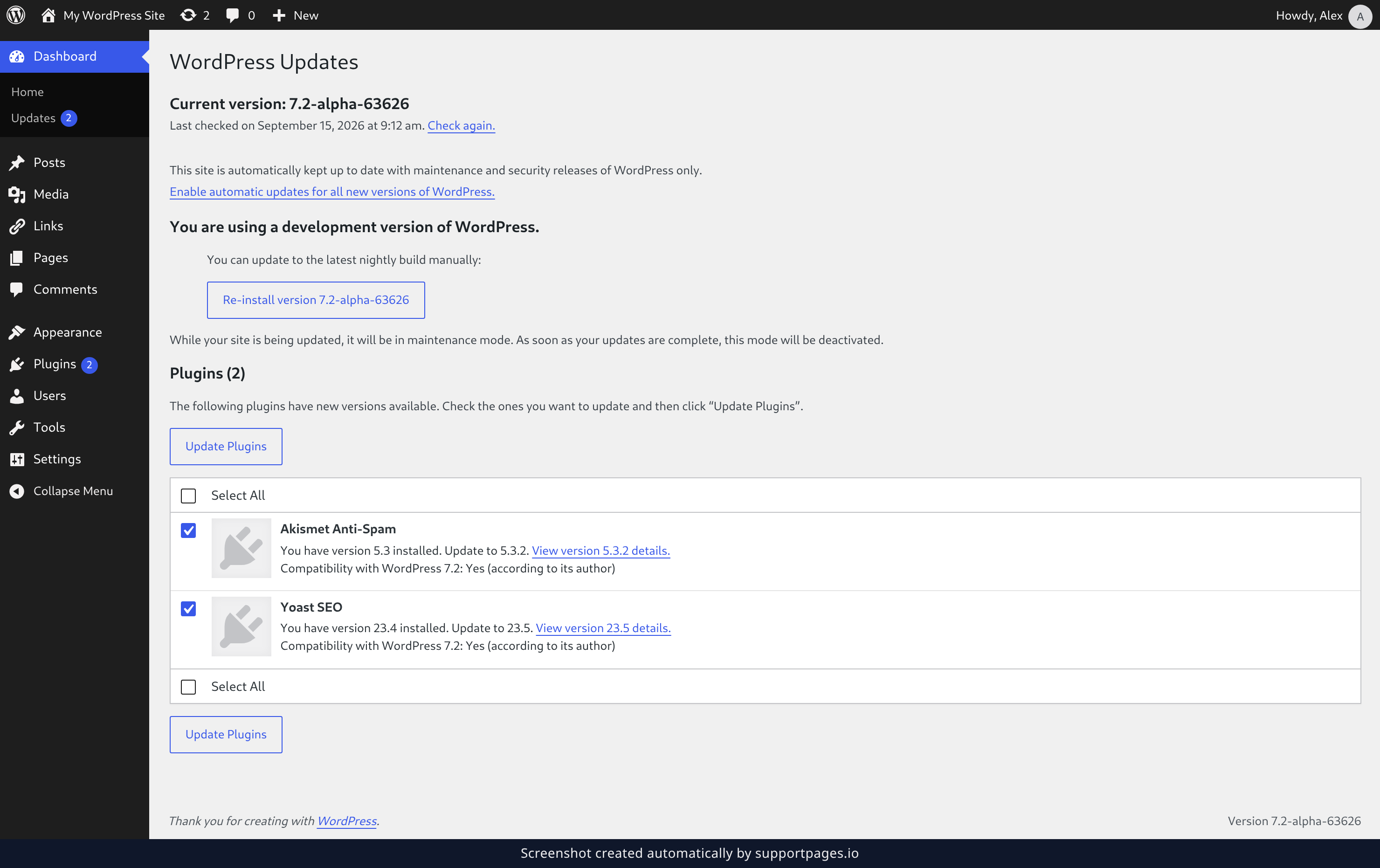
Go to Dashboard → Updates to see every plugin with a pending update in one list. Tick the box next to each plugin you want, or tick Select All at the top, then click Update Plugins. If the list looks stale, use Check again to ask WordPress for the newest versions.
Tips
- Update even when a plugin seems to be working fine. Most releases quietly close security holes you'd never notice.
- Little and often beats a big catch-up: a quick pass every week or two keeps this list short.
- A plugin can be updated while it's active. There's no need to switch it off first.
You're all sorted
Open Plugins to see what's waiting, peek at the changelog if you're curious, then update a single plugin or the whole list in a couple of clicks.
Was this article helpful?
Made by supportpages.io — turning pull requests into automated user documentation.
Have a question?
Search our articles, or ask and get an answer straight away.