
How to set a featured image and excerpt
Updated about 1 month ago
Browse All
The featured image and the excerpt are the two things WordPress shows alongside your post when it is listed somewhere other than its own page — on your blog's home page, in archives, and in feeds. Both live in the post editor's settings sidebar, and setting them takes about a minute.
Before you start
- A post you want to update — a draft or something you have already published.
- An image in your Media Library, or one ready to upload from your computer.
Steps
Open the post in the editor
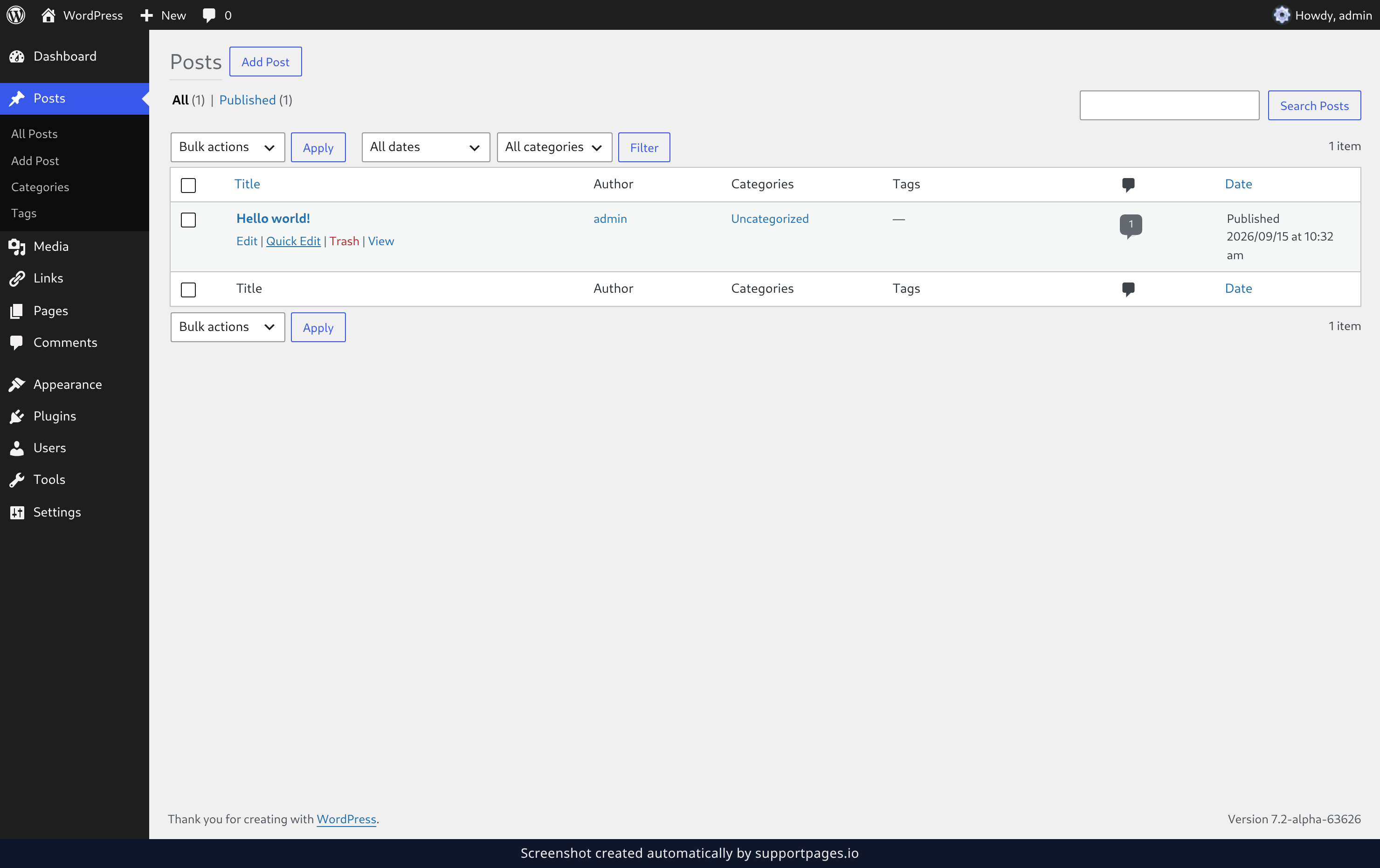
In your dashboard, go to Posts and click the title of the post you want to update. It opens in the block editor.
Open the post settings
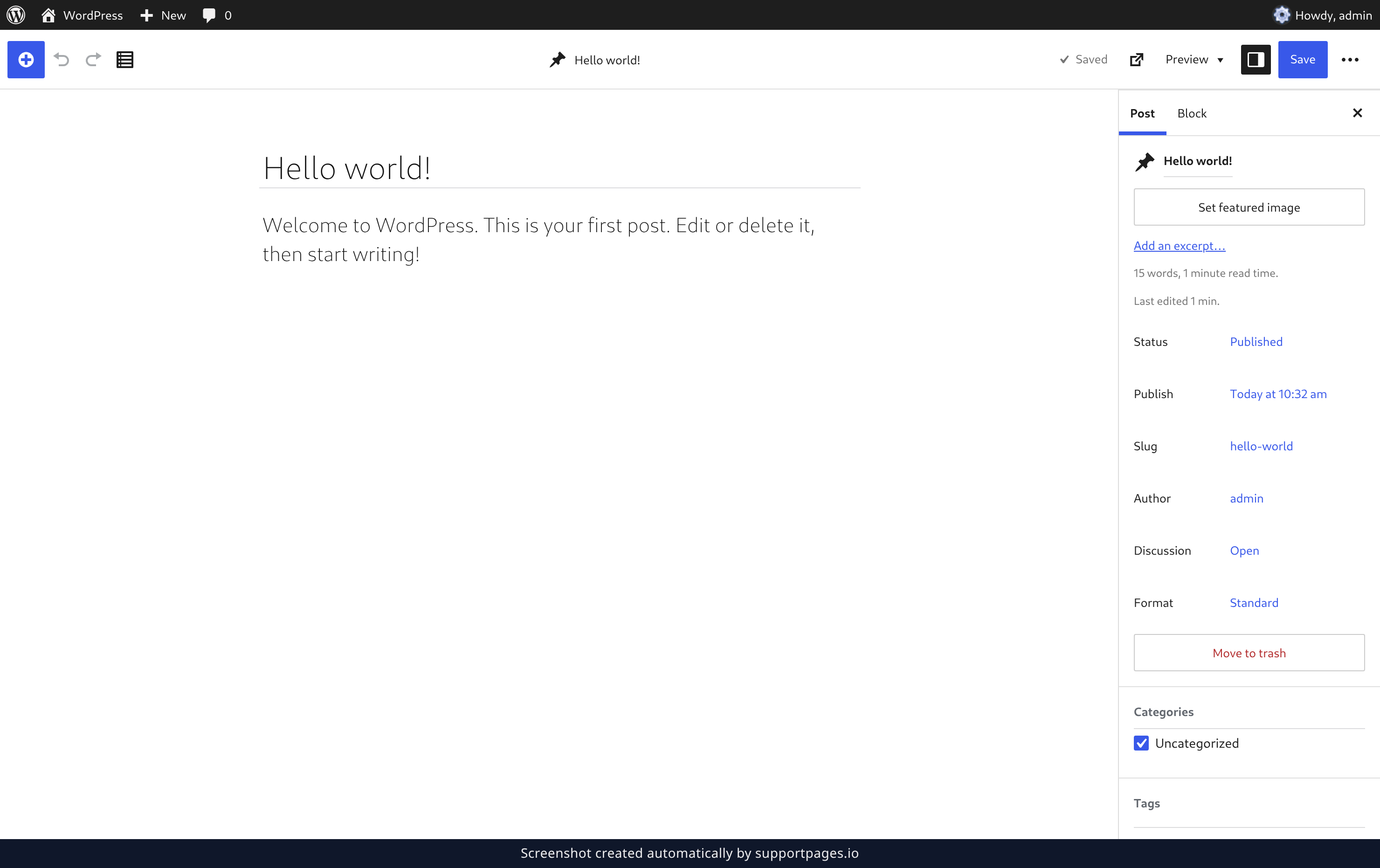
Click Settings in the top-right corner of the editor. The settings sidebar opens on the right, with the Post tab showing.
Choose the featured image
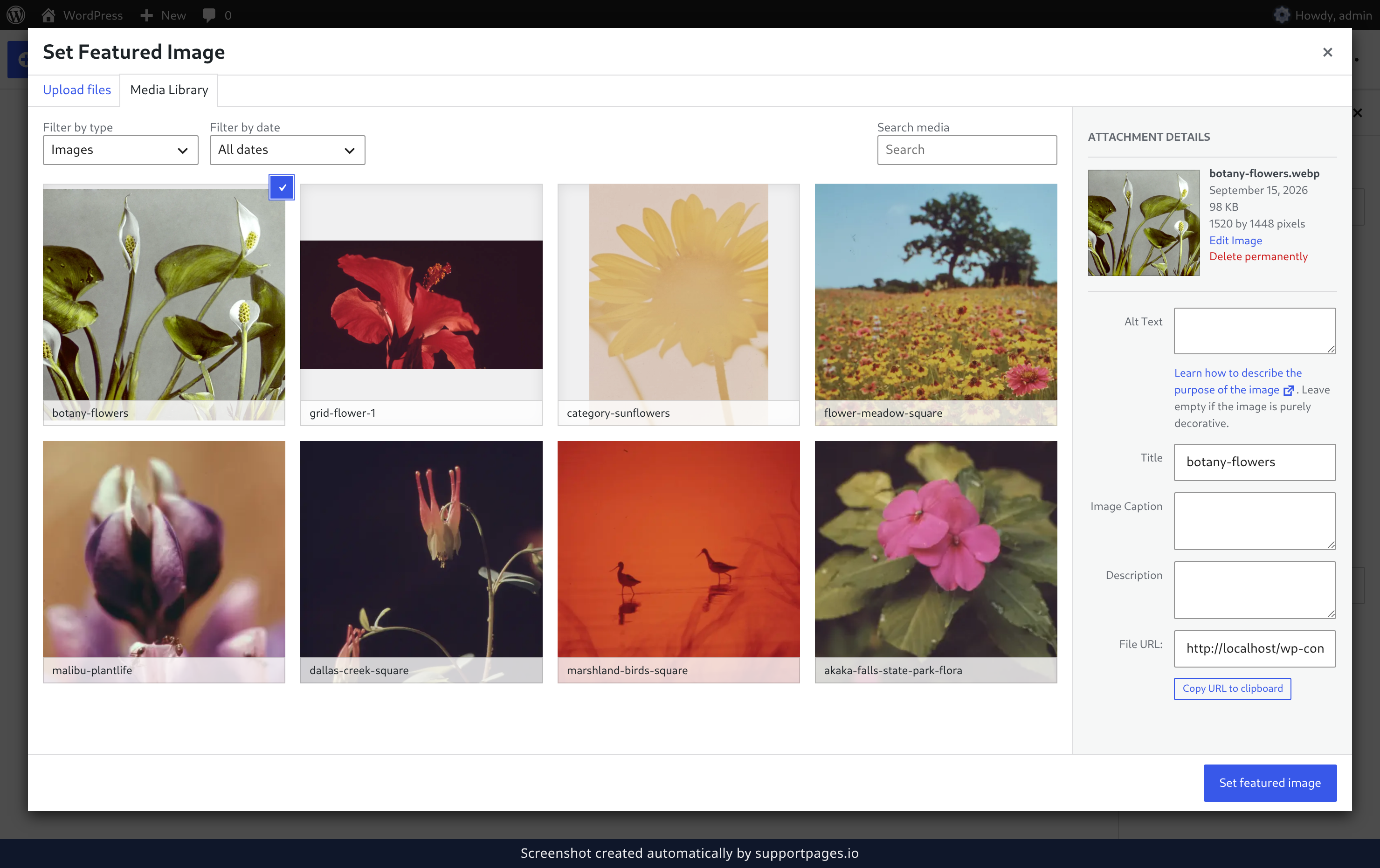
In the sidebar, click Set featured image. Pick a picture from your Media Library — or upload a new one from the Upload files tab — and click Set featured image in the bottom-right corner.
Write the excerpt
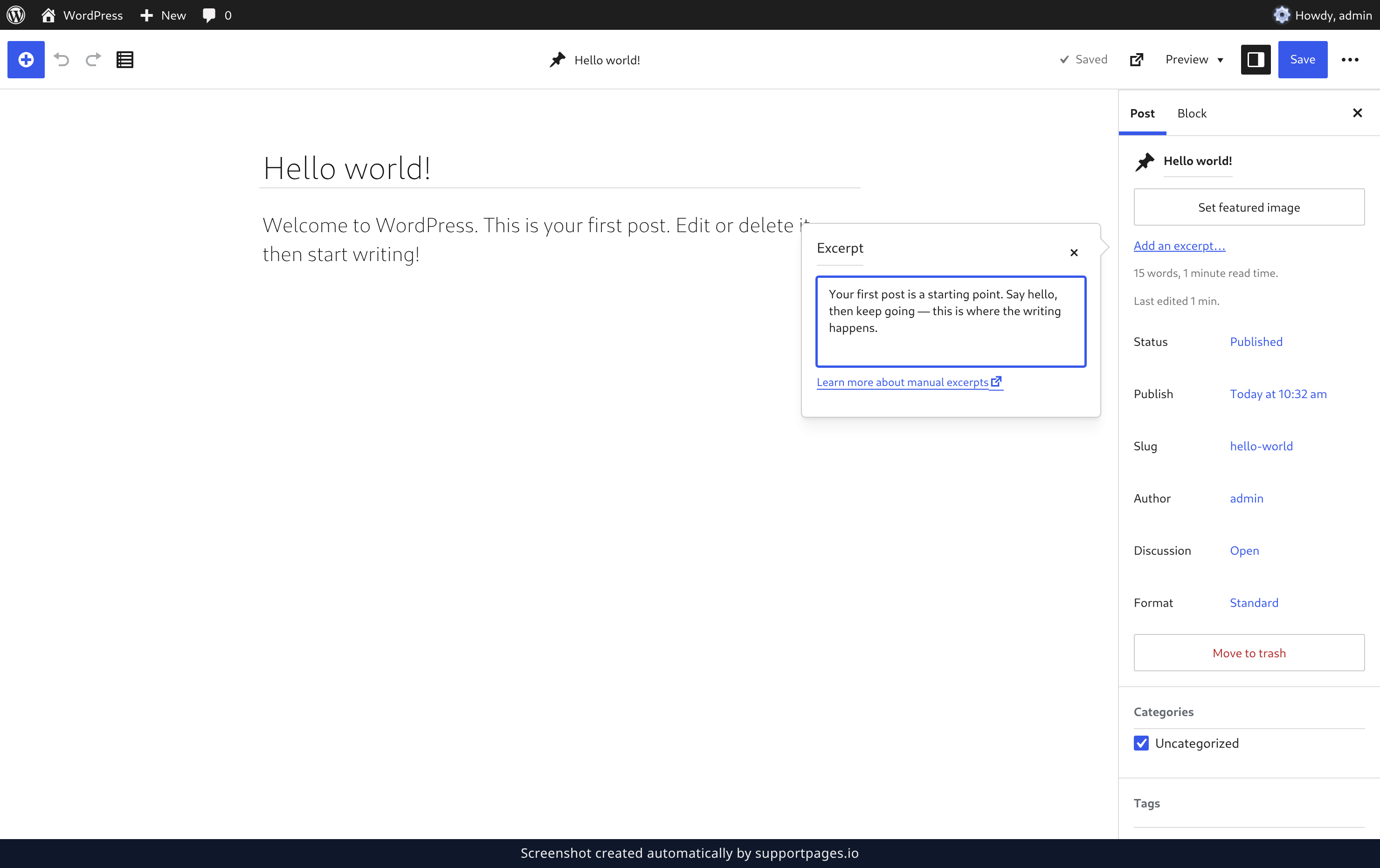
Back in the sidebar, click Add an excerpt and type one or two sentences that sum up the post. Click anywhere else in the editor when you are done, and WordPress keeps what you wrote.
Click Save at the top of the editor. Your post now carries the image and the summary everywhere it is listed.
Tips
- The excerpt is the teaser that appears in archives, search results and feeds. It never replaces the opening paragraph on the post itself.
- Leaving the excerpt empty is fine — WordPress falls back to the first words of your post, so write one only when you want to control the teaser.
- Wide, landscape images work best, since most themes crop the featured image to a broad shape.
Summary
Open the Post tab of the editor's settings sidebar, choose your featured image, write a short excerpt, then click Save. Your post now looks finished wherever it appears.
Was this article helpful?
Made by supportpages.io — turning pull requests into automated user documentation.
Have a question?
Search our articles, or ask and get an answer straight away.