
How to schedule a post to publish later
Updated about 1 month ago
Browse All
You don't have to be sitting at your desk when a post goes out. Write it now, pick the day and time you want it to appear, and WordPress will publish it for you.
Before you start
- Your post, open in the editor and ready to publish.
- Permission to publish posts on the site — an Administrator or Editor account.
Steps
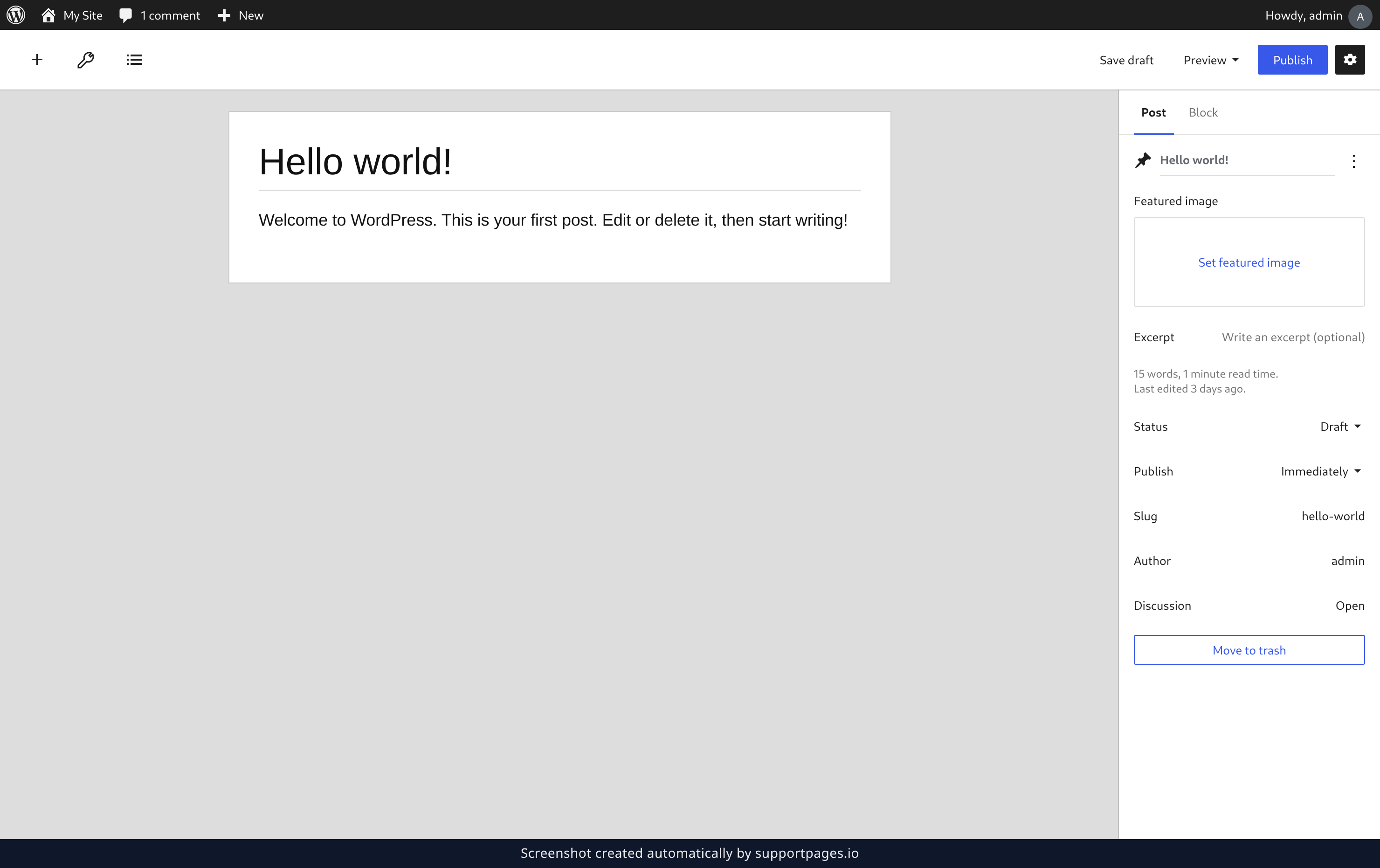
Open the date picker
In the settings sidebar, find the Publish row. It says Immediately right now — click it to open the date picker.
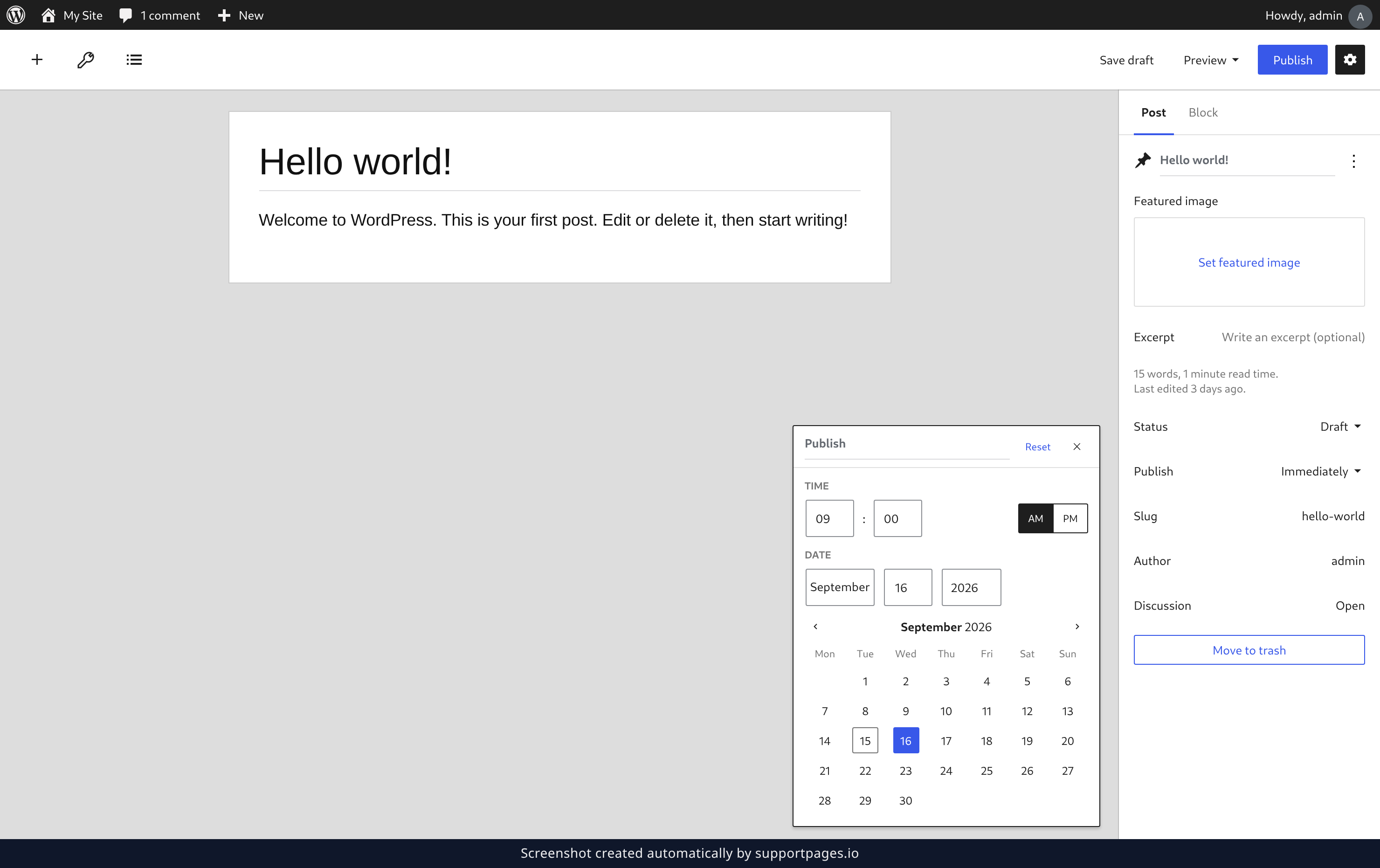
Choose the day and time
Set the time you want at the top of the panel, then click the day you want on the calendar underneath it. When the date looks right, click Close to put the picker away.
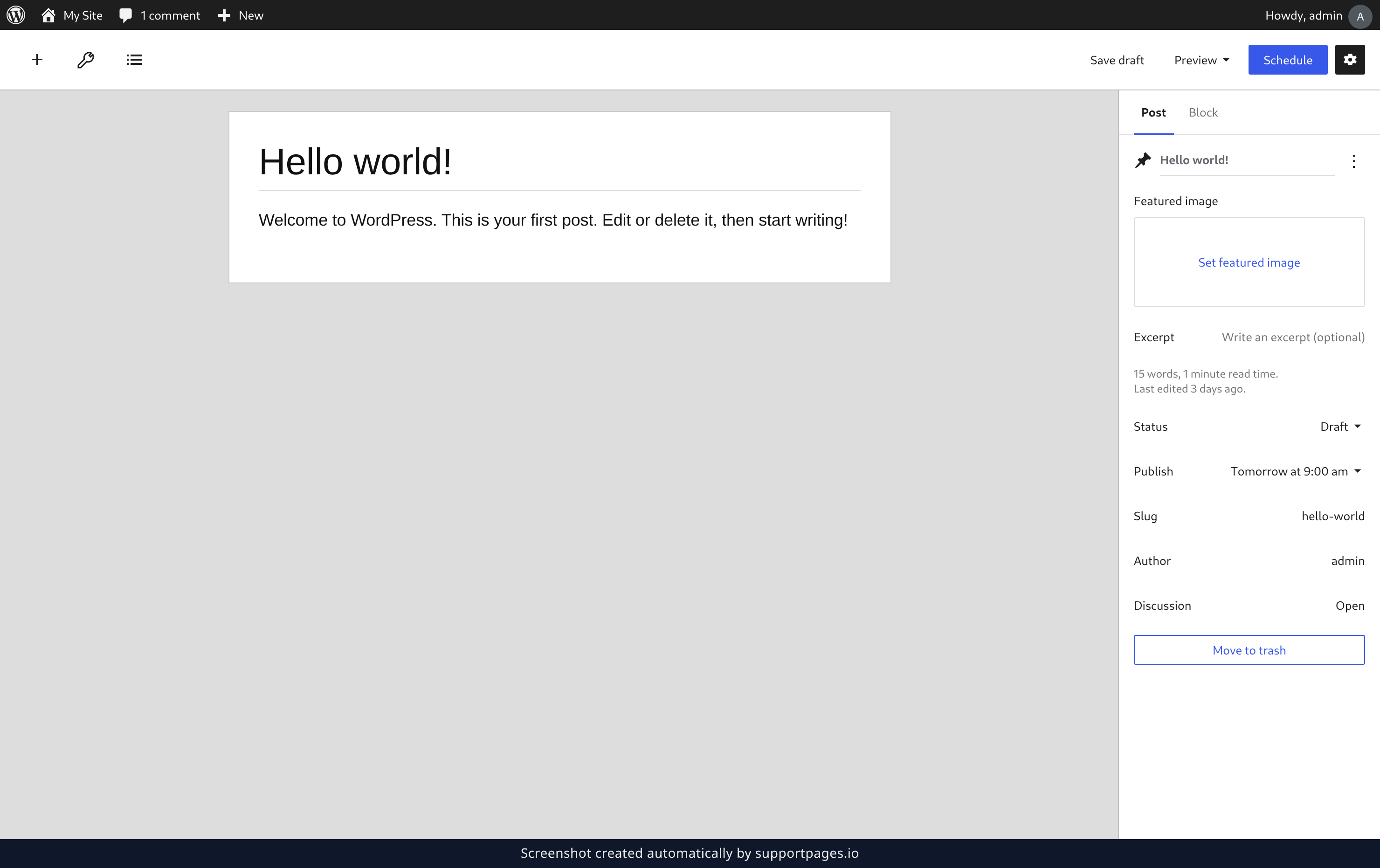
Click Schedule
The button in the top right now says Schedule instead of Publish — that's WordPress telling you the post will go out later rather than now. Click it.
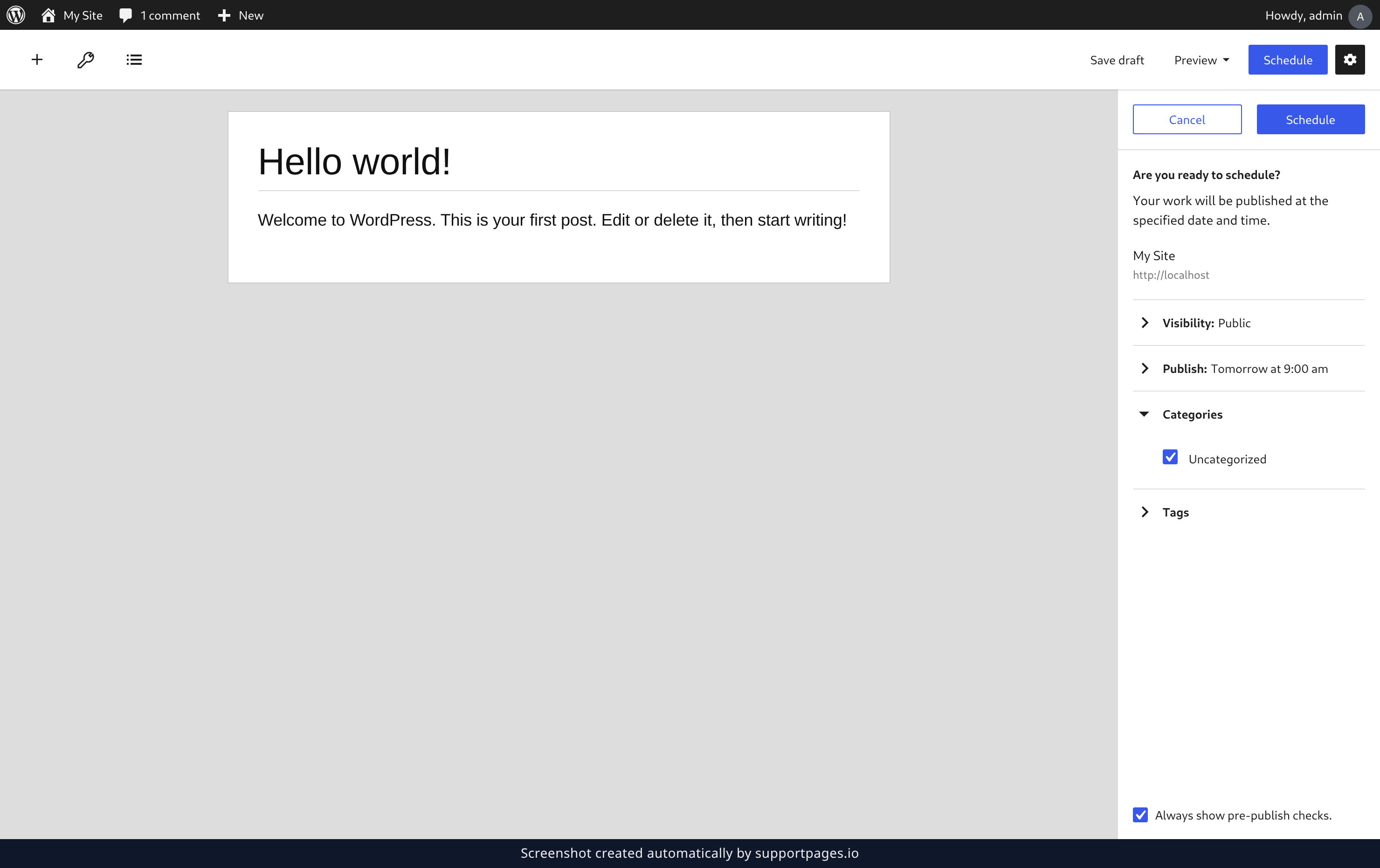
Confirm the date and time
A panel opens so you can double-check everything before it's locked in. When the date and time look right, click Schedule. That's it — your post will publish itself.
Tips
- Changed your mind? Click the Publish row again and pick a new date, or open the post and click Switch to draft to cancel the schedule.
- A scheduled post shows Scheduled in the Date column of the Posts list, so you can see what's coming up.
- Your site's timezone is what counts. If the publish time looks off, check Settings → General.
Summary
Scheduling lets you write when you have the time and publish when your readers do. Set the date, click Schedule, and the post takes care of itself.
Was this article helpful?
Created with supportpages.io — AI help centre software.
Have a question?
Search our articles, or ask and get an answer straight away.