
How to set up a network of sites
Updated about 1 month ago
Browse All
A network lets you run as many WordPress sites as you like from one installation — one set of files, one login, and one dashboard for all of them. Here's how to turn your single site into a network, then add and look after the sites, people, themes, and settings inside it.
Before you start
-
Access to your WordPress files, through your host's file manager or an FTP app — you'll be editing
wp-config.php. - Every plugin turned off. WordPress will not create a network while a plugin is active, and you can turn them back on afterwards.
- A backup of your site files and your database, just in case.
- The email address you want to use as the network administrator.
Steps
Turn on the network and run the Network Setup
This first step happens in your files, not the dashboard: open wp-config.php in your file manager or FTP app and add this line just above the one that reads /* That's all, stop editing! Happy publishing. */:
define( 'WP_ALLOW_MULTISITE', true );
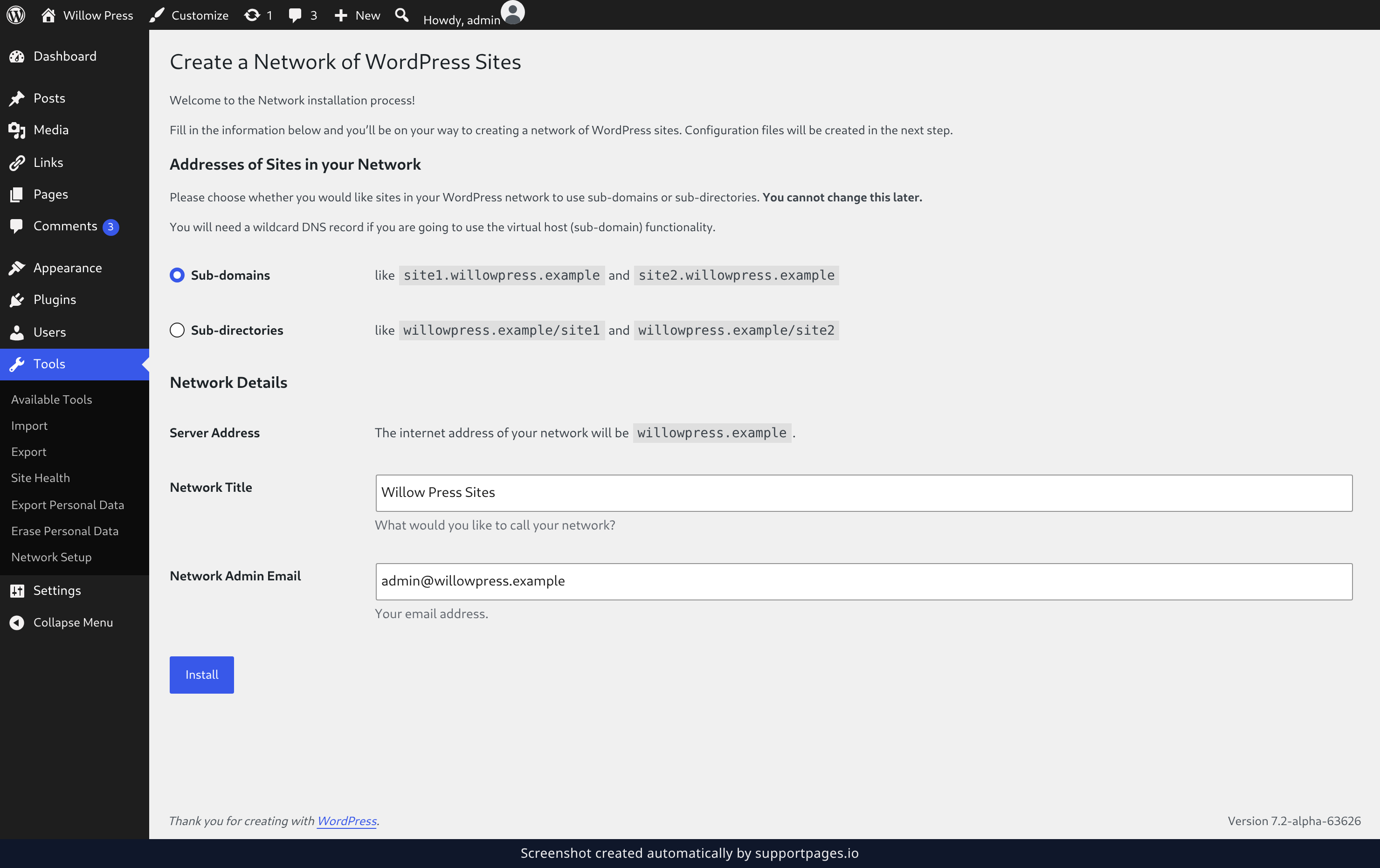
Save the file, reload your dashboard, then open Tools and choose Network Setup.
Under Addresses of Sites in your Network, pick Sub-domains or Sub-directories — this cannot be changed later. Check the Network Title and Network Admin Email that WordPress filled in for you, then click Install.
Add the network code and open the Network Admin
The next screen hands you the exact code your network needs: copy the first block into wp-config.php, still above the /* That's all, stop editing! Happy publishing. */ line:
define( 'MULTISITE', true );
define( 'SUBDOMAIN_INSTALL', false );
define( 'DOMAIN_CURRENT_SITE', 'example.com' );
define( 'PATH_CURRENT_SITE', '/' );
define( 'SITE_ID_CURRENT_SITE', 1 );
define( 'BLOG_ID_CURRENT_SITE', 1 );
The second block replaces the WordPress rules already in your .htaccess file:
RewriteEngine On
RewriteRule .* - [E=HTTP_AUTHORIZATION:%{HTTP:Authorization}]
RewriteBase /
RewriteRule ^index\.php$ - [L]

# add a trailing slash to /wp-admin
RewriteRule ^([_0-9a-zA-Z-]+/)?wp-admin$ $1wp-admin/ [R=301,L]

RewriteCond %{REQUEST_FILENAME} -f [OR]
RewriteCond %{REQUEST_FILENAME} -d
RewriteRule ^ - [L]
RewriteRule ^([_0-9a-zA-Z-]+/)?(wp-(content|admin|includes).*) $2 [L]
RewriteRule ^([_0-9a-zA-Z-]+/)?(.*\.php)$ $2 [L]
RewriteRule . index.php [L]
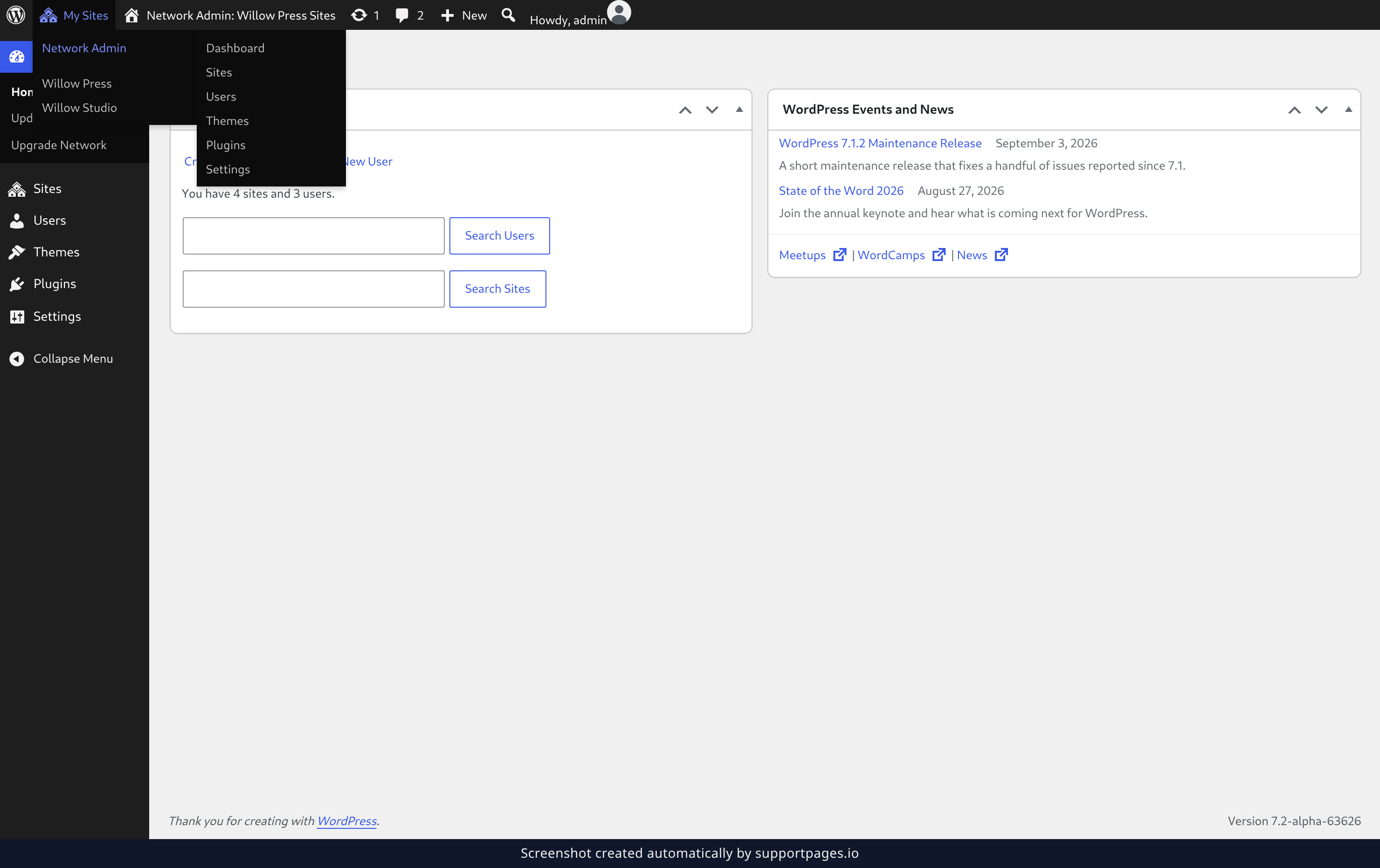
Save both files, then log back in: a My Sites menu now appears in the toolbar at the top of every screen — open it and choose Network Admin, then Dashboard.
Add a site to the network
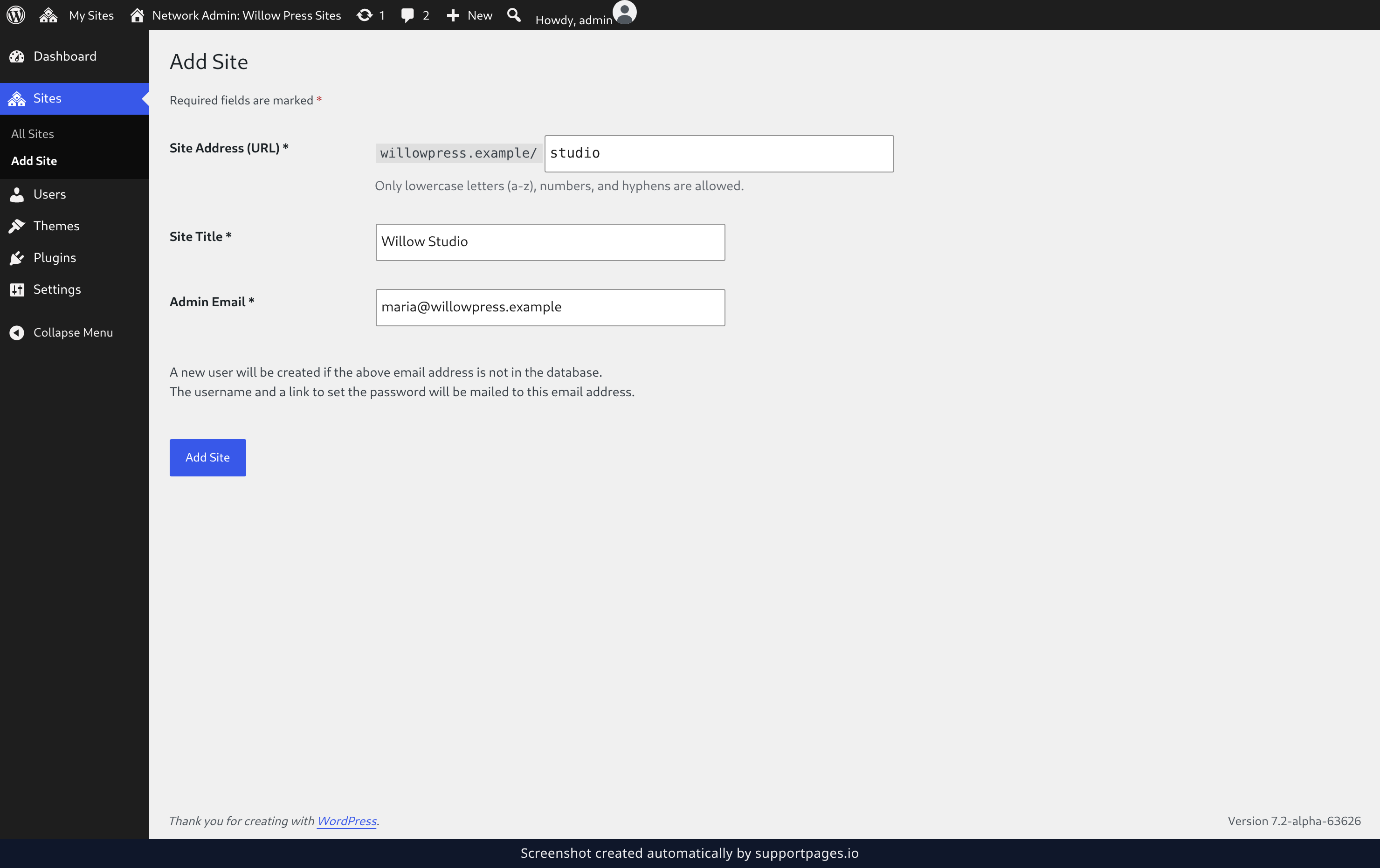
Open Sites and choose Add Site. Type the address you want for the new site, give it a Site Title, and enter the Admin Email of the person who'll run it.
Click Add Site — if that email address isn't in your network yet, WordPress creates the account and emails them a welcome message with a link to set a password.
Set the options that apply to every site
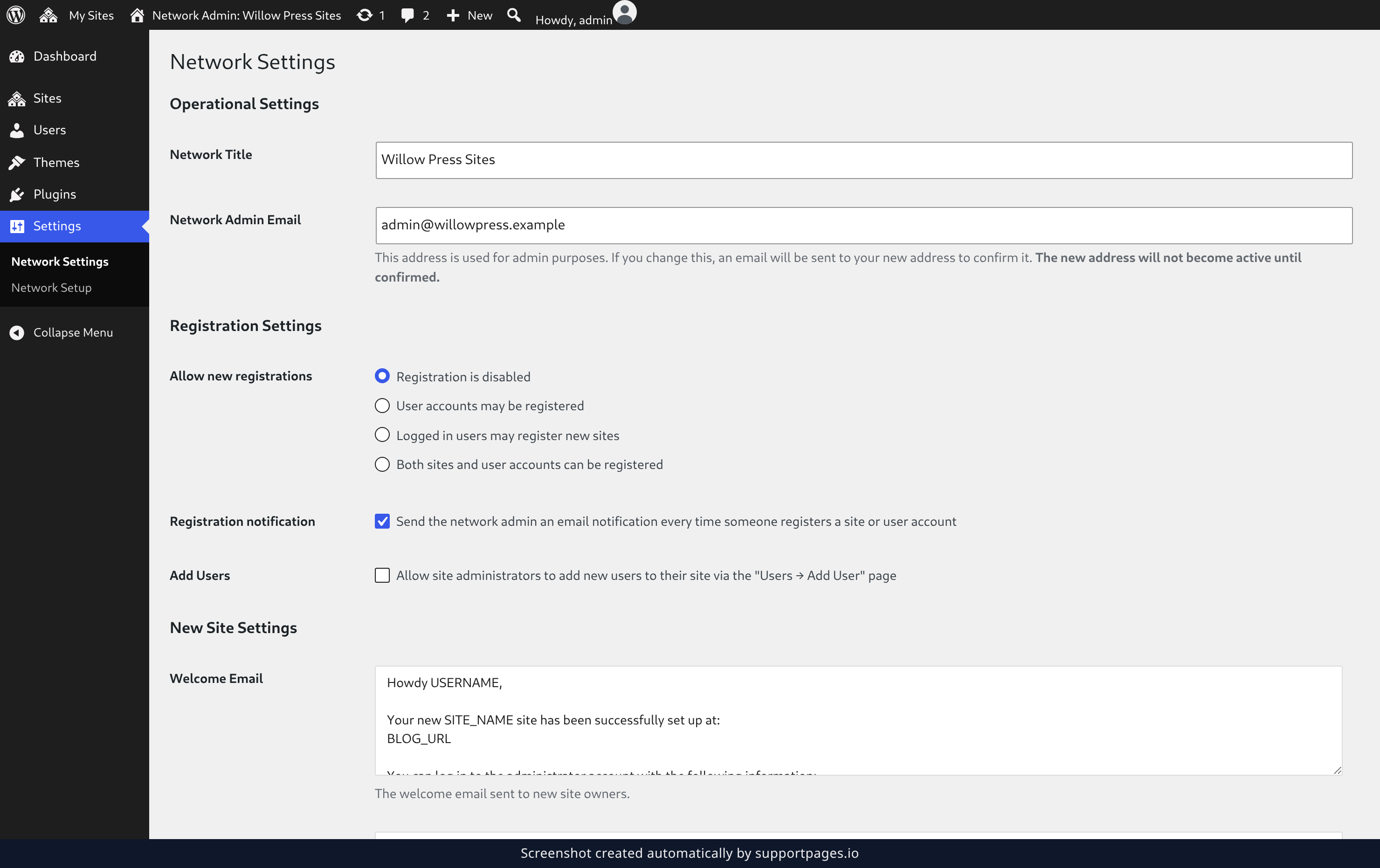
Open Settings and choose Network Settings. Under Operational Settings you can change the Network Title and Network Admin Email, and Registration Settings decides whether people can sign up for their own accounts or sites.
Make your changes, then click Save Changes at the bottom of the page.
Turn a theme on for the whole network
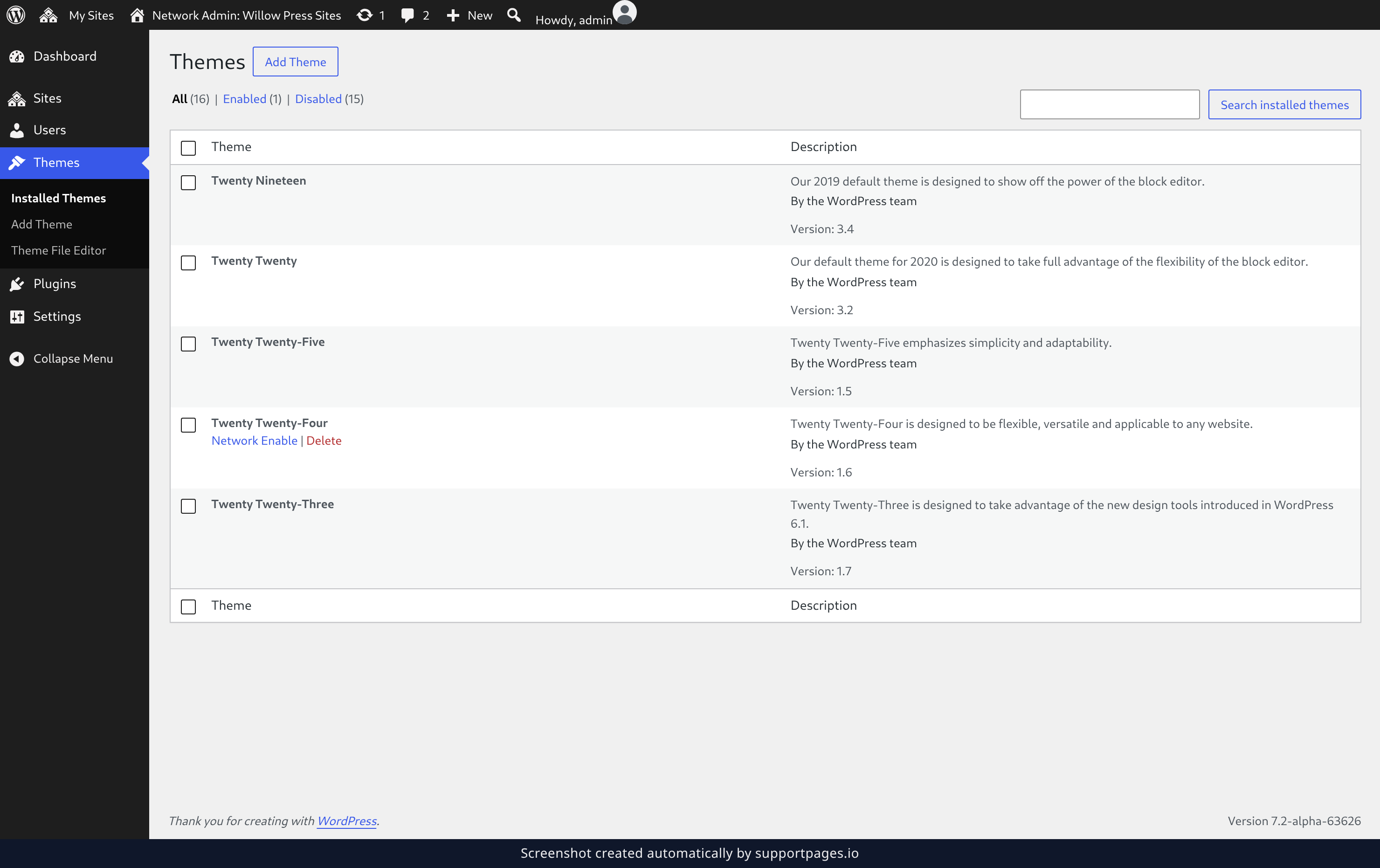
Open Themes and choose Installed Themes. Every theme you've added is listed here, but a theme only becomes available to your sites once you turn it on.
Hover the theme you want and click Network Enable.
Add someone to the network
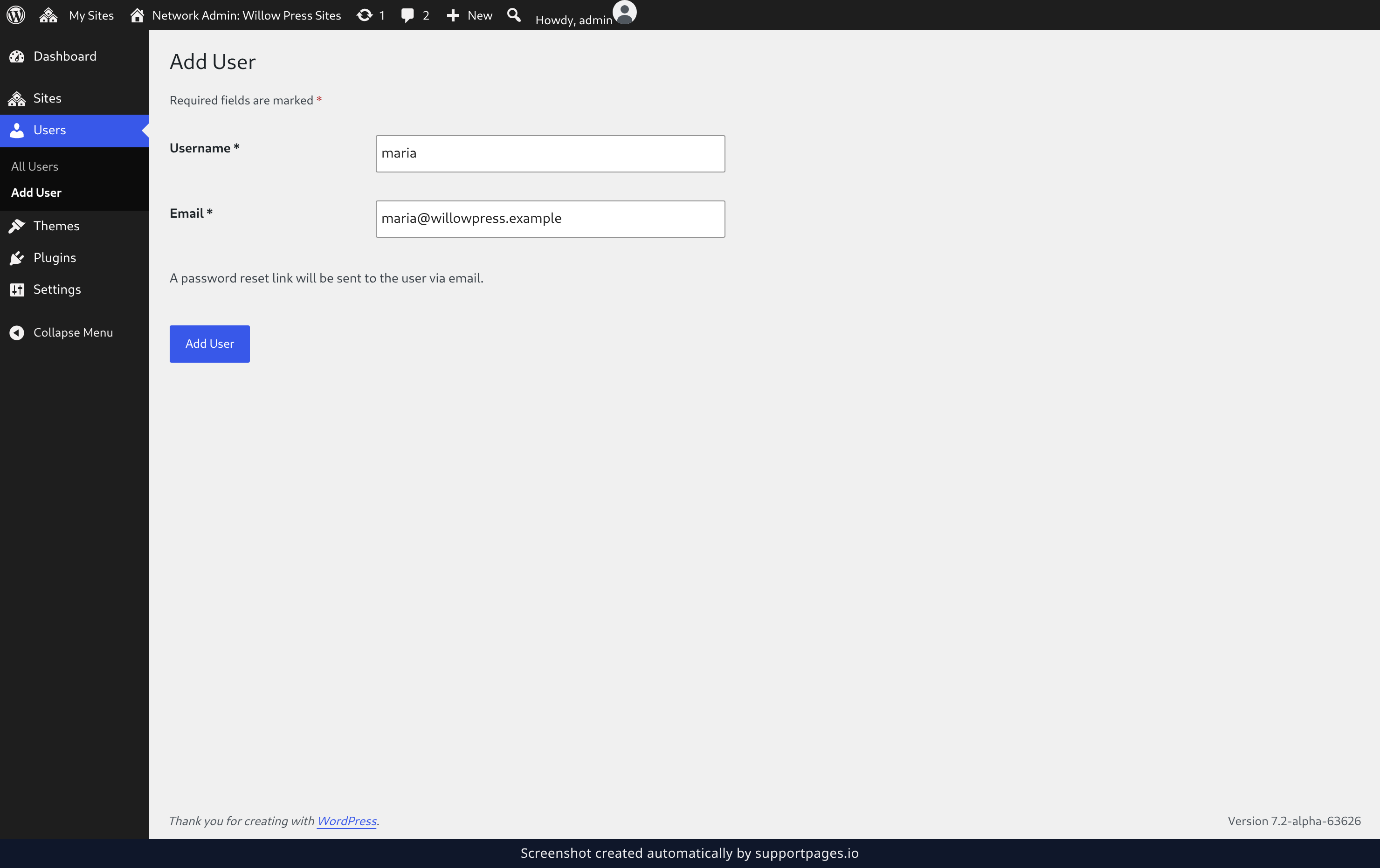
Open Users and choose Add User. Type a Username and the person's Email address, then click Add User.
They'll get an email with their username and a link to set their own password.
Tips
- Not sure which address style to pick? Sub-directories work anywhere and need nothing extra from your host. Sub-domains give each site a tidier address but need a wildcard DNS record.
- Turn your plugins back on once the network is running. From then on you manage them from Plugins in the Network Admin, so every site shares one set.
- The code you added is kept for you. Look it up any time under Settings then Network Setup.
- A network site can use its own theme and settings while still sharing the same users and plugins.
Summary
Your one WordPress installation is now a network of sites. From the Network Admin you can add new sites, set the options that apply to all of them, turn themes on for everyone at once, and give people accounts to run them.
Was this article helpful?
Built with supportpages.io — SaaS documentation software.
Have a question?
Search our articles, or ask and get an answer straight away.