
How to switch between your sites
Updated about 1 month ago
Browse All
Looking after more than one site? You don't have to remember addresses or sign in again — here's how to hop between the sites you belong to.
Before you start
- You're signed in to WordPress.
- You belong to more than one site. If you only have one, no My Sites menu appears in the toolbar.
Steps
Switch from the My Sites menu
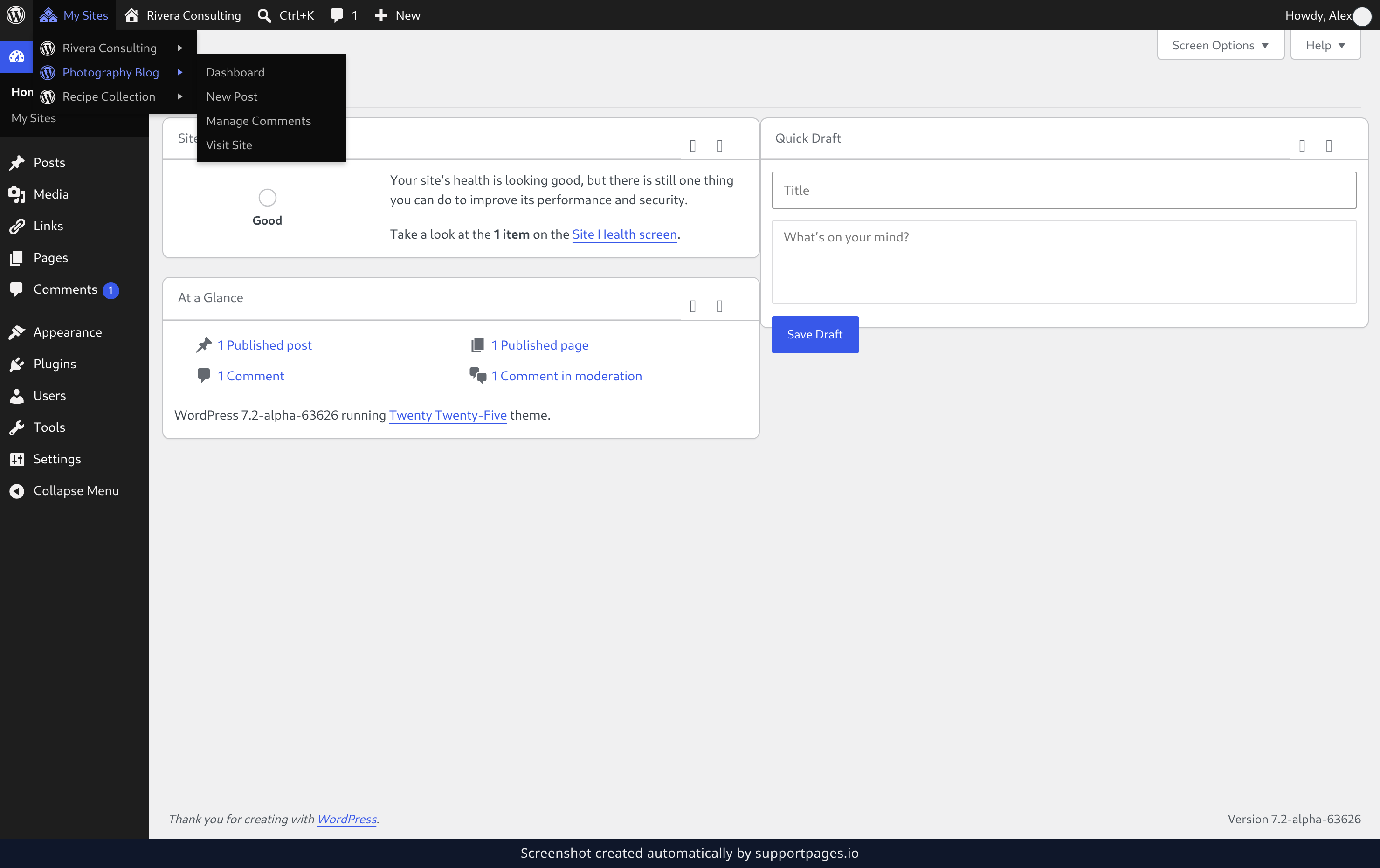
Click My Sites in the toolbar at the top of the screen. Point at the site you want and click Dashboard to land in its admin, or Visit Site to look at its public pages.
Switch from the My Sites screen
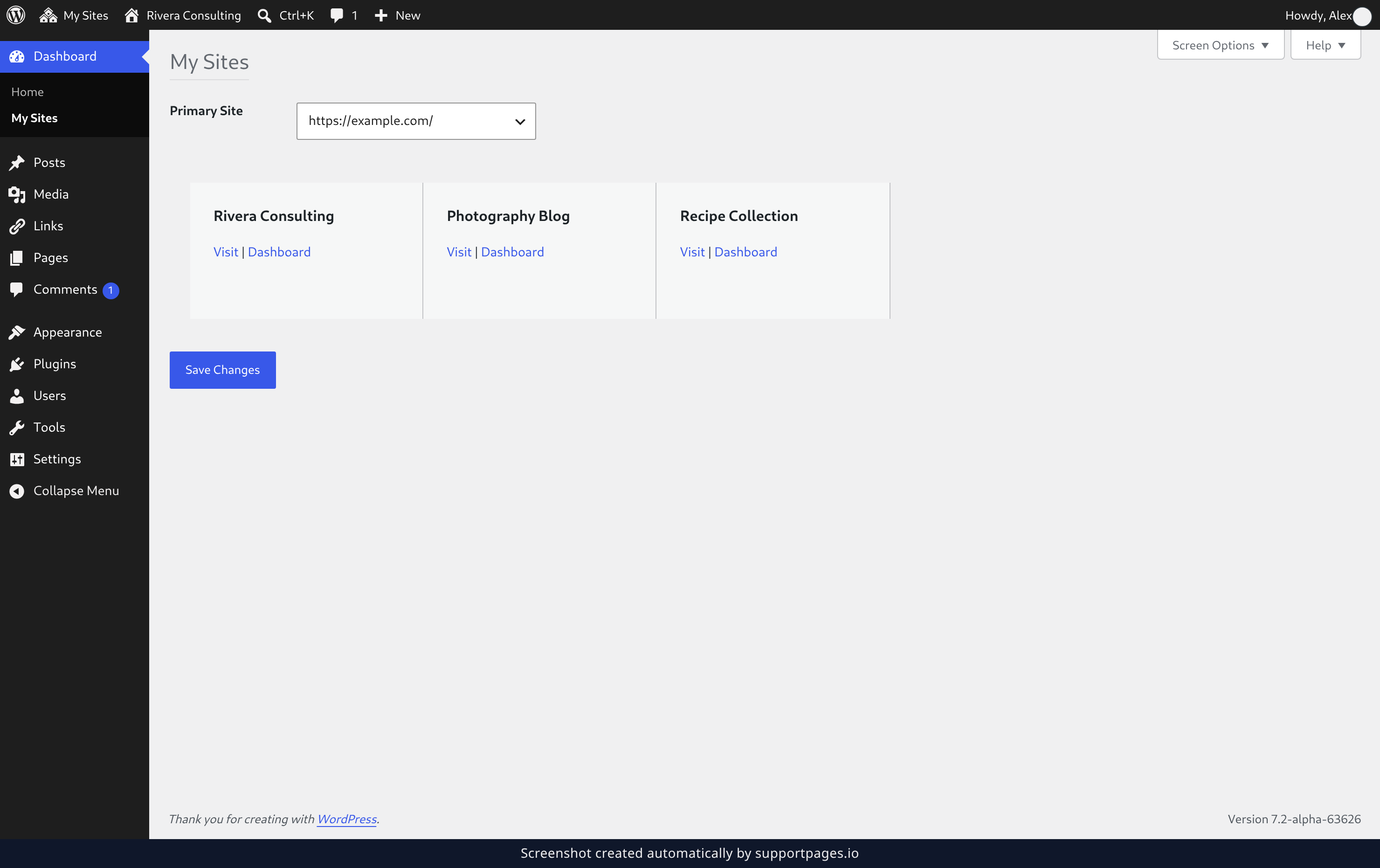
The My Sites item opens a full page listing every site you belong to — click Dashboard or Visit next to any of them to jump straight over. To decide which site WordPress starts you in, choose one under Primary Site and click Save Changes.
Tips
- Not sure which site you're in? The site name in the toolbar is always the current one.
- You stay signed in when you switch, so you only ever sign in once.
- Set a Primary Site and WordPress takes you straight to your busiest site each time you log in.
Summary
Point at My Sites, pick a site, and you're in. If you'd rather see everything at once, the My Sites screen puts the whole list on one page.
Was this article helpful?
Built with supportpages.io — an AI documentation generator.
Have a question?
Search our articles, or ask and get an answer straight away.