
How to create and organize your pages
Updated about 1 month ago
Browse All
Posts come and go, but some pages stay put — About, Contact, the ones visitors look for again and again. Here's how to create a page and tuck it into a tidy hierarchy so everything has a place.
Before you start
- You're signed in to your site's dashboard.
- Your account is allowed to publish pages — that means an Administrator or Editor role.
- You've already made the page you want to use as the parent, such as your About page.
Steps
Open your pages list
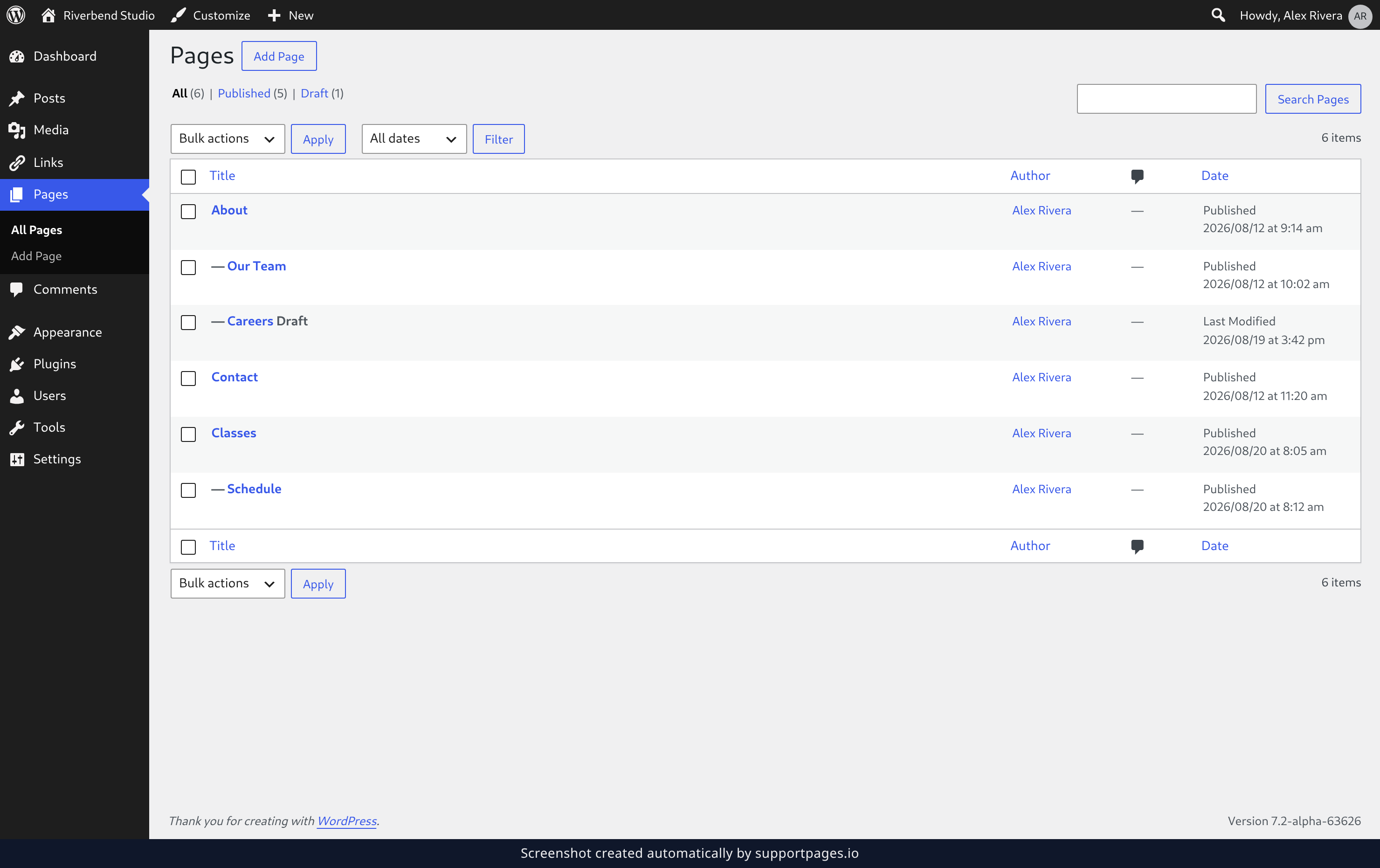
In the left sidebar, click Pages. Every page on your site is listed here, and nested pages sit indented underneath the page they belong to. When you're ready for a new one, click Add Page beside the Pages heading.
Write your page and give it a parent
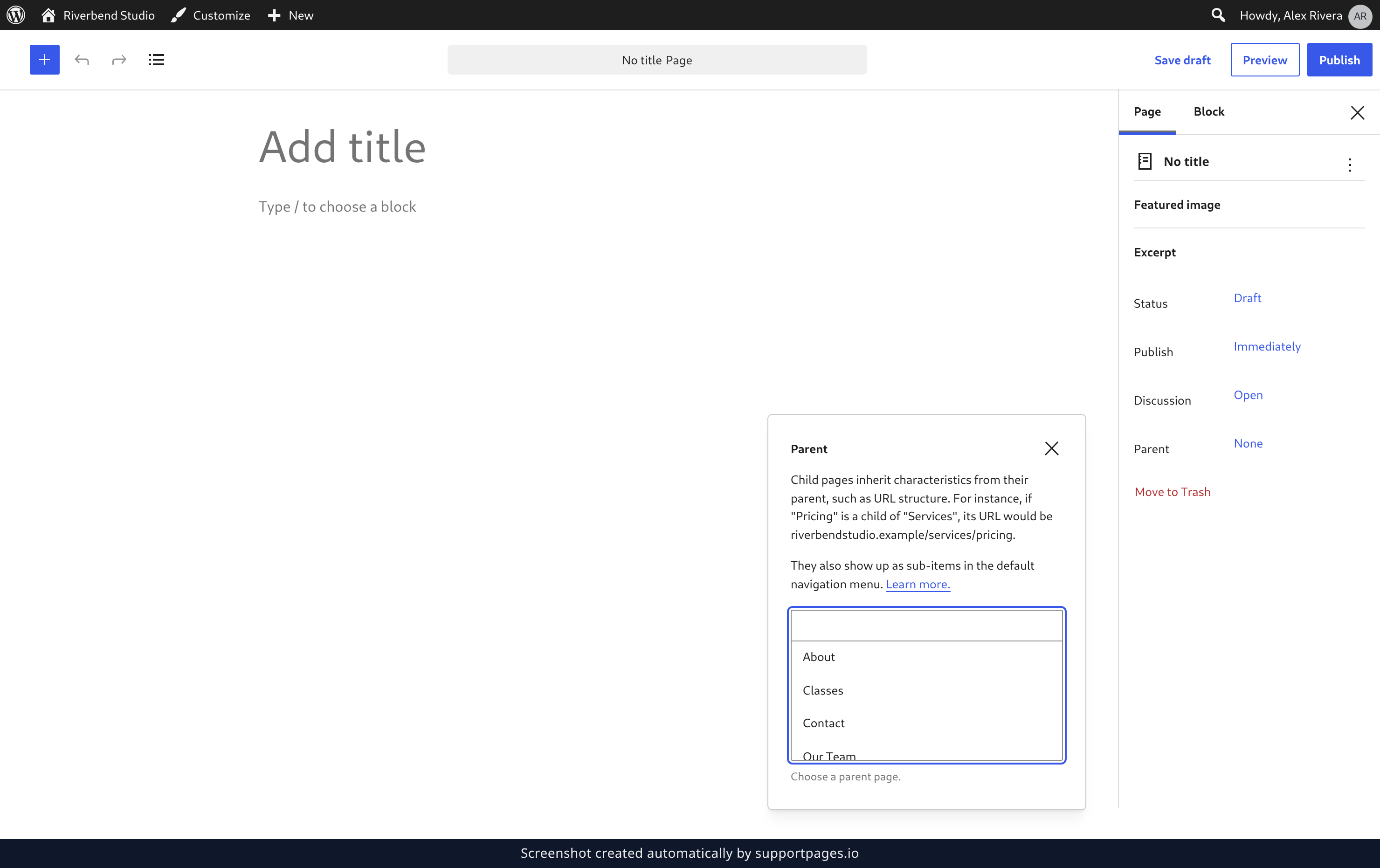
Click Add title at the top and type the name your visitors will see, then click the line below it and start writing — the placeholder Type / to choose a block is where your words, images, and lists go. To tuck the page under another one, click Parent in the settings sidebar on the right and pick the page it should sit under. Leave it at None and your page stays at the top level.
Publish your page
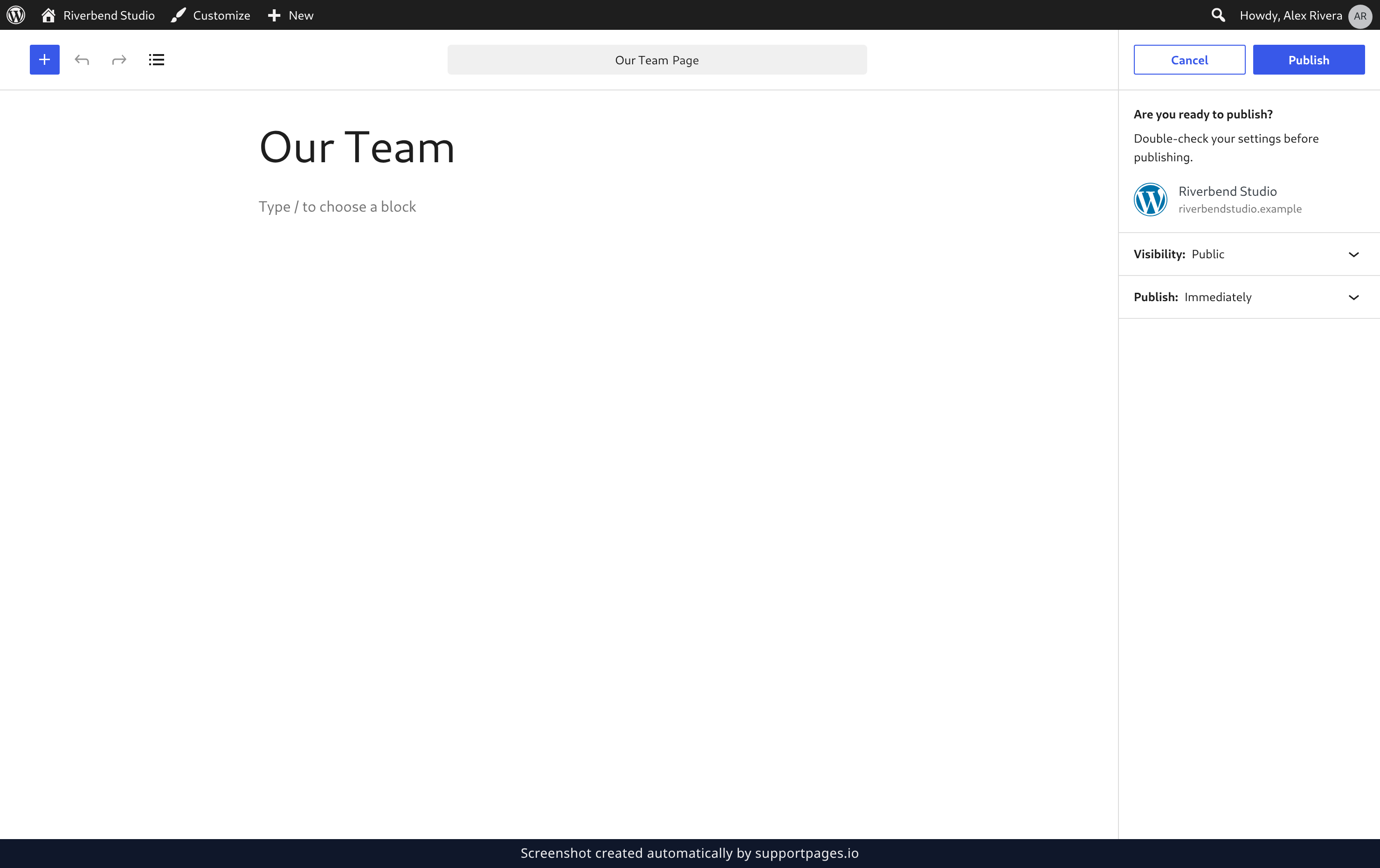
Click Publish in the top bar. WordPress opens a panel asking Are you ready to publish? — glance over your settings, then click Publish in that panel to make the page live.
Tips
- Pages can nest as deeply as you like — a subpage can have subpages of its own.
- The Pages list shows your structure at a glance: child pages are indented under their parent.
- Changed your mind? Open the page, pick a different page from Parent, and publish again.
Summary
You've made a page and given it a home in your site's hierarchy. Repeat those few steps for each standing page, and your site stays easy for visitors to find their way around.
Was this article helpful?
Kept in sync by supportpages.io — continuous documentation for your product.
Have a question?
Search our articles, or ask and get an answer straight away.