
How to add a user to your site with a new account
Updated about 1 month ago
Browse All
Giving someone their own account is the easiest way to let them help with your site. You'll pick a username and an email address, choose what they're allowed to do, and decide whether WordPress emails them a link to set their own password.
Before you start
- An account on your site that's allowed to add people — Administrators always can.
- The email address you want their sign-in details sent to.
- A username they're happy to sign in with. Letters and numbers are the safest bet.
Steps
Open the Add User form and fill it in
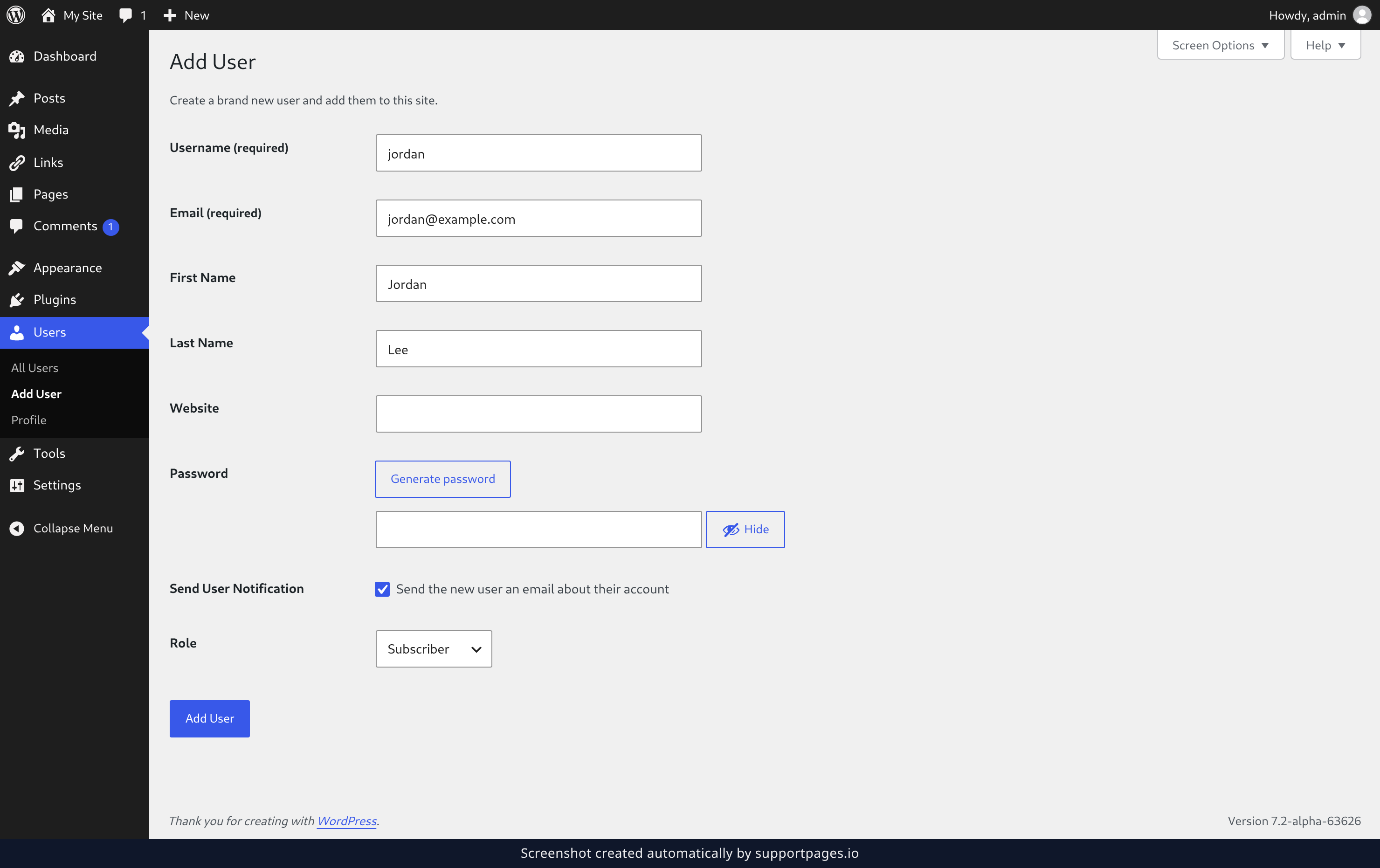
In the left-hand menu, open Users and click Add User. Type the Username they'll sign in with and their Email address — both are required, and their sign-in email goes to that address. Click Generate password for a strong password, and Hide if someone's looking over your shoulder.
Choose a role and create the account
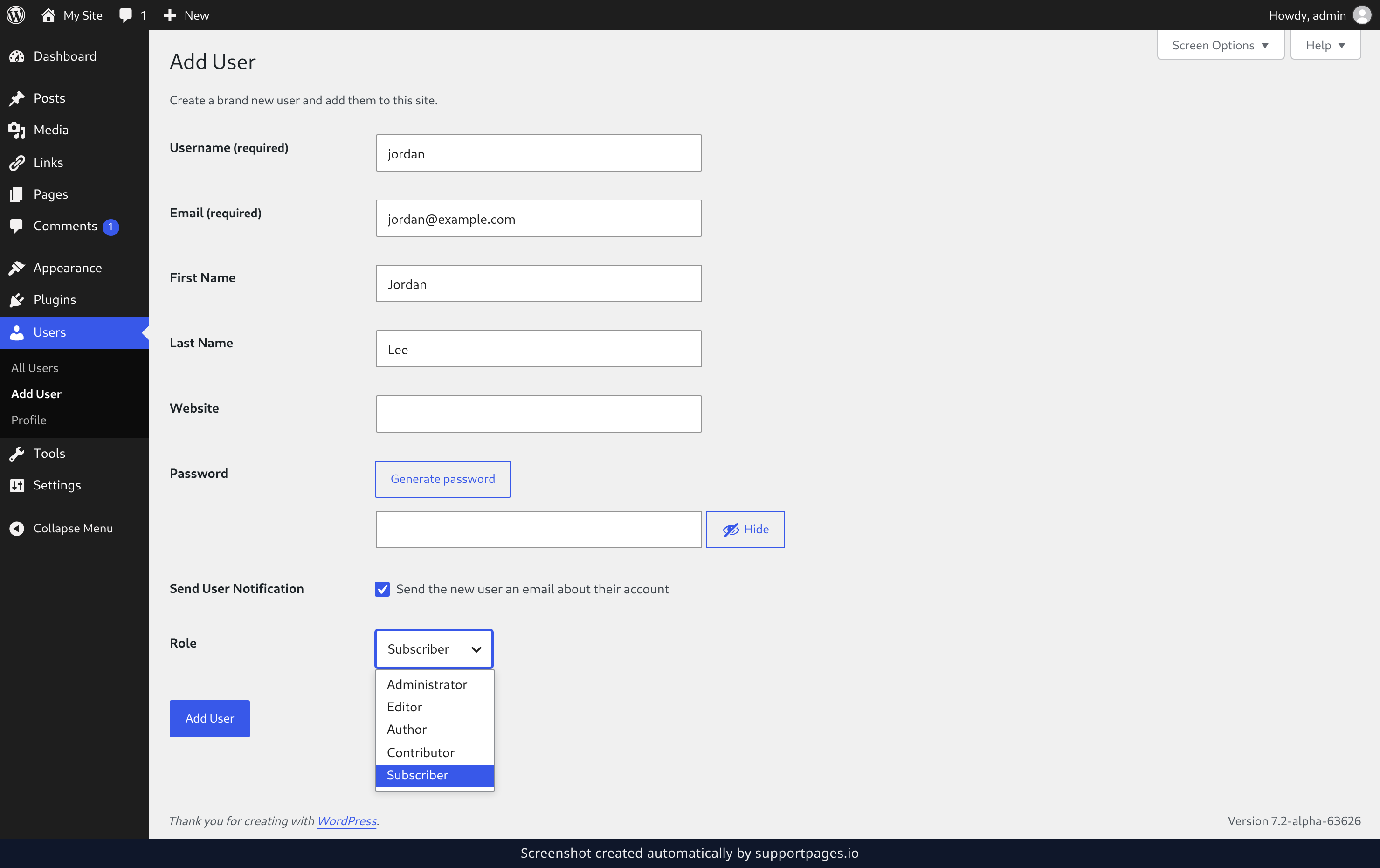
Open the Role list and pick what this person can do. Editor can write and manage posts and pages, while Subscriber can only read your site and look after their own profile. Send the new user an email about their account is ticked by default so WordPress mails them a link to set their own password — untick it if you'd rather not email them, then click Add User to create the account.
See the new user in your list
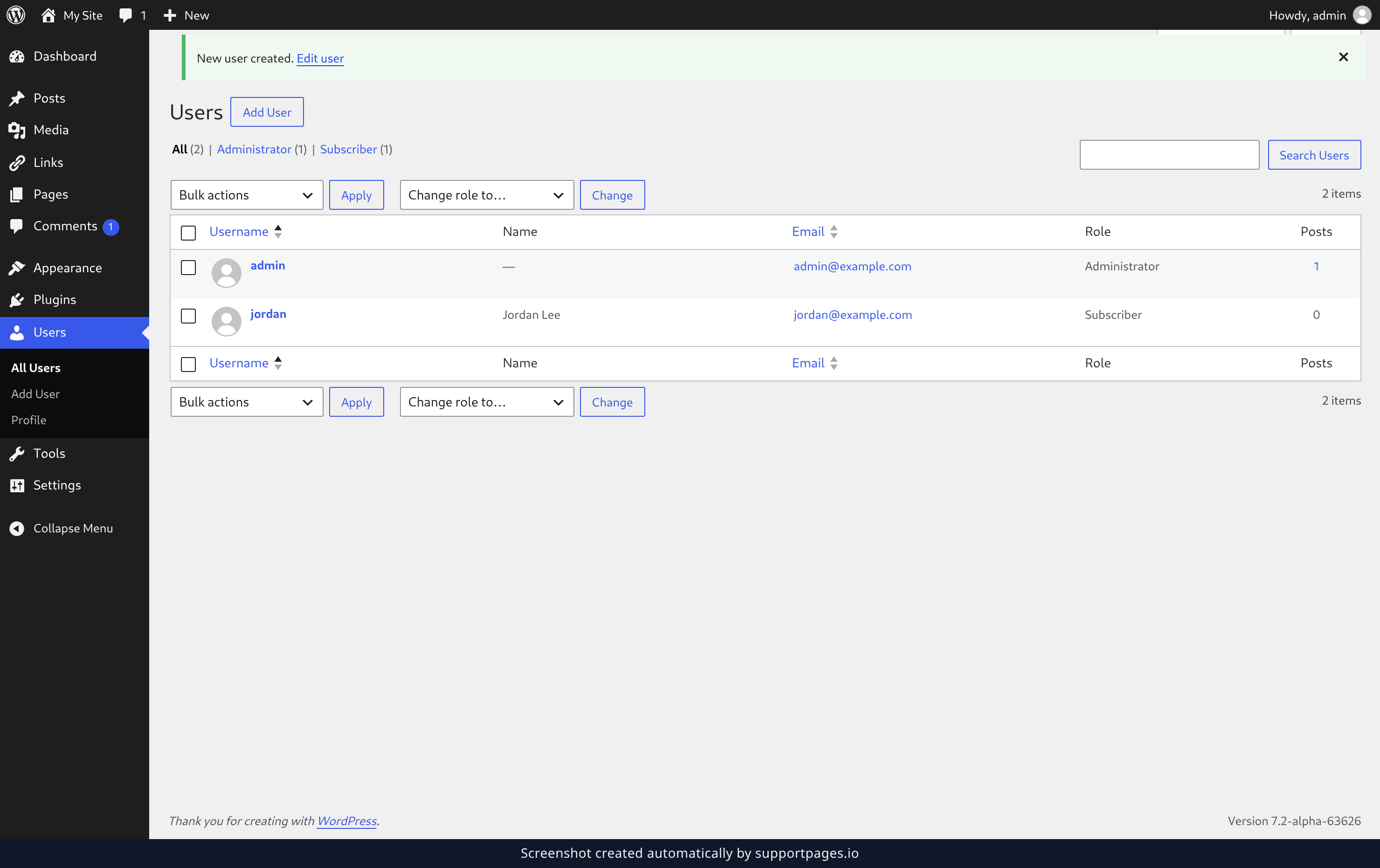
WordPress takes you to the Users list, with a New user created. message at the top. Your new person is there with the role you gave them, and you can click Edit user to change anything later.
Tips
- Subscriber is the safest place to start — they can read your site and manage their own profile, and nothing else. You can move them up later.
- The email they get asks them to set their own password, so you never have to pass one along yourself.
- If the email doesn't show up, ask them to check their spam folder before you add them a second time.
Summary
That's it — your new user can sign in with the username you chose and set their own password from the email. You can change their role any time from the Users list.
Was this article helpful?
Generated by supportpages.io, an AI changelog generator for SaaS teams.
Have a question?
Search our articles, or ask and get an answer straight away.