
How to build your navigation menu in the Customizer
Updated about 1 month ago
Browse All
Your site's navigation lives in the Customizer, which keeps your site on one side of the screen and your settings on the other. That makes a menu easy to build: add the links you want, shuffle them into order, and watch every change land on your site before anything goes live.
Before you start
- An administrator account for your site.
- The Customizer open in your browser: in your dashboard, go to Appearance then Customize.
- A theme that keeps its menus in the Customizer. If your site uses one of the newer block themes, WordPress will point you to the Site Editor instead.
Steps
Open the menu you want to build
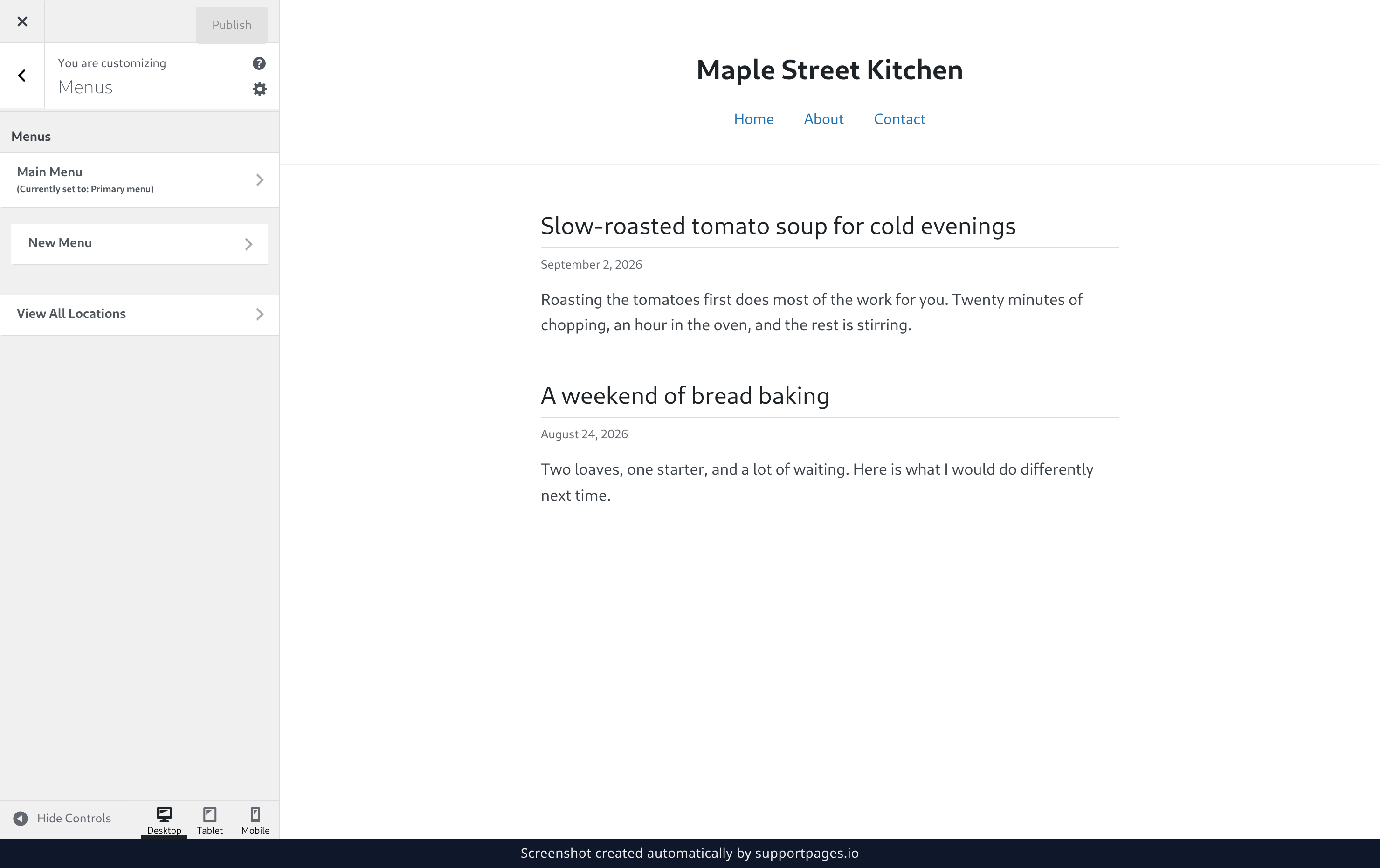
The Menus panel lists every menu your site already has, with a line under each one showing where it appears on your site. Select the menu you want to build to open it.
Open the item library
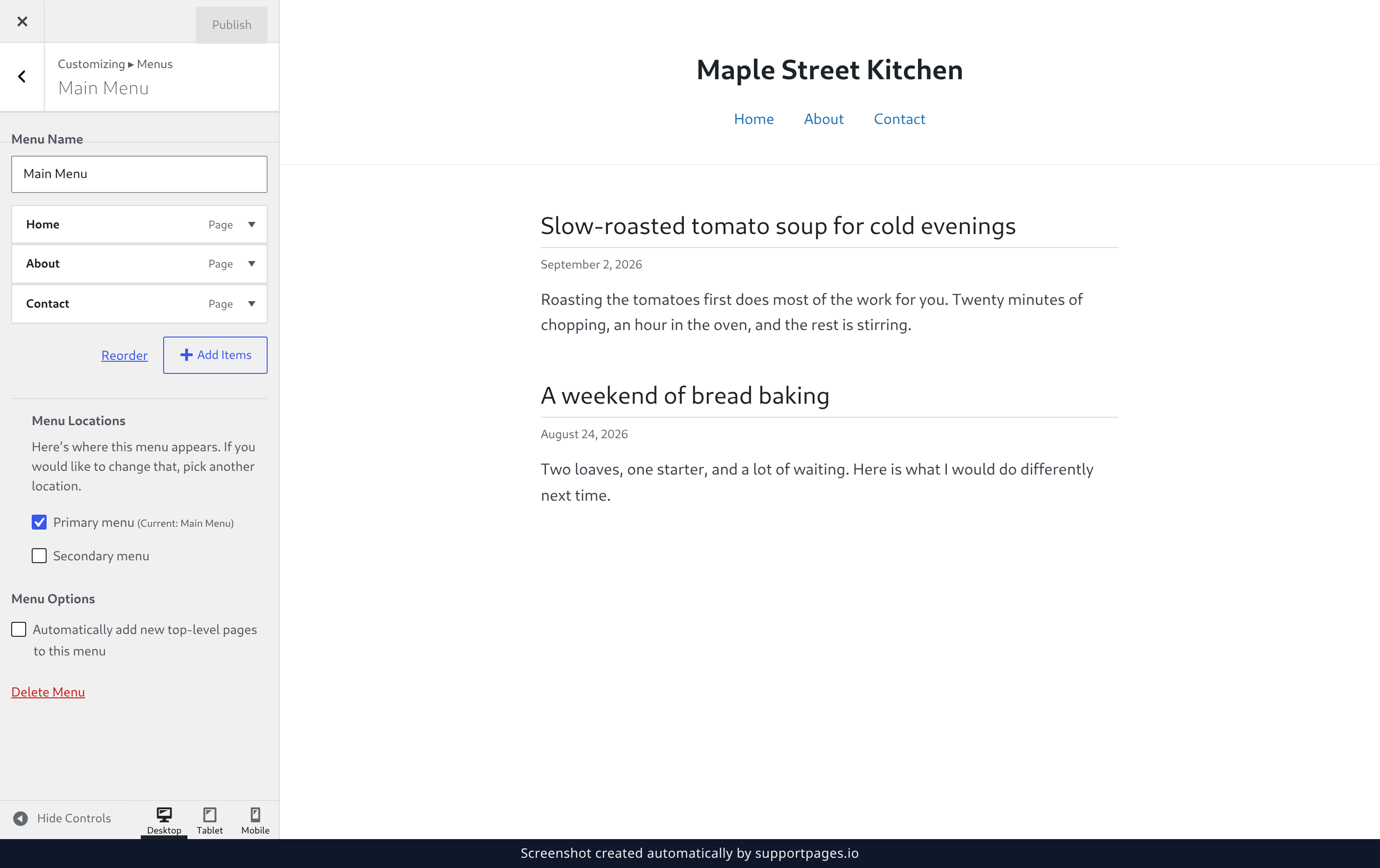
Near the bottom of the menu, select Add Items. A library of everything you can link to slides in on the left, and your site stays on screen behind it.
Choose what goes on the menu
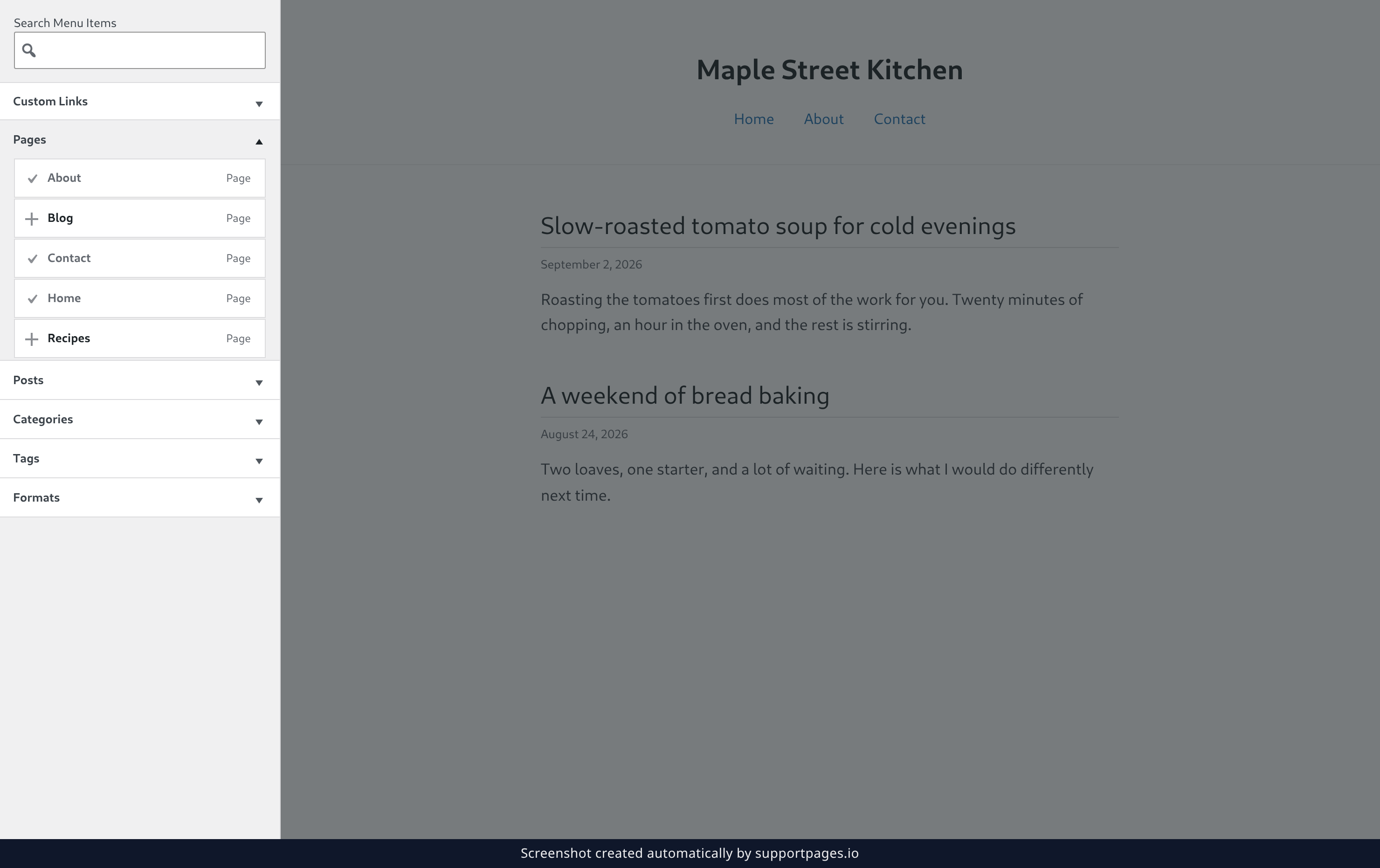
Select any page in the Pages list to drop it onto your menu straight away. In a hurry? Type a few letters into Search Menu Items to find something specific, or open Custom Links to point at another site entirely.
Put the items in order and publish
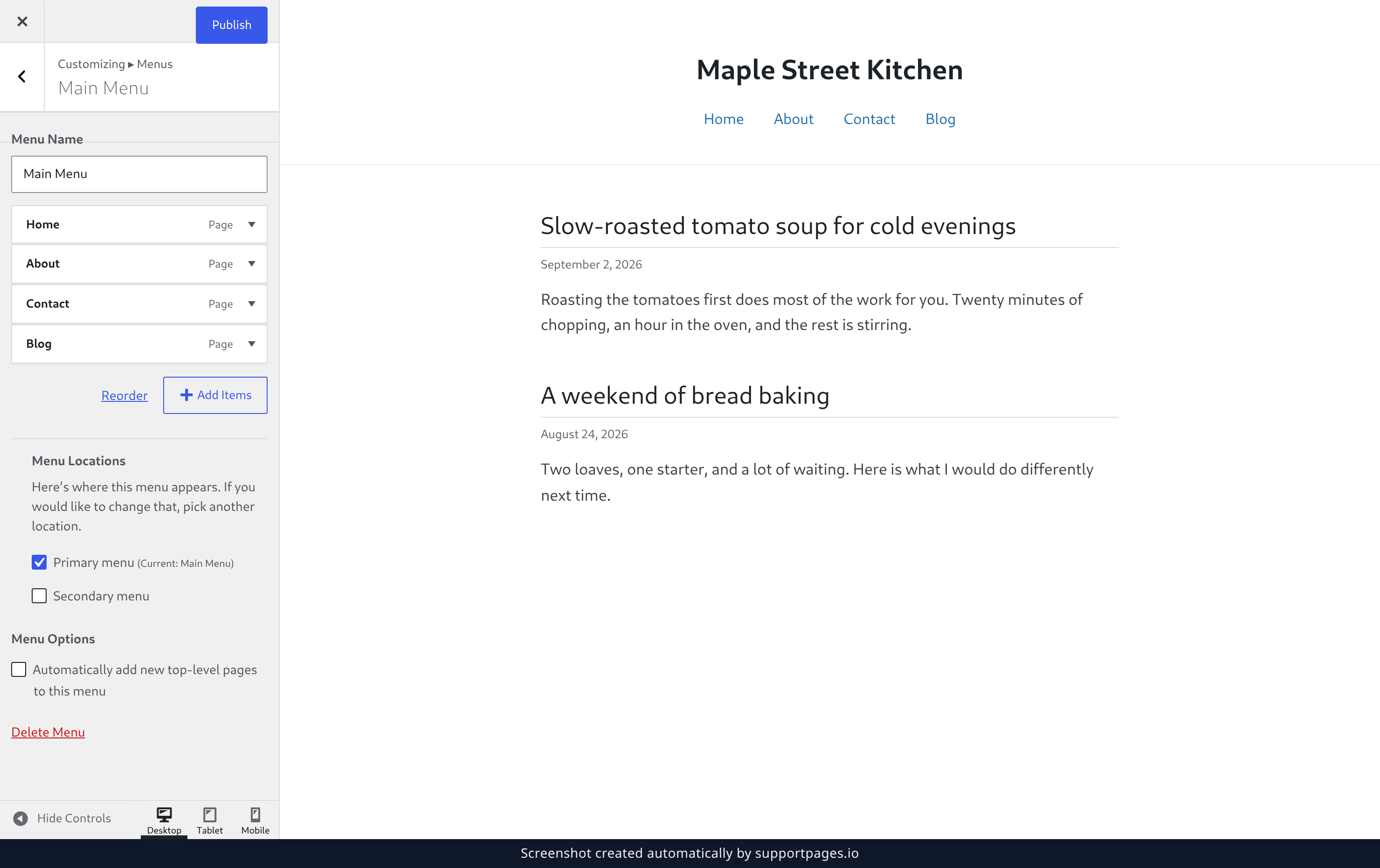
Now for the fun part: drag an item up or down the list to put it where you want it. Select Reorder first if you would rather click the arrow buttons that appear on each item. When the preview looks right, select Publish at the top of the Customizer to make your menu live on your site.
Tips
- Drag an item slightly to the right to tuck it under the item above and turn it into a sub-item.
- Changes wait for you: close the Customizer without publishing and your menu will still be there, exactly as you left it, next time you open it.
- Not sure where a menu can go? View All Locations in the Menus panel shows every spot your theme offers.
Summary
You built your menu with your site in view the whole way — add, arrange, publish. Whenever you want to change it, the Menus panel is waiting under Appearance then Customize.
Was this article helpful?
Generated automatically by supportpages.io — AI knowledge base software for SaaS teams.
Have a question?
Search our articles, or ask and get an answer straight away.