
Why emails from your site never arrive
Updated about 1 month ago
Browse All
Password resets, comment notifications, welcome emails for new users — they all leave your site the same way. When none of them turn up, the answer is usually sitting in two settings screens and one quick test.
Before you start
- You're signed in to your dashboard as an administrator.
- You can open the inbox for the address your site sends from.
- You've already had a look in the spam or junk folder.
Checks and fixes
Start with the address your site sends from
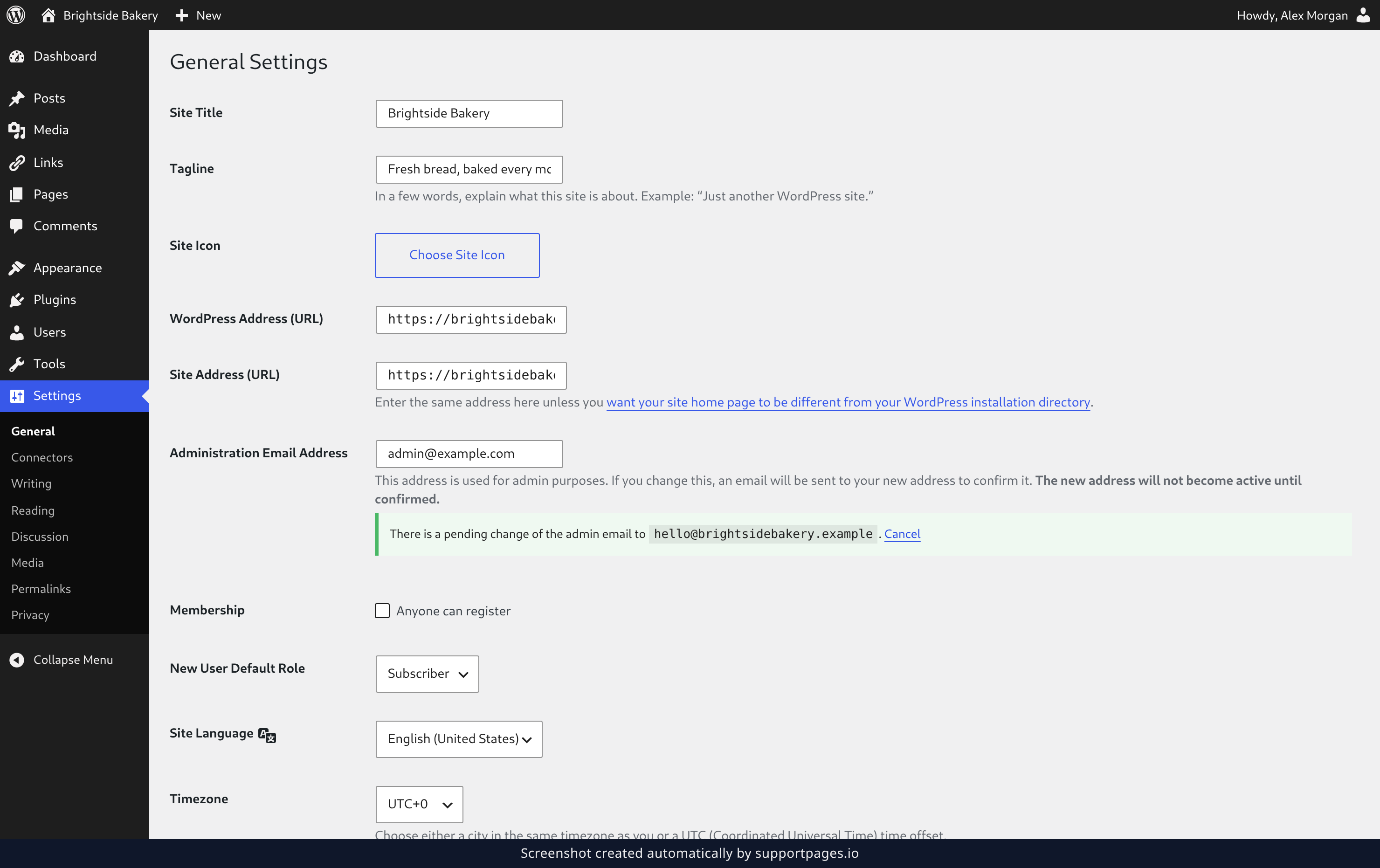
Open your Settings menu and choose General, then find Administration Email Address. Every message sent to you as the site owner goes to this address, so if it's out of date, those emails are landing somewhere nobody is reading.
If you change it, save your changes and then check the inbox for the new address. WordPress sends a confirmation link there, and the new address will not become active until confirmed. A confirmation that never lands is your very first clue.
Make sure the notification emails are switched on
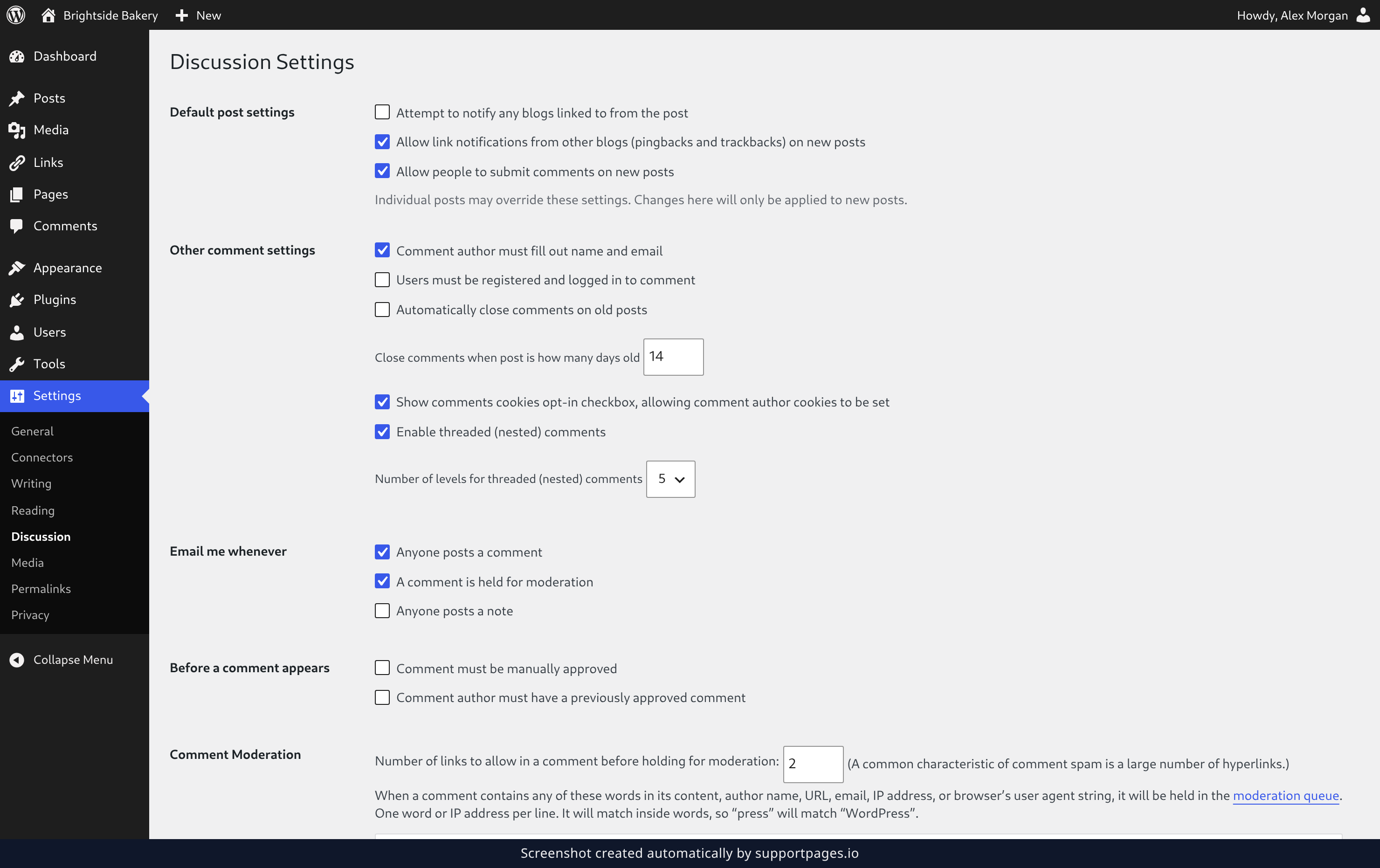
Open Settings and choose Discussion, then scroll to Email me whenever. If Anyone posts a comment and A comment is held for moderation are unticked, your site stays quiet about comments no matter what else you fix. Tick the ones you want, then save your changes.
Ask your site to send you one
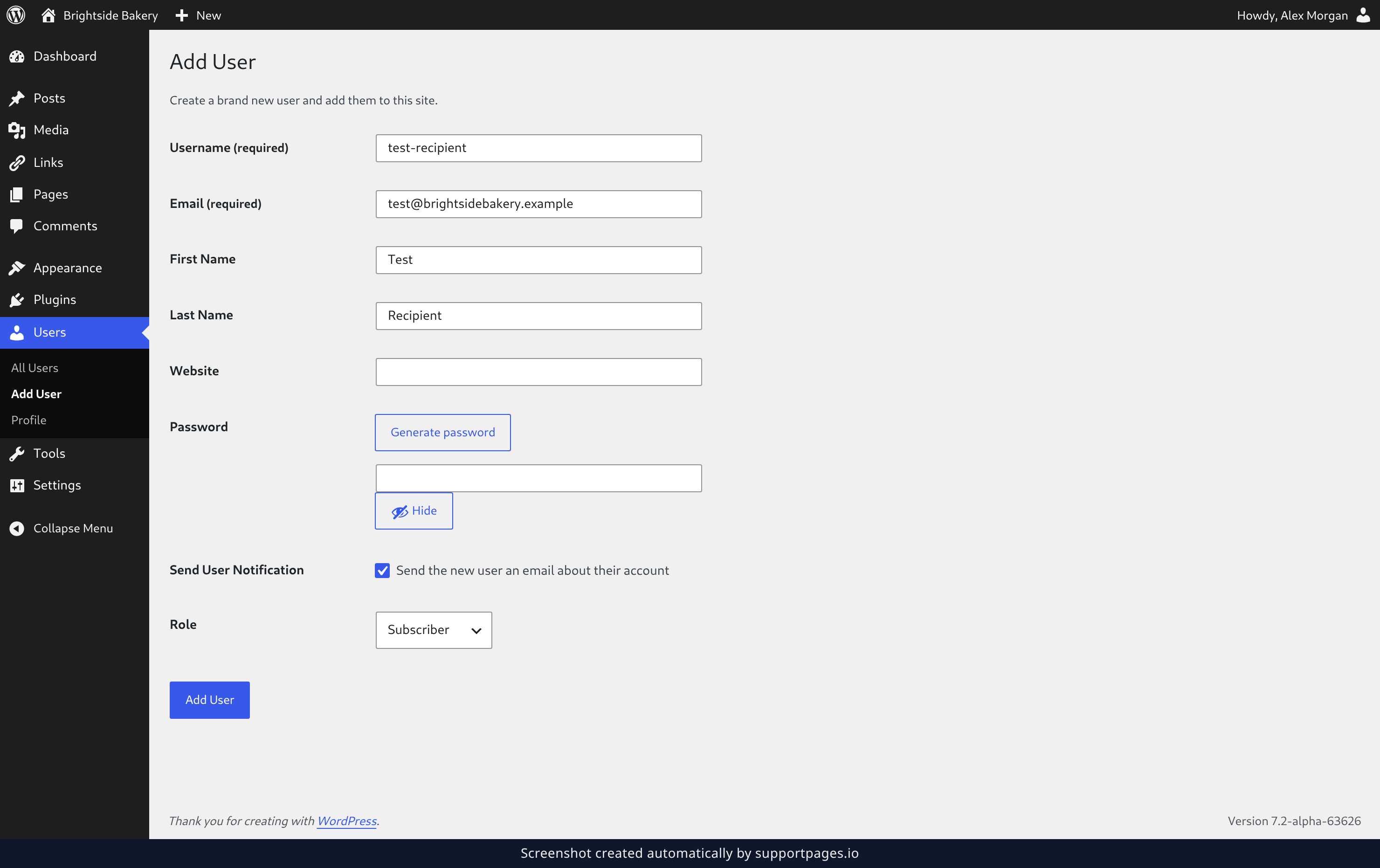
An email you're expecting is the quickest test. Open Users and choose Add User, then enter an address you can check right now. Leave Send the new user an email about their account ticked and click Add User.
If it arrives, your site can send mail and the problem is on the receiving end. If it never shows up, your site can't send mail at all.
Test a password reset as well
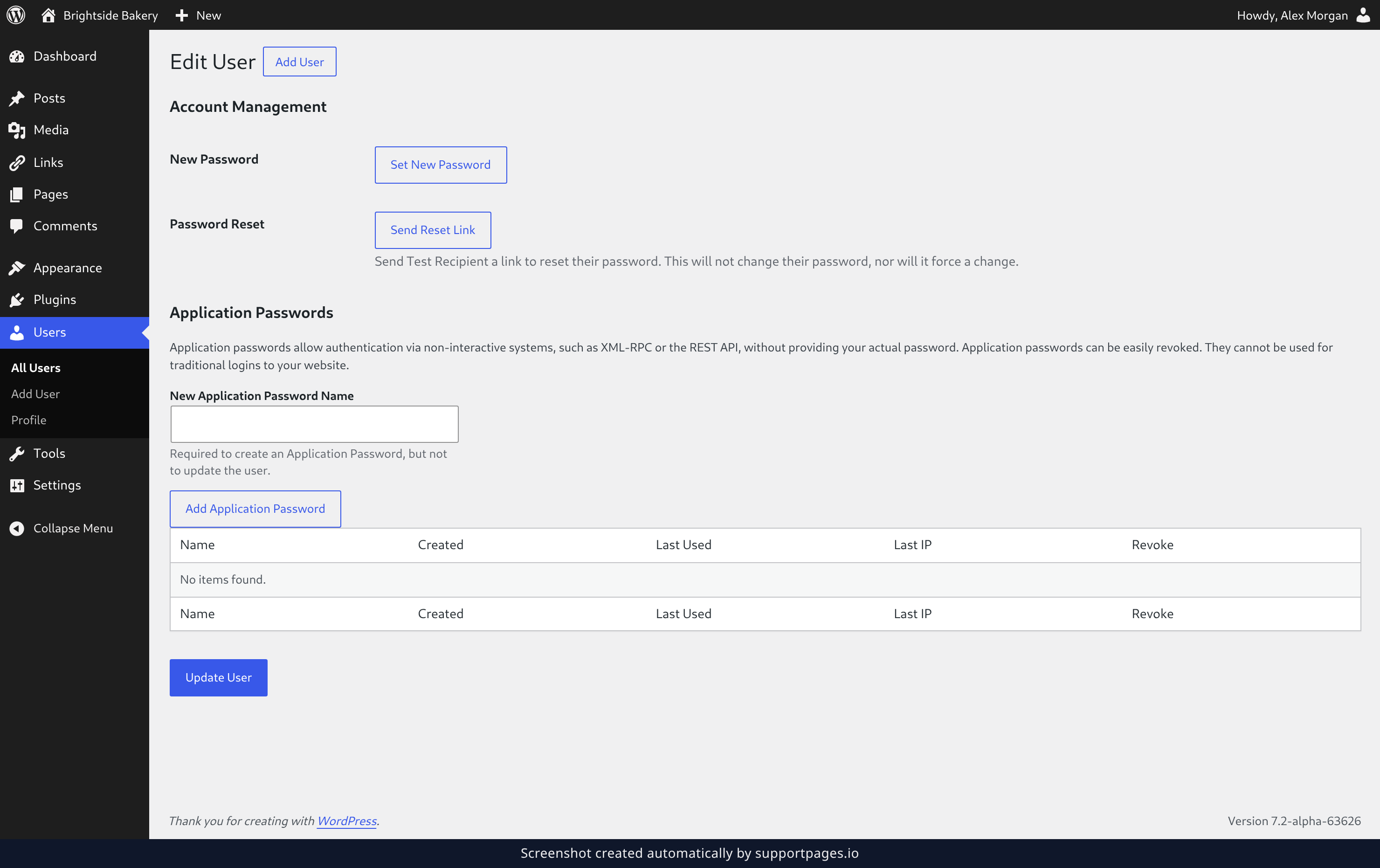
Reset emails travel a different route, so it's worth checking them separately. Open Users and choose All Users, then open any user's profile and scroll to Account Management. Under Password Reset, click Send Reset Link.
That sends the same email someone gets from the lost-password link, so a delivery here means resets are getting through.
Tips
- Ask whoever is missing the email to check their spam or junk folder before you change anything else.
- If your test arrives but a real notification doesn't, the address saved on that person's profile is usually the reason.
- When nothing arrives from any test, outgoing mail is blocked on your server. Your hosting support team can switch it on, or help you send through a mail service instead.
Summary
Missing email is almost always a setting or a blocked server, not a mystery. Check the address, check the notification boxes, then ask your site to send you a test — whichever one fails is the one to fix.
Was this article helpful?
Built on supportpages.io — automated help articles for SaaS products.
Have a question?
Search our articles, or ask and get an answer straight away.