
How to save a post quickly with Press This
Updated about 1 month ago
Browse All
Half your best ideas turn up while you're reading something else. Press This is the shortcut for those moments: it turns the page you're looking at into a draft in a couple of clicks, so you can keep reading and write later.
Before you start
- An account that's allowed to install plugins and create posts on your site
- The Press This plugin — it isn't built into WordPress, so you'll add it first
- The page you want to save, open in another tab and ready to go
Steps
Open Press This
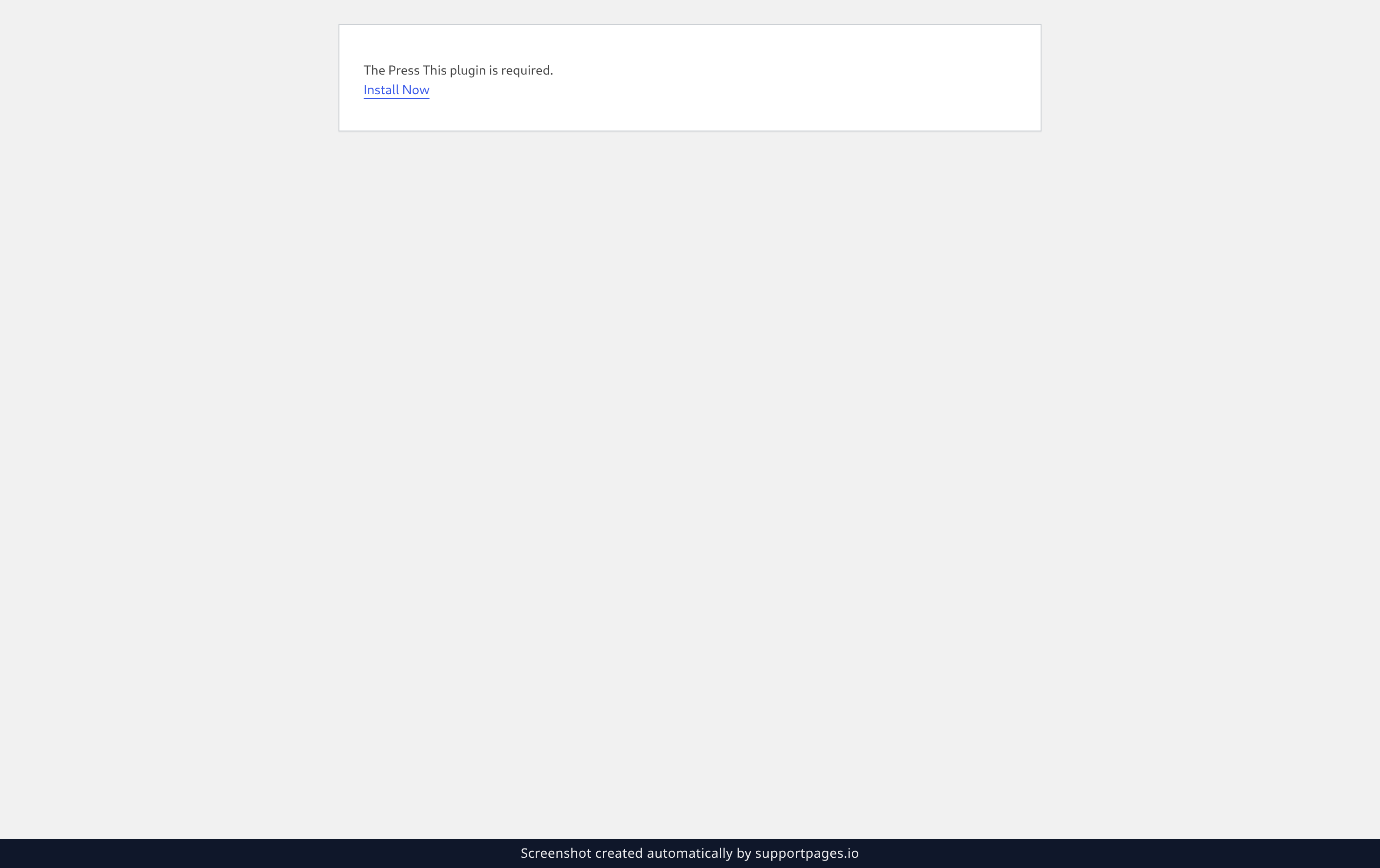
Press This has an address of its own — the same one the Press This bookmarklet points to. Open wp-admin/press-this.php, and WordPress tells you the plugin it needs is missing, with an Install Now link ready to go.
Install it and turn it on
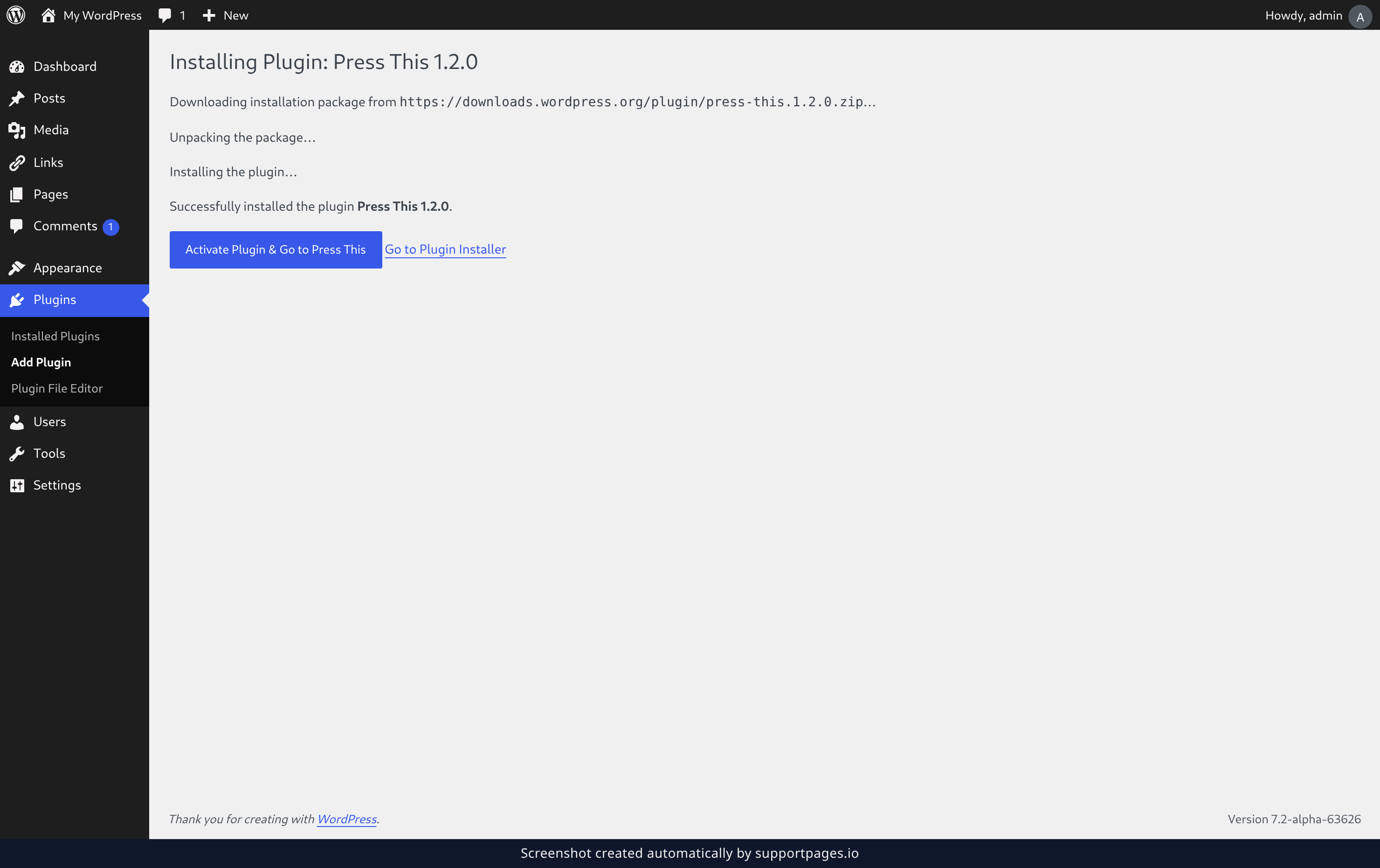
Click that link. WordPress downloads the plugin and hands you the next step: click Activate Plugin & Go to Press This, and the Press This window opens by itself.
Save what you're reading
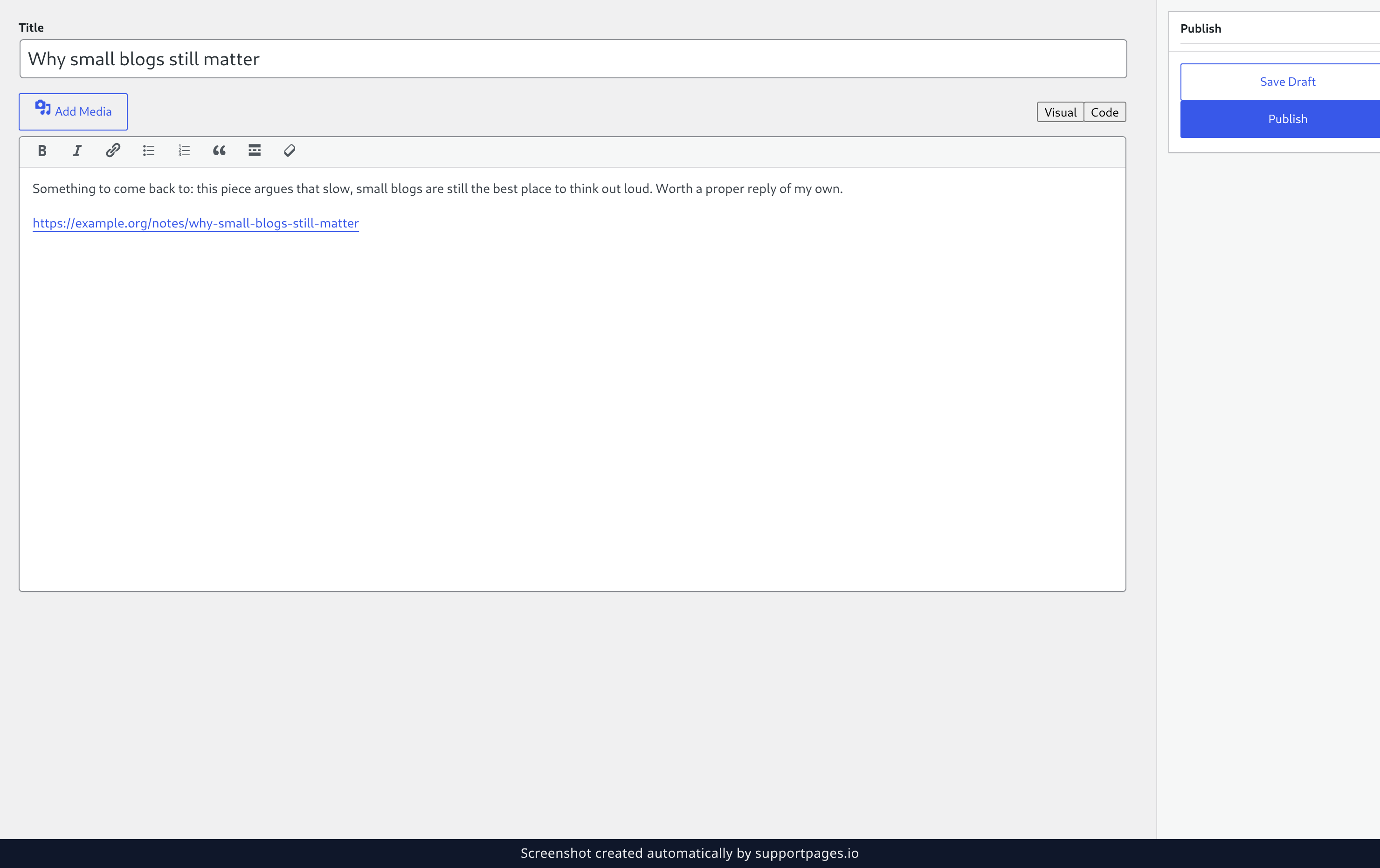
Give your draft a Title, then type what caught your eye into the editor and paste the link you want to keep. When it's captured, click Save Draft — your idea is now waiting in Posts, ready to finish whenever you are.
Tips
- Press This saves a draft, so nothing goes live until you open the post and click Publish.
- You can also reach Press This from the classic editor's help panel, which calls it the Press This bookmarklet.
Summary
Press This grabs the link, image, or snippet you're reading and turns it into a draft in seconds. Collect a few as you browse, then open Posts when you're ready to shape them into something.
Was this article helpful?
Generated automatically by supportpages.io — AI knowledge base software for SaaS teams.
Have a question?
Search our articles, or ask and get an answer straight away.