
How to activate and deactivate plugins
Updated about 1 month ago
Browse All
Plugins are the add-ons that give your site extra abilities — a contact form, a shop, a photo gallery. You can switch any of them on or off from one screen, and switching one off leaves it installed and ready for next time.
Before you start
- An administrator account on your site — only admins can switch plugins on and off.
- The plugin already installed. This guide covers switching plugins on and off, not adding new ones.
Steps
Turn a plugin on
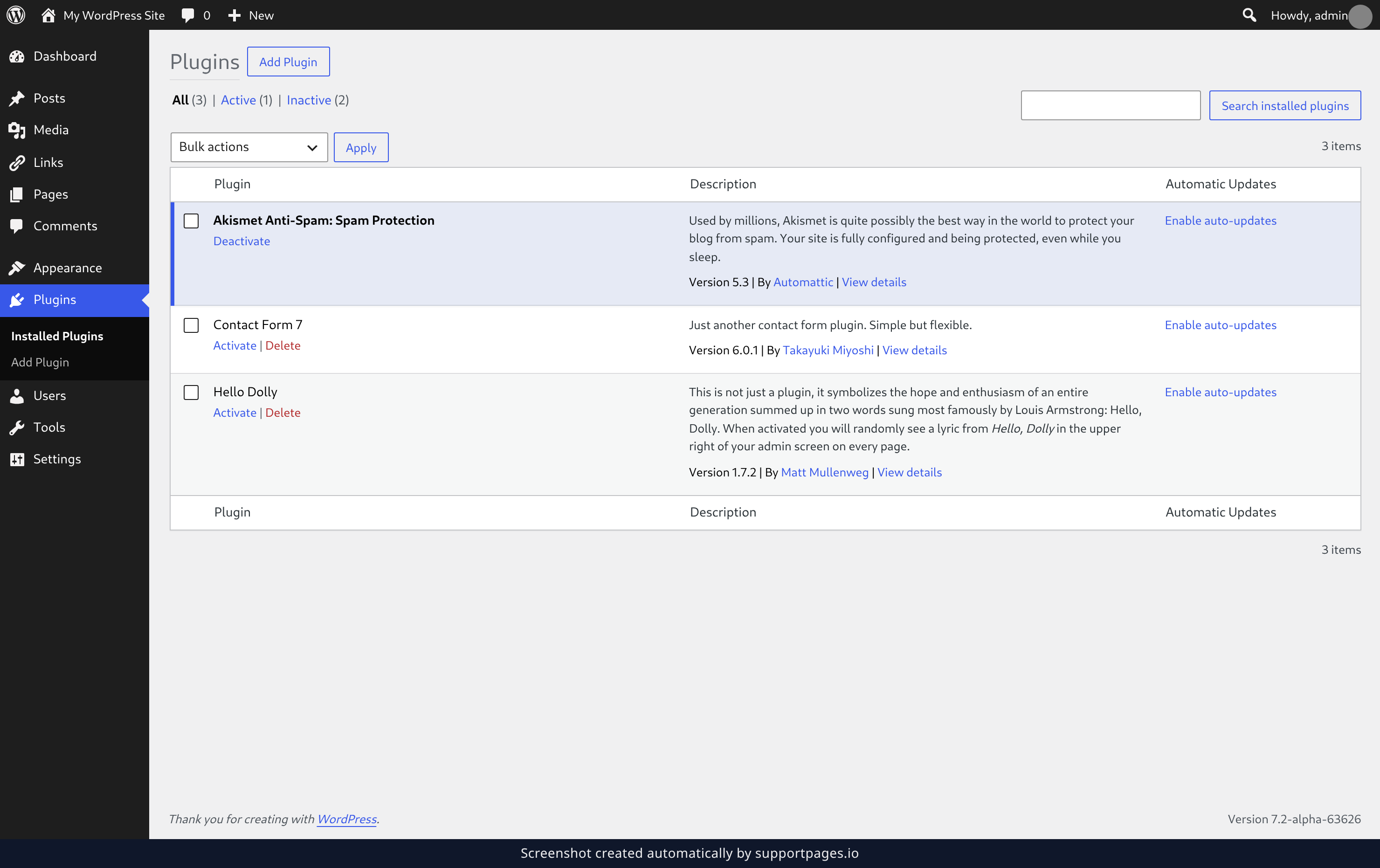
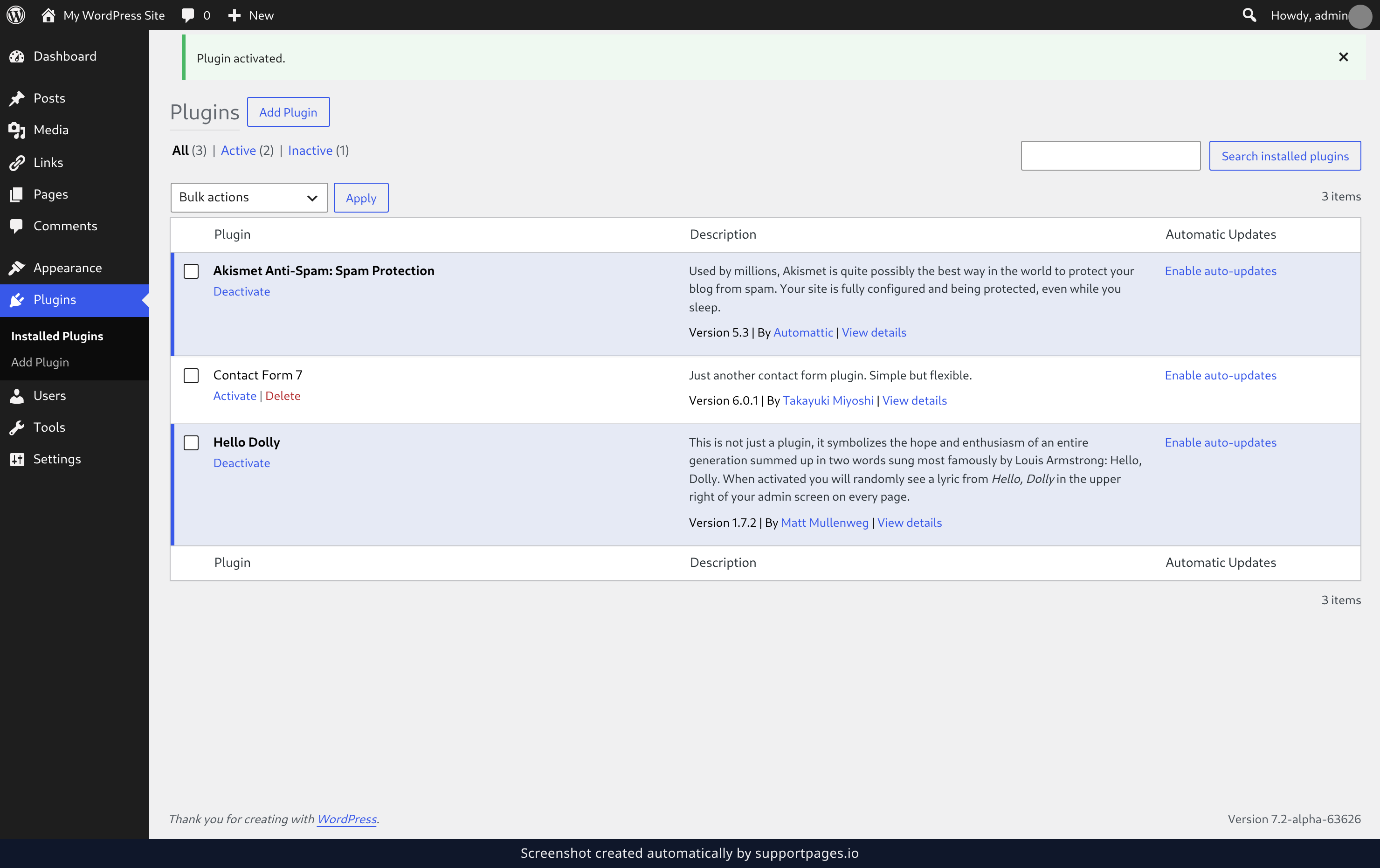
In the left-hand menu, click Plugins. Find the plugin you want and click Activate underneath its name. The page reloads with a Plugin activated message at the top and the row turns blue, so you can see at a glance that it's running.
Turn a plugin off
Click Deactivate underneath the name of a plugin that's running. You'll see a Plugin deactivated message and the row goes back to its usual colour. The plugin stops working immediately, but nothing is removed — click Activate whenever you want it back.
Tips
- Switching a plugin off is always safe to try. Its settings are kept, so turning it back on restores things the way they were.
- If your site starts behaving oddly and you're not sure which plugin is behind it, switch them all off, then switch them back on one at a time until the problem returns.
- The plugins list shows every plugin you have, with the ones that are running marked Active and the rest marked Inactive.
Summary
Activate switches a plugin on, Deactivate switches it off, and neither one removes it from your site. You can go back and forth as often as you need.
Was this article helpful?
Kept in sync by supportpages.io — continuous documentation for your product.
Have a question?
Search our articles, or ask and get an answer straight away.