
How to publish a post
Updated about 1 month ago
Browse All
You've finished writing, and now it's time to share it. Publishing takes one click, and WordPress shows you a short set of checks first so nothing goes live by surprise.
Before you start
- A post saved as a draft and ready to share
- An account that's allowed to publish posts on the site
Steps
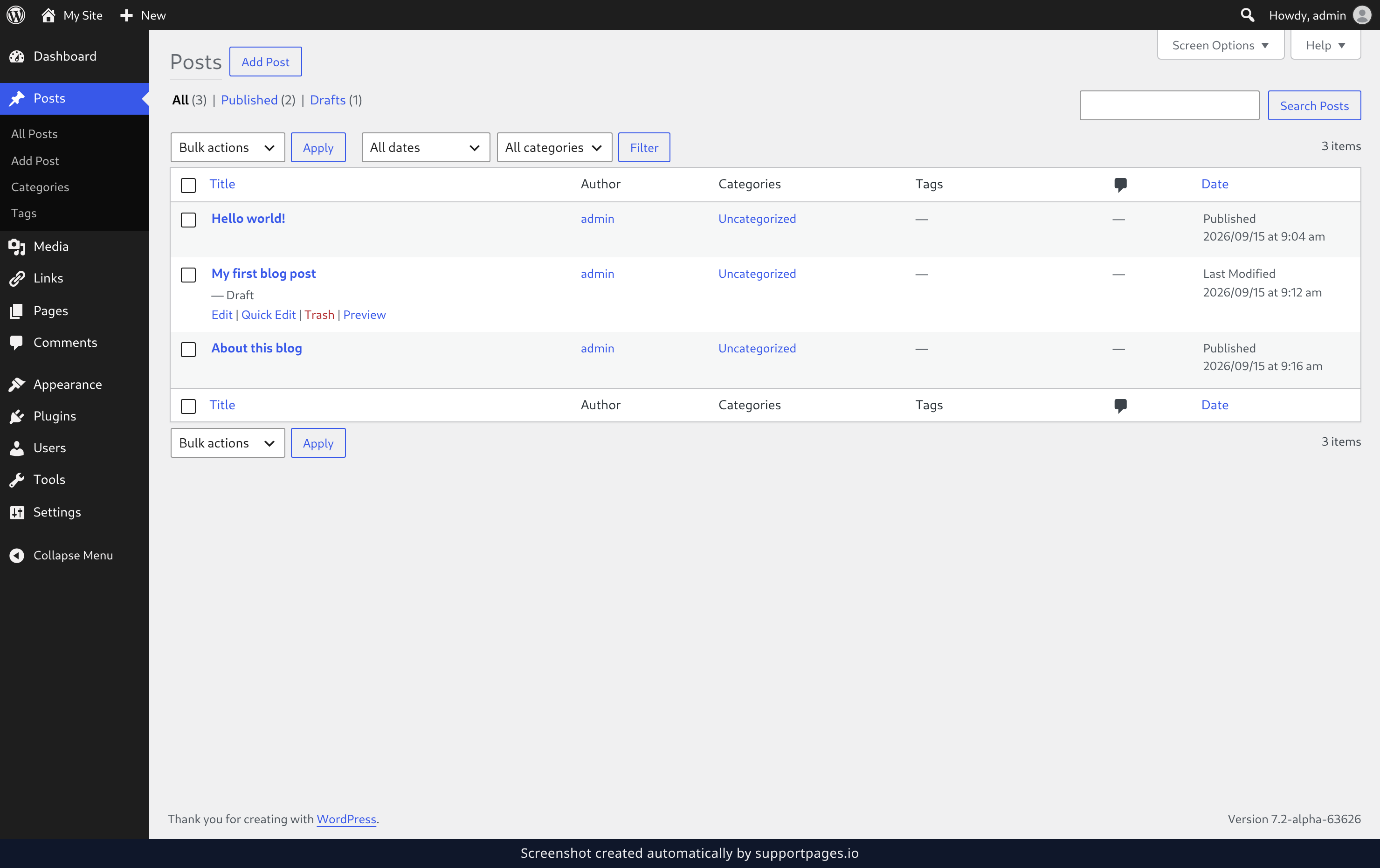
Open the post you want to publish
In the left-hand menu, click Posts. Then hover over the post you want to publish and click Edit to open it in the editor.
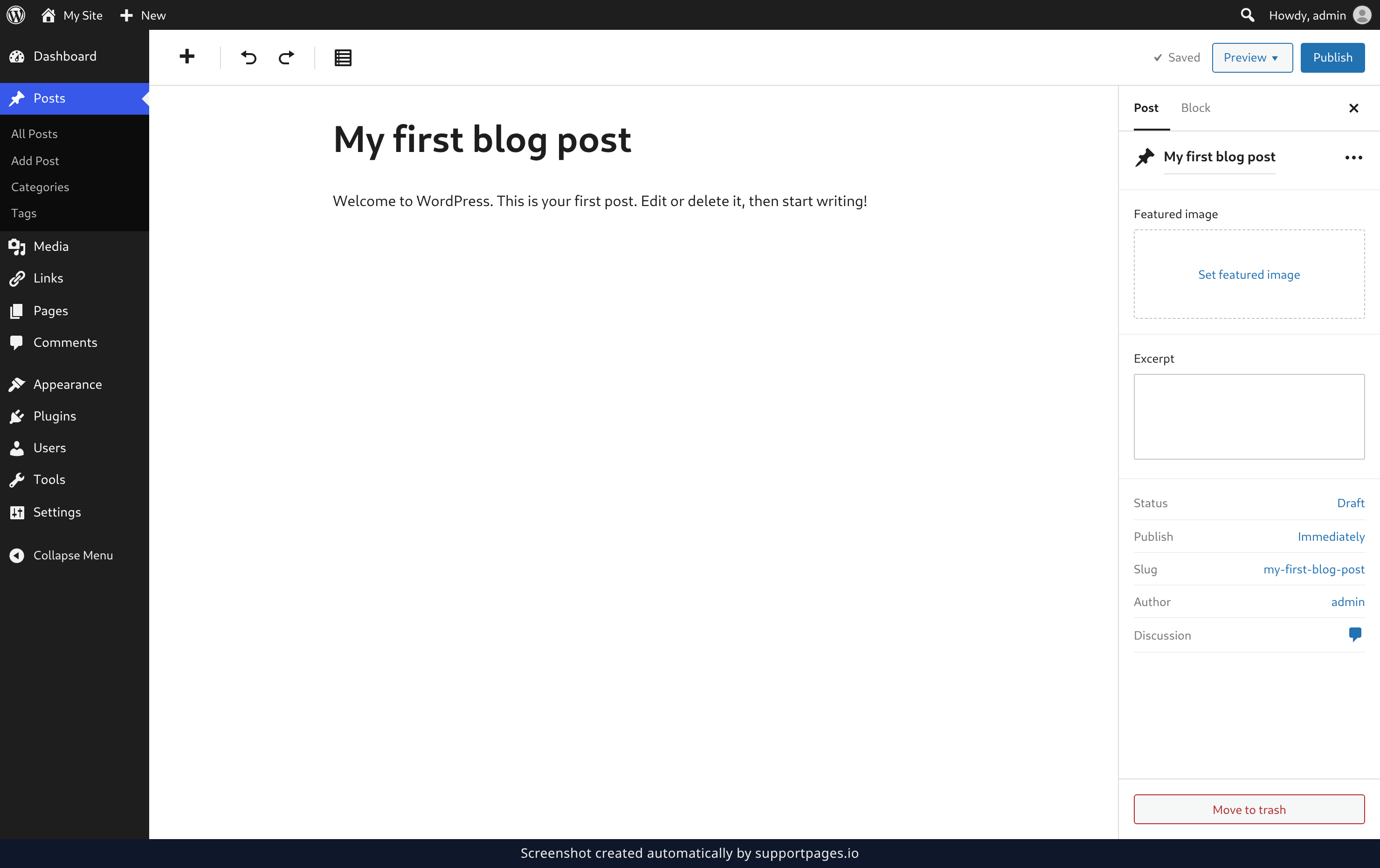
Click Publish
Give your post one last read, then click Publish in the top-right corner of the editor. WordPress saves your latest changes and opens the pre-publish checks.
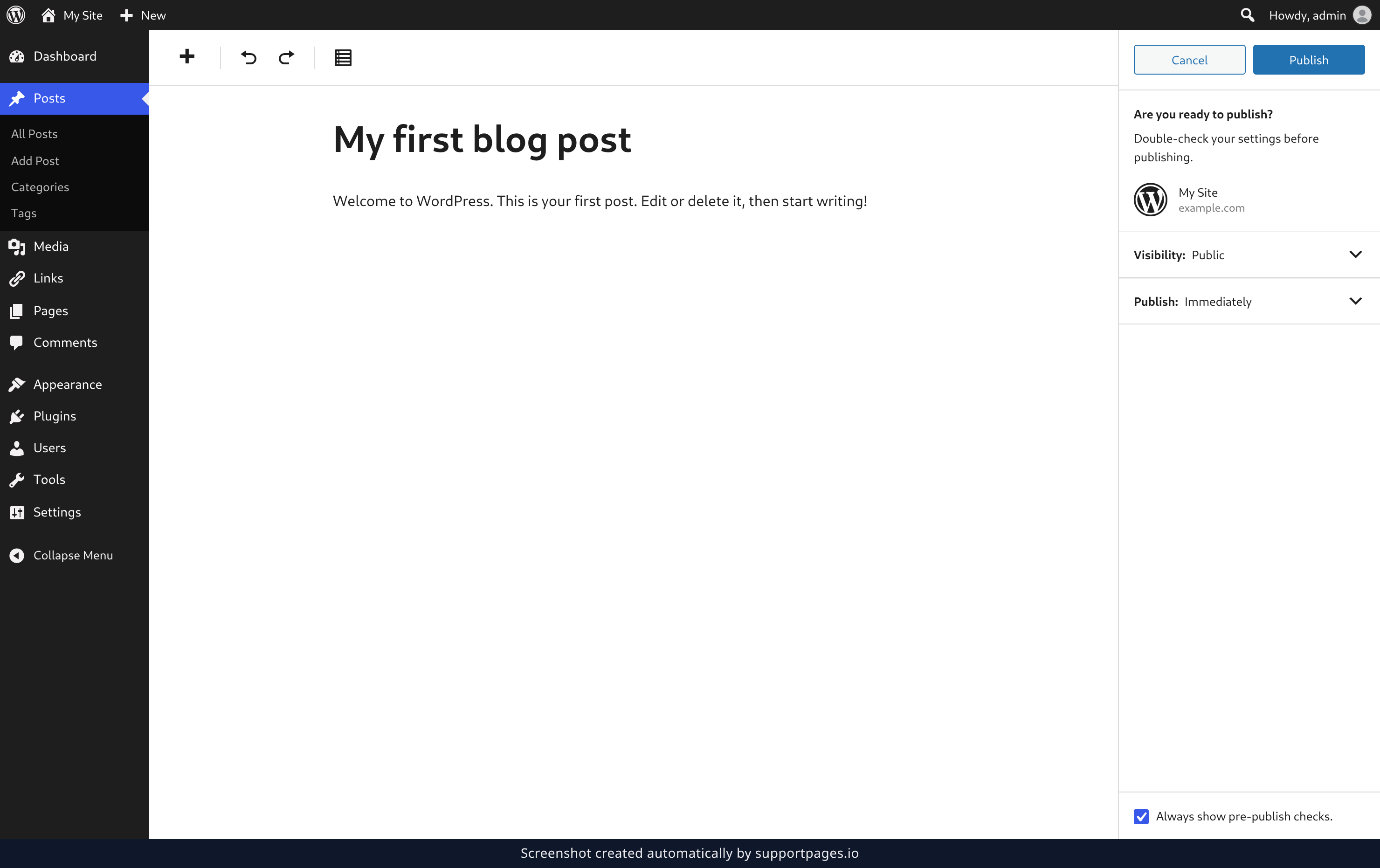
Check the details, then publish
This panel is your last look before readers see your post. Check that Visibility reads Public and Publish reads Immediately. Then click Publish in the panel and your post goes live.
Summary
Your post is live at its own web address, and the panel hands you a link to view it right away. You can still open it from Posts whenever you want to make a change.
Tips
- Not ready for the world yet? Save draft in the editor keeps your work safe without publishing it.
- Prefer to skip the checks? The Always show pre-publish checks. box at the bottom of the panel turns them on or off.
Was this article helpful?
Written with supportpages.io. More on documentation automation on our blog.
Have a question?
Search our articles, or ask and get an answer straight away.