
How to stick a post to the top of your blog
Updated about 1 month ago
Browse All
Sticking a post keeps it in the lead spot on your blog, above everything newer. It's the quickest way to keep an announcement, a welcome message, or a post you're proud of where visitors can't miss it.
Before you start
- Permission to publish posts on the site — Editors and Administrators both have it.
- The post you want to feature, either published or saved as a draft.
Steps
Open the Posts list
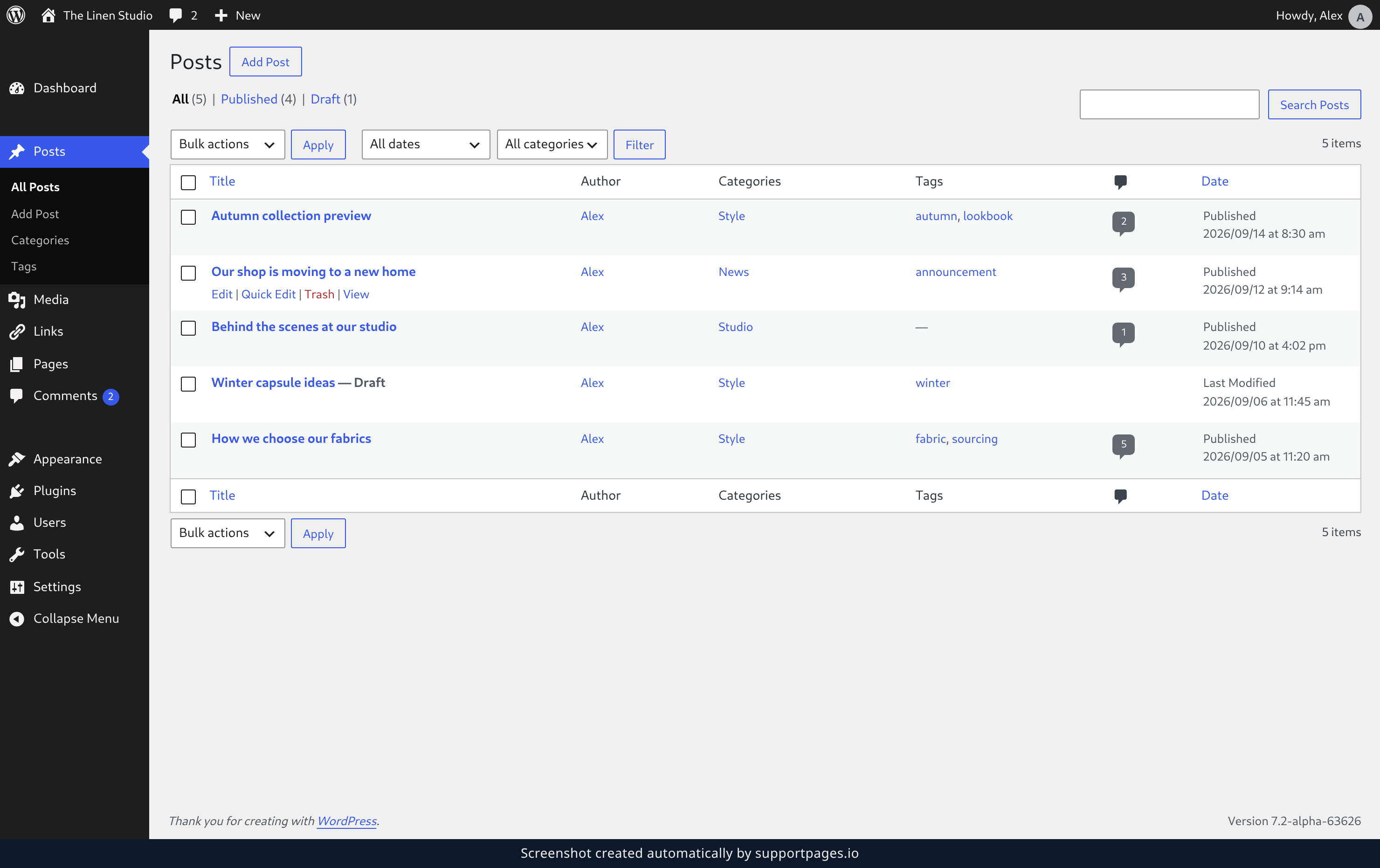
In your dashboard, click Posts in the left-hand menu. You'll see every post on the site, newest first.
Turn on stickiness and save
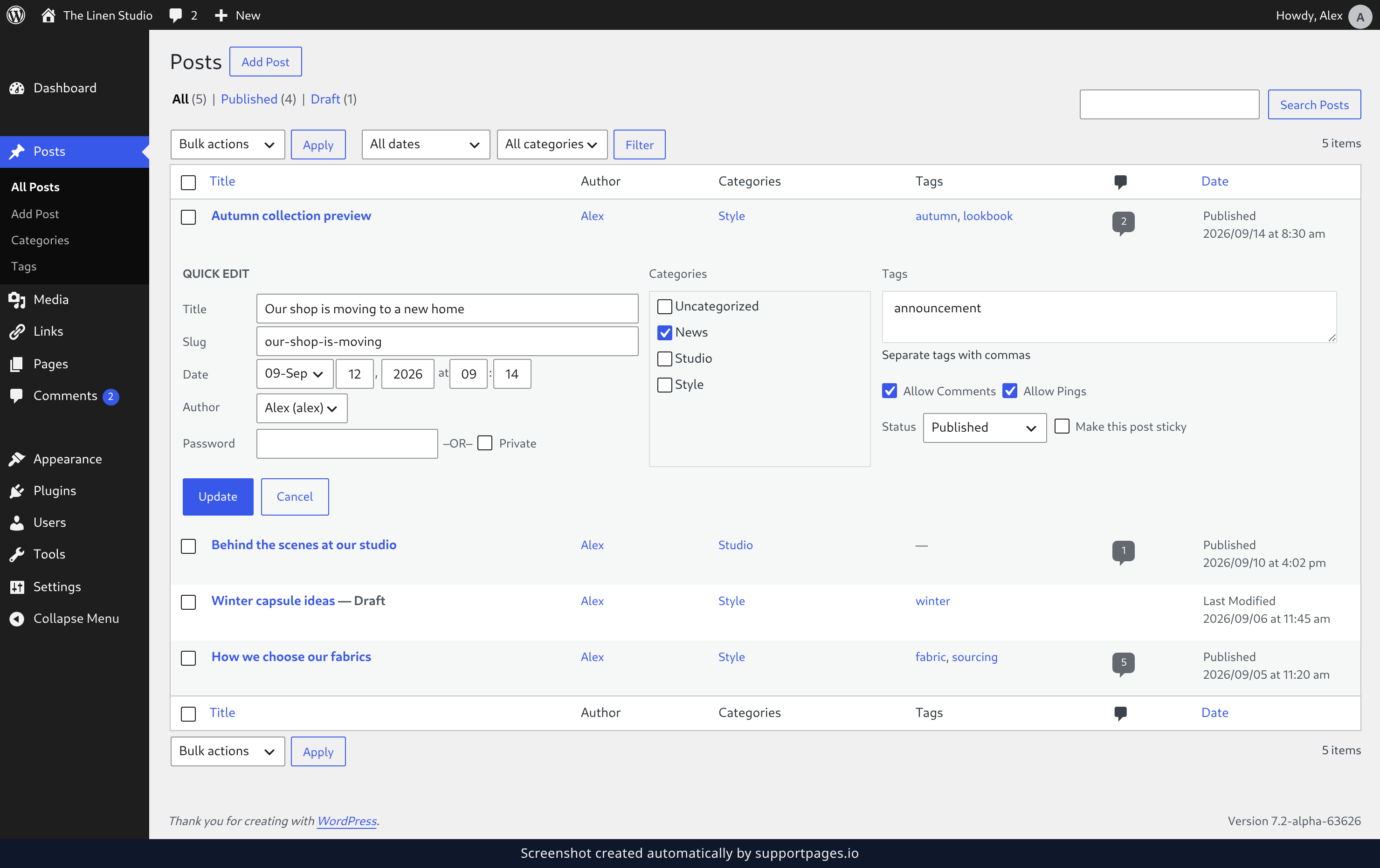
Hover over the post you want to keep on top and click Quick Edit. In the form that opens, put a check in Make this post sticky, then click Update. The post is now pinned to the top of your blog.
Check that it stuck
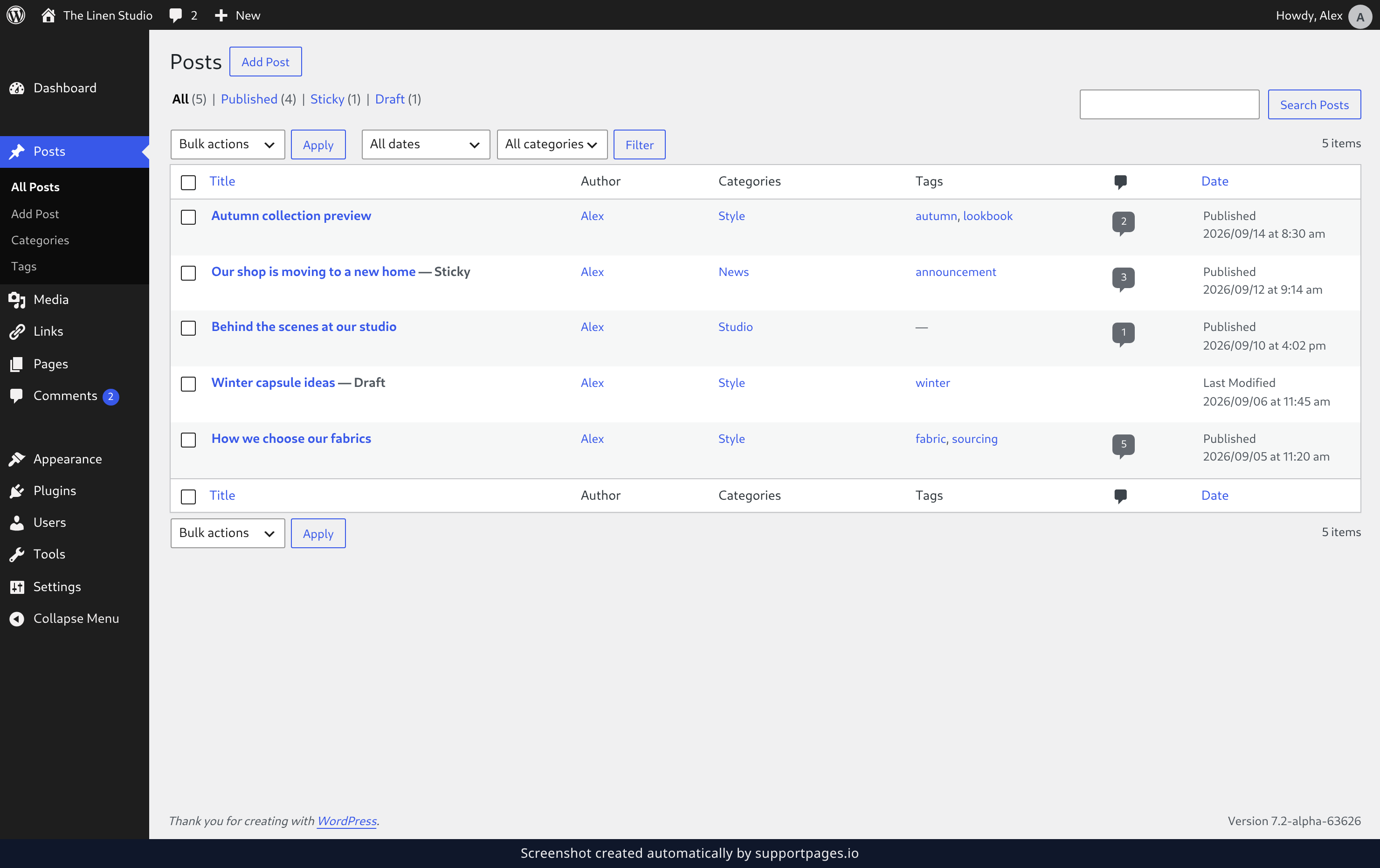
Head back to your Posts list. A Sticky link now sits with the other filters — click it any time to see every sticky post in one place. To unstick a post later, open Quick Edit again and clear the same checkbox.
Tips
- Sticky posts jump to the top of your blog's main page. Category, tag, and archive pages keep their own order.
- Only posts can be sticky — pages always keep their own place.
- Stick just one or two posts. A long stack of them pushes your newest writing out of sight.
Summary
You can make any post sticky in a few seconds from the Posts list: Quick Edit, tick Make this post sticky, then Update. Whenever it has done its job, clear the same checkbox and your blog goes back to plain newest-first order.
Was this article helpful?
Built with supportpages.io — SaaS documentation software.
Have a question?
Search our articles, or ask and get an answer straight away.