
How to edit an image
Updated about 1 month ago
Browse All
WordPress has a small but capable photo editor built right into your Media Library. You can crop, rotate, flip, and scale an image without opening another program — and put it back the way it was if you change your mind.
Before you start
- An image that is already uploaded to your Media Library.
- An account that is allowed to edit media — Administrator, Editor, or Author.
Steps
Open your image in the Media Library
In your dashboard, go to Media → Library. Every image on your site is listed here — click the one you want to change to open its details.
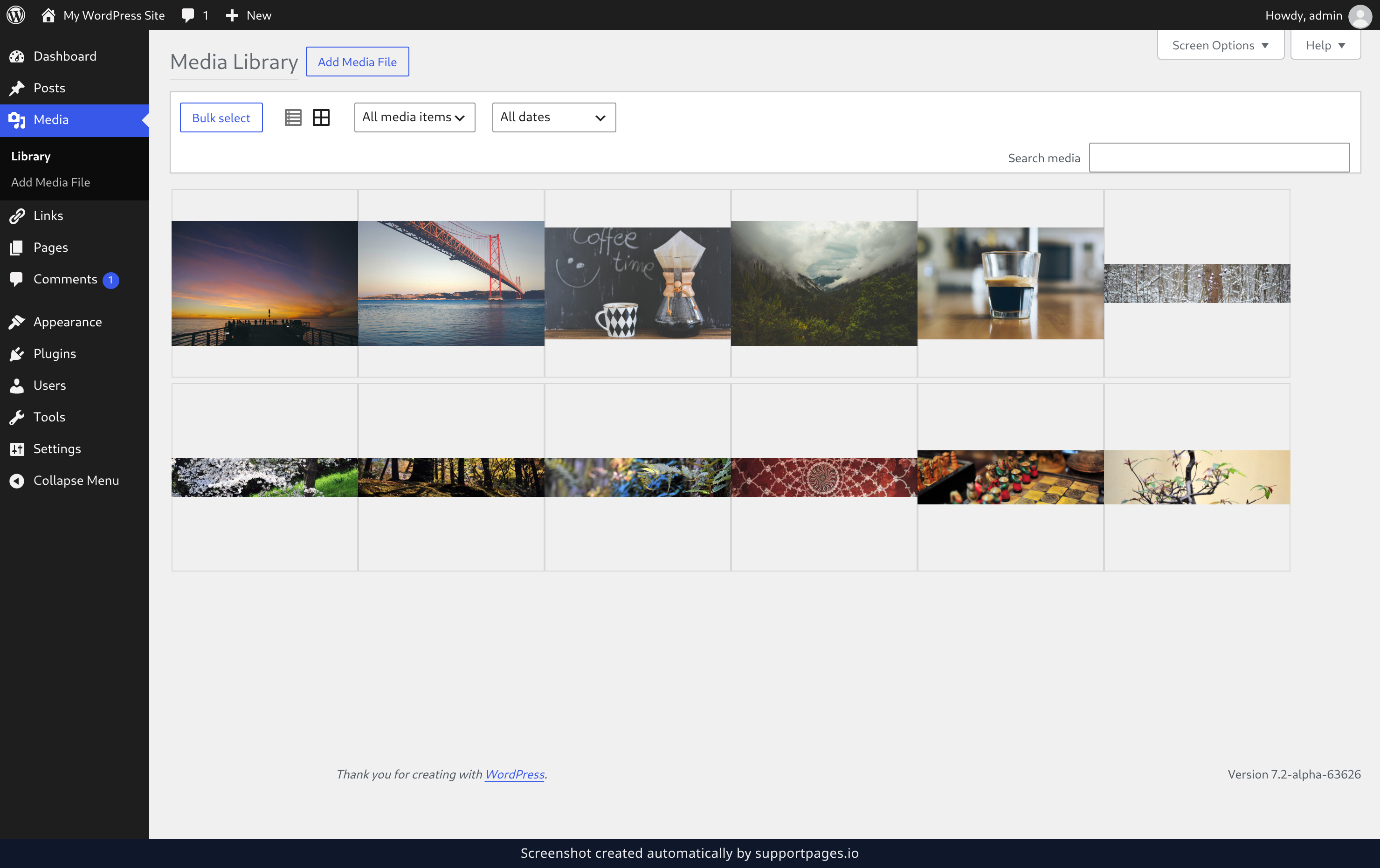
Open the image editor
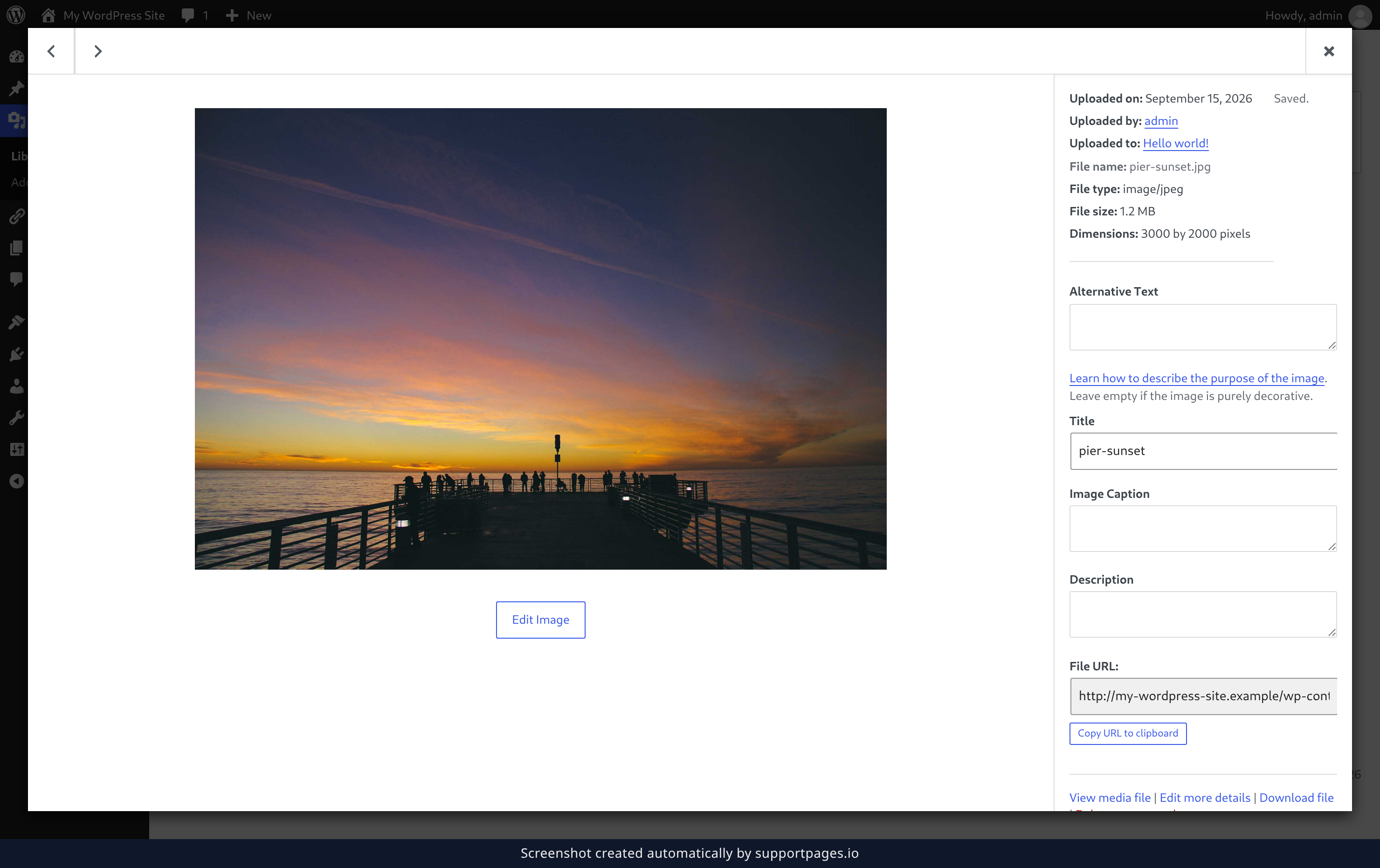
In the details panel, click Edit Image. Your photo opens in the image editor, with the editing tools along the top and their options beside the preview.
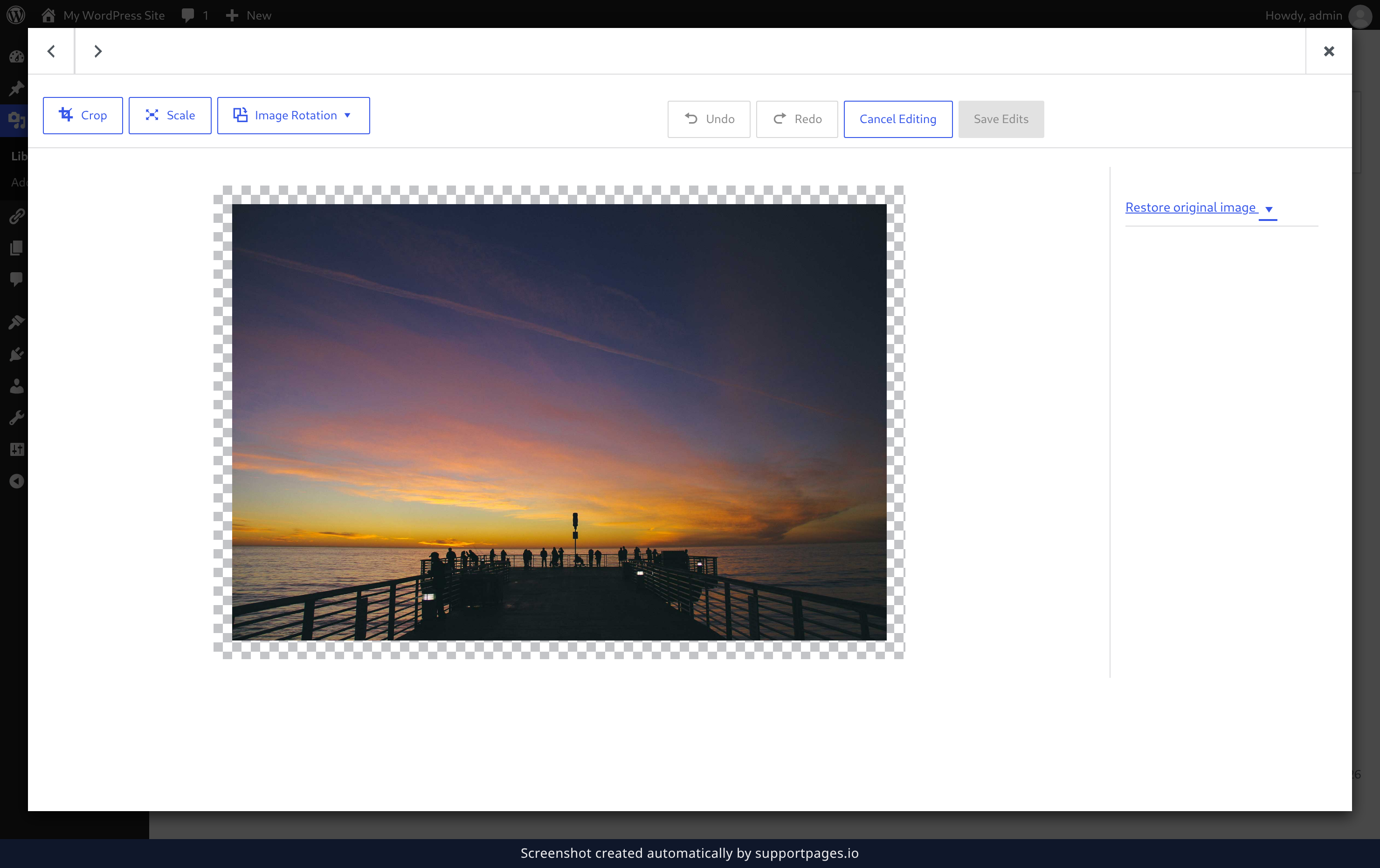
Find your way around the tools
Crop trims the photo, Scale resizes it, and Image Rotation turns or flips it. Undo and Redo step back and forth through your changes, and Save Edits writes them to the file.
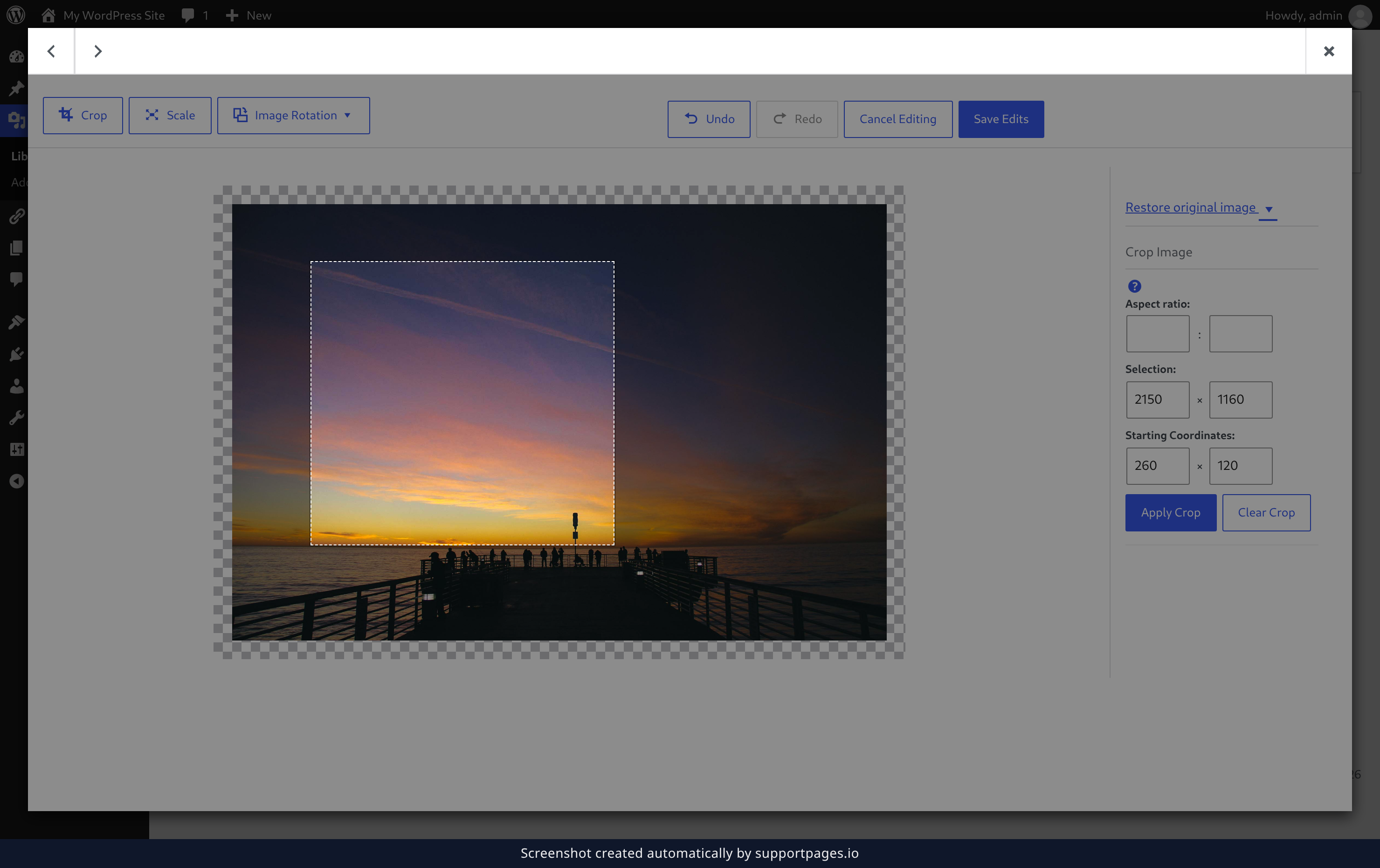
Crop the photo
Click Crop, then drag the handles on the photo to frame the part you want to keep. When it looks right, click Apply Crop — or Clear Crop to start the selection over.
Rotate or flip the photo
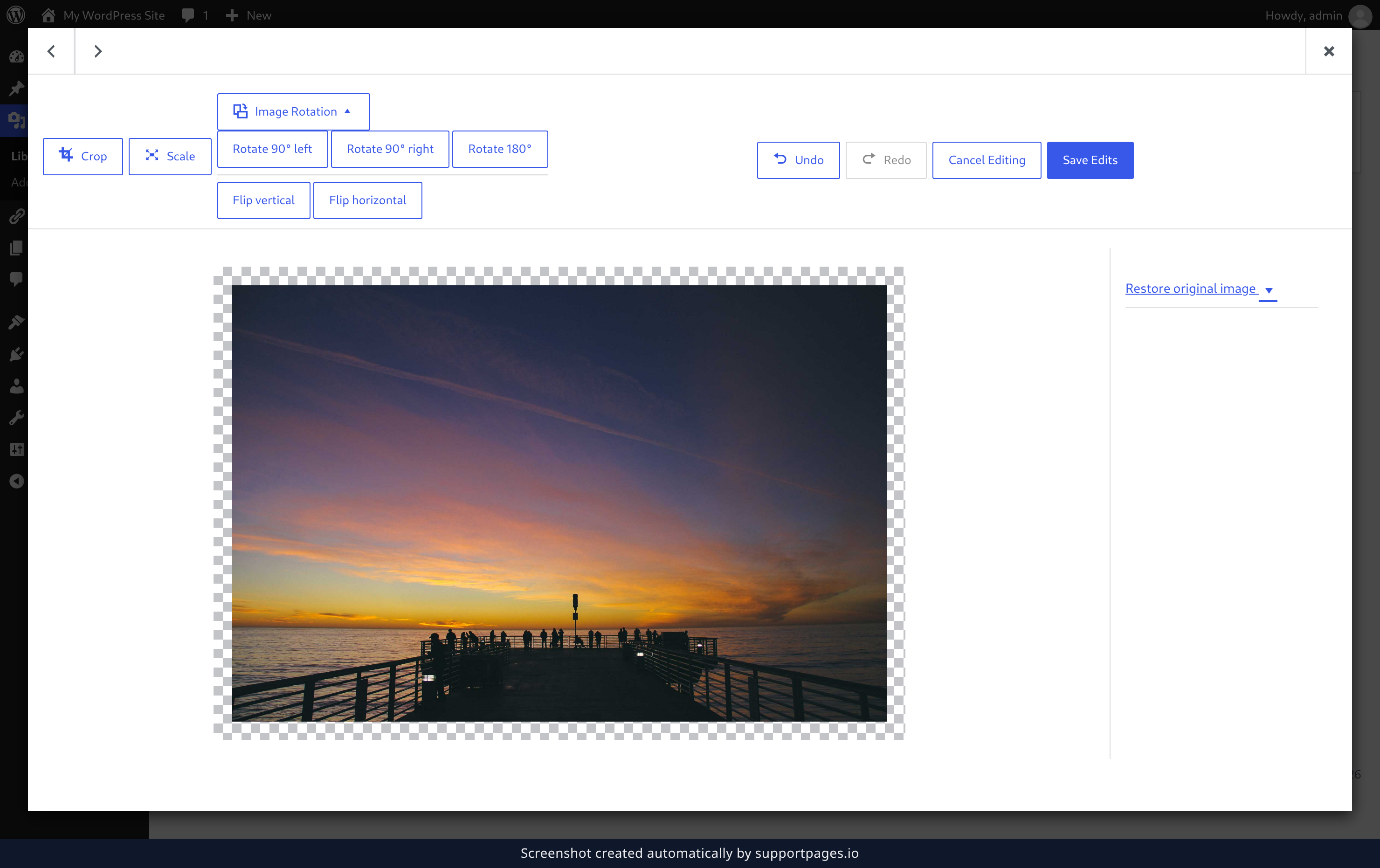
Click Image Rotation and pick Rotate 90° left, Rotate 90° right, Rotate 180°, Flip vertical, or Flip horizontal. The preview updates as soon as you choose one.
Scale the photo
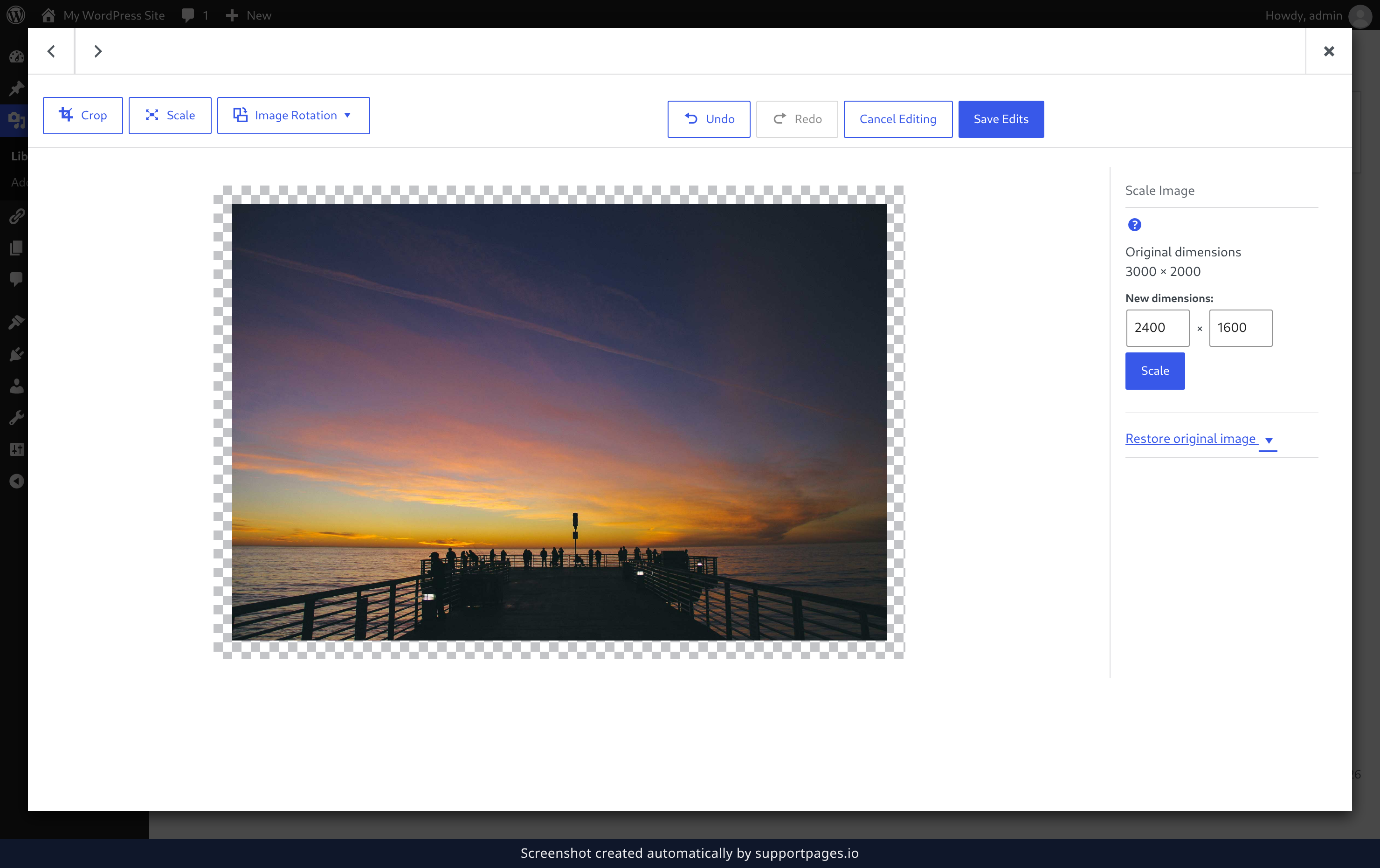
Click Scale to open the sizing panel, then type a new width or height — the other one follows along so the photo keeps its proportions. Click Scale in the panel to apply it.
Save your changes
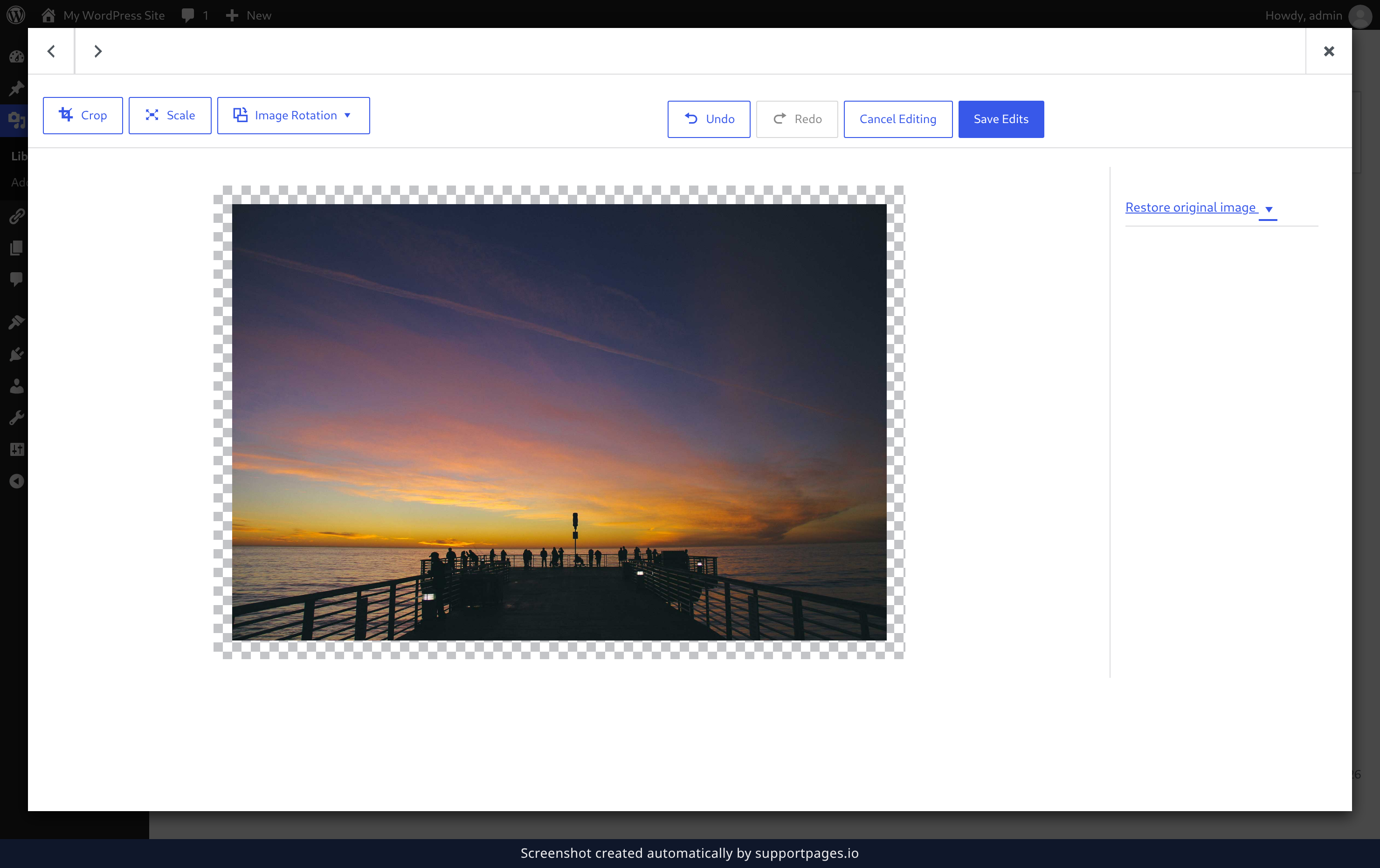
Click Save Edits. WordPress saves the edited copy of the image and reshapes its thumbnails to match.
Put the original back
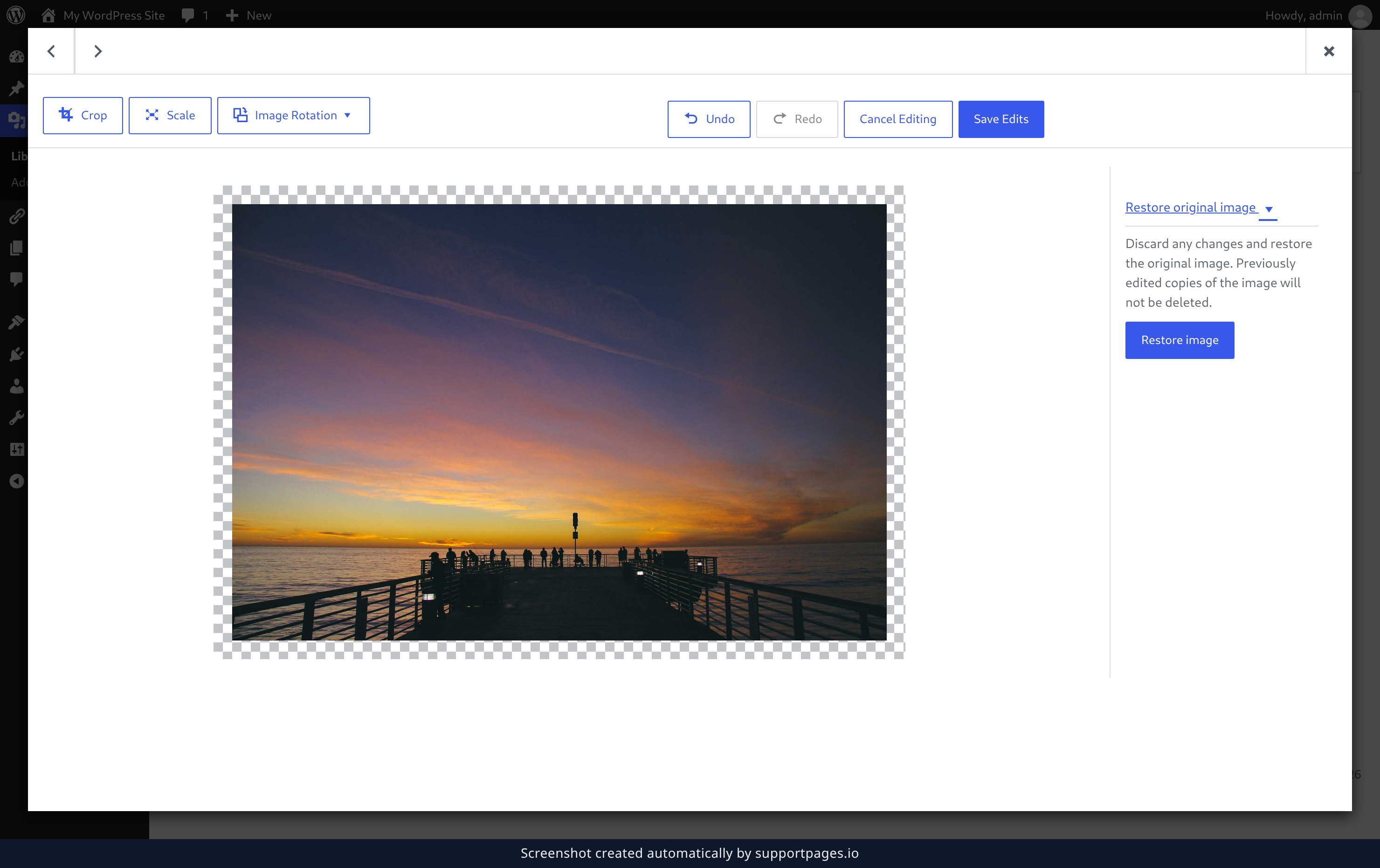
Changed your mind? Open the image editor again and expand Restore original image, then click Restore image. Every change is discarded and the original file comes back.
Tips
- Scaling works best before you crop, rotate, or flip — and images can only be made smaller, never larger.
- Undo steps back one change at a time, so you can try something and take it straight back.
- You can only restore an image once you have saved at least one edit to it.
Summary
Crop, rotate, flip, or scale your photo right in the Media Library, then click Save Edits when you are happy with it. And if you are not, Restore image puts the original straight back.
Was this article helpful?
Built with supportpages.io, a help centre generator for developers — written from your codebase.
Have a question?
Search our articles, or ask and get an answer straight away.