
How to moderate comments
Updated about 1 month ago
Browse All
Comments are what turn a blog into a conversation, and they need a little tending to stay that way. WordPress collects everything your visitors write on one screen, and keeping it tidy comes down to two buttons: Approve and Unapprove.
Prerequisites
- An account that is allowed to edit comments — an Administrator or an Editor will do.
- A site with the comment queue turned on, so new comments wait for you instead of going live straight away.
Steps
Open the Comments screen
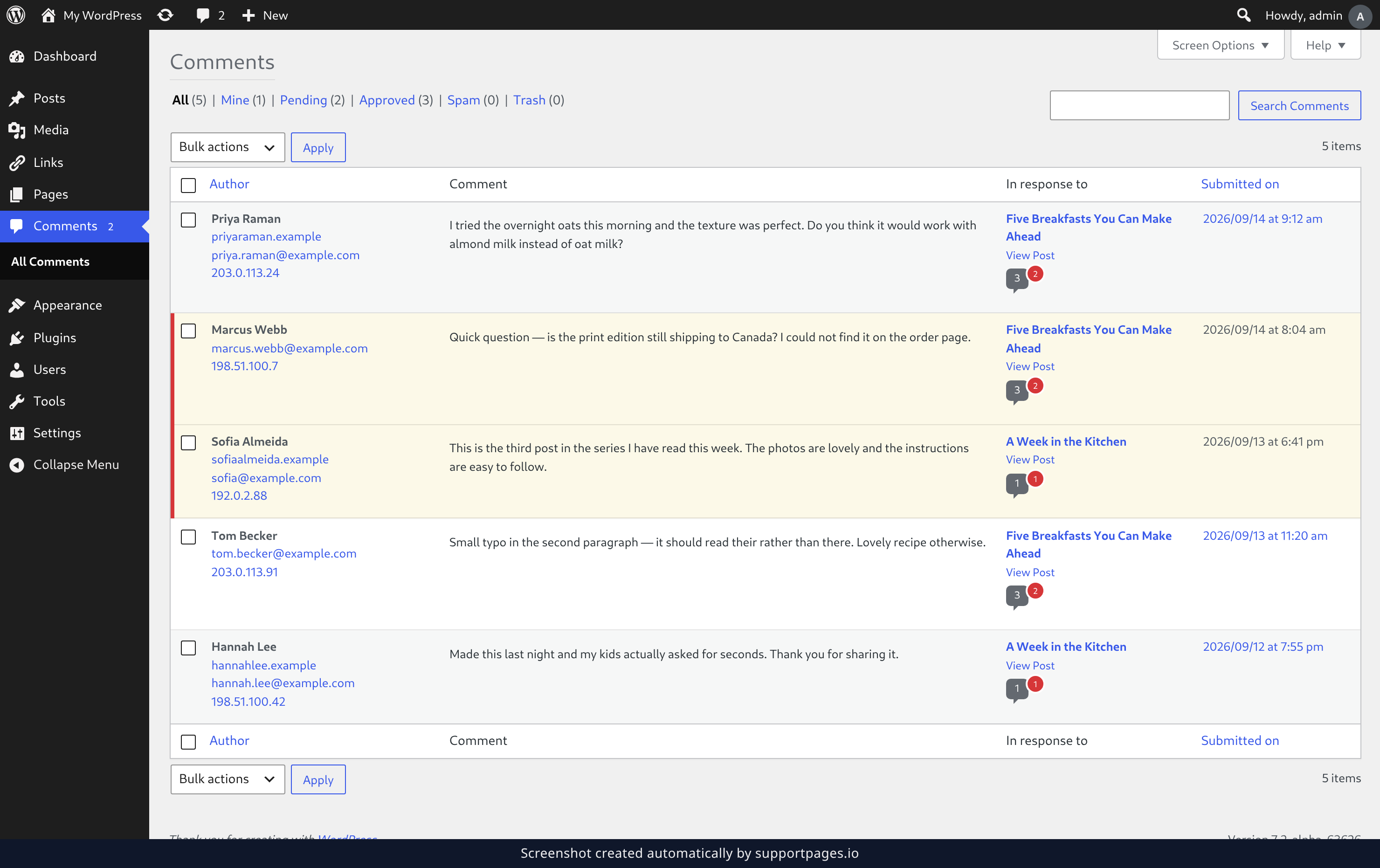
Click Comments in the left sidebar. Every comment your site has received is listed here, newest first, and a red bar down the left edge of a row means that comment is still waiting for you. The links at the top narrow the list down: Pending shows only the comments waiting on you, Approved the ones already live on your site, and Spam and Trash everything you have set aside.
Approve a comment
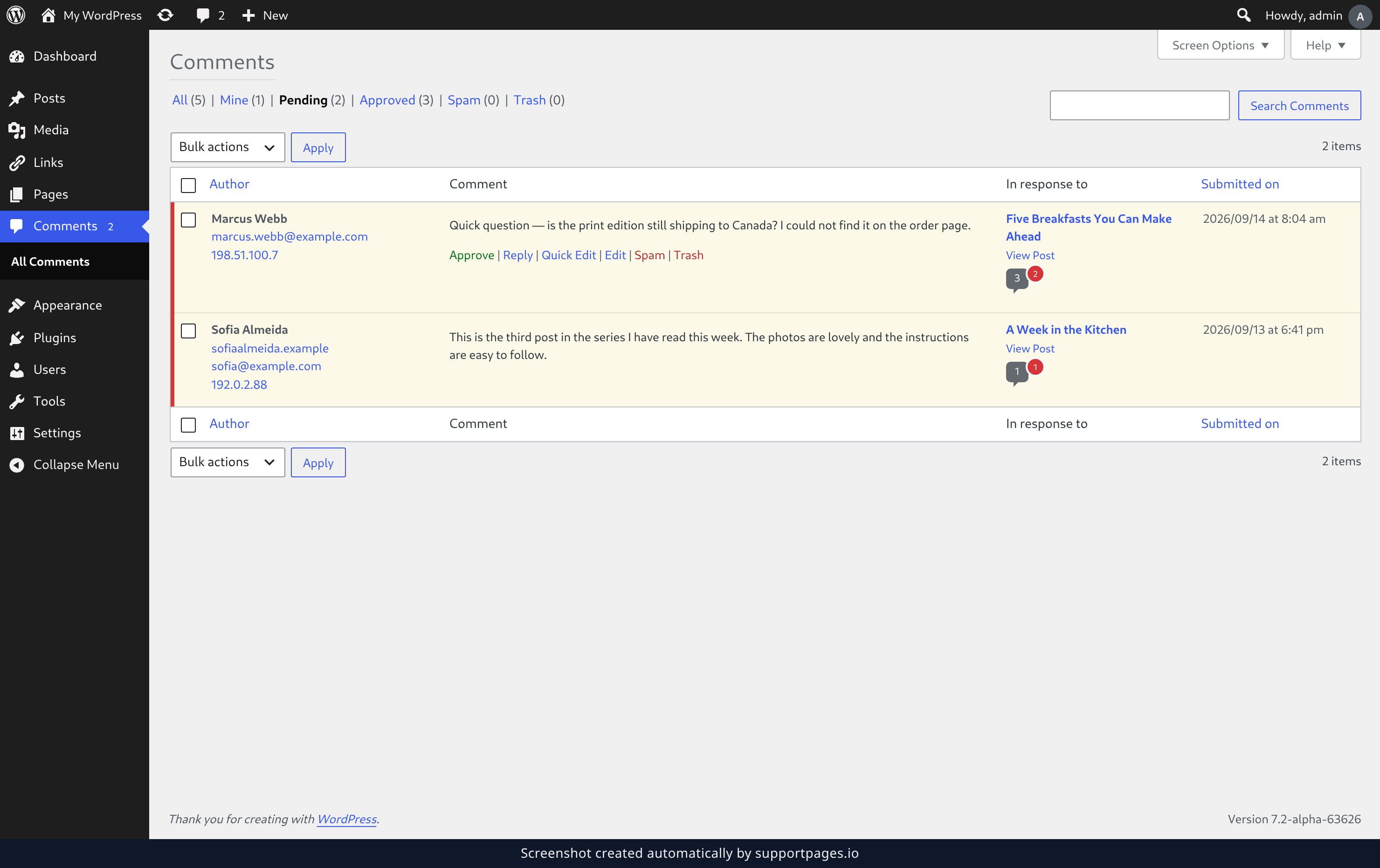
Hover over a comment in the Comment column and a row of action links appears underneath it. Click Approve. The comment goes live on your site right away, and the red bar beside it disappears.
Unapprove a comment
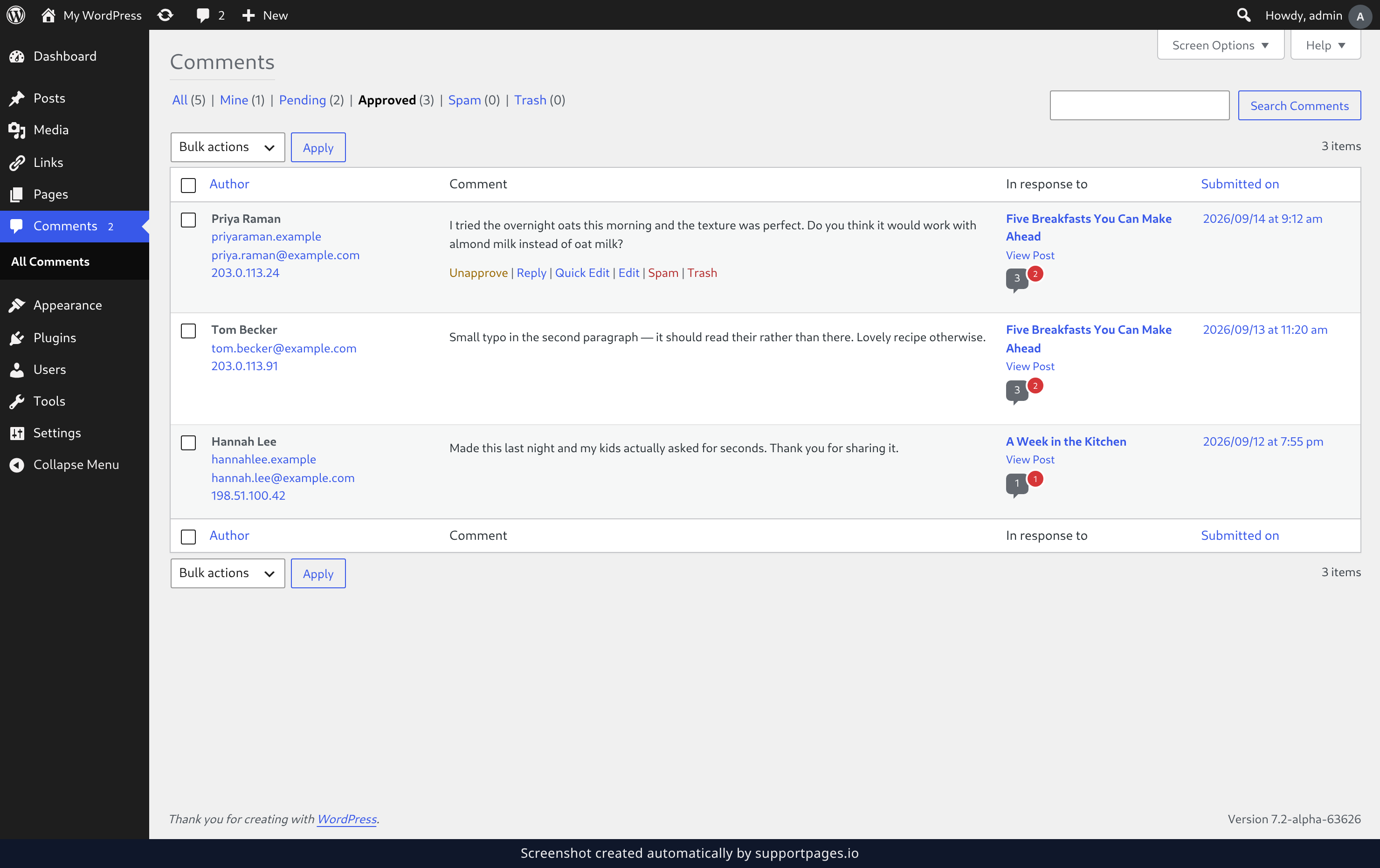
Changed your mind about something already showing on your site? Hover over it and click Unapprove. It comes down and goes back to the pending queue, where you can look at it again whenever you like.
Approve a batch at once
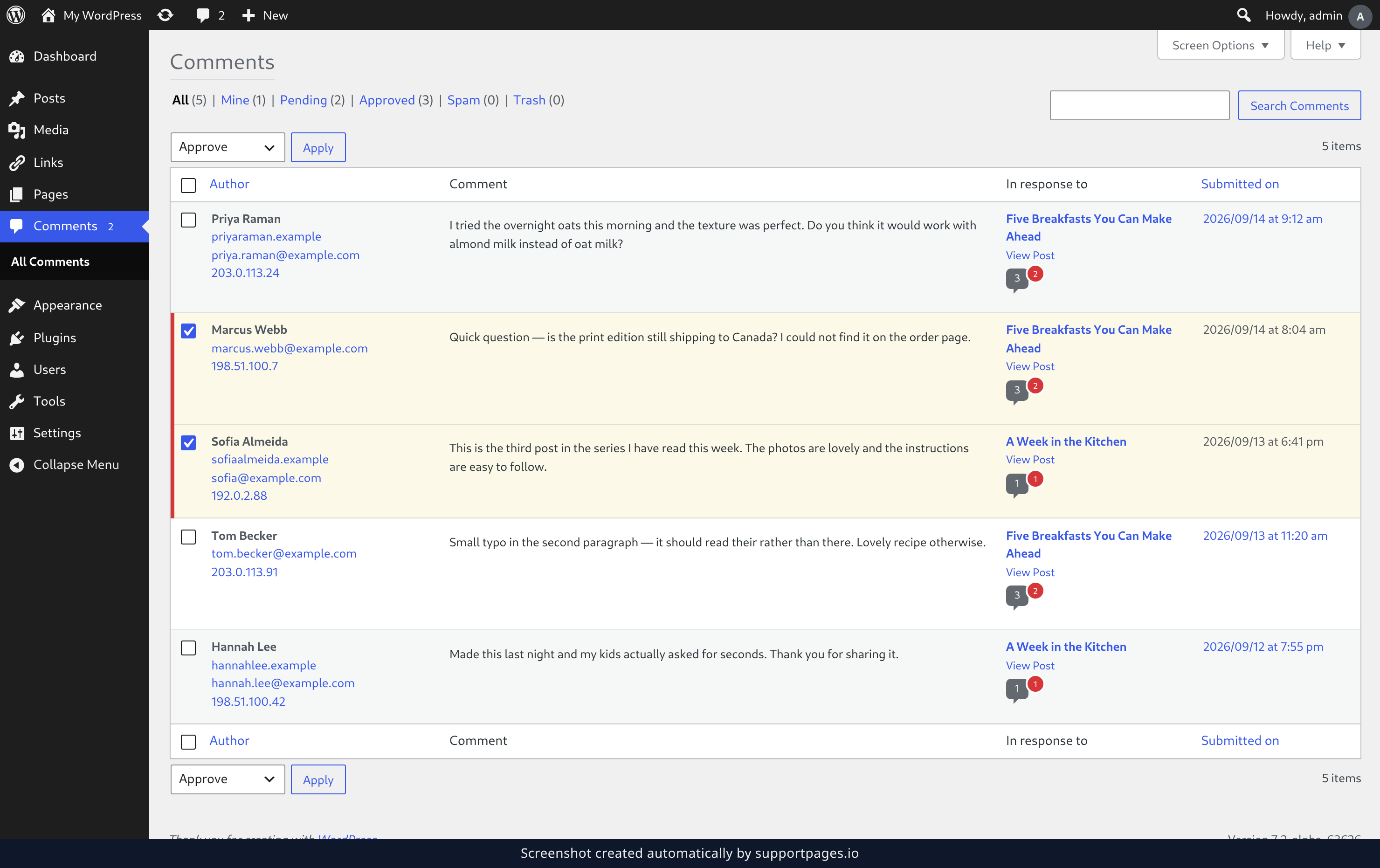
When the queue is long, tick the checkbox beside each comment you want to handle — or the checkbox in the header row to take the whole page. Then open the Bulk actions menu above the list, choose Approve, and click Apply. All of them go live together, and a short note at the top of the screen tells you how many you approved.
Tips
- Start on the Pending link. Those are the only comments that genuinely need a decision from you.
- The same action links include Reply and Quick Edit, so you can answer someone or fix a typo without leaving the screen.
- The Comments bubble in the top toolbar shows how many comments are waiting, so you can check the queue from anywhere in the dashboard.
- Building up a queue of spam? Tick the boxes, choose Mark as spam from the Bulk actions menu, and clear the whole lot in one go.
- The Help tab at the top of the screen explains each column, and links to WordPress's guide to moderating with keyboard shortcuts when you want to move even faster.
Summary
That is the whole job. Open Comments, click Approve on the ones you are happy to publish, click Unapprove on the ones you are not, and reach for the Bulk actions menu when the queue has piled up.
Was this article helpful?
Written with supportpages.io. More on documentation automation on our blog.
Have a question?
Search our articles, or ask and get an answer straight away.