
How to upload media files
Updated about 1 month ago
Browse All
Every photo, video, audio clip, and document you add to your site lives in the Media Library. Uploading a file is a single step, and you can add as many at once as you like.
Before you start
- You're signed in to your WordPress site and can see the left-hand menu.
- Your account can upload files — Authors, Editors, and Administrators all can.
- The files you want to add are saved on your computer or phone and ready to go.
Steps
Open the uploader
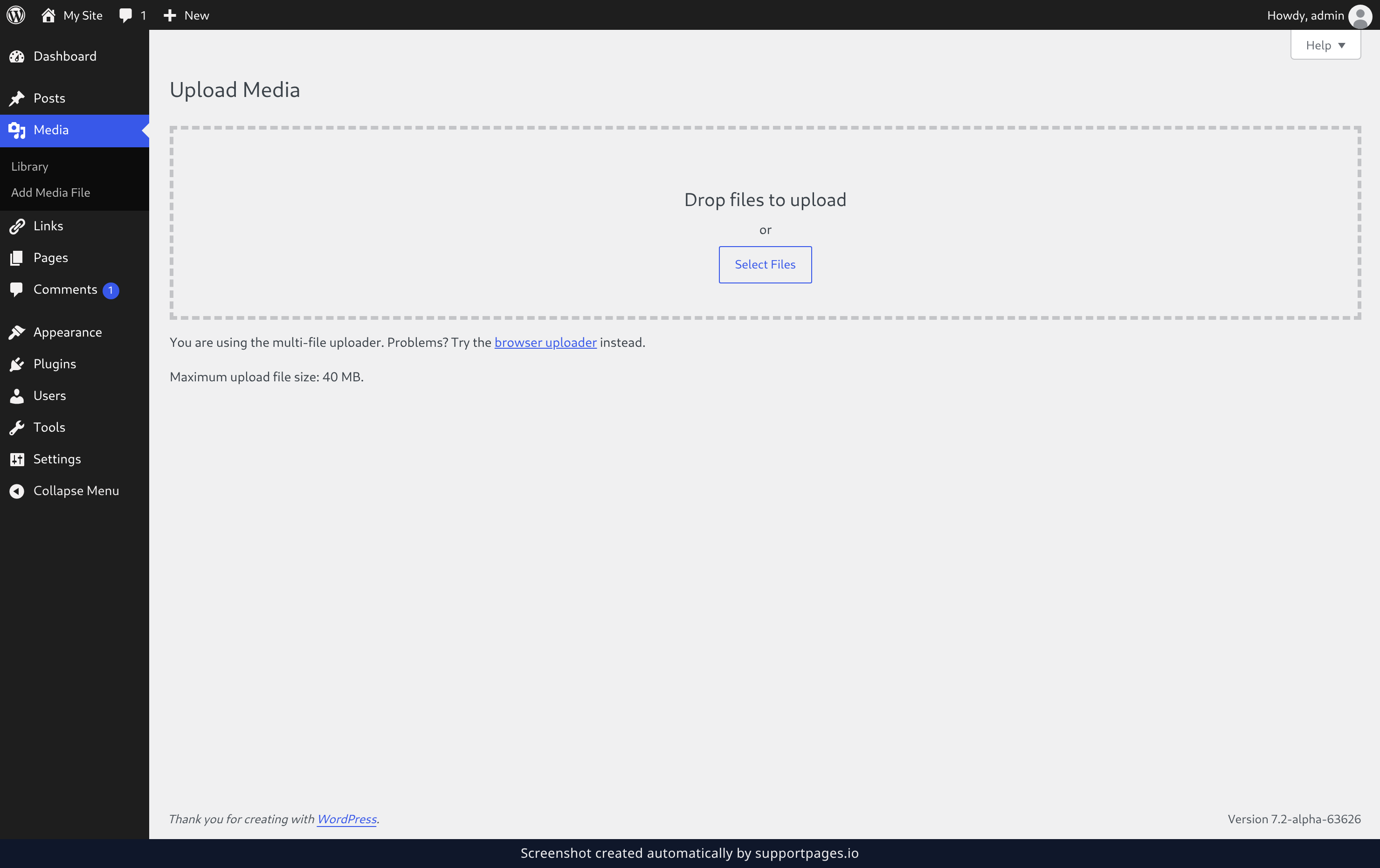
In the left-hand menu, hover over Media and choose Add Media File. The Upload Media screen opens with a box for your files.
Add your files
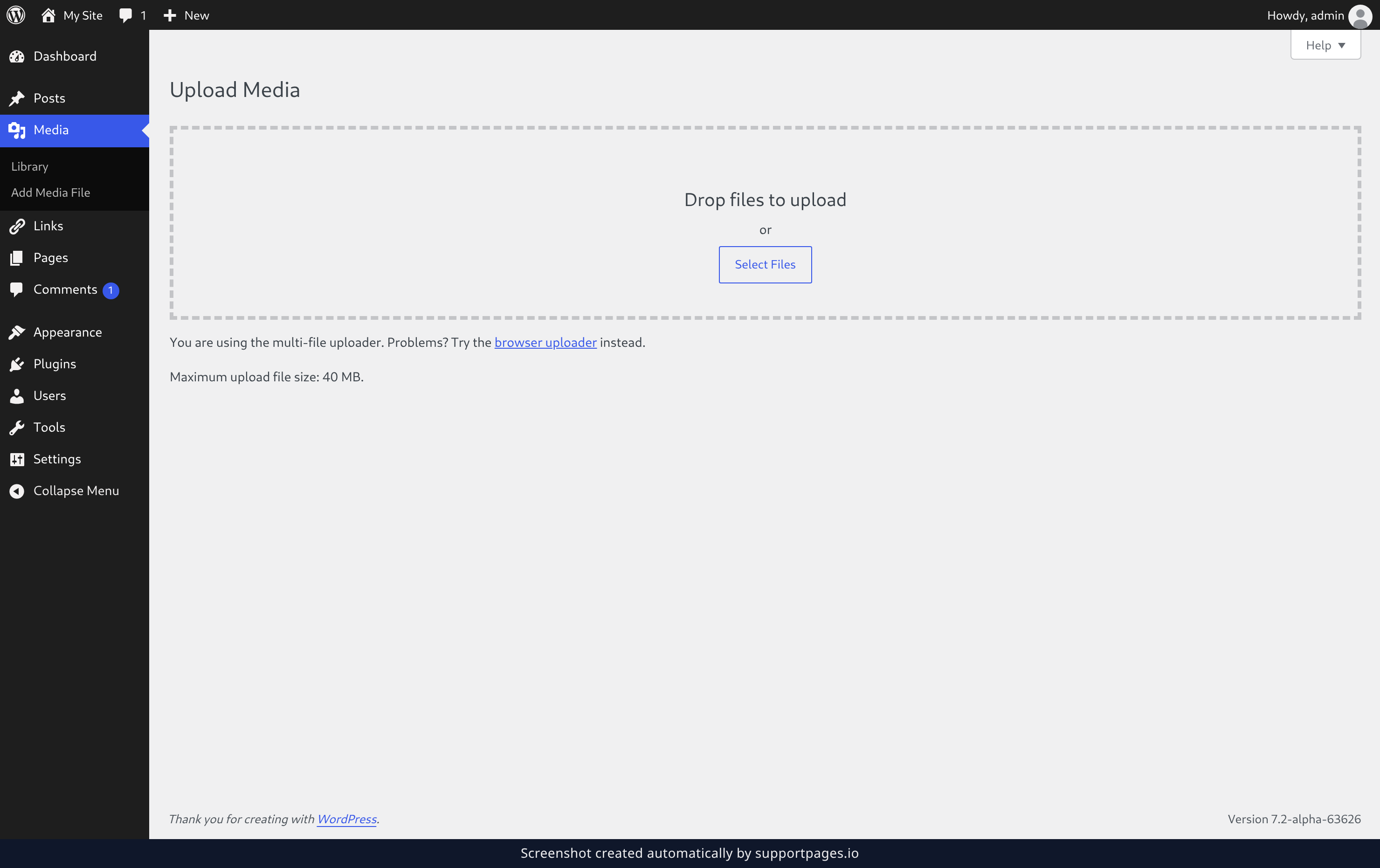
Drag your files straight into the box marked Drop files to upload. You can drop in several at once, and you can drag more in while others are still going. If dragging isn't your thing, click Select Files and pick them out of your computer instead.
Let them upload
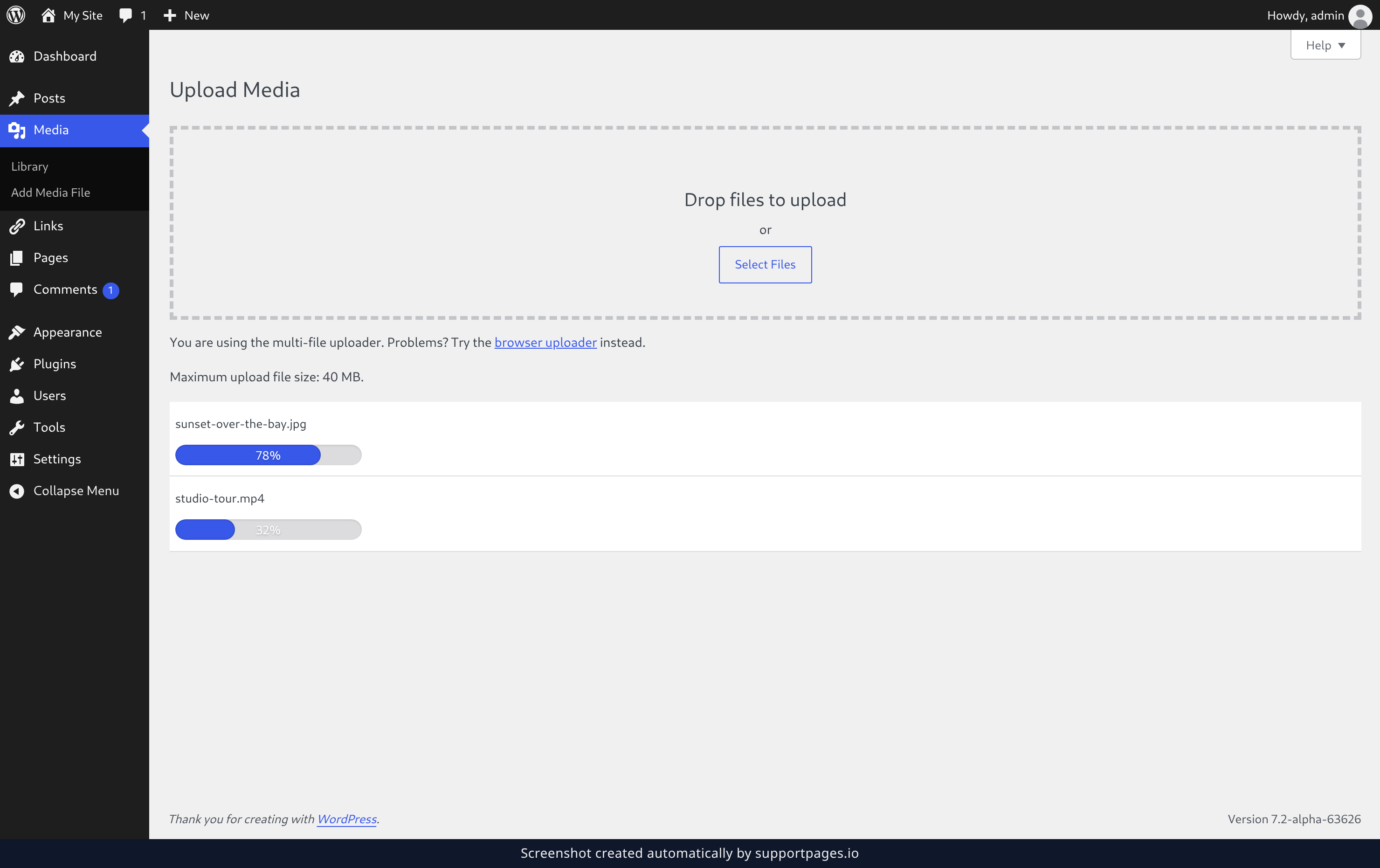
Each file you add appears below the box with its own progress bar. Give them a moment to finish — bigger videos take longer than a photo does.
Find your files again
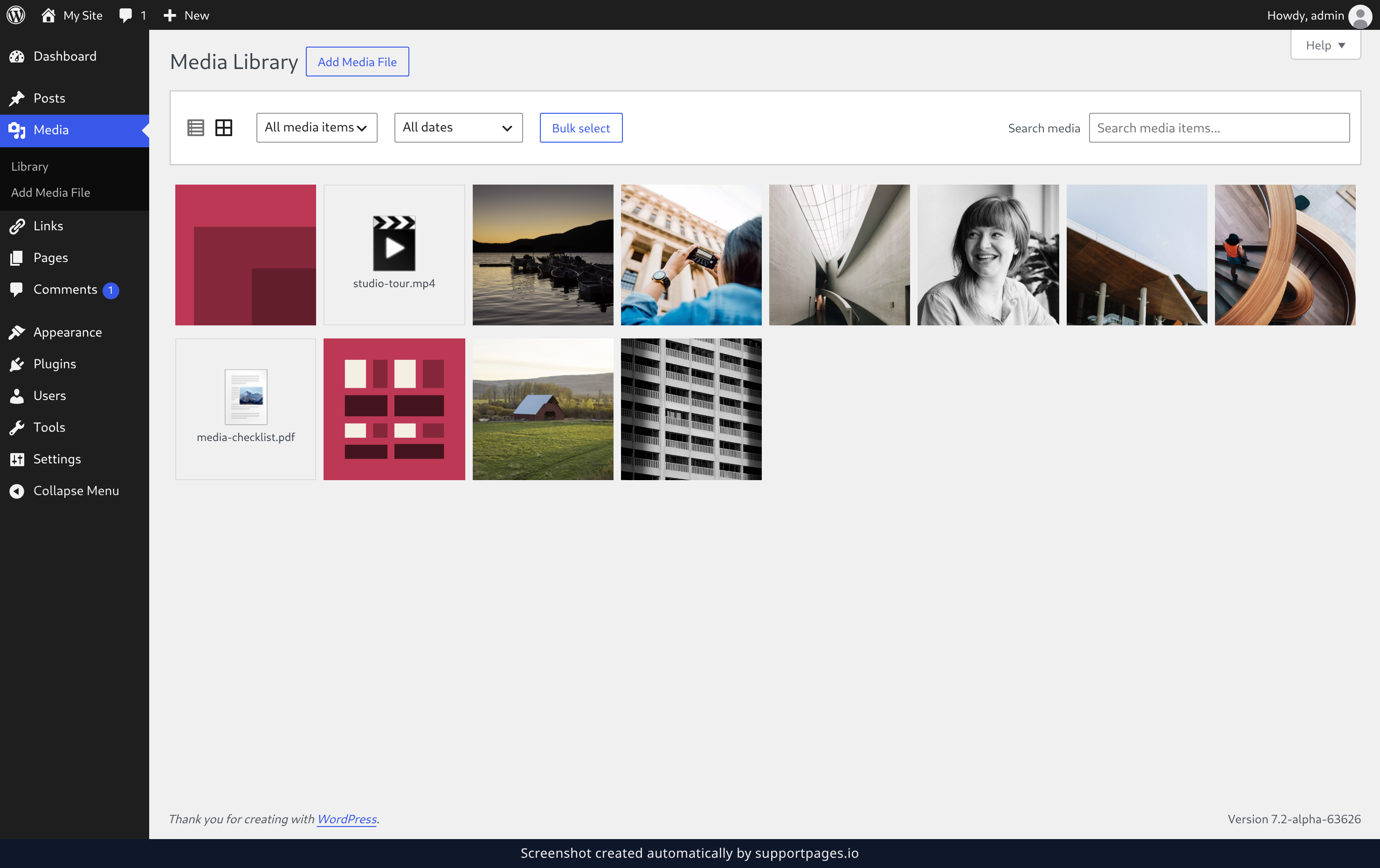
Your files are saved the moment the upload finishes. To see them any time, hover over Media and choose Library — the Media Library lists your newest uploads first.
Tips
- The biggest file you're allowed to upload is printed just below the box as Maximum upload file size — if a file is too large, that's the number telling you why.
- Images, video, audio, PDFs, and Microsoft Office documents can all go in. So can most other common file types.
- Nothing is lost if you navigate away. Once a file has uploaded, it stays in the Media Library until you delete it.
Summary
Open the Upload Media screen, drop your files in, and they're added to the Media Library — ready to use in posts, pages, and anywhere else on your site.
Was this article helpful?
Maintained by supportpages.io, a self-updating help centre for SaaS teams.
Have a question?
Search our articles, or ask and get an answer straight away.