
How to reset a forgotten password
Updated about 1 month ago
Browse All
Forgotten your password? WordPress will email you a reset link, and from there you pick a brand-new password yourself.
Before you start
- Access to the email inbox for your account — that's where the reset link lands.
- Your username or the email address you signed up with.
Steps
Open the reset page
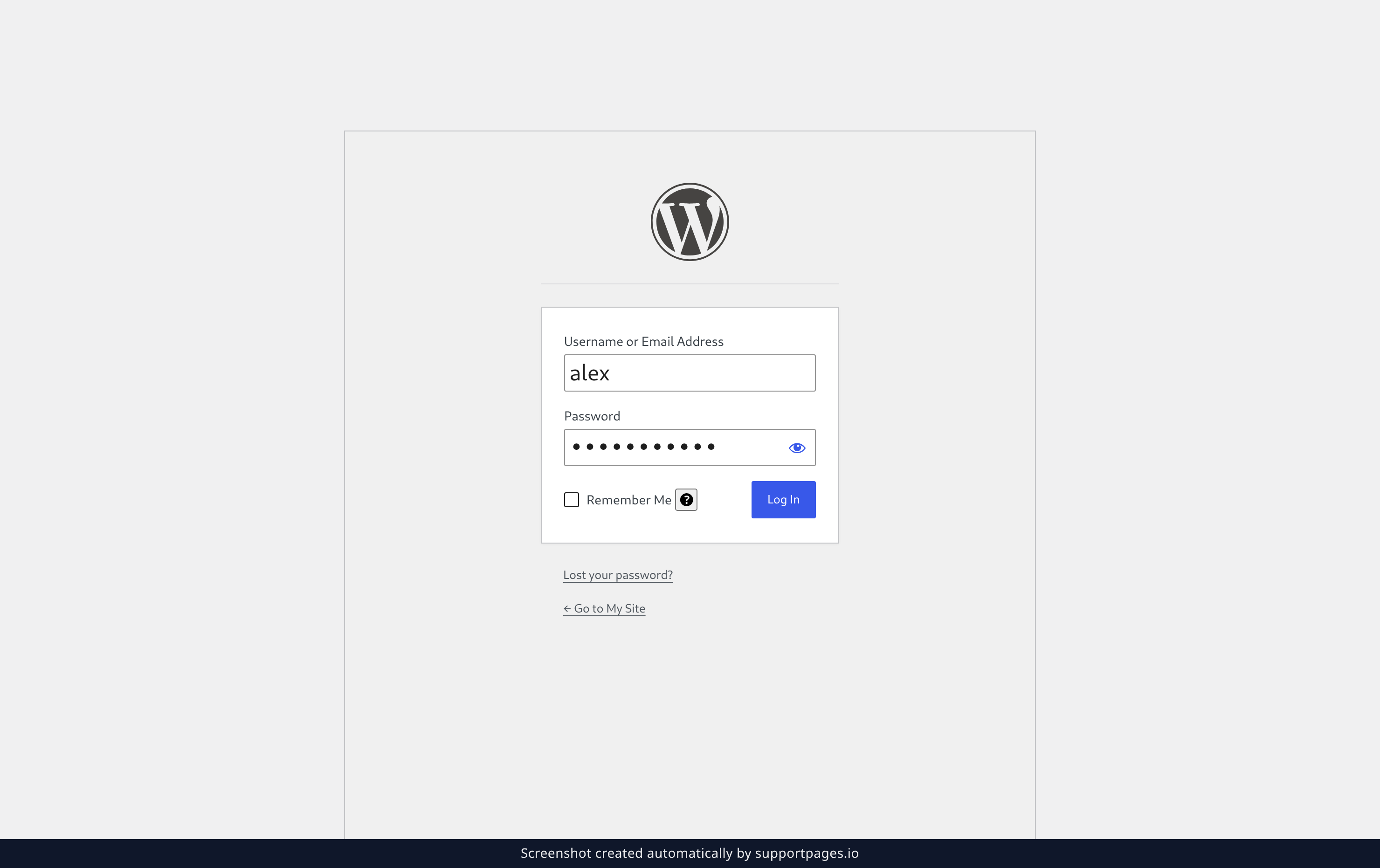
Go to your site's login page — the same one you normally sign in from — and click Lost your password? just below the sign-in button.
Ask for the reset link
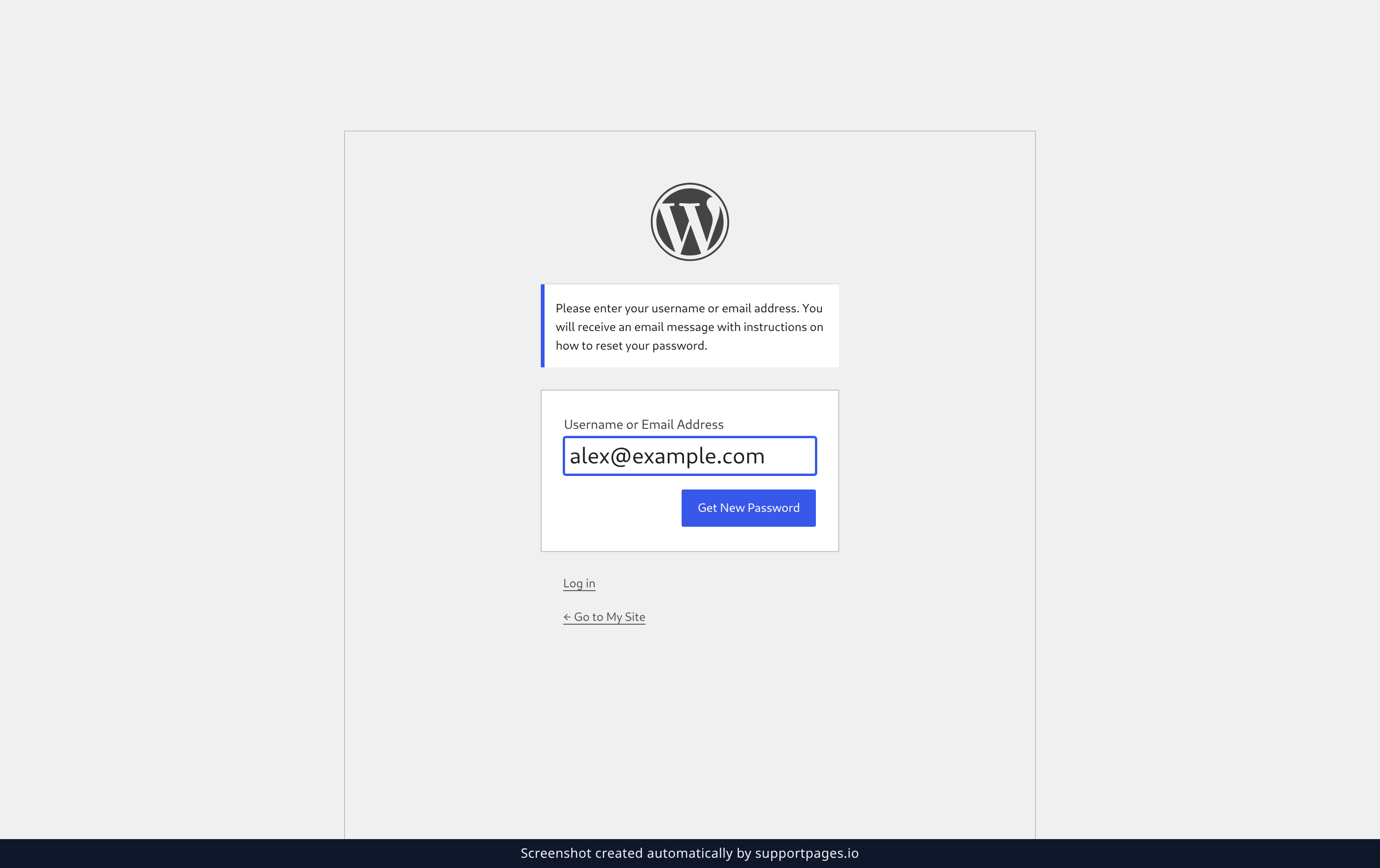
Type your Username or Email Address, then click Get New Password. You'll land on a Check your email screen, and the message arrives in your inbox a moment later.
Now open the email in your inbox and click the link inside it — it takes you straight to the Reset Password screen. Can't find it? Check your spam or junk folder.
Choose a new password
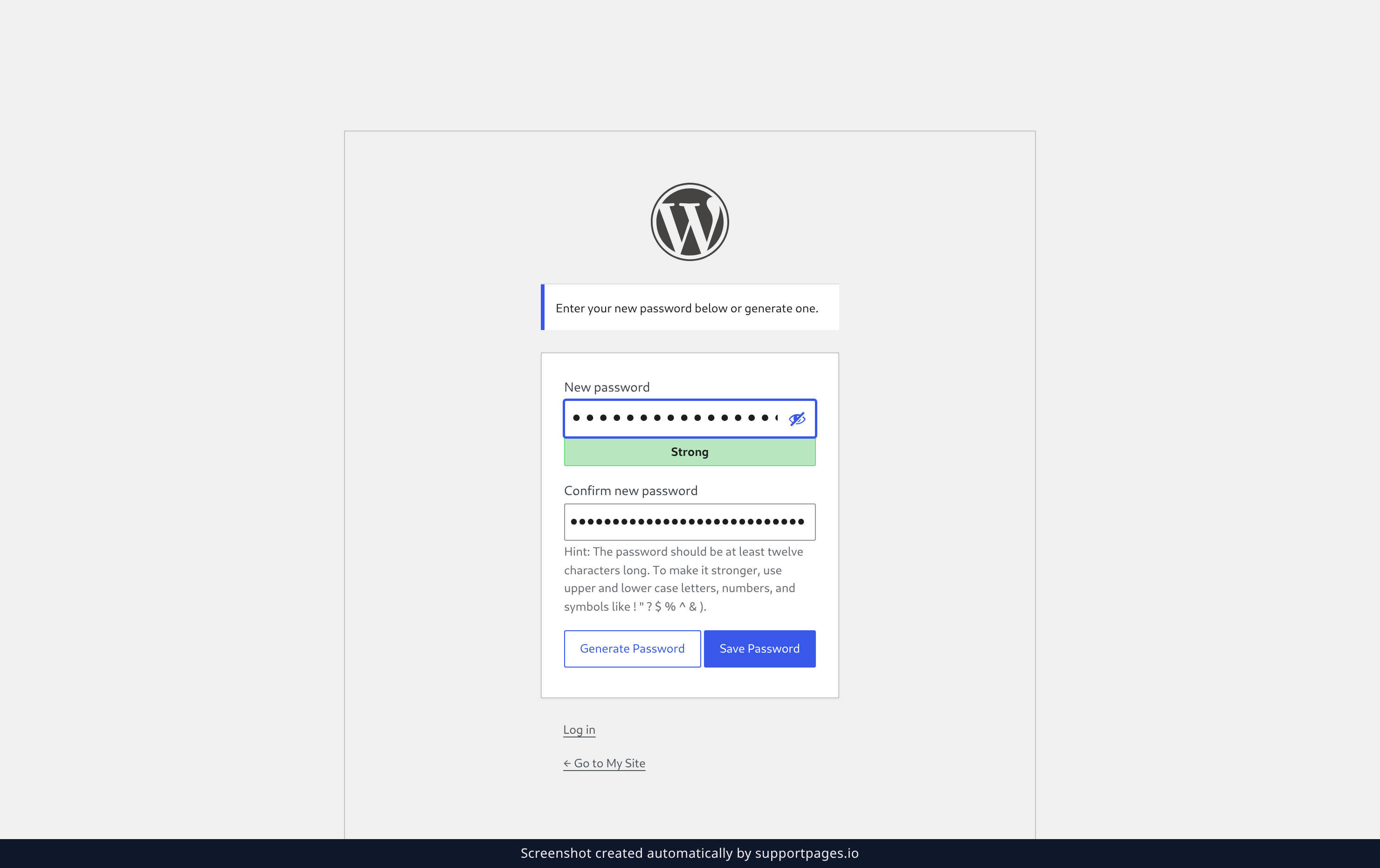
On the Reset Password screen, type your new password into New password, type it once more in Confirm new password, then click Save Password. Want a strong one picked for you? Click Generate Password instead of typing.
Good to know
- Reset links expire, so it's best to use one soon after it arrives. If it's gone stale, just ask for a fresh one.
- Pick a password you don't use anywhere else. A short phrase of a few unrelated words is both strong and easy to remember.
- Stuck waiting on the email? Check your spam folder, and make sure you typed the email address exactly as it is on your account.
Summary
You asked WordPress for a reset link at Lost your password?, opened the email, and set a new password on the Reset Password screen. You're back in — and if you're ever locked out again, the same link does the trick.
Was this article helpful?
Made by supportpages.io — turning pull requests into automated user documentation.
Have a question?
Search our articles, or ask and get an answer straight away.