
How to erase a person’s data
Updated about 1 month ago
Browse All
Someone has asked you to delete the personal data your site keeps about them. WordPress has a tool built for exactly that: it gathers everything stored against their email address, then erases it or strips out the identifying details.
Before you start
- An administrator account — erasing another person’s data is limited to admins.
- The email address the person used on your site, or the username they log in with.
- A note of anywhere else you hold their details, such as a mailing list or a payment provider. WordPress can only clear what it stores itself.
Steps
Open the tool and add a request
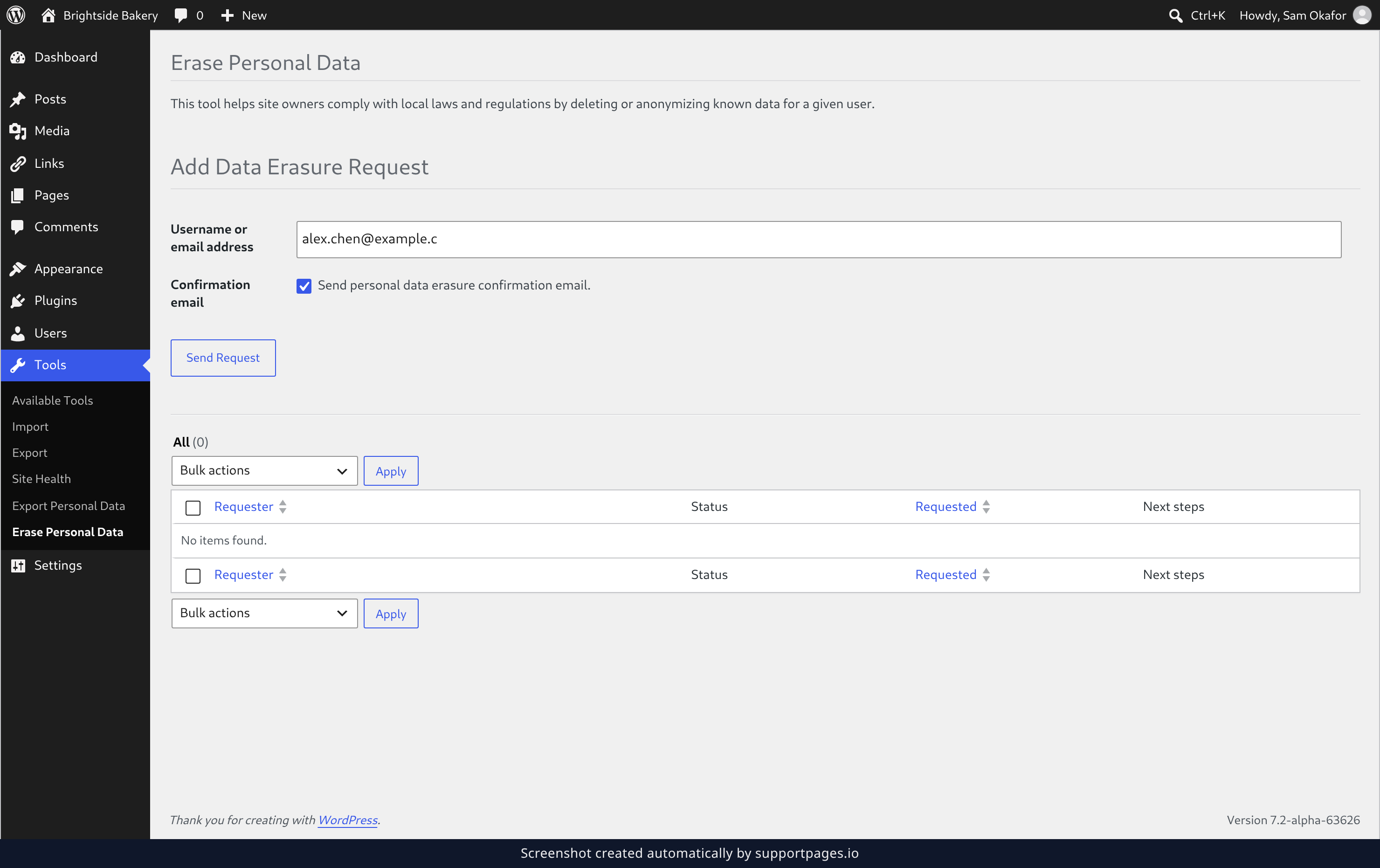
In the admin menu on the left, select Tools, then select Erase Personal Data. Under Add Data Erasure Request, type the person’s username or email address into the Username or email address field — WordPress will find everything it holds against that address. The Confirmation email option is ticked by default, so the person approves the erasure themselves: leave it as it is and select Send Request.
Find the request and erase the data
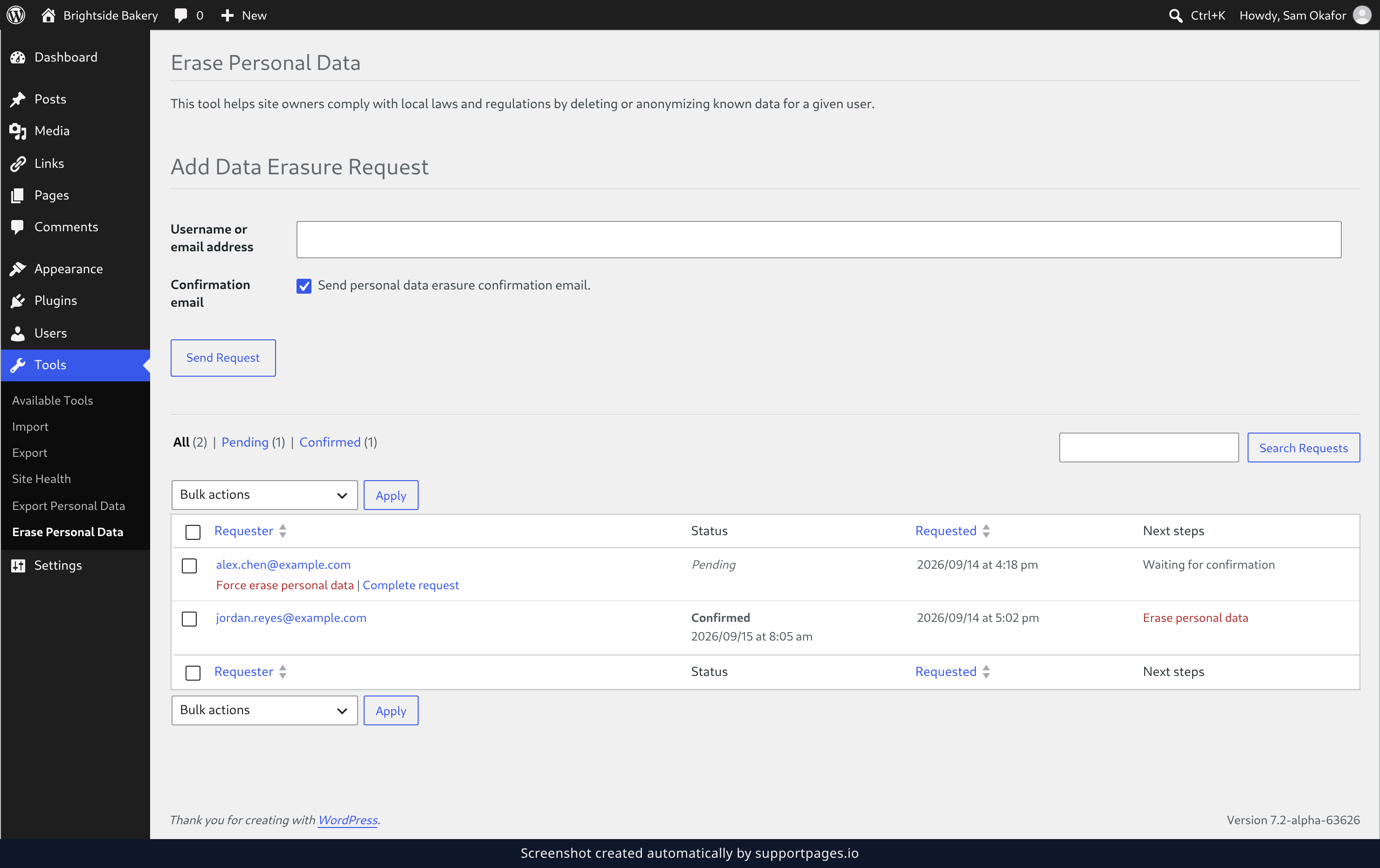
Once the person has approved the request, their row shows Confirmed and Next steps offers Erase personal data. Select it to start the erasure. If they haven’t replied yet and you need to go ahead anyway, select Force erase personal data in that request’s row instead — that skips the email confirmation.
Check what was erased
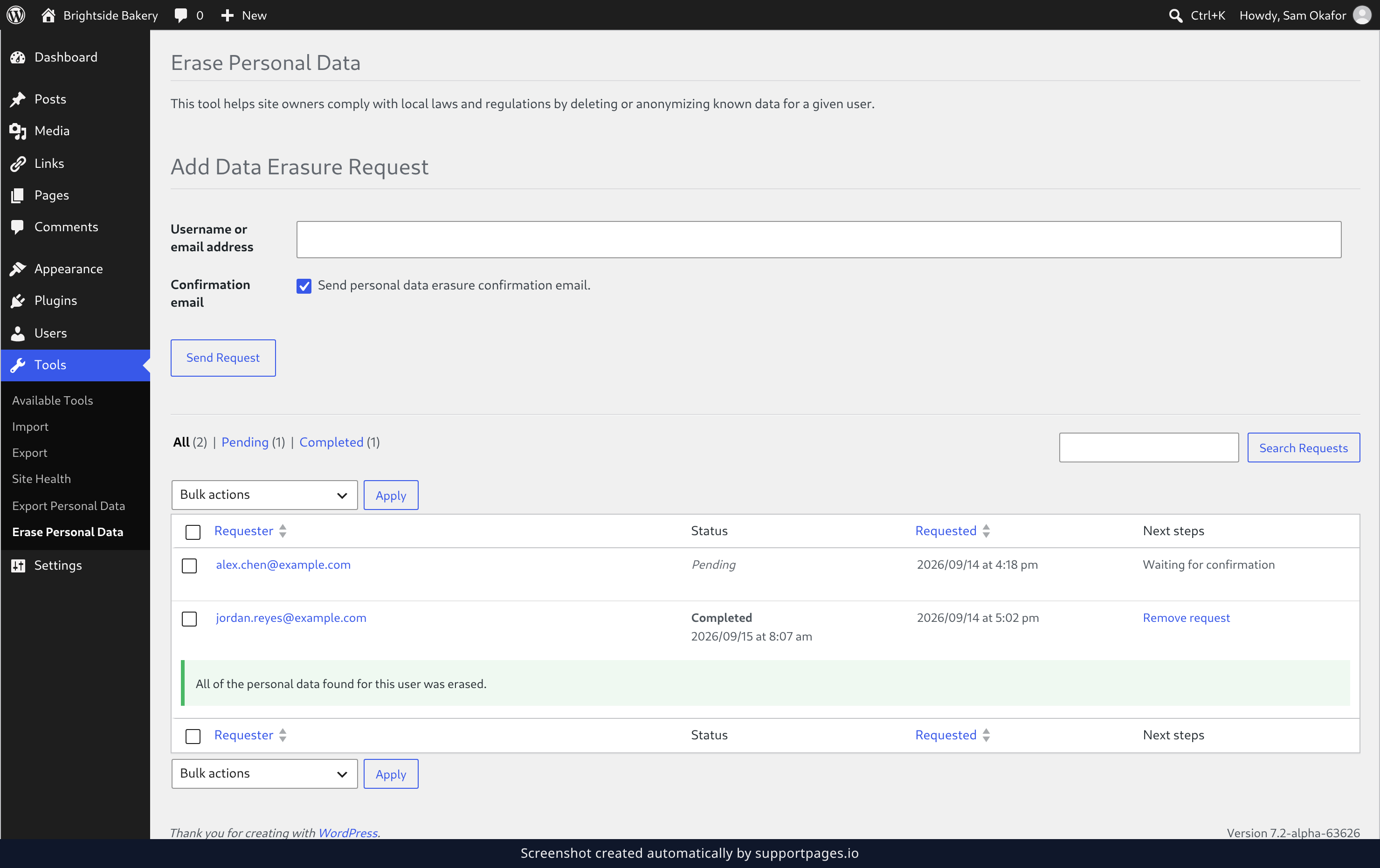
The erasure runs while you watch, then the row settles on Completed with a notice underneath explaining what happened — for example All of the personal data found for this user was erased. Anything WordPress had to hold on to is listed there too, so you can follow it up by hand. When you’re happy, select Remove request to clear the finished request from the list.
Good to know
- Comments survive an erasure. WordPress replaces the author name, email address, IP address and website on each one with anonymous values, so the conversation still reads properly.
- The tool only reaches data WordPress itself stores. Details held by a plugin or an outside service need clearing in that service.
- Finished requests stay in the list until you remove them, so you keep a record of what was asked for and when.
Summary
Erasing someone’s data is a short loop: add the request, let them confirm it — or force it through — then run the erasure and read the result. Once the row says Completed, your part is done.
Was this article helpful?
Powered by supportpages.io, AI release notes software.
Have a question?
Search our articles, or ask and get an answer straight away.