
How to remove a user from your site
Updated about 1 month ago
Browse All
Removing someone from your site takes only a couple of clicks — WordPress just wants to know what should happen to the posts and pages they wrote before their account goes. Here's the whole thing, start to finish.
Before you start
- You'll need to be signed in as an Administrator, or another role that's allowed to delete users.
- Pick the person carefully — deleting an account can't be undone.
Steps
Open the Users list and find the person
In the left-hand menu, click Users, then choose All Users. Find the person you want to remove, hover over their row, and click Delete.
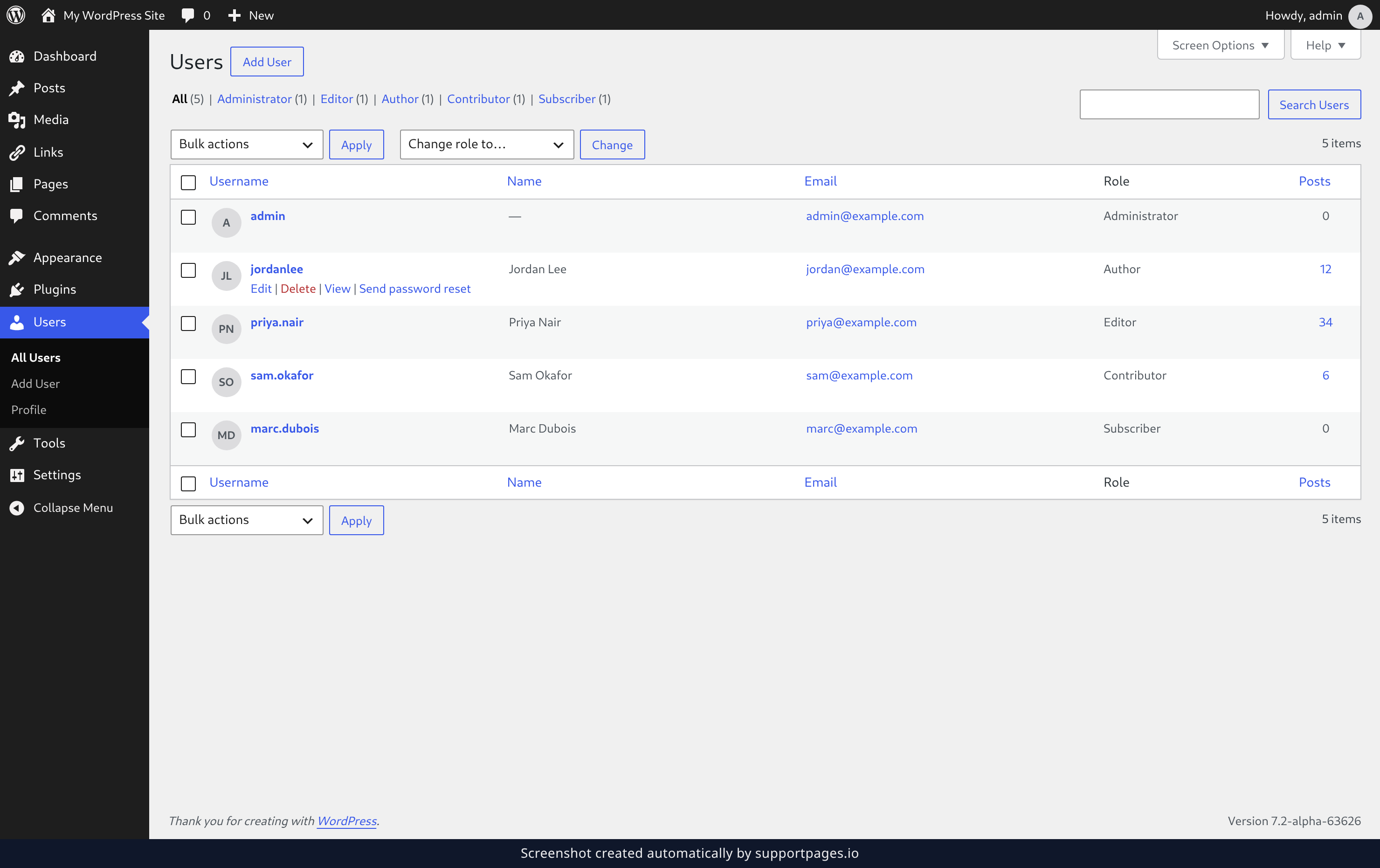
Decide what happens to their content
WordPress asks what should be done with the content owned by this user. Leave Delete all content. selected to remove their posts and pages along with the account, or pick Attribute all content to another user. and choose who takes them over from the Select a user list.
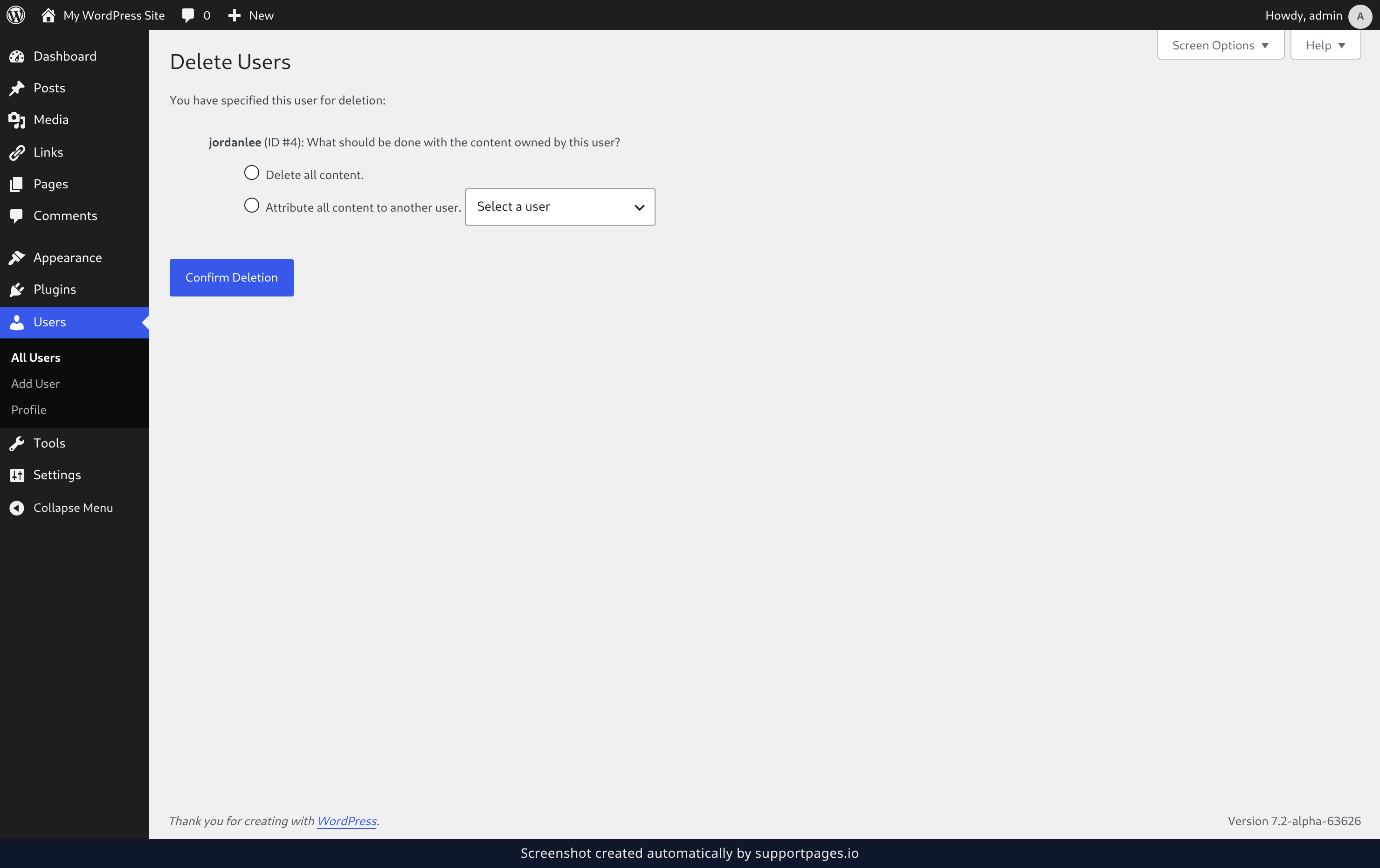
Confirm the deletion
Happy with your choice? Click Confirm Deletion. The account is gone and you're back on the Users list with a short note confirming what was removed.
Good to know
- Don't want to delete anyone just yet? Change their role to — No role for this site — instead. They keep their account, but lose access to your site.
- You can remove several people at once: tick the boxes next to their names, choose Delete from the bulk actions list, and click Apply.
- Want to keep their writing? Choose Attribute all content to another user. — their posts and pages stay on your site under a new name.
Summary
That's it — the account is off your site for good, and their posts and pages either went with it or moved to someone you chose. If you'd rather they kept an account without access, changing their role is the gentler option.
Was this article helpful?
Maintained by supportpages.io, a self-updating help centre for SaaS teams.
Have a question?
Search our articles, or ask and get an answer straight away.