
How to set your site title, tagline, and addresses
Updated about 1 month ago
Browse All
Your site's name, its short description, and the addresses people use to reach it all live on one screen in your dashboard. Here's how to update them.
Before you start
- An administrator account on your site.
- Access to the inbox for the administration email address you want to use, in case you change it.
Steps
Open the General Settings screen
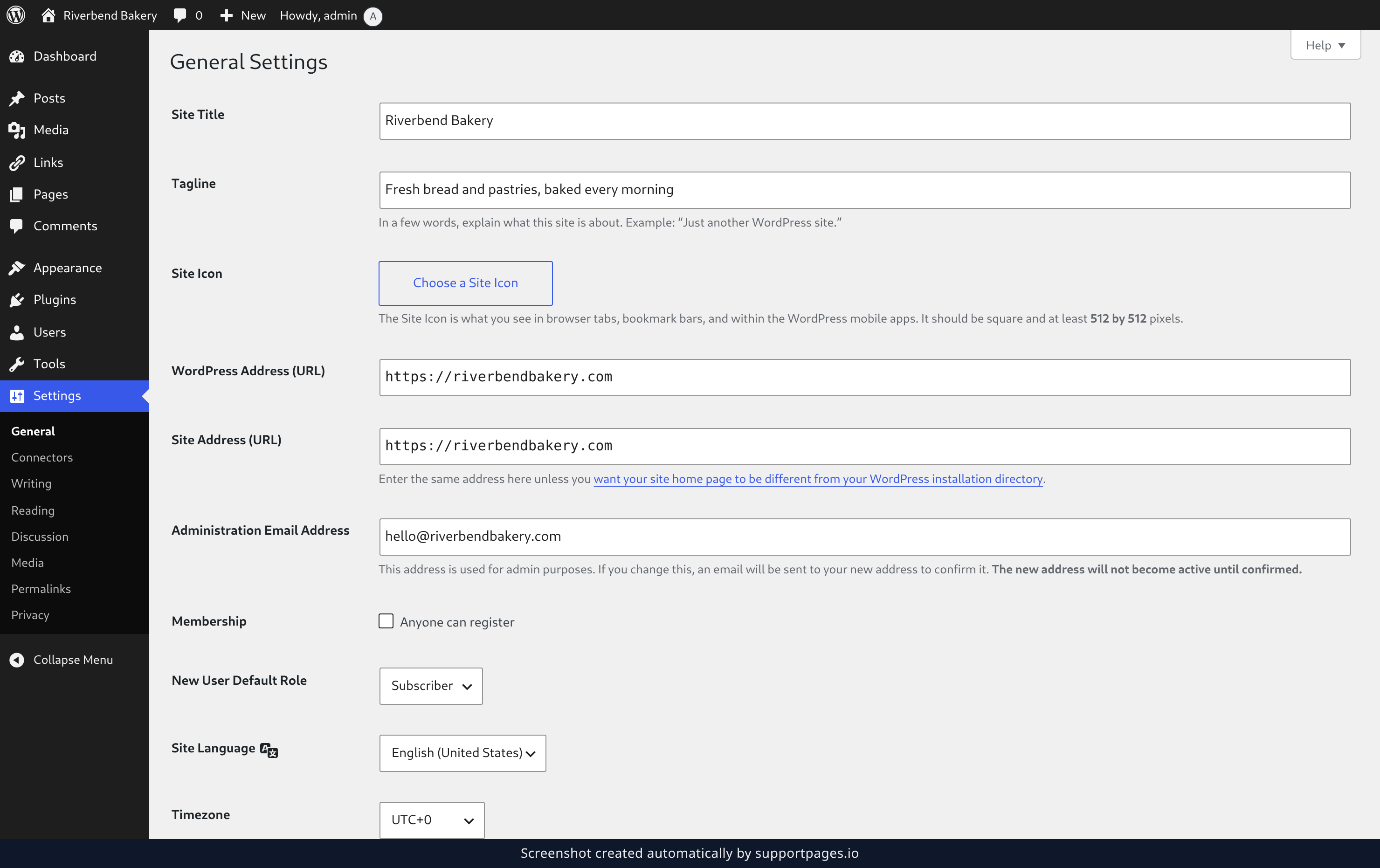
In the left sidebar of your dashboard, click Settings, then click General. The General Settings screen opens with your current details filled in.
Fill in your site details
- Site Title — the name of your site. Most themes show it at the top of every page.
- Tagline — a few words about what your site is about.
- WordPress Address (URL) — the address where your WordPress files live.
- Site Address (URL) — the address visitors type to reach your site. Most sites use the same address in both fields.
- Administration Email Address — the address WordPress uses for admin purposes. WordPress emails a confirmation link to it, and the change takes effect once you confirm it.
Save your changes
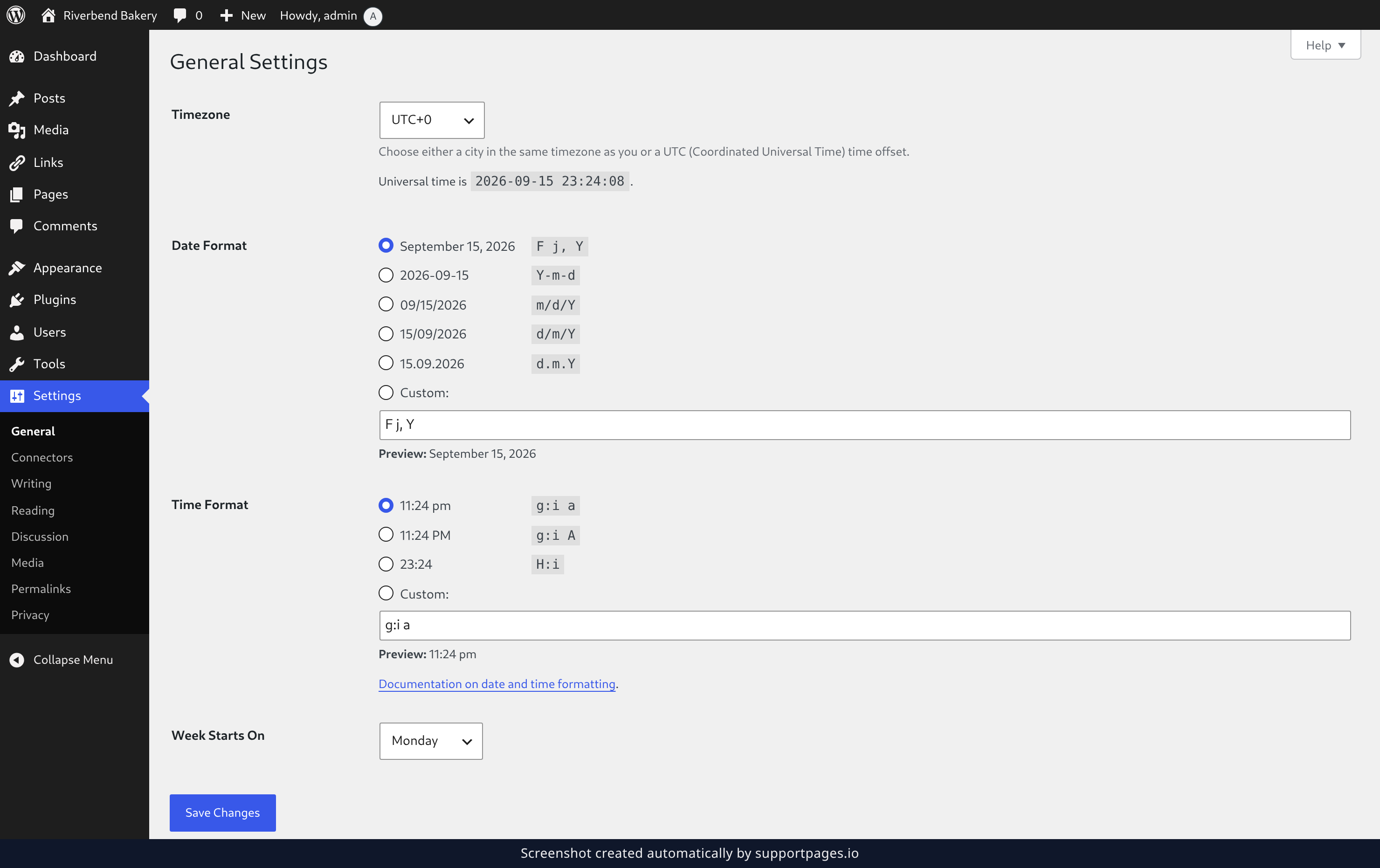
Click Save Changes at the bottom of the screen. WordPress confirms that your settings were saved, and your new title, tagline, and addresses are live.
Tips
- Keep the site title short — themes repeat it in the browser tab, in search results, and at the top of every page.
- If you change your site addresses, open your site in a new tab afterward to make sure both the dashboard and the public site still load.
- Your tagline is a one-line description, not a slogan. A plain sentence about what you publish works best.
Summary
Everything that identifies your site — its title, tagline, addresses, and admin email — is set from the General Settings screen and saved with one button at the bottom.
Was this article helpful?
Powered by supportpages.io, AI release notes software.
Have a question?
Search our articles, or ask and get an answer straight away.