
What to do when you are locked out of your site
Updated about 1 month ago
Browse All
You know your site, but it won't let you in. A rejected login is almost always one of a few familiar causes — work through the steps below in order and you'll be back inside in a few minutes.
Before you start
- The email address you signed up with, or your username
- Access to that email inbox, so you can open the reset link
- Your browser's cookie settings, if you're checking the cookie message
Checks and fixes
Check what you're typing
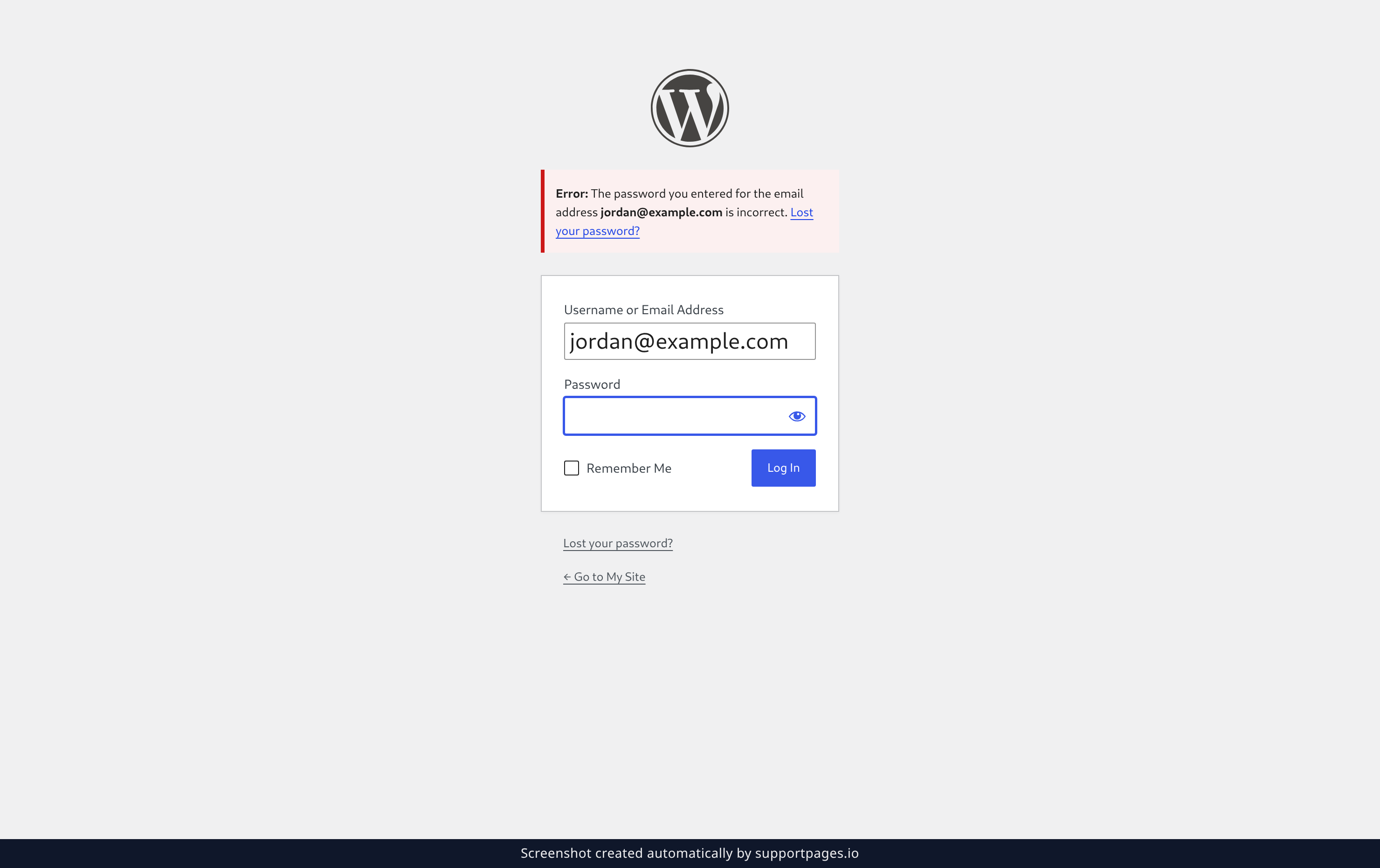
The login box takes your username or your email address, so try the email you signed up with. Type it into Username or Email Address, enter your password, and select Log In. A message telling you the password is incorrect means the details didn't match — your account is still there, so resetting the password is the quickest way back in.
Reset your password
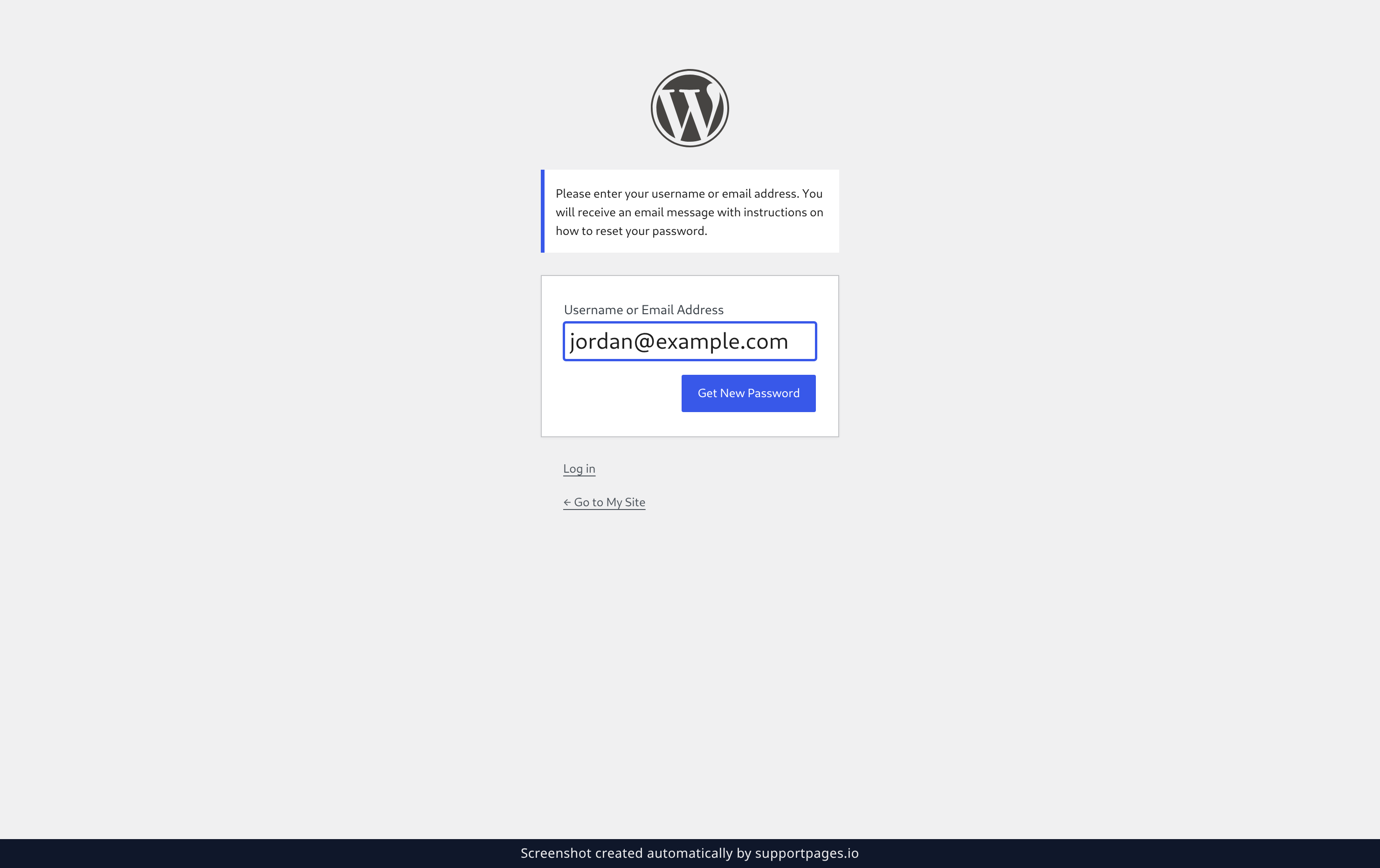
On the login screen, select Lost your password?. Type your username or email address into the box, then select Get New Password. WordPress sends a reset link to the email address on your account, usually within a minute.
Set a new password
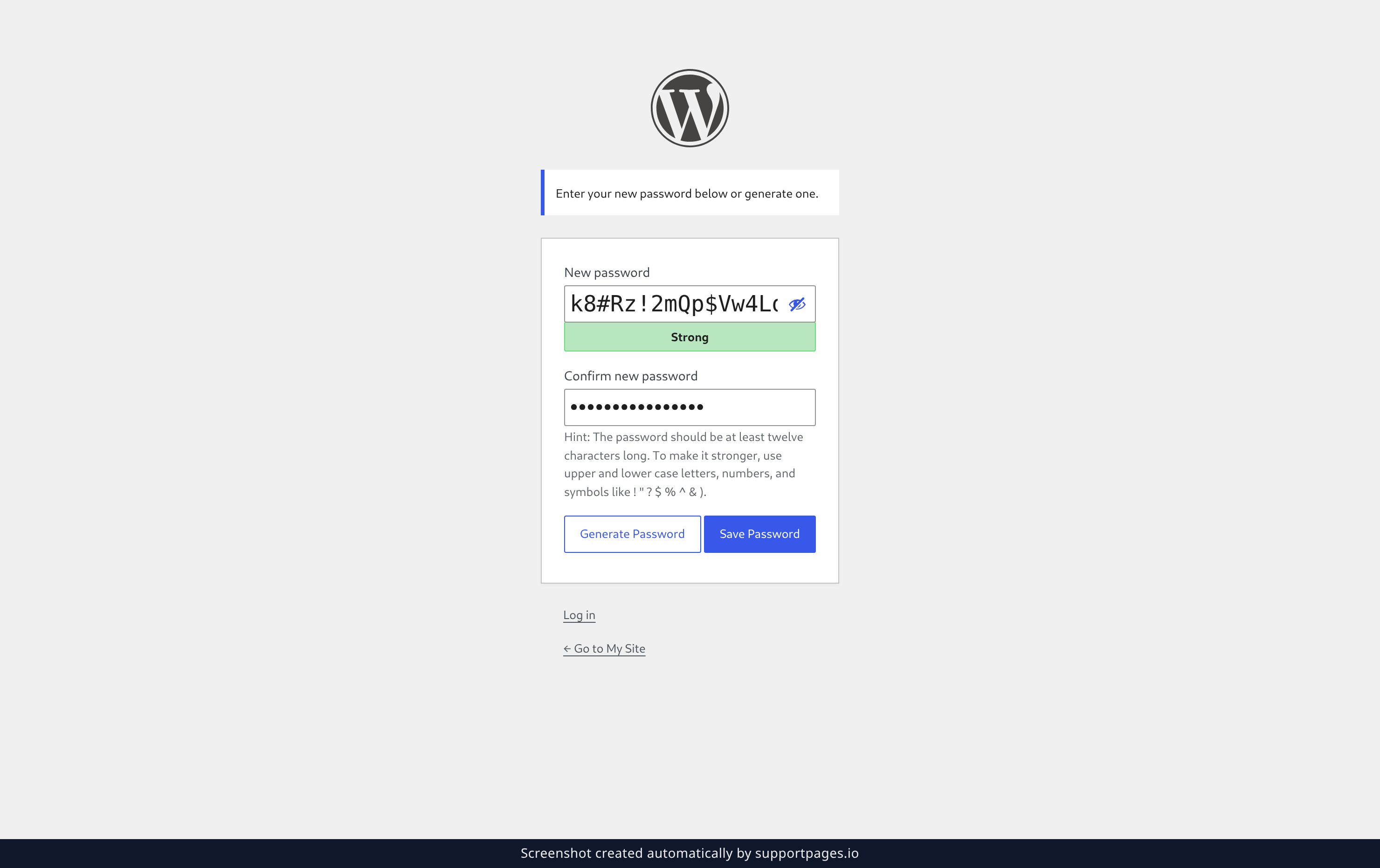
The reset link opens the Reset Password screen. Select Generate Password to let WordPress suggest a strong one, then select Save Password. Your new password is ready — log in with it and you're back in.
If the screen mentions cookies
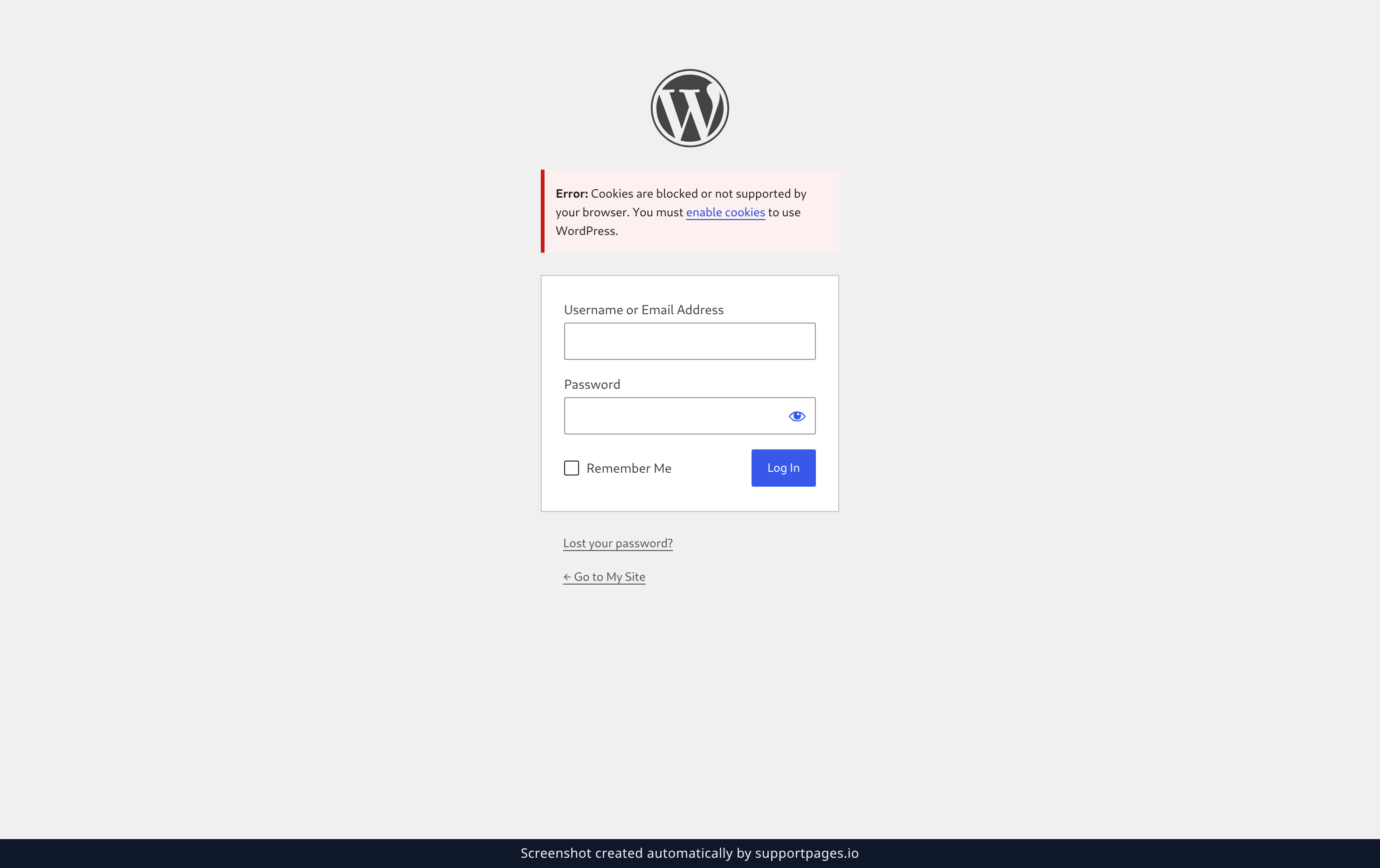
Some lockouts have nothing to do with your password. If the login screen tells you Cookies are blocked or not supported by your browser, your browser is refusing to store the cookie that keeps you signed in. Allow cookies for your site's address in your browser's privacy or site settings, then load the login screen again.
Tips
- Save your new password somewhere safe — a password manager means you'll never have to guess again.
- Keep the email address on your account up to date, since that's where reset links are sent.
- If the reset email hasn't arrived within a few minutes, check your spam or junk folder.
Summary
Most lockouts are a forgotten or mistyped password, and the Lost your password? link fixes those in a couple of minutes. If your password is definitely right, the cookie message on the login screen points to your browser settings instead.
Was this article helpful?
Help centre by supportpages.io — AI-generated documentation for SaaS.
Have a question?
Search our articles, or ask and get an answer straight away.