
How to install a theme
Updated about 1 month ago
Browse All
A new theme gives your site a whole new look, and installing one takes a couple of minutes — no code involved. You can pick a free design from the WordPress Theme Directory, or upload a theme you already have.
Before you start
- An Administrator account on your site — installing themes is an admin job.
-
A theme's
.zipfile, if you'd rather upload one than browse the directory.
Steps
Open the Themes screen
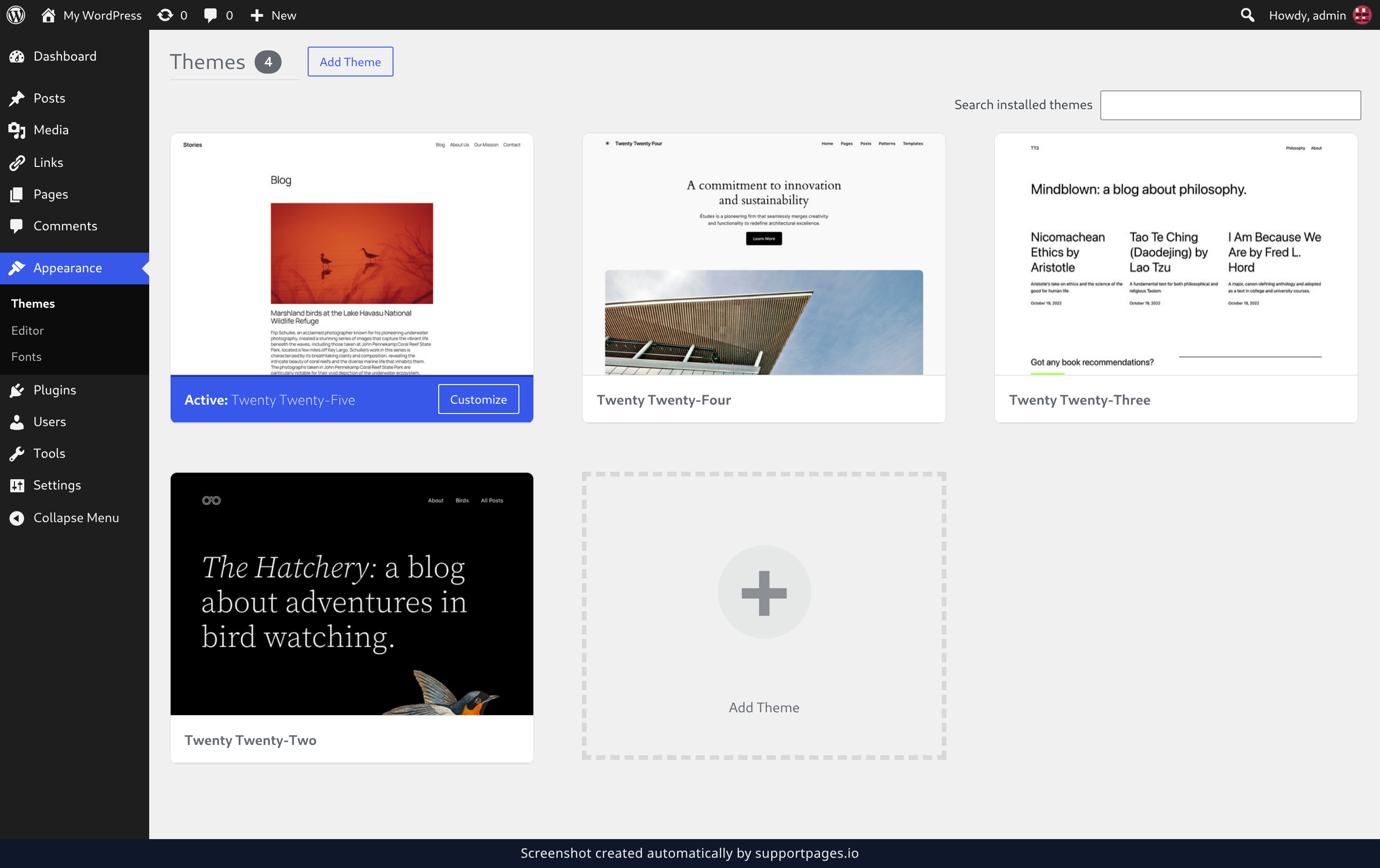
In the dashboard, open Appearance in the left-hand menu and choose Themes. Then click Add Theme next to the Themes heading — that's where the theme directory lives.
Find a theme you like
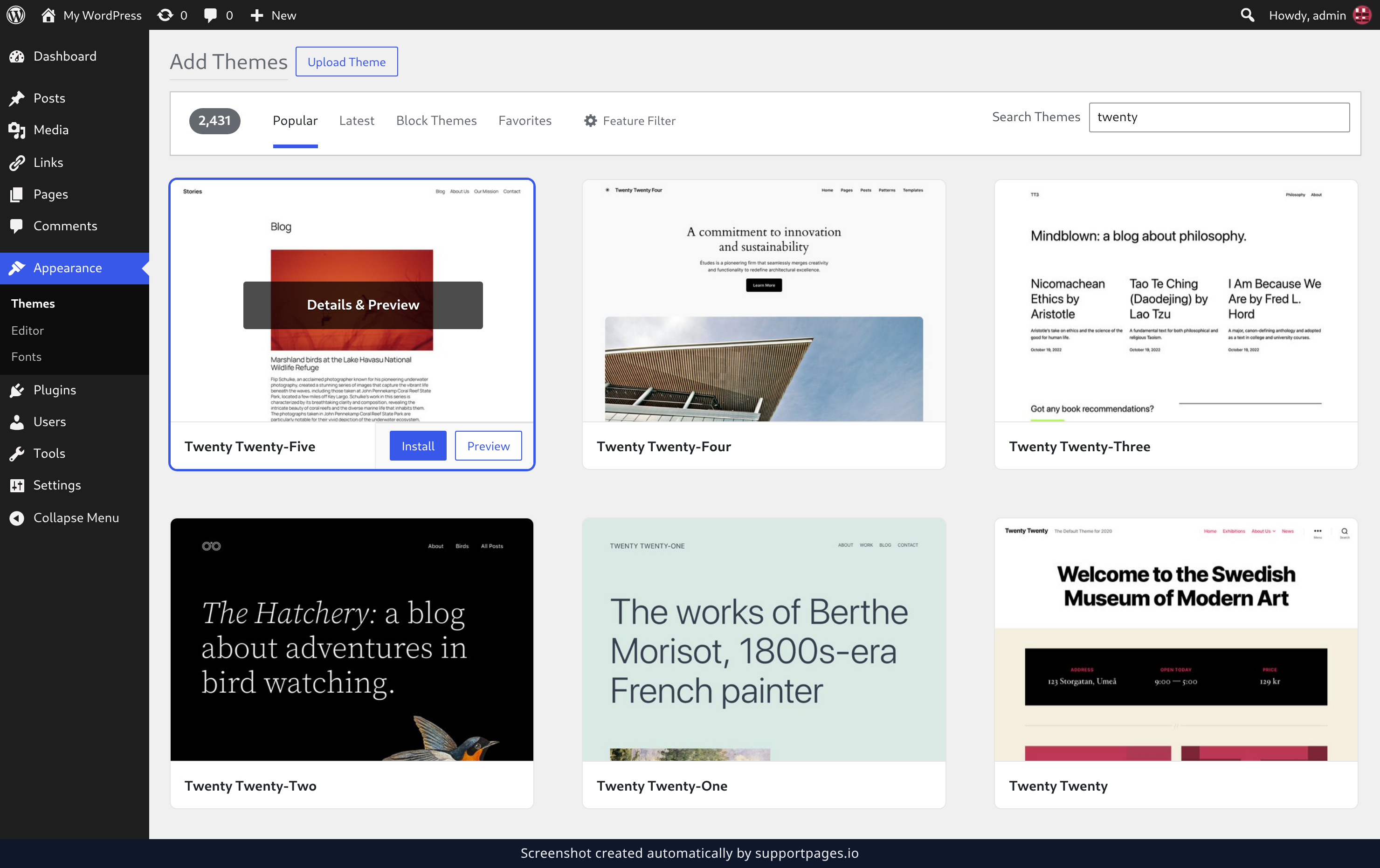
The Add Themes screen lists free themes from the WordPress Theme Directory. Type a name, style, or author into the Search Themes box — the results update as you type — or narrow the list with Popular, Latest, Block Themes, or Feature Filter. When you spot one you like, click Install on its card and WordPress downloads it for you.
Or upload a theme file
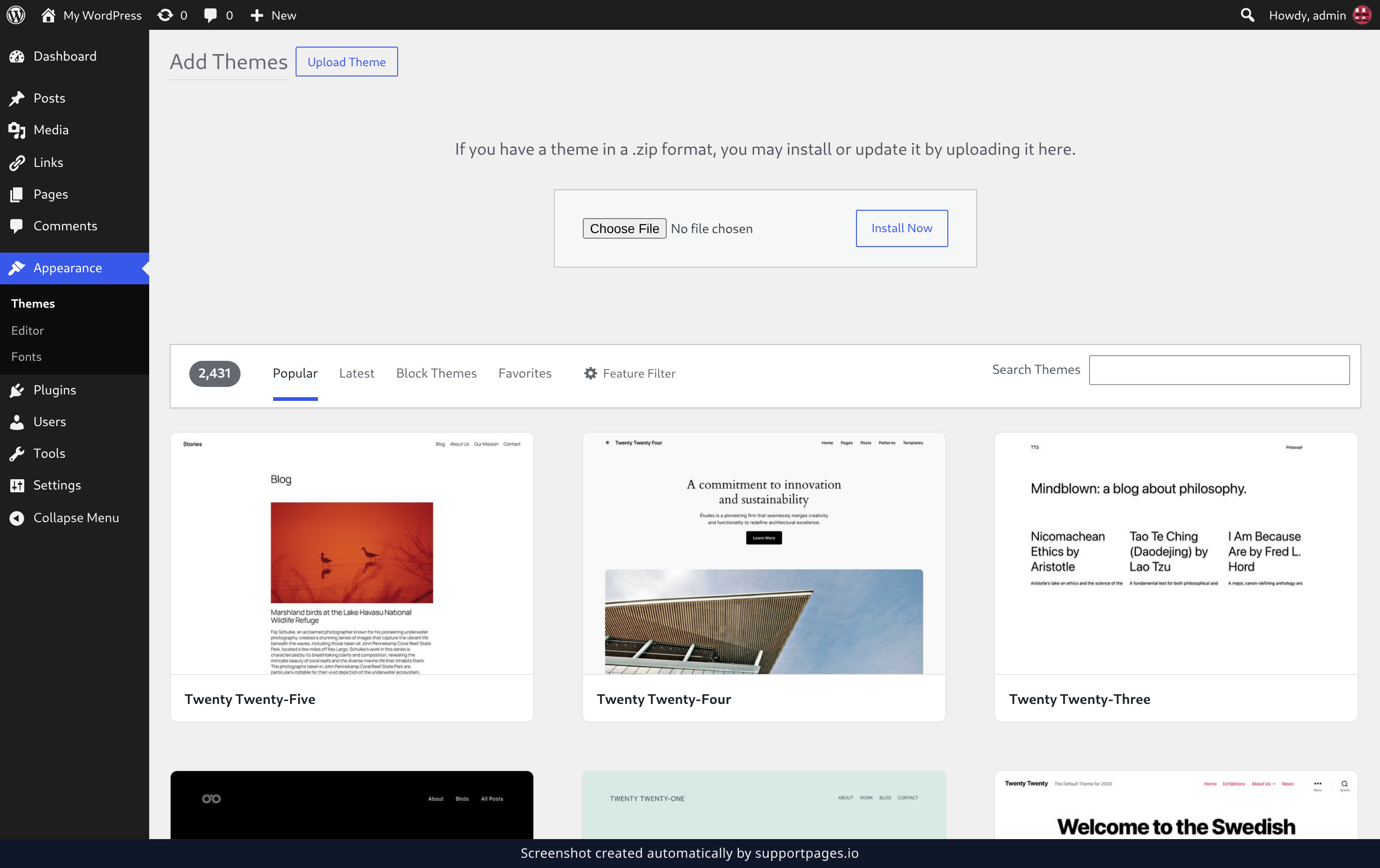
Already have a theme as a .zip file? On the Add Themes screen, click Upload Theme at the top. Choose the file on your computer, then click Install Now and WordPress does the rest.
Tips
- Try before you switch: click Details & Preview on any card to see the theme with your own content.
- Themes in the WordPress Theme Directory are free and reviewed, which makes them a safe place to start.
-
Only upload a
.zipfrom a source you trust — a theme runs code on your site. - Install as many themes as you like. Only the active one is what visitors see.
Summary
Your new theme is installed and waiting. Open Appearance → Themes whenever you're ready to put it to work.
Was this article helpful?
Help centre by supportpages.io — AI-generated documentation for SaaS.
Have a question?
Search our articles, or ask and get an answer straight away.