
Tracking down what is breaking your page
Updated about 1 month ago
Browse All
When a page suddenly looks wrong or won't load, the cause is almost always a plugin or your theme — not the page itself. This guide walks you through turning things off to find a working page again, then turning them back on one at a time until you catch the culprit.
Before you start
- Make a backup of your site. Turning plugins off is reversible, but a backup means you can undo anything.
- Sign in as an administrator — you need permission to manage plugins and themes.
- Plan for a few minutes of downtime. Your visitors will see the deactivated versions until you finish.
Checks and fixes
Turn off every plugin at once
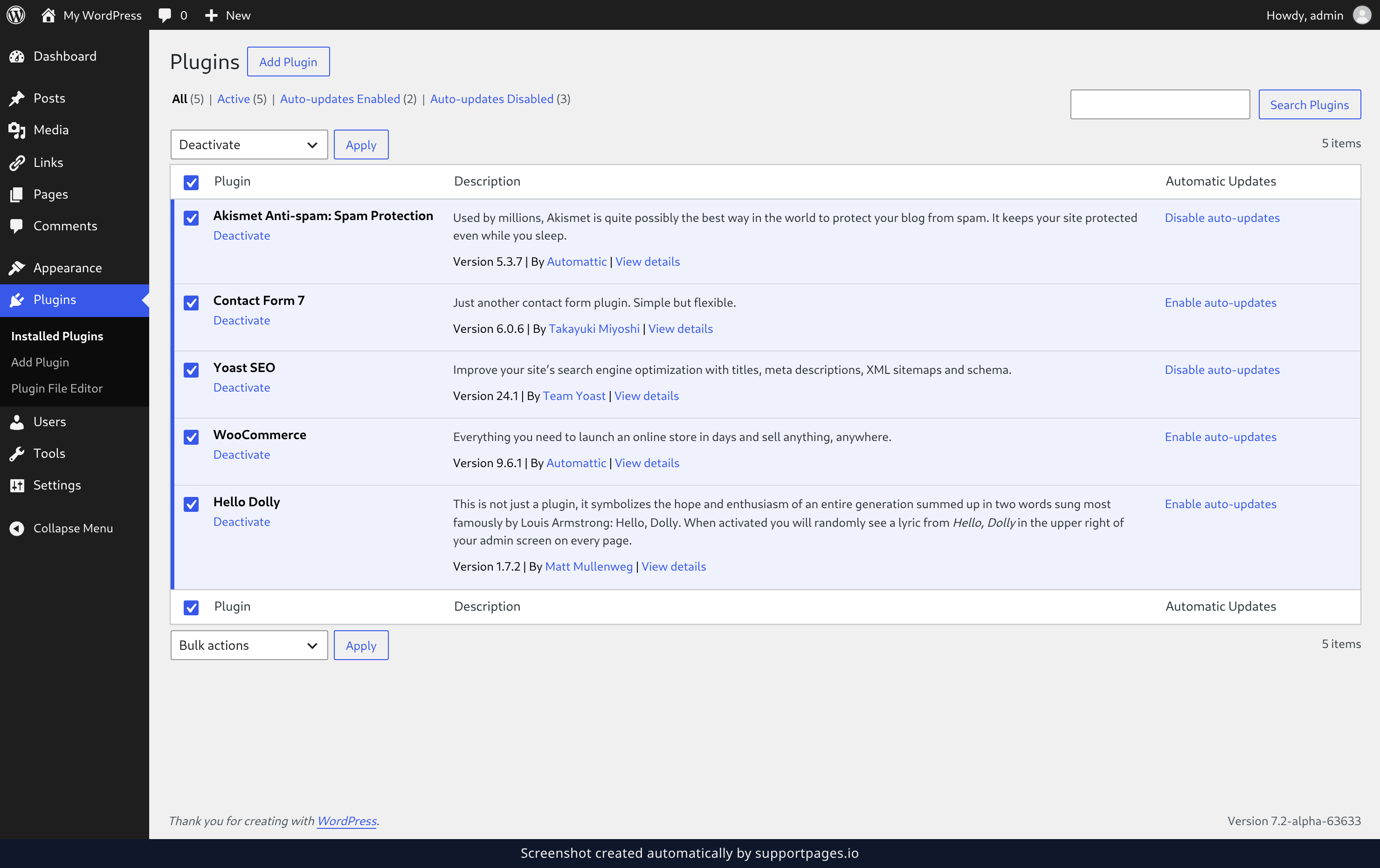
In the left-hand menu, open Plugins. Tick the checkbox at the top of the list to select every plugin, open the Bulk actions dropdown, choose Deactivate, then click Apply. You'll see the message Selected plugins deactivated. when it's done.
Check whether your page is back
If the page that was breaking looks right now, one of your plugins was the cause — the next step narrows down which one. If it is still broken, the theme is the likely cause; Try a default theme covers that case.
Switch on one plugin at a time
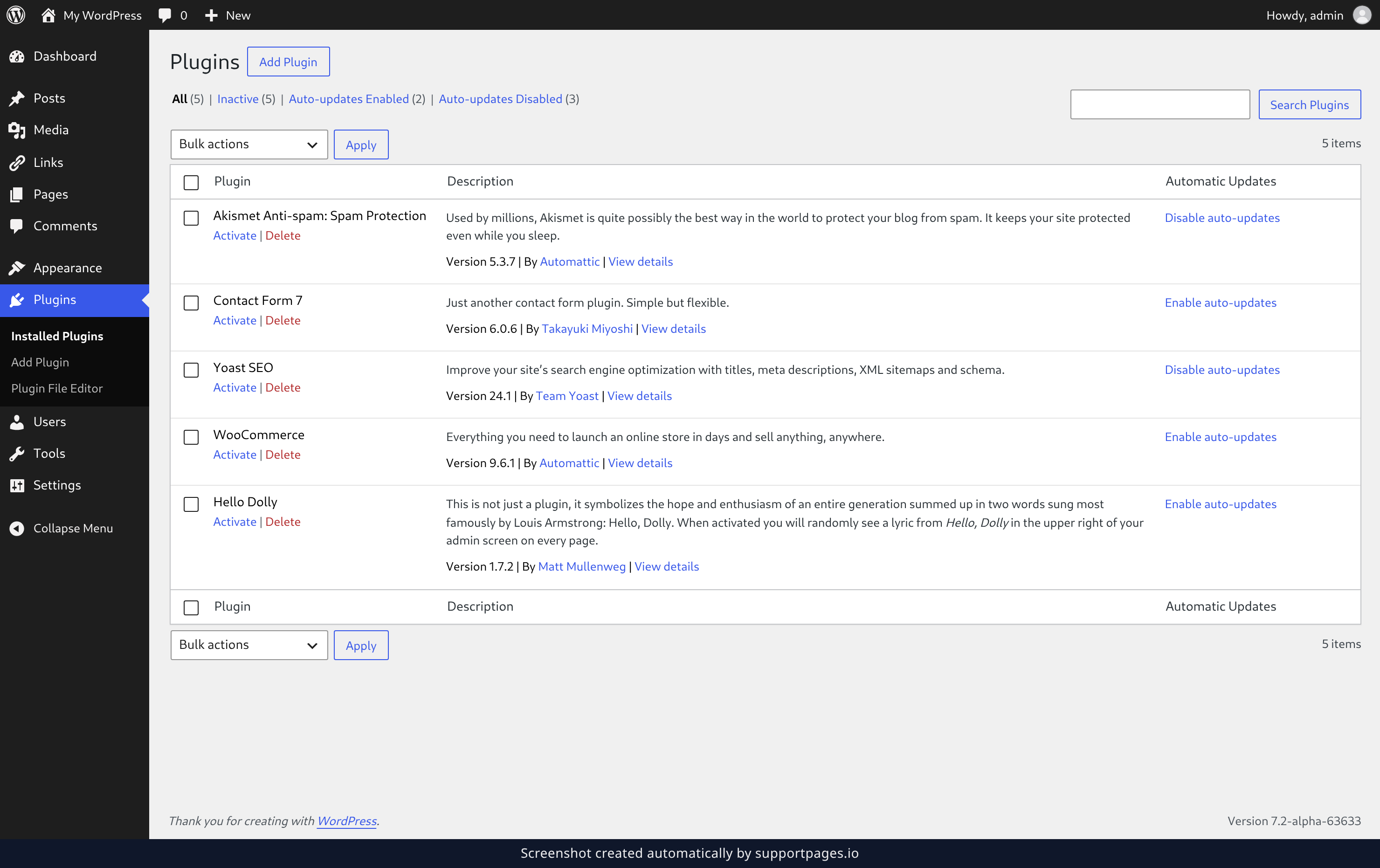
Back on the Plugins screen, click Activate on a single plugin, then reload the broken page. If it's still fine, activate the next one. Repeat until the page breaks — the plugin you just switched on is the one to look at.
Try a default theme
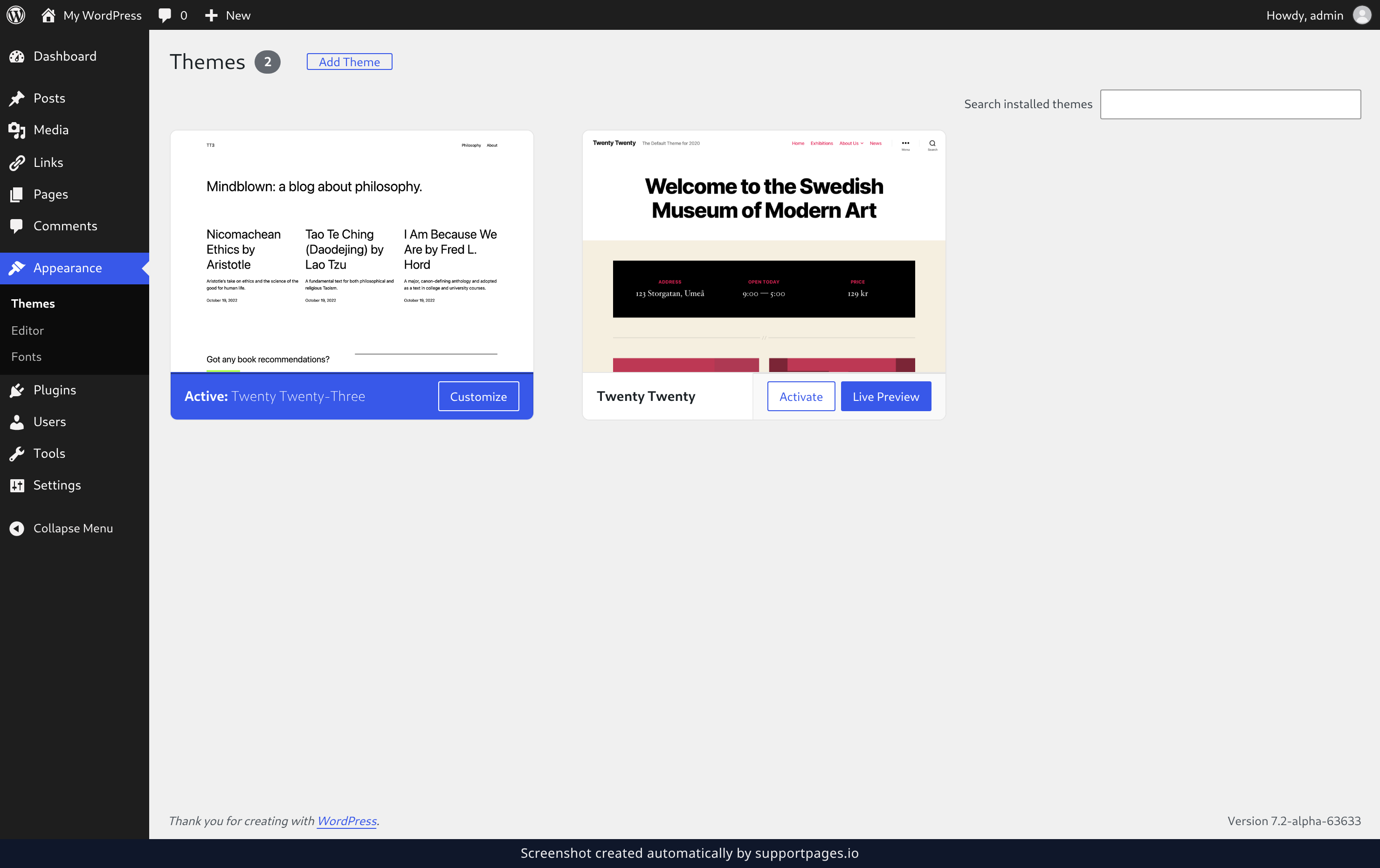
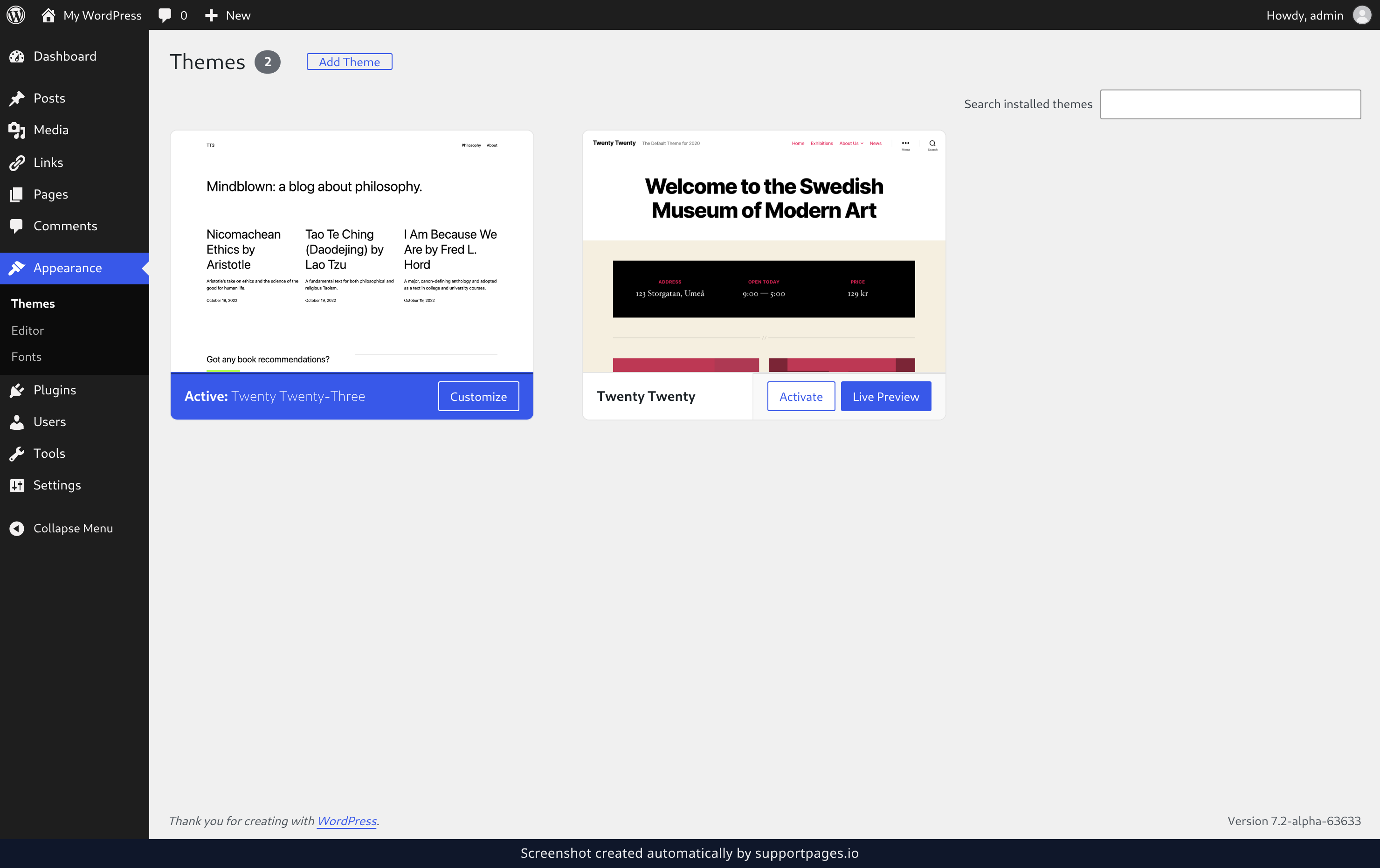
If your page was still broken with every plugin off, the theme is the likely cause. Open Appearance and then Themes, then click Activate on a default theme such as Twenty Twenty. Reload your page to see whether the problem is gone.
Put back what was working
Once you know which plugin or theme is responsible, you can turn the rest back on. Reactivate everything except the one that caused the problem, and leave that one switched off while you look for an alternative or an update.
Tips
- Work during a quiet time of day. Visitors see the deactivated versions of your plugins while you test.
- Only switch on one plugin at a time. Turning several on together leaves you guessing which one did it.
- If the same plugin keeps causing trouble, check whether an update is available on the Plugins screen before you give up on it.
- Once you've found the culprit, turn everything else back on so your site works normally again.
Summary
Turn everything off, confirm your page works, then switch things back on one at a time until it breaks again. The last item you switched on is the one causing the trouble.
Was this article helpful?
Generated by supportpages.io, an AI changelog generator for SaaS teams.
Have a question?
Search our articles, or ask and get an answer straight away.