
How to install a plugin from the plugin directory
Updated about 1 month ago
Browse All
The plugin directory is built right into your dashboard. You can search it, see how well each plugin is kept up, and install one without ever leaving your site.
Before you start
- An administrator account on your WordPress site.
- A rough idea of what you want the plugin to do — that's plenty to search with.
Steps
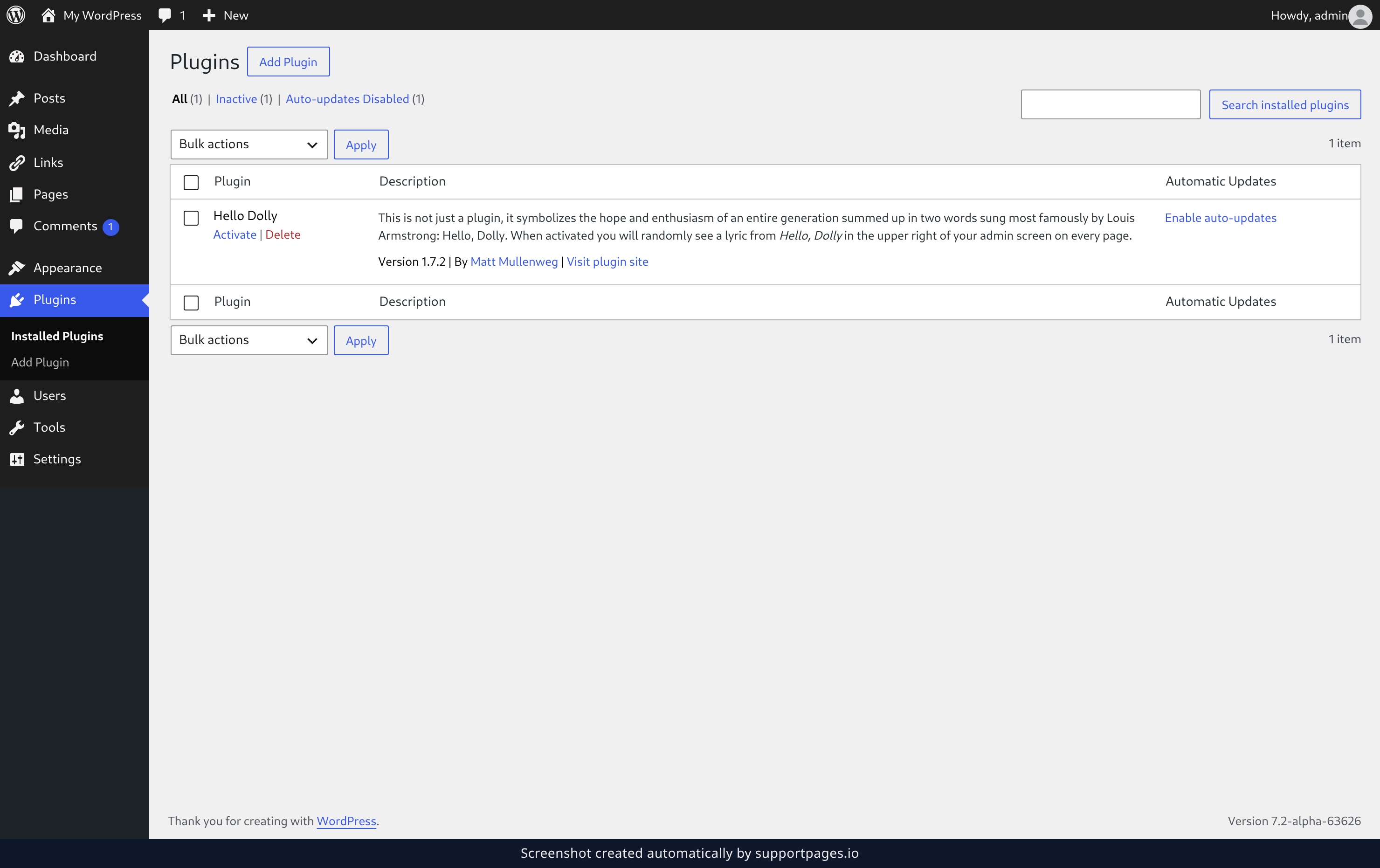
Open the plugin directory
In the left-hand menu, click Plugins, then click Add Plugin at the top of the screen. The Add Plugins screen has the whole directory in it — every plugin is only a search away.
Search for a plugin and install it
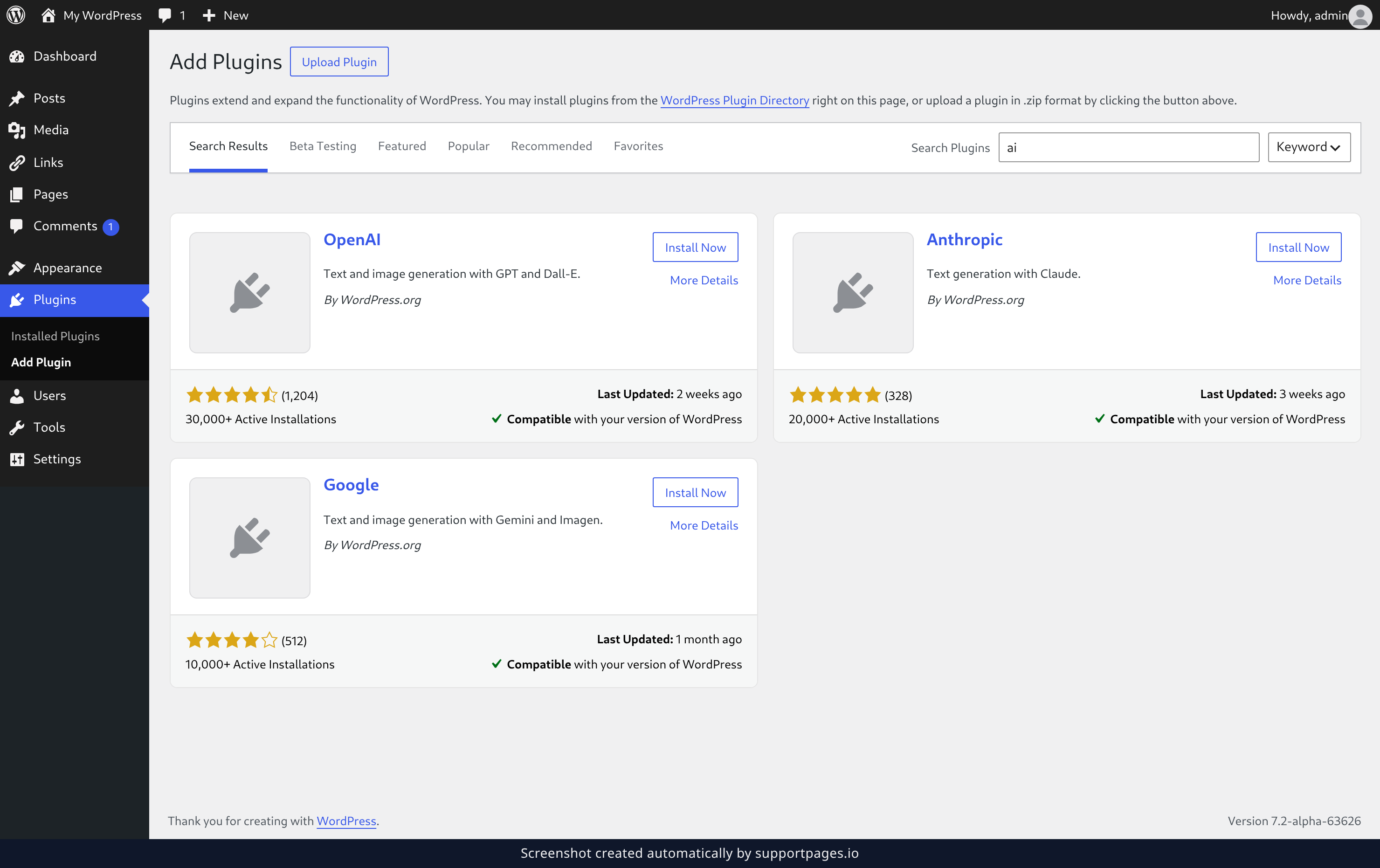
Type what you need into the Search Plugins box — the results update as you type, and Keyword already looks through names and descriptions. Each card shows how the plugin is rated, its Active Installations count, its Last Updated: date, and whether it's Compatible with your WordPress. When you've found the one you want, click Install Now — WordPress fetches it for you, with nothing to download and no files to upload.
Turn the plugin on
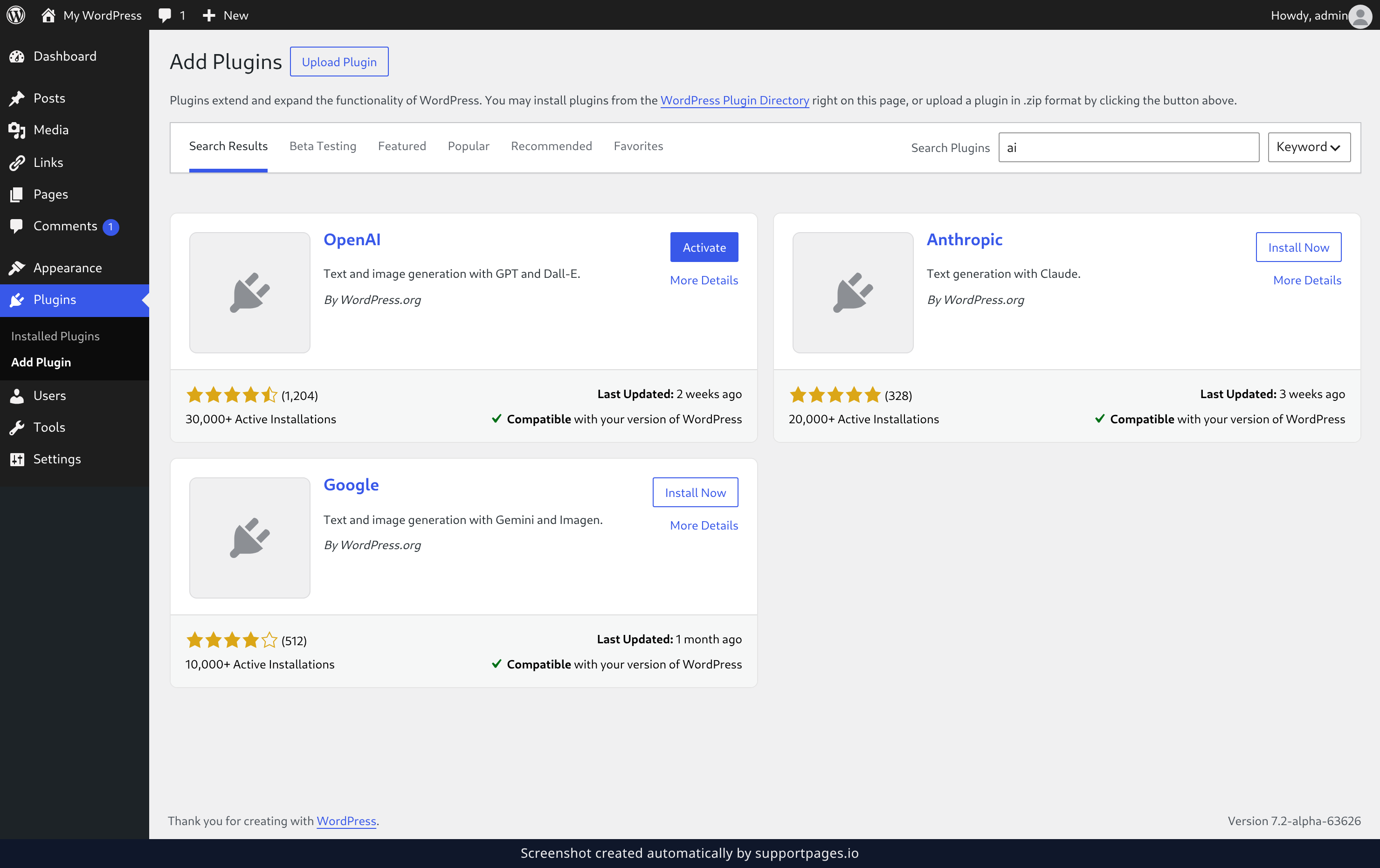
Once the plugin is on your site, the button on its card changes to Activate. Click it and the plugin starts working straight away.
Tips
- Not sure what to search for? Popular and Recommended show what other people are using.
- Every plugin can be turned off or removed later from Installed Plugins, so it's safe to try one out.
- Keep an eye on Plugins in the left-hand menu — when an update is ready, a number appears beside it.
Summary
That's the whole job: open the directory, search for what you need, check the card, and install it. The plugin is working on your site the moment you turn it on.
Was this article helpful?
Generated by supportpages.io, automating product documentation from your codebase.
Have a question?
Search our articles, or ask and get an answer straight away.