
How to preview your public site
Updated about 1 month ago
Browse All
Your public site is always one click away. Every screen in the admin carries a link to it in the toolbar at the very top, so you can check your work without hunting for your site's address.
Before you start
- You're signed in to your site's admin area.
- Your site has a public address that visitors can reach.
Steps
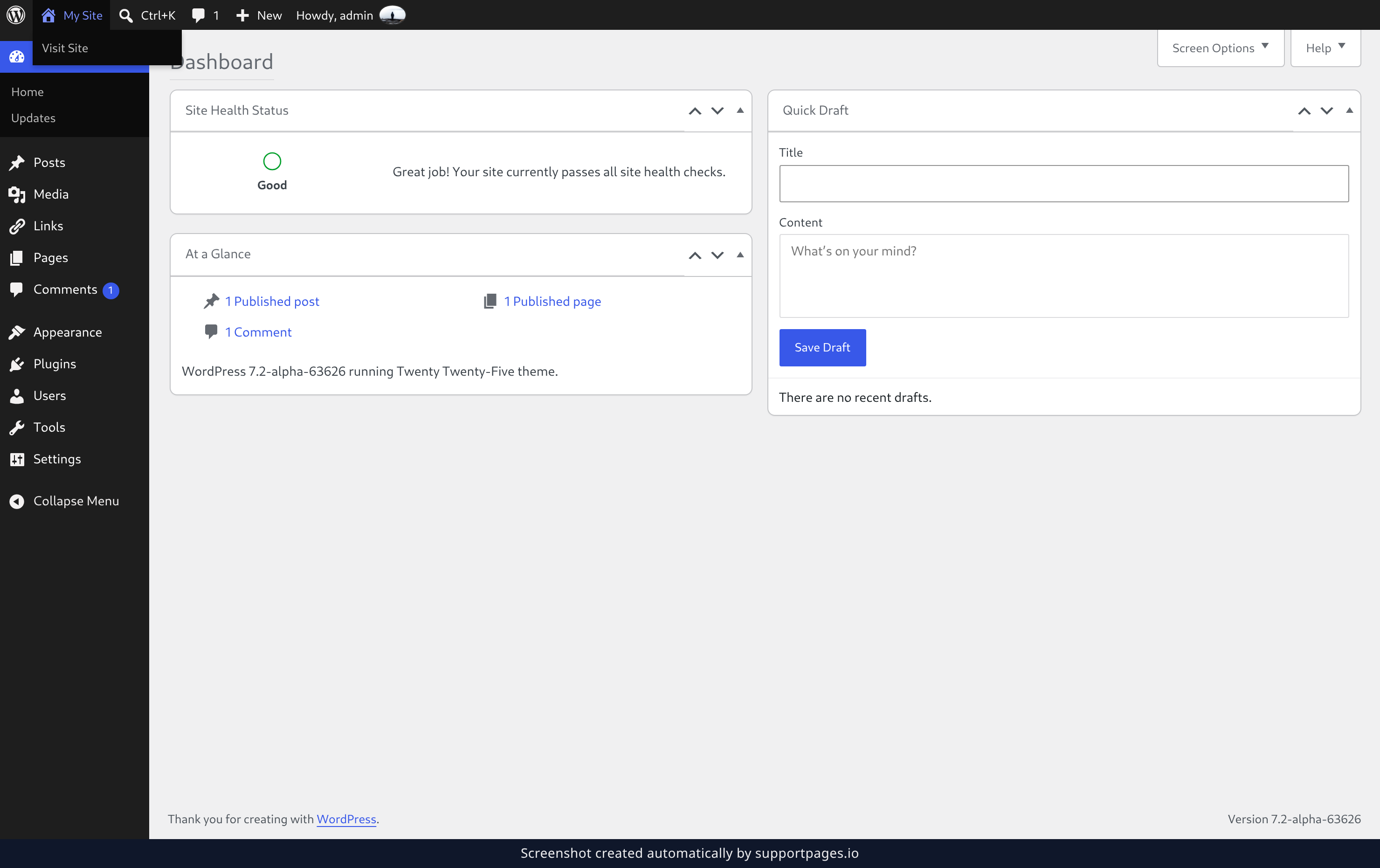
Open the site menu and choose Visit Site
Look at the very top of the screen. Your site's name sits on the left of the toolbar, just past the WordPress logo. Point at it and its menu drops down — then click Visit Site to open your public site in the same tab, exactly as your visitors see it.
Come back to the admin
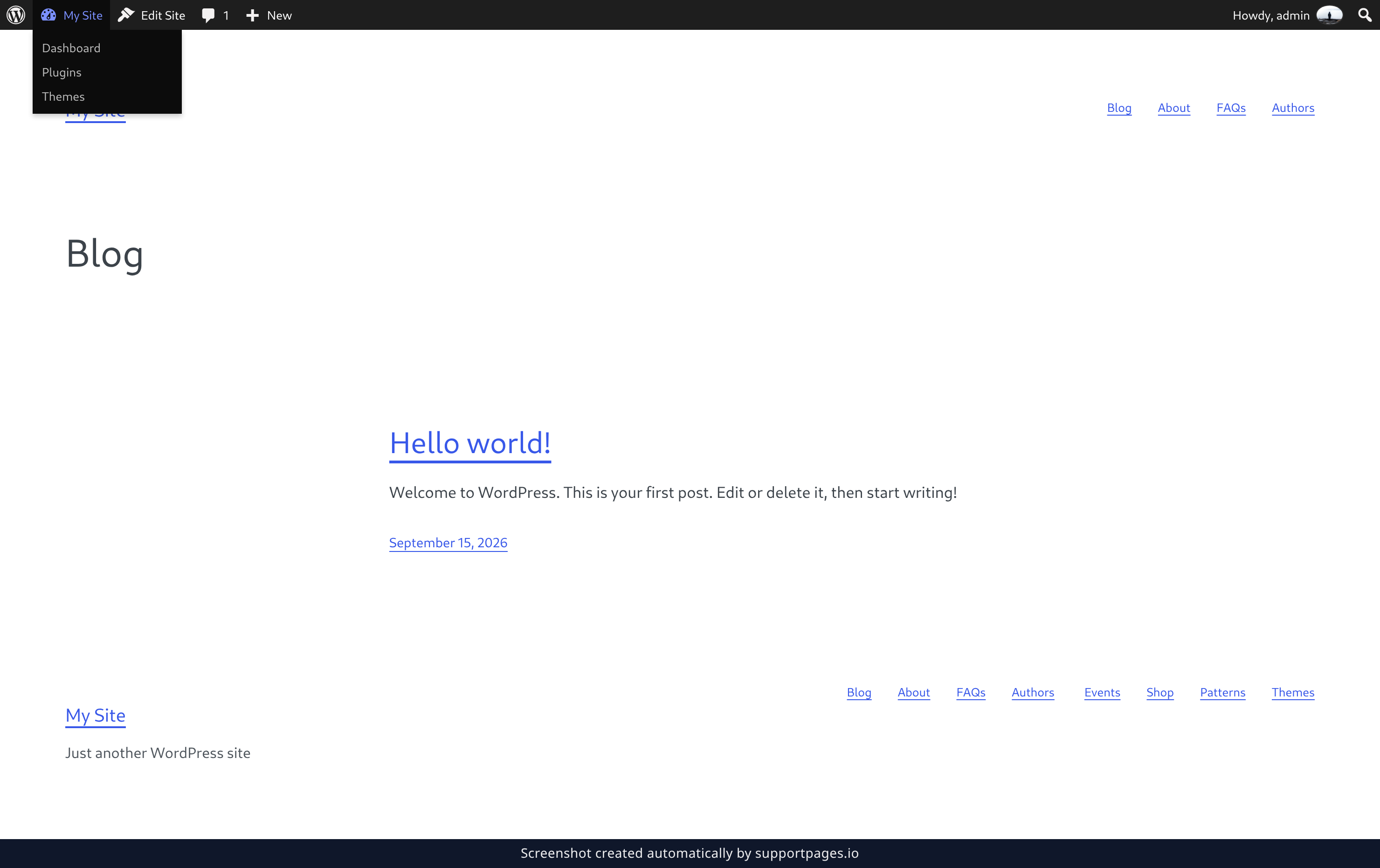
Your toolbar travels with you, so it's still at the top of the public site. Open the site menu the same way and choose Dashboard to pick up where you left off.
Tips
- Hold Ctrl (or ⌘ on a Mac) as you click Visit Site to open your site in a second tab and keep the admin screen where it is.
- This menu looks the same on every admin screen, so you can check the public page no matter where you're working.
- If you're not sure a change saved, choose Visit Site again — it always points at your live front page.
Summary
The site menu in the toolbar takes you from any admin screen to your public site and back again, so you can check your work as you go.
Was this article helpful?
Powered by supportpages.io — help centre software for SaaS.
Have a question?
Search our articles, or ask and get an answer straight away.