
How to change your password
Updated about 1 month ago
Browse All
Your password is the key to your whole site, so it's worth refreshing now and then. You can set a new one from your own profile — and if you'd rather not think one up, WordPress will suggest a strong password for you.
Before you start
- You're signed in to your WordPress dashboard.
- You don't need your current password — WordPress won't ask for it on this screen.
Steps
Open your profile
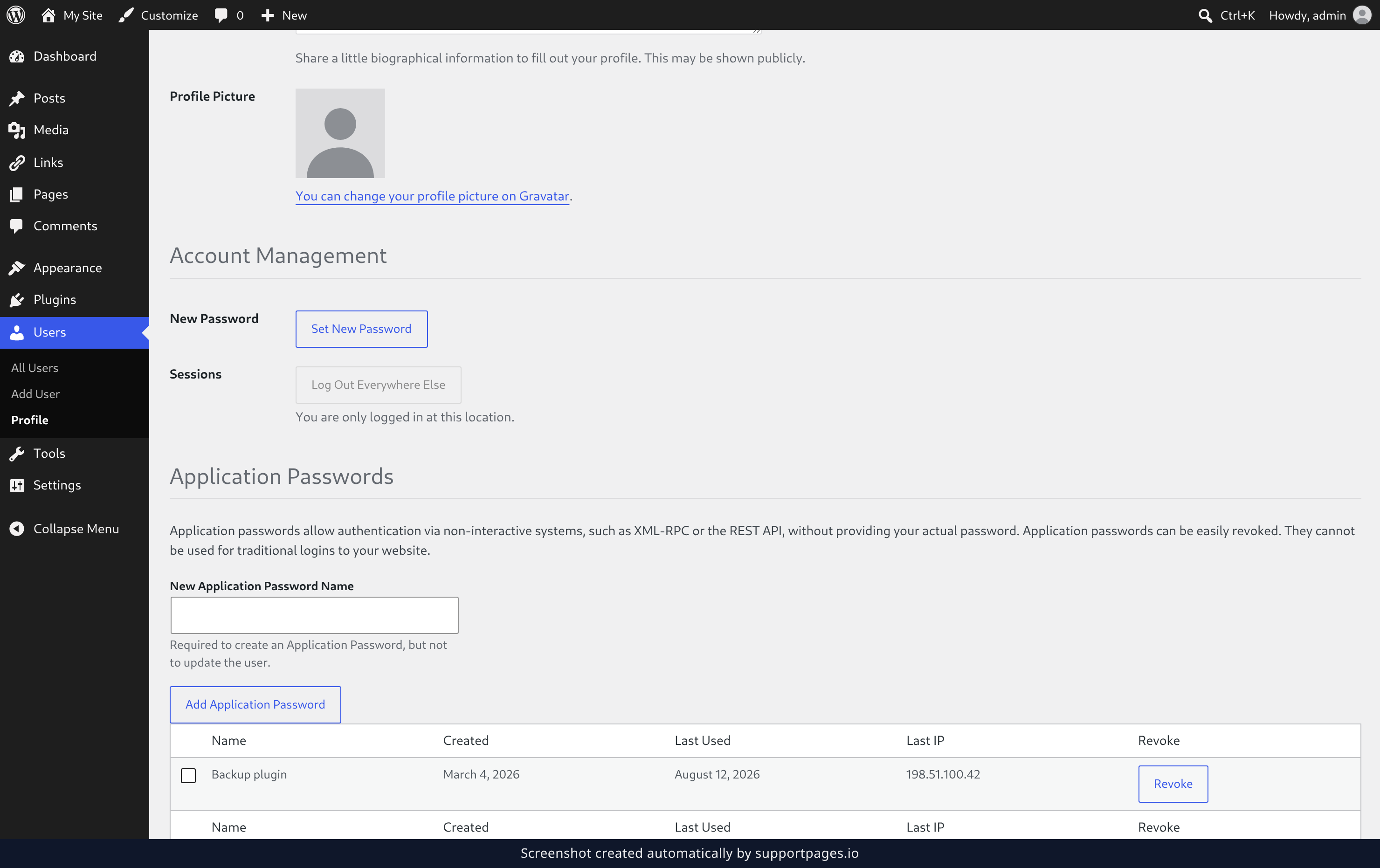
In the left-hand menu, click Users, then click Profile. Your profile opens on Personal Options — scroll down until you reach the Account Management section.
Set a new password
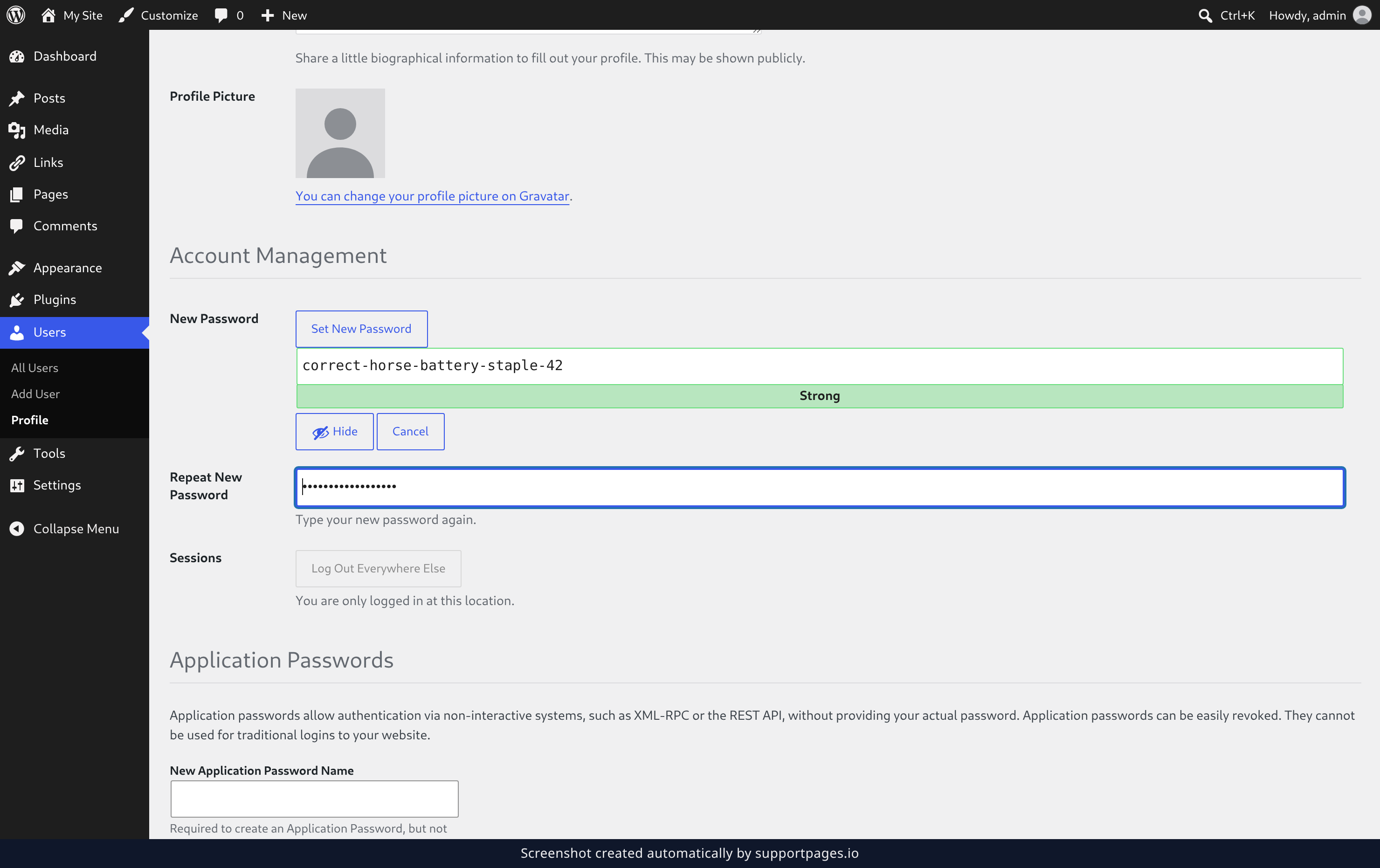
Click Set New Password. WordPress fills the field with a strong password you can keep, or you can type your own. Type it a second time in Repeat New Password so the two match.
Save your new password
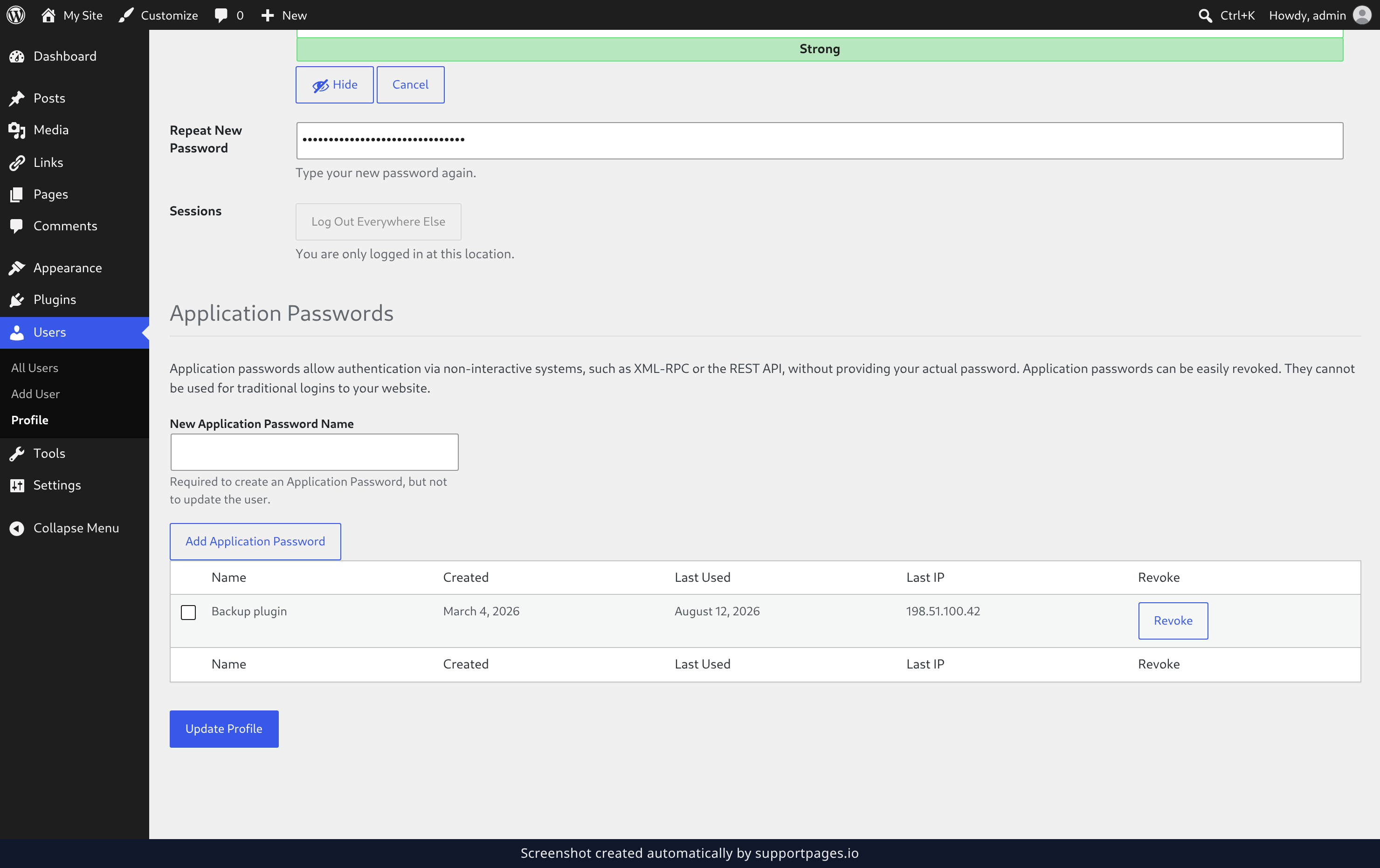
Scroll to the bottom of the page and click Update Profile. WordPress saves the change and shows Profile updated. at the top of the screen.
Tips
- The password WordPress suggests is long and random, which is exactly what makes it hard to guess — keeping it is a good choice.
- If you'd rather write your own and WordPress calls it weak, tick Confirm use of weak password before you save.
- Changed your mind halfway through? Click Cancel next to the new password field and nothing is saved.
Summary
Open your profile, click Set New Password, confirm it, and save with Update Profile. Your new password is ready the next time you sign in.
Was this article helpful?
Created with supportpages.io — AI help centre software.
Have a question?
Search our articles, or ask and get an answer straight away.