
How to log in to your site
Updated about 1 month ago
Browse All
Your login screen is the front door to your site — it's where you go to write posts, add pages, and change how everything looks. All you need is your username or your email address, plus your password.
Before you start
- The address of your site — the same address your visitors type into their browser.
- Your username, or the email address you signed up with.
- Your password.
Steps
Open your login screen and sign in
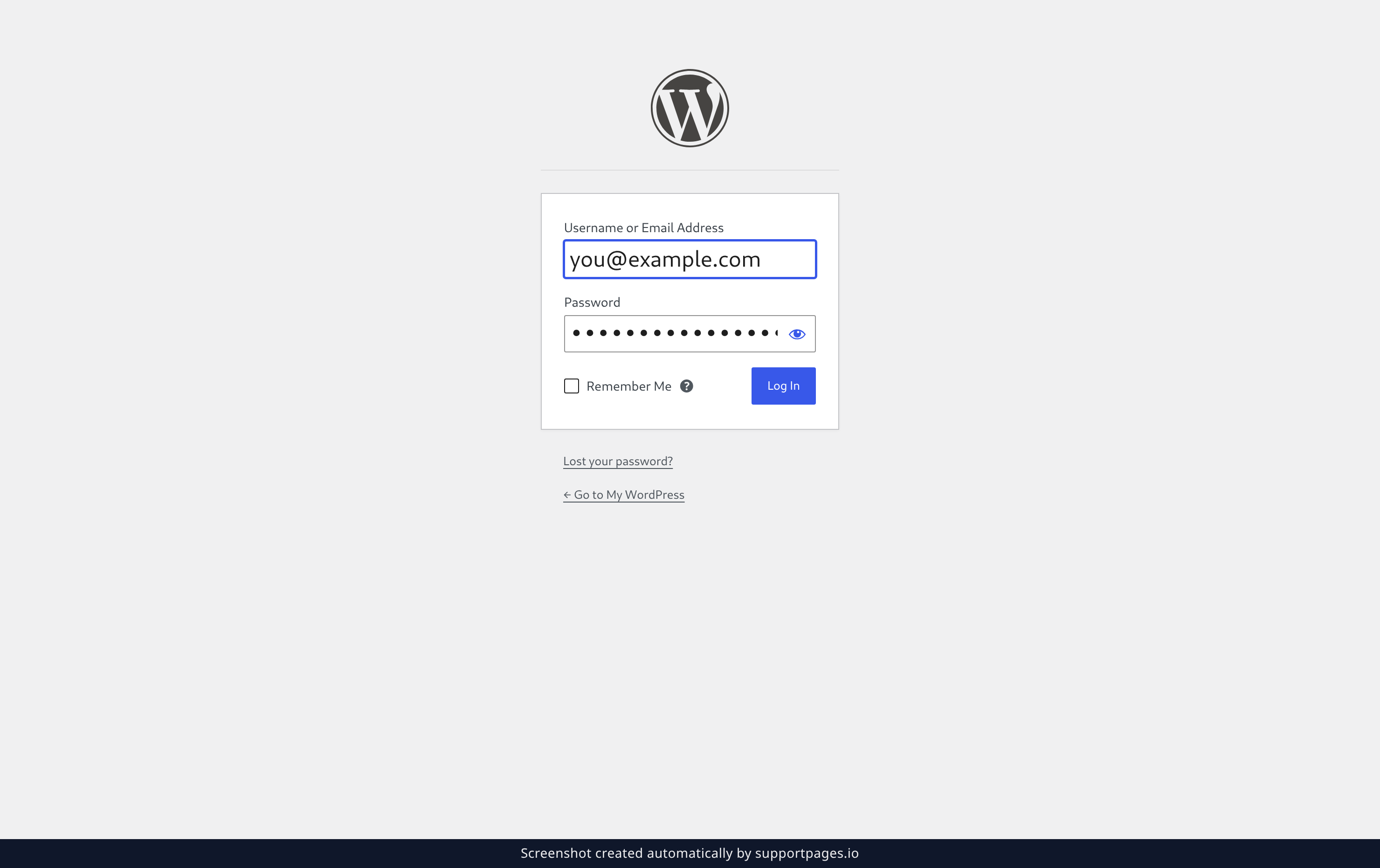
Your login screen sits at the end of your site's address — example.com/wp-login.php for a site at example.com. Type your username, or the email address you signed up with, into Username or Email Address, then type your password into Password — the Show password icon inside the field reveals what you typed if you'd like to check it. Tick Remember Me only on your own device, then click Log In.
You're in
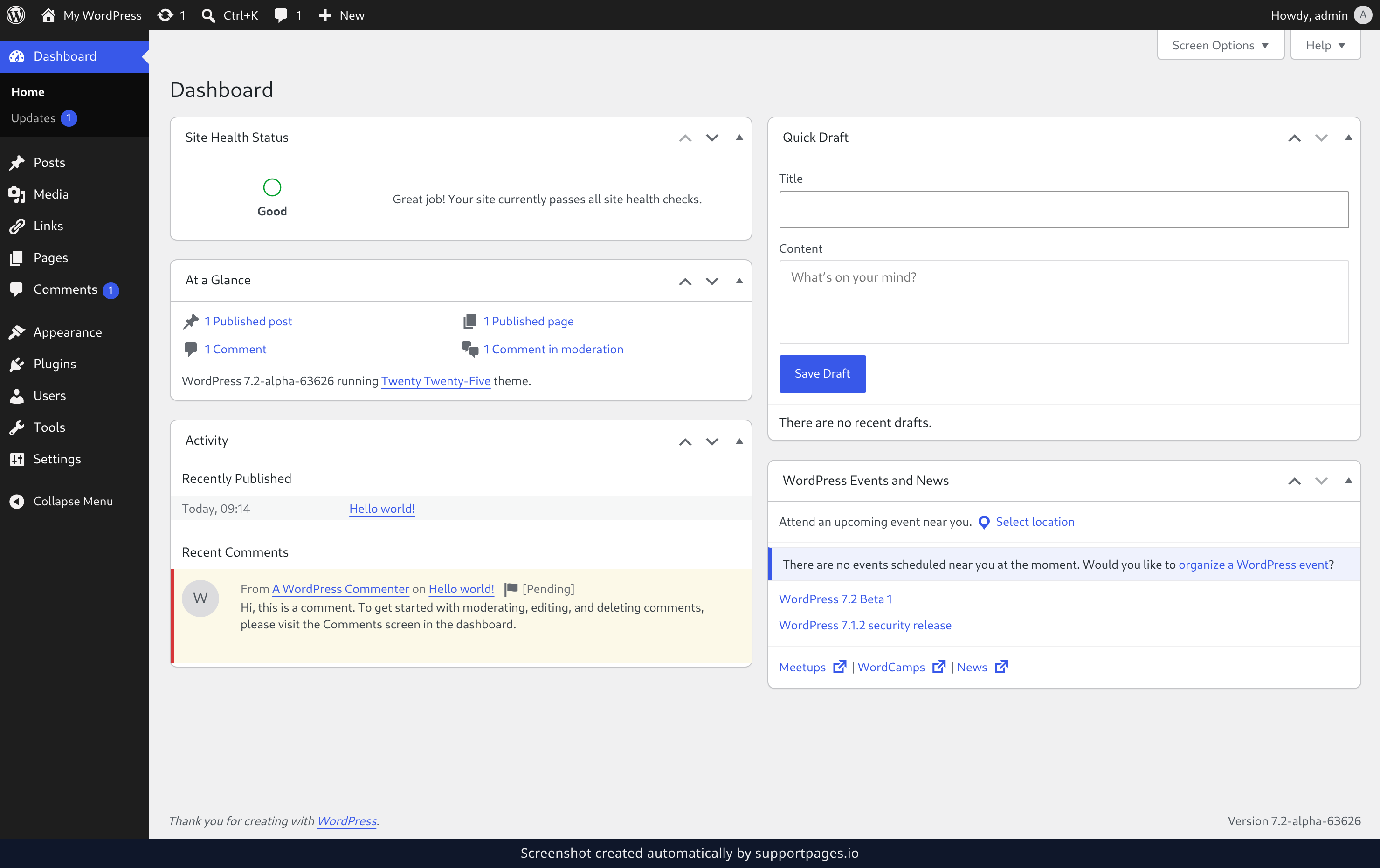
That's it — you're logged in and looking at your Dashboard, the starting point for everything you do on your site.
Tips
- Your username and your email address work in the very same field, so there's nothing to switch between.
- It's worth adding your login screen to your browser bookmarks so you can get back to it in one click.
- Forgotten your password? The Lost your password? link under the login form emails you a link to set a new one.
Summary
Logging in takes two fields: your username or email address, then your password. Click Log In and your Dashboard opens.
Was this article helpful?
Built on supportpages.io — automated help articles for SaaS products.
Have a question?
Search our articles, or ask and get an answer straight away.