
What to do when an image will not upload
Updated about 1 month ago
Browse All
You picked a photo, clicked upload, and nothing landed in your library — almost every refused image comes down to one of three things: the file is bigger than your site accepts, WordPress does not recognise the file type, or the uploader itself gave up partway. Work through the checks below in order; the first two fix most cases.
Checks and fixes
Check how big the file is
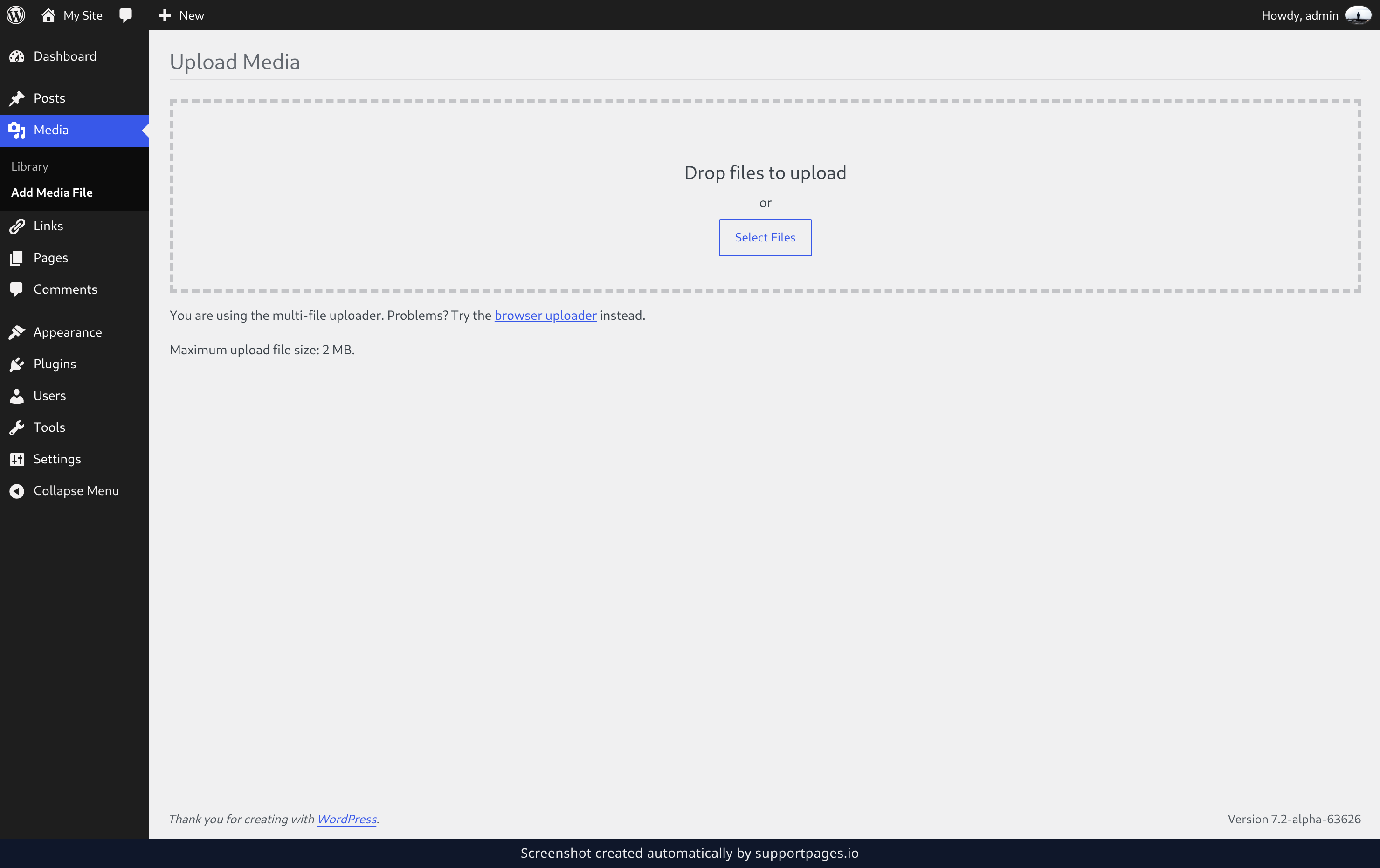
Go to Media → Add Media File and read the line under the drop area — it tells you the largest file your site will take, for example Maximum upload file size: 2 MB. If your photo is bigger than that number, resize or export a smaller copy on your computer first. Then click Select Files and pick the smaller copy.
Check the file type
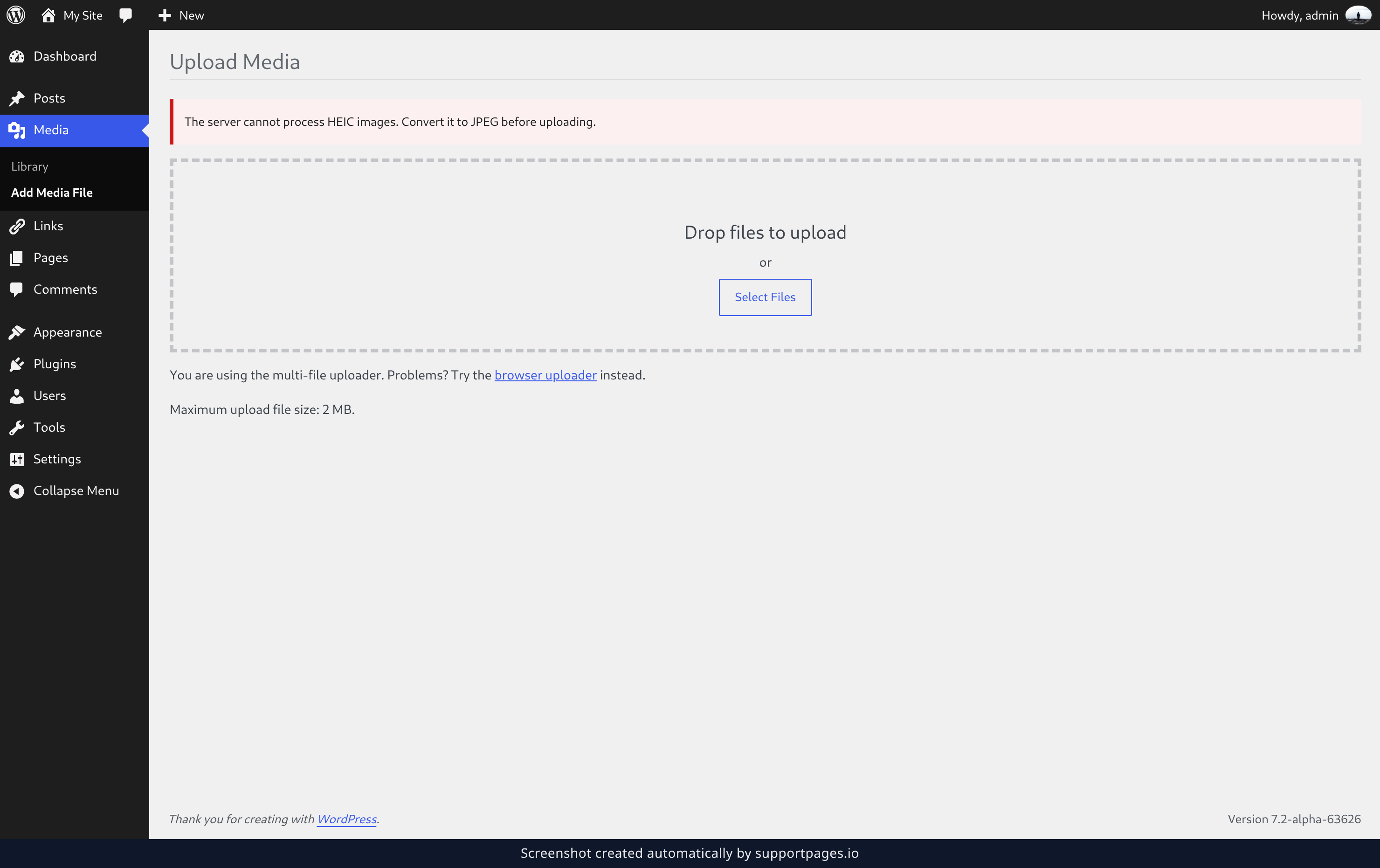
Recent phones and design apps hand over pictures in formats a server cannot always edit, and it turns those away with The server cannot process HEIC images. Convert it to JPEG before uploading. Export the picture as a JPEG or PNG in your usual image app and upload the converted copy instead.
Try the browser uploader
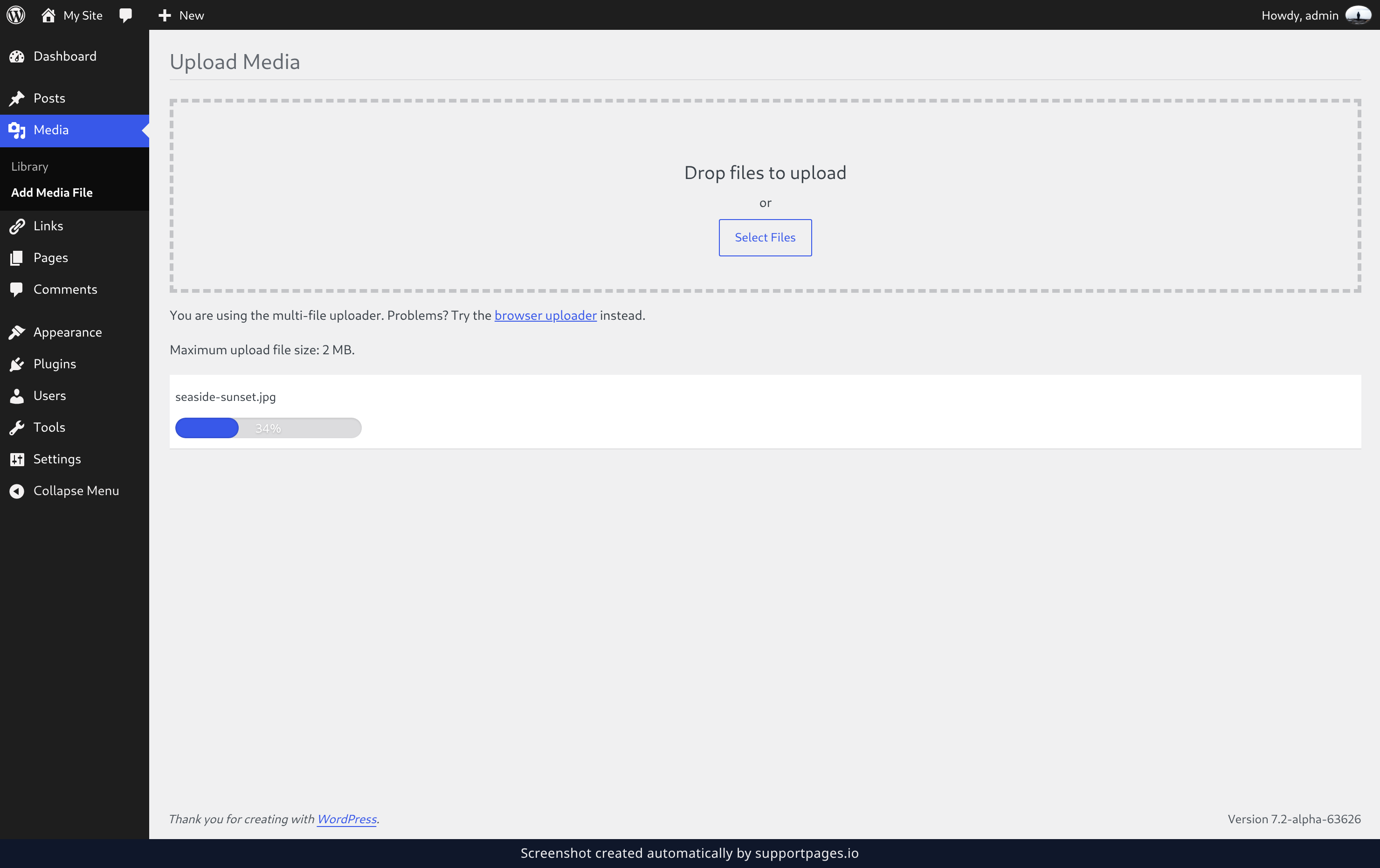
The multi-file uploader hands your file to the browser in the background, and a slow connection can break that handover on a large photo. Under the drop area, click browser uploader to get the plain one-file-at-a-time uploader your browser has always had. It is slower, but it keeps the whole file in one piece and gets through when the other one stalls.
Look in the Media Library
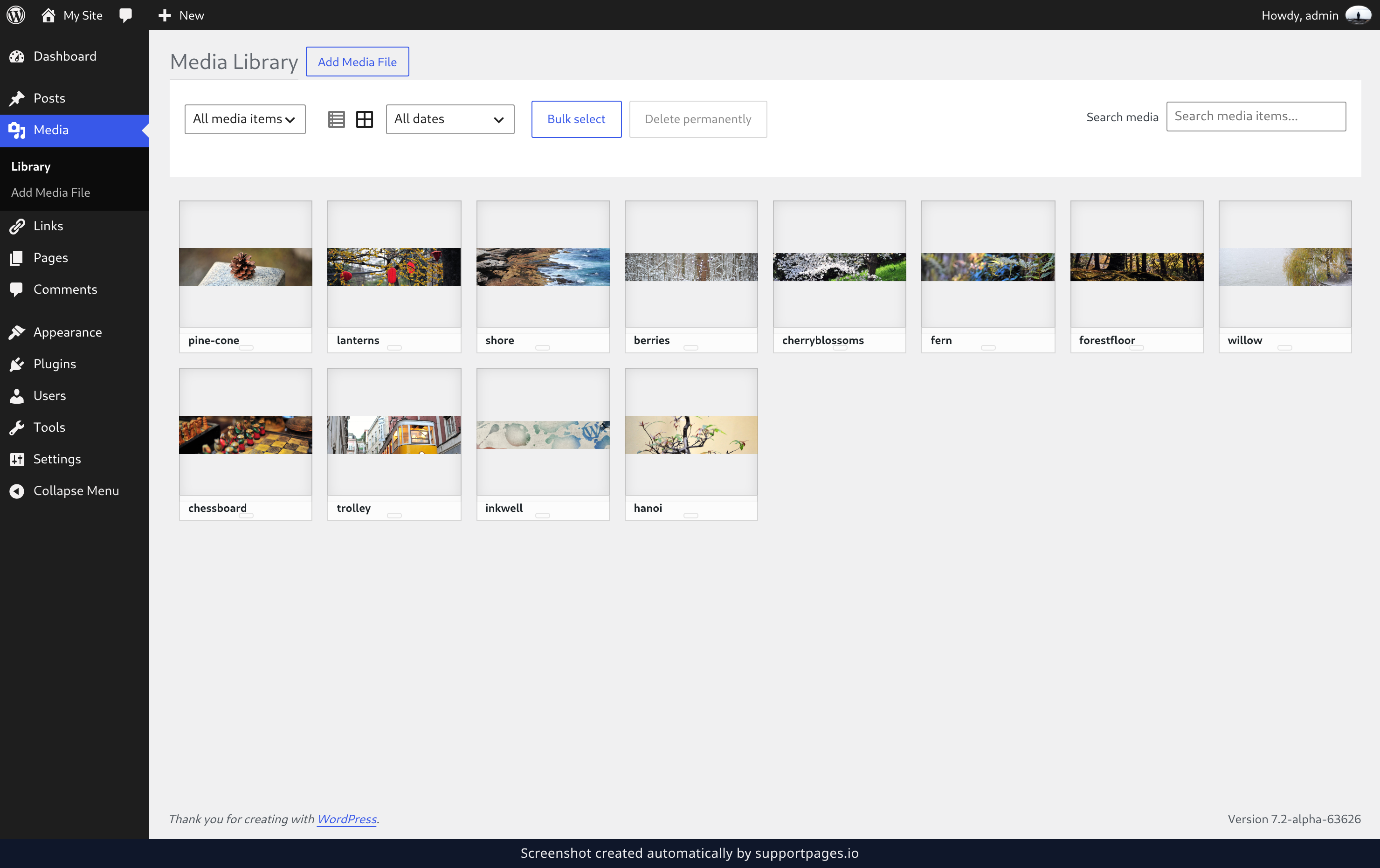
Open Media → Library and check whether your image is there after all. If it is missing, the upload was refused rather than interrupted, so repeat the checks above; if it is there but shows up as a grey box, WordPress could not make the copies your theme asked for. Add Media File takes you straight back to the uploader.
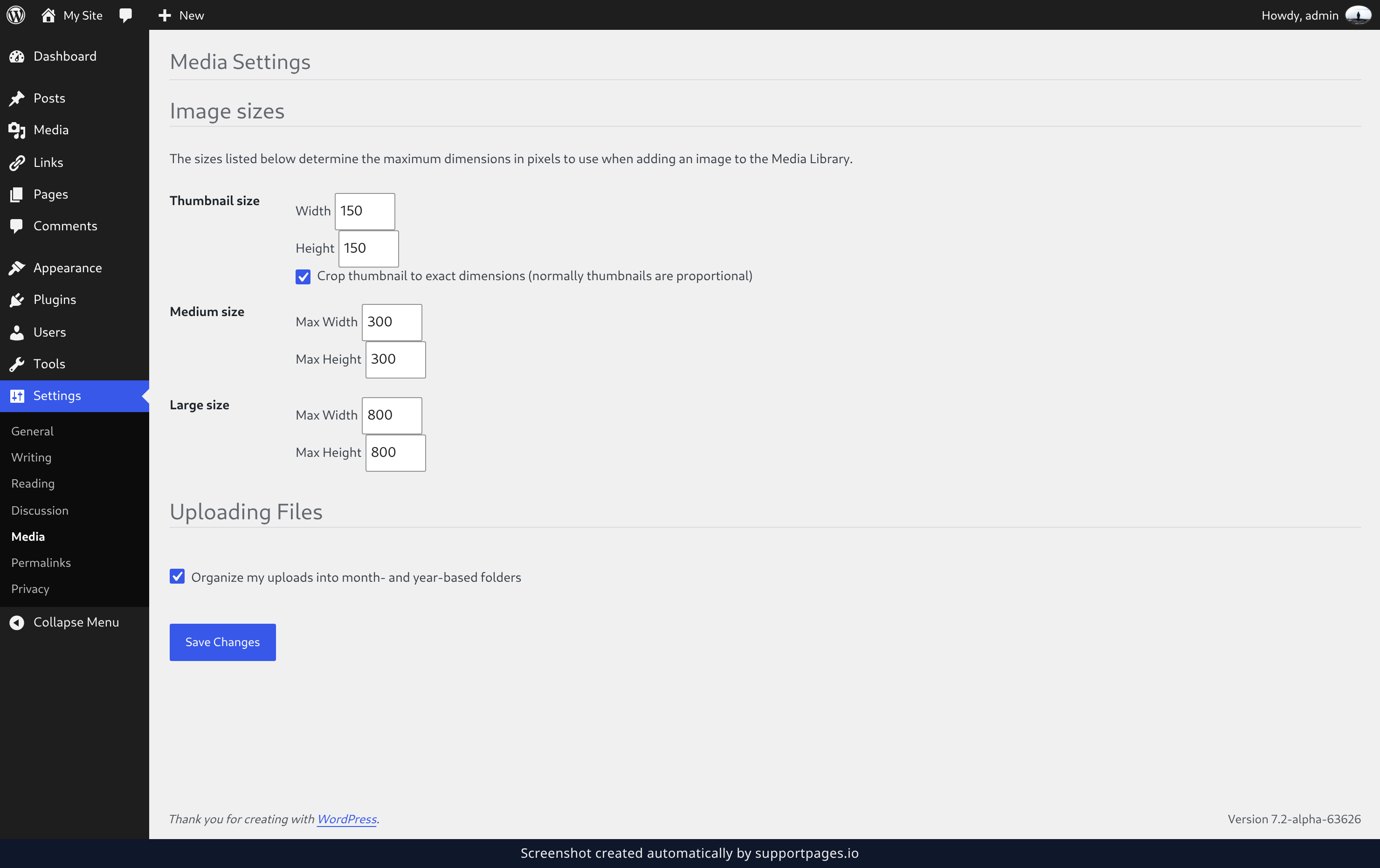
Adjust your image sizes
Go to Settings → Media and look under Image sizes. These fields decide how large the spare copies of each photo are, so lower Max Width and Max Height for Large size — 800 is plenty for most sites. Click Save Changes when you are done; your original upload keeps its full size either way.
Tips
- Rename a file before uploading if its name has spaces, apostrophes or accents — plain letters, numbers and dashes upload most reliably.
- Upload one image at a time when a batch keeps failing. The one that stops the batch is the one with the problem.
- Keep a resized copy of any photo you might reuse. Uploading the smaller version every time avoids the size limit completely.
Summary
A refused image is nearly always too big, an unsupported file type, or a dropped connection. Check the size limit on Add Media File, convert anything unusual to a JPEG or PNG, and fall back to the browser uploader if the drag-and-drop one stalls. Then confirm the file arrived in the Library, and lower your Settings → Media sizes if the copies look broken.
Was this article helpful?
Kept in sync by supportpages.io — continuous documentation for your product.
Have a question?
Search our articles, or ask and get an answer straight away.