
How to restore an earlier version of a post
Updated about 1 month ago
Browse All
WordPress keeps a saved copy of every version of your post as you work on it, so an accidental deletion or a rewrite you regret is never final. Here is how to look back through those copies, compare them, and put the one you want back in place.
Prerequisites
- A post that has been saved at least twice, so it has at least one earlier version to go back to
- An account that can edit that post — an Administrator, Editor, or the post's own Author
Steps
Open the post you want to fix
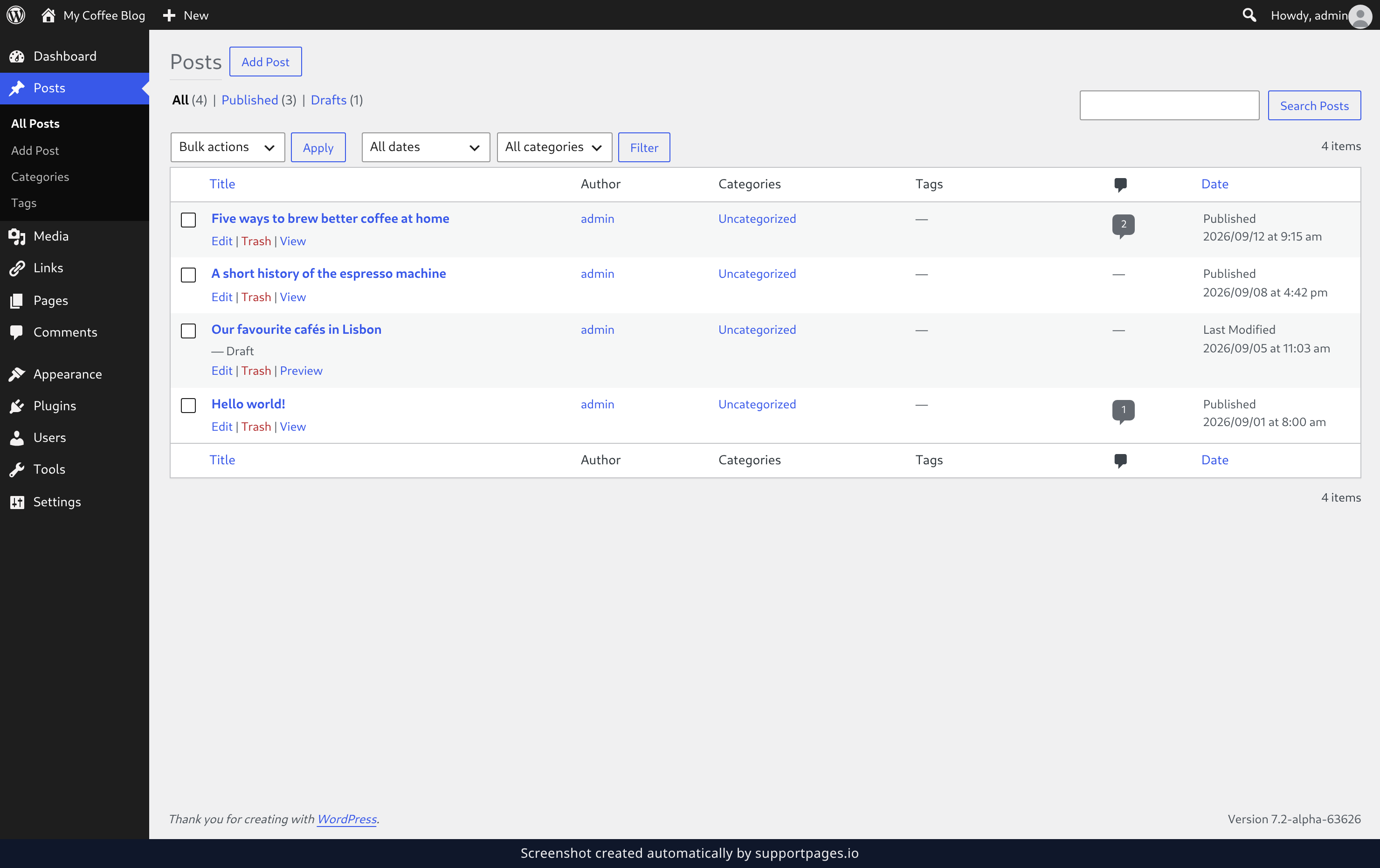
In your dashboard, go to Posts and click the title of the post you want to restore. It opens in the editor as usual.
Open the revision history
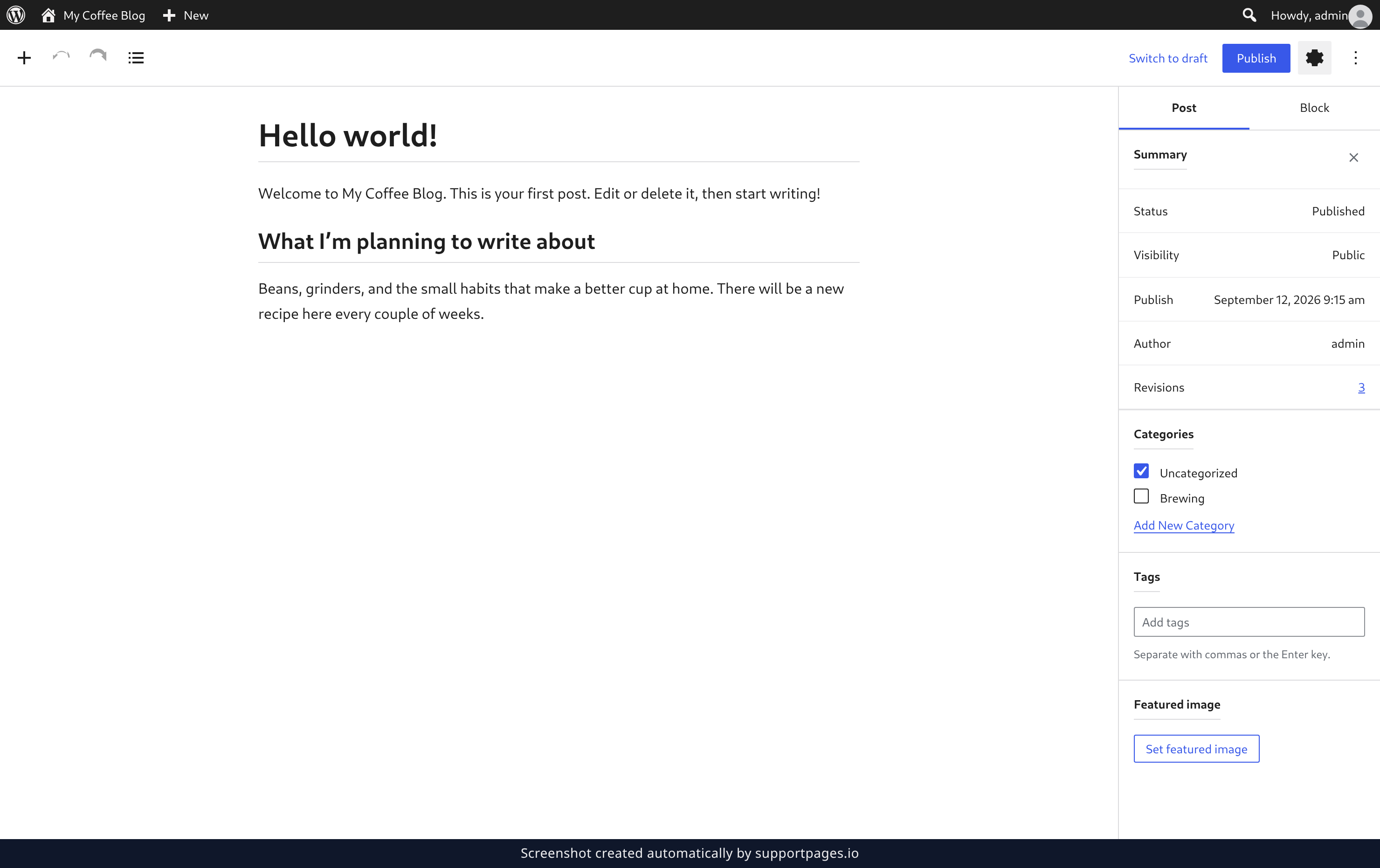
In the editor, open the Post tab in the settings sidebar and click the Revisions row. The number next to it is how many saved versions WordPress has kept for this post.
Compare the versions and restore the one you want
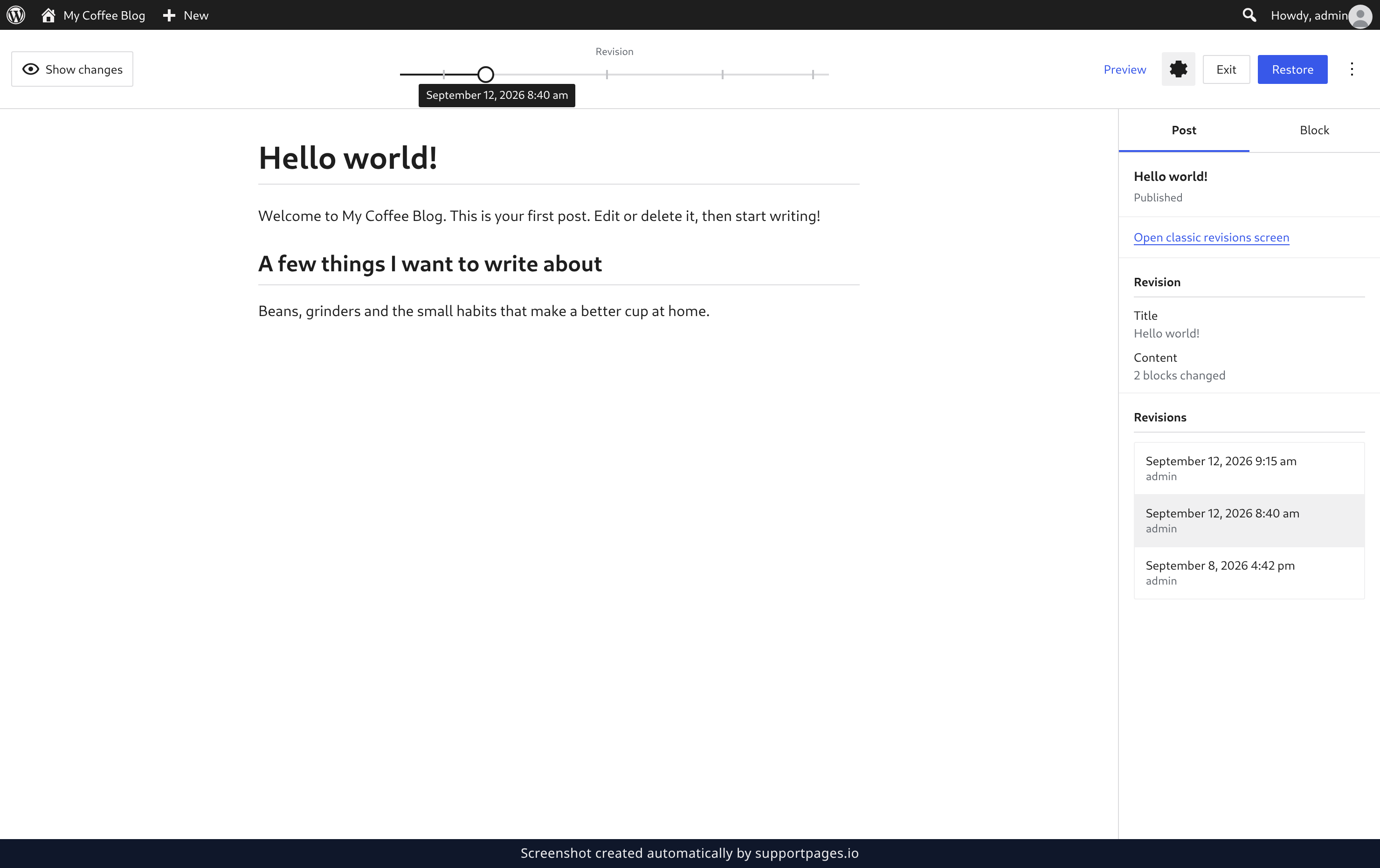
Drag the Revision slider to step back through earlier versions; the date above it tells you which version you are looking at. Turn on Show changes to highlight what is different, then click Restore to put that version back into your editor. Nothing changes on your site until you publish or update the post.
Tips
- Restoring a version does not delete the newer ones — every version stays in the list, so you can always go back and forth.
- The slider steps through versions newest to oldest, and the date of the version you are viewing is shown above it.
- If you only want to borrow a paragraph from an older version, restore it, copy the text, then restore the newer version again.
Summary
Open the post, click Revisions in the Post tab of the settings sidebar, and use the slider to find the version you want. Click Restore, then publish or update the post to make it live.
Was this article helpful?
Generated by supportpages.io, automating product documentation from your codebase.
Have a question?
Search our articles, or ask and get an answer straight away.