
How to set how many posts show on your archive and feed pages
Updated about 1 month ago
Browse All
Two numbers decide how much of your blog people see at once: how many posts your archive pages list, and how many items go out in your feed. Both live on one settings screen, and you can change them in a minute.
Before you start
- An Administrator account on your site — Reading Settings are only available to Administrators.
- Your site's dashboard open in a browser.
Steps
Open the Reading Settings
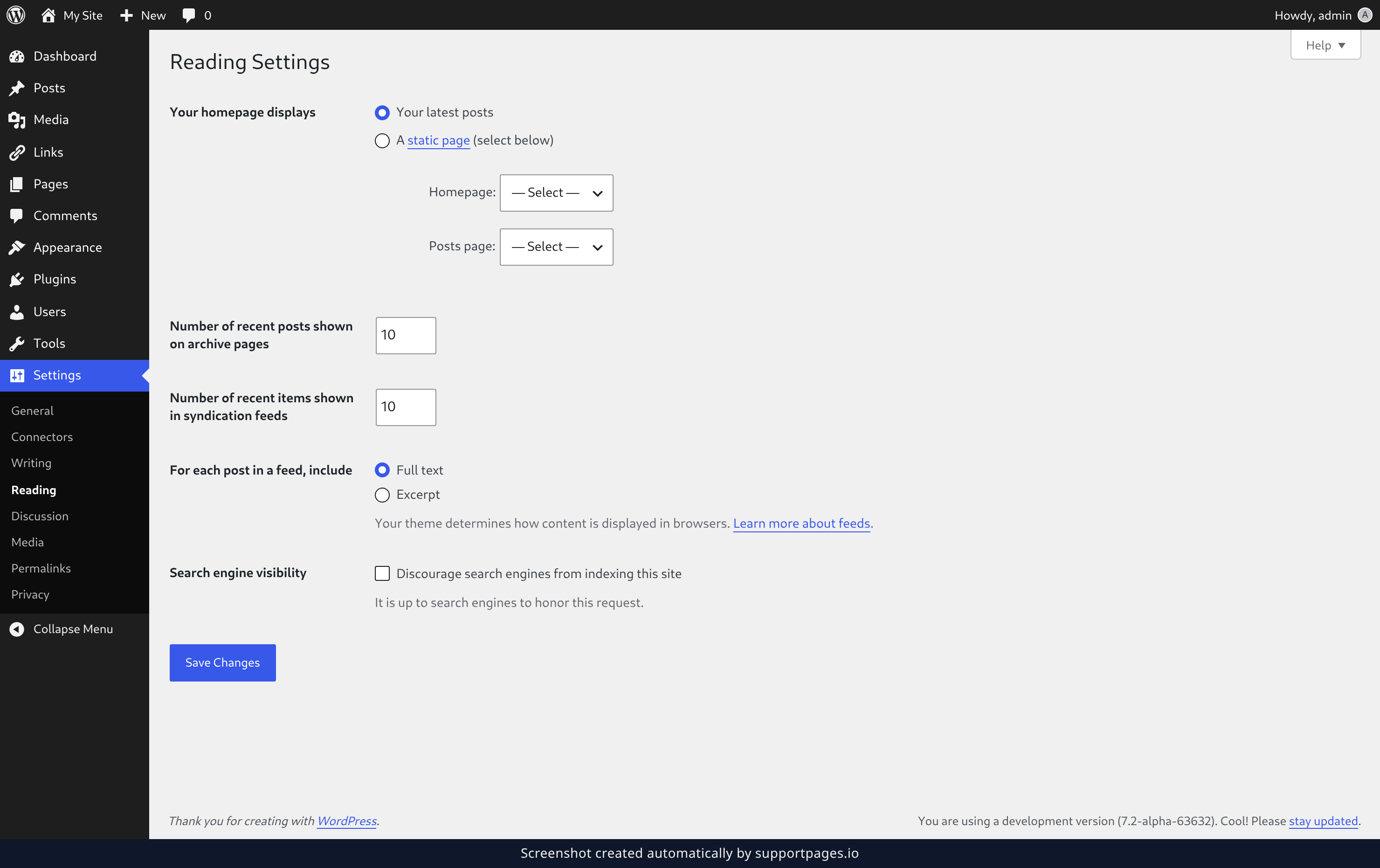
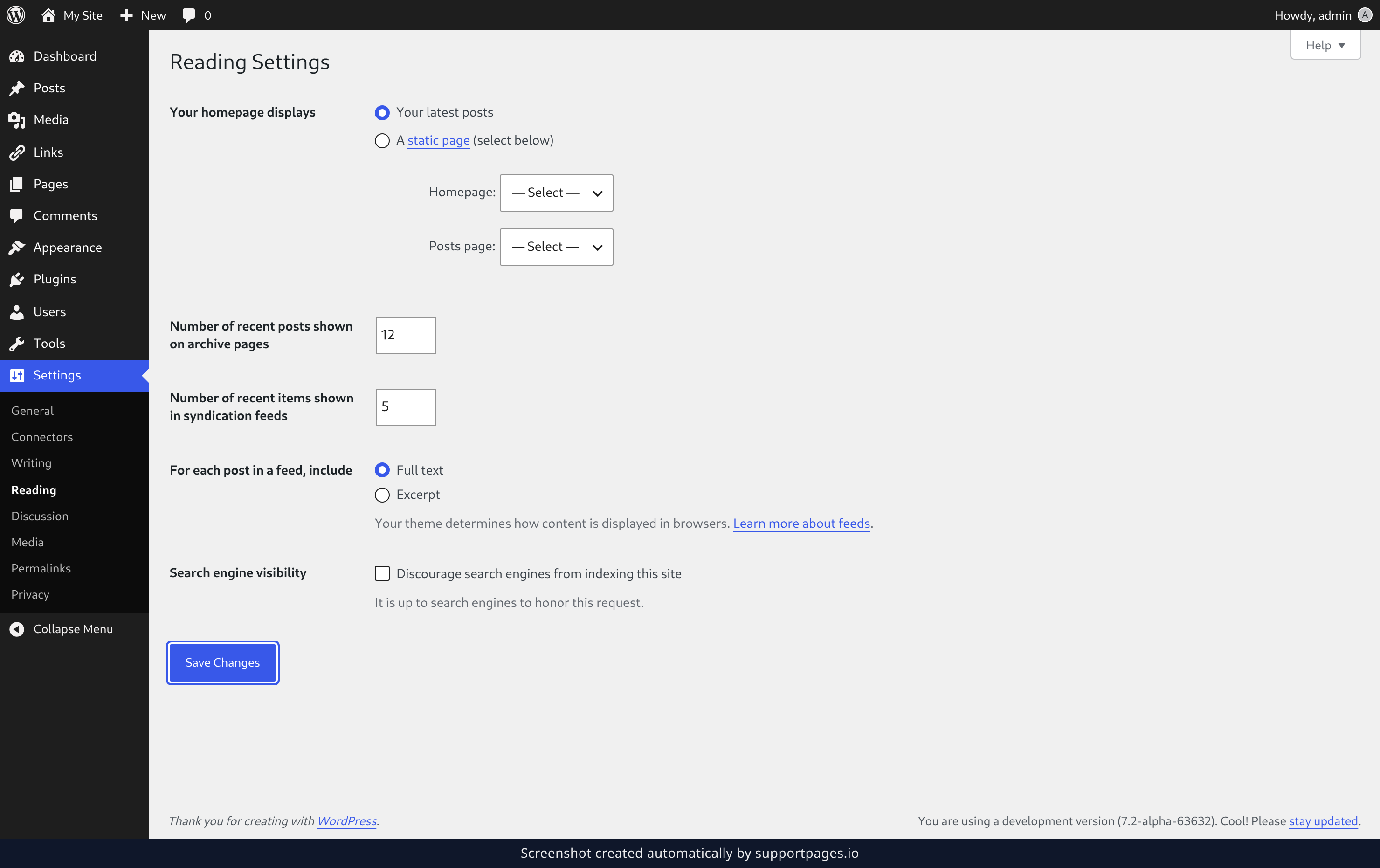
In the dashboard, open Settings and choose Reading. Everything in this guide lives on the screen that opens.
Set how many posts your archive pages show
Find Number of recent posts shown on archive pages and type the number you want — 10 is the default. This one number covers your blog page and every category, tag, and date archive on your site.
Set how many items your feed carries
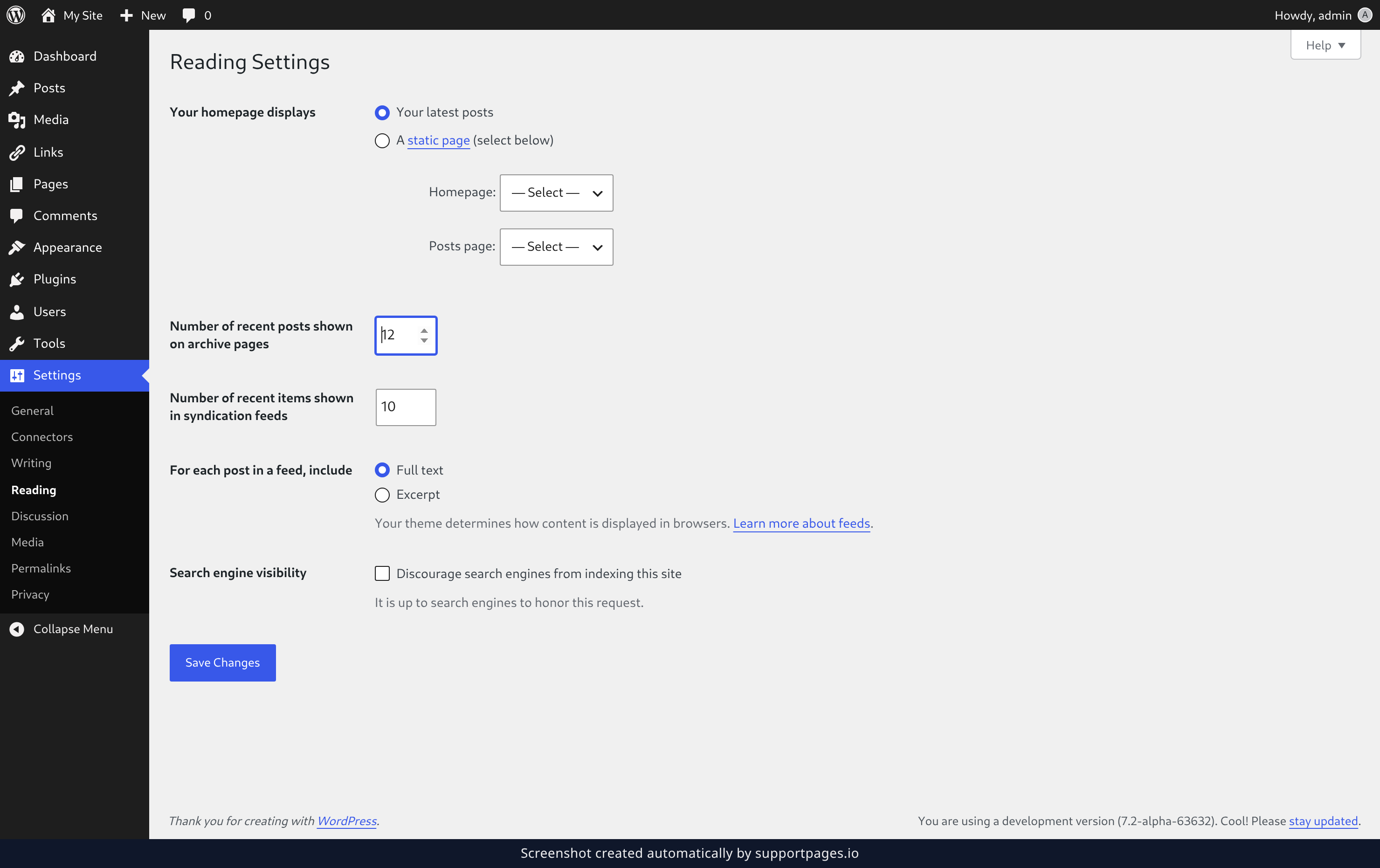
At Number of recent items shown in syndication feeds, enter how many items your feed should hold. Feed readers and email subscribers get this many posts, newest first.
Choose what each feed item includes
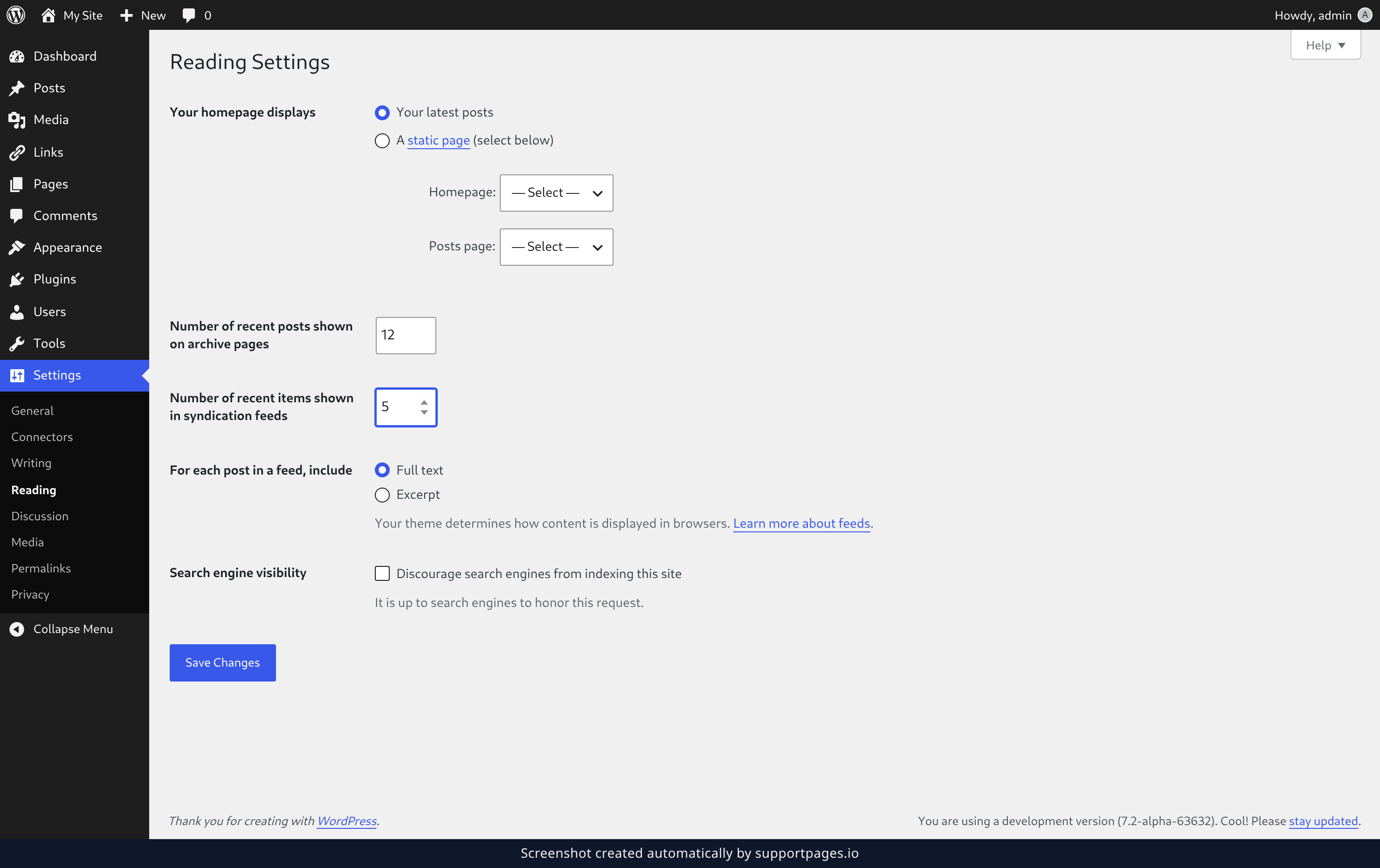
At For each post in a feed, include, pick Full text to send the whole post, or Excerpt to send a short summary that links back to your site.
Save your changes
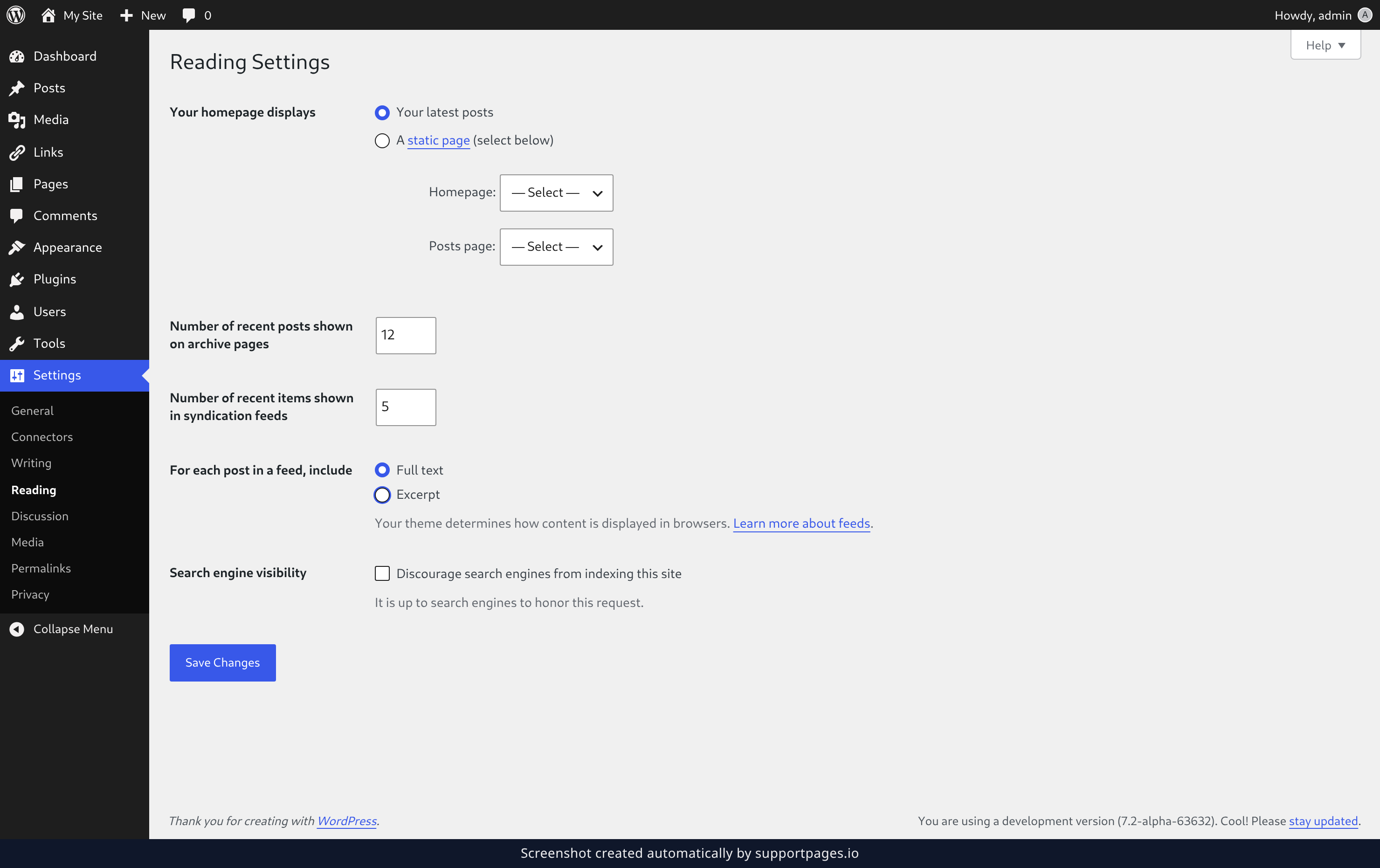
Click Save Changes at the bottom of the screen. The confirmation at the top lets you know your new settings are live.
Tips
- A smaller archive number keeps pages quick to load and easier to scroll through.
- Sending excerpts invites readers back to your site for the full story.
- Feed readers cache what they have already downloaded, so a change can take a little while to appear for existing subscribers.
Summary
Your archive count, your feed count, and the format each feed item uses all sit on Settings > Reading. Set the two numbers, choose full text or excerpt, and save.
Was this article helpful?
Built with supportpages.io — SaaS documentation software.
Have a question?
Search our articles, or ask and get an answer straight away.