
How to set your timezone, date, and time format
Updated about 1 month ago
Browse All
Your site's clock decides when scheduled posts go live and how every date and time reads to your visitors. Here's how to point WordPress at your timezone and choose the formats it shows.
Before you start
- An account that can manage site settings — on most sites that means the administrator role.
- A couple of minutes: all four settings live on one screen and you save them together.
Steps
Set your timezone
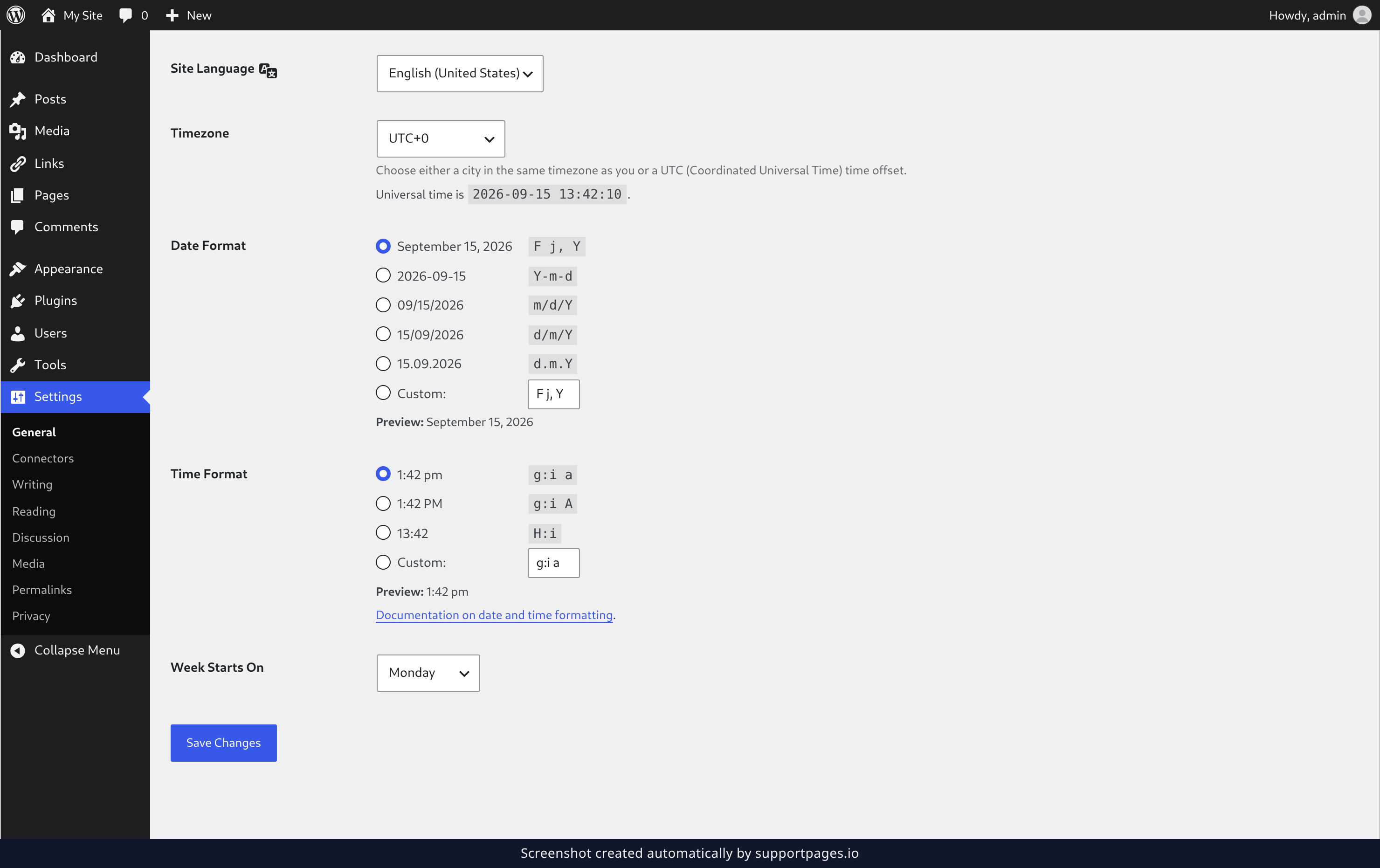
Open Settings in your dashboard's left-hand menu, then choose General. In the Timezone dropdown pick the city closest to you — or a UTC offset if you'd rather not tie your clock to a city — and check the universal time underneath against the clock on your desk.
Pick a date and time format
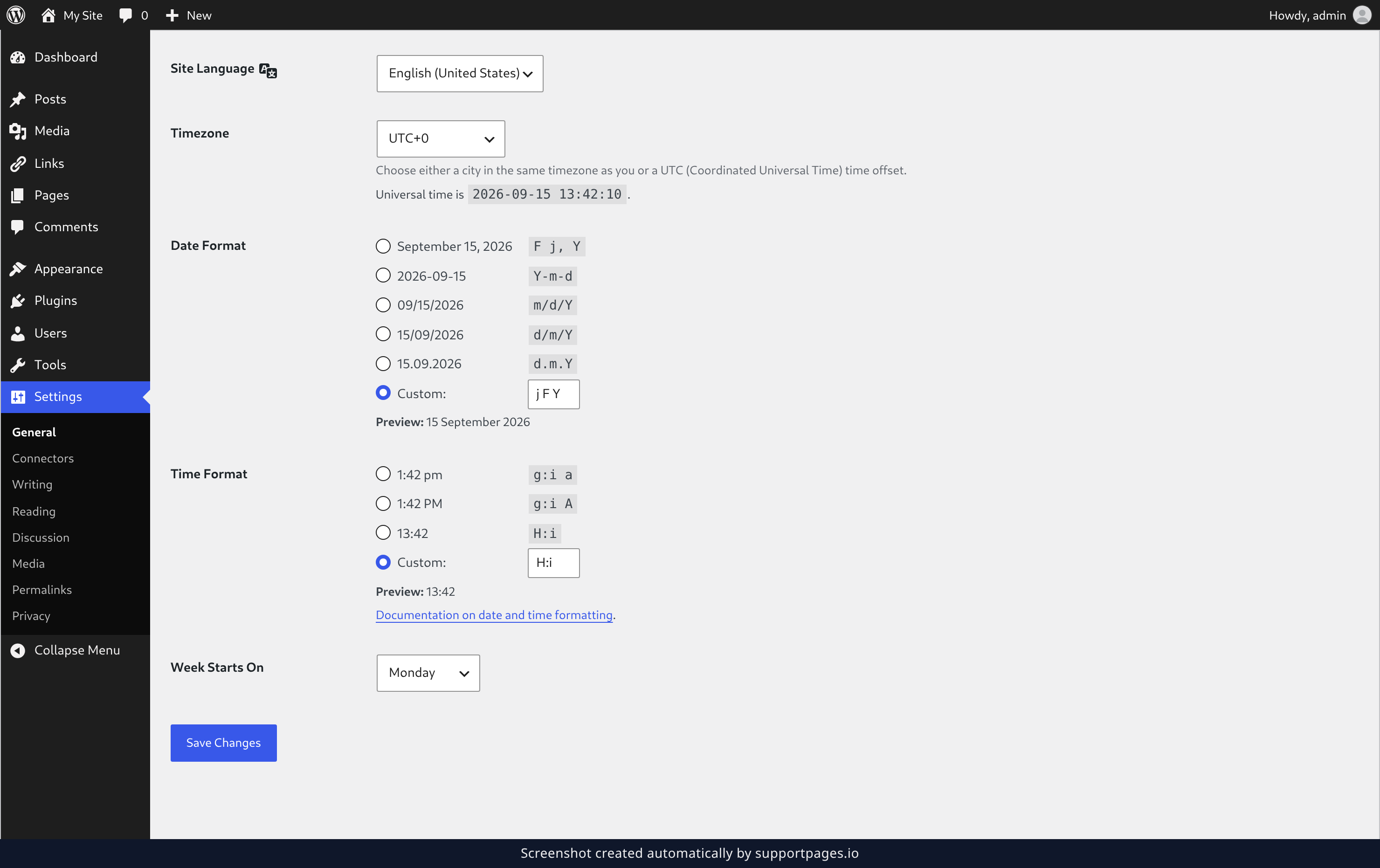
Under Date Format, choose the layout that matches how you write dates — each option shows how it will look. Do the same under Time Format, and if none of the presets fit, select Custom: and type your own pattern into the box; the Preview: line follows along as you type.
Choose which day your week starts on
Use the Week Starts On dropdown to pick the first day of the week. WordPress uses it for calendars, so set it to the day your own week begins.
Save your changes
Click Save Changes at the bottom of the screen. Nothing here takes effect until you do, and WordPress confirms once your settings are stored.
Tips
- Unsure of your exact timezone? Compare the universal time in the Timezone row with your own clock and pick the offset that lines up.
- A city is the friendlier choice if your region changes its clocks twice a year — WordPress follows daylight saving for you.
- Nothing takes effect until you save, so feel free to try a format and watch its preview before committing.
Summary
That's it — pick your city or offset, choose the date and time formats that read right for your visitors, and save. Your site's clock, calendars, and published dates all follow from here.
Was this article helpful?
Built with supportpages.io, a help centre generator for developers — written from your codebase.
Have a question?
Search our articles, or ask and get an answer straight away.