
How to export your content
Updated about 1 month ago
Browse All
Exporting puts your site's writing, pages, comments, and categories into a single file you can keep. It's a good backup to have on hand — and the first step if you ever move your content somewhere else.
Before you start
- An account that's allowed to export content. Administrators have this by default.
- Somewhere on your computer to keep the download — busy sites can produce a large file.
Steps
Open the export tool
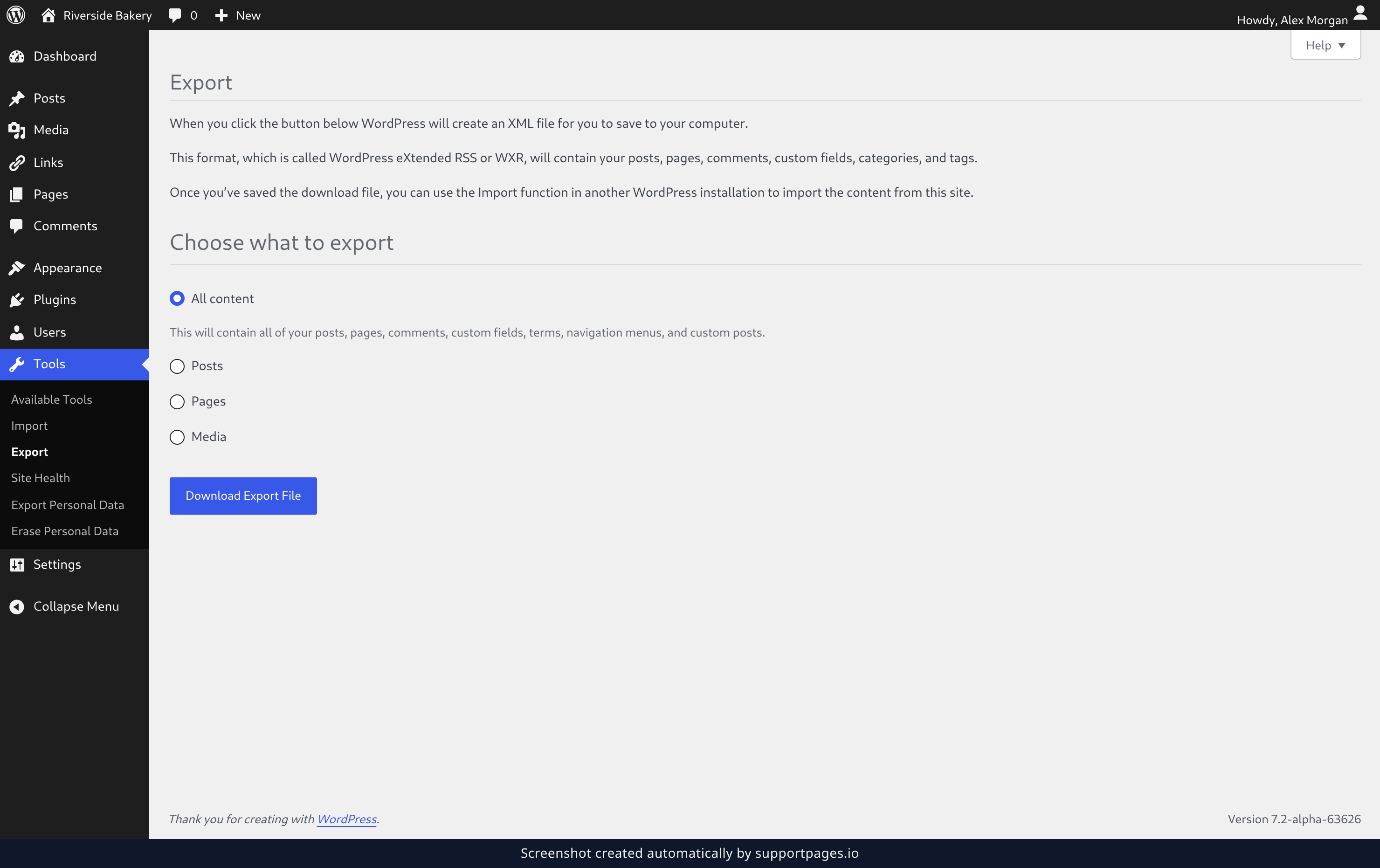
In the admin sidebar, hover over Tools and choose Export. The screen opens on the Choose what to export options.
Choose what to include
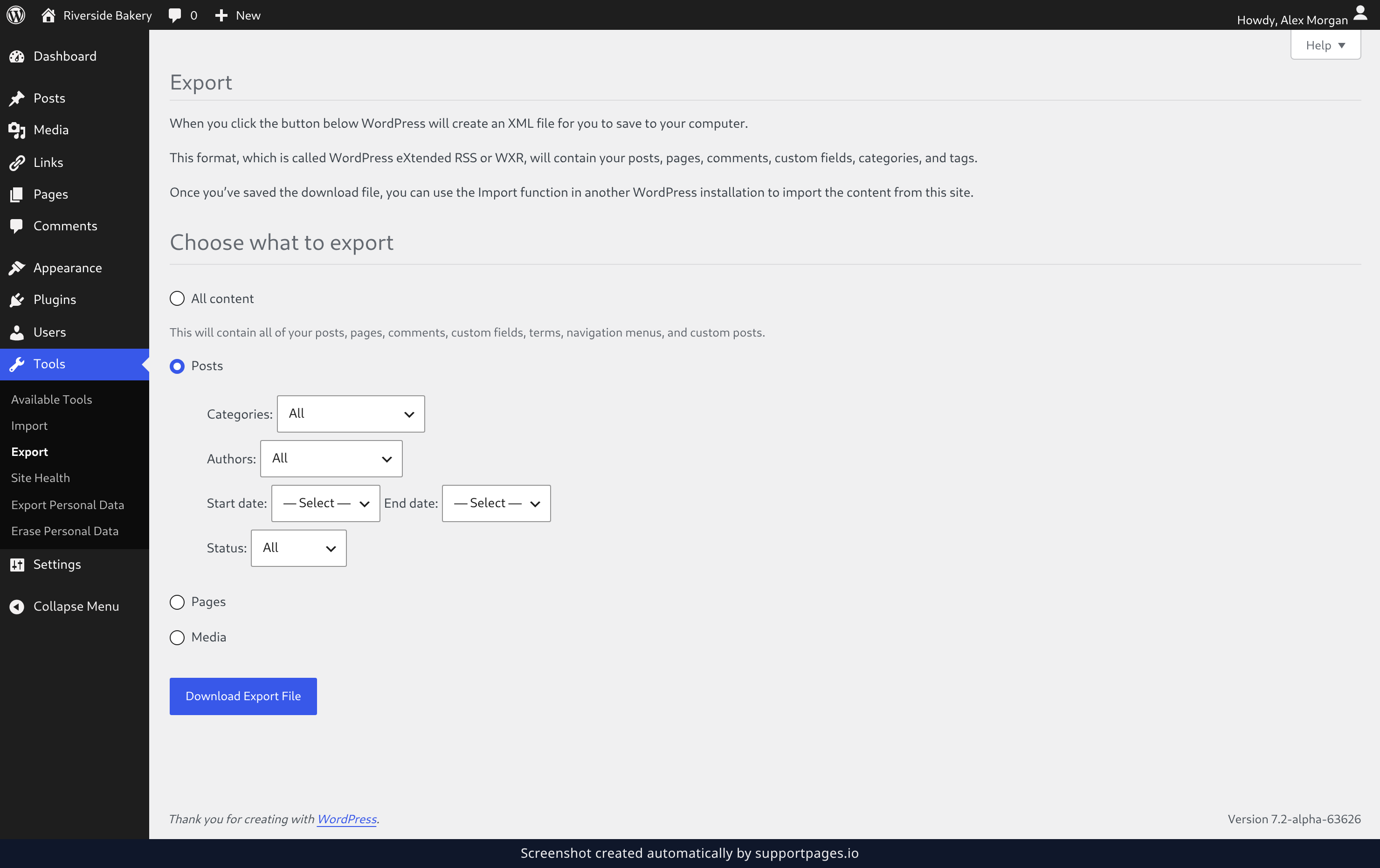
All content is already selected, and it covers your posts, pages, comments, custom fields, terms, navigation menus, and custom posts. To export only part of your site, pick Posts, Pages, or Media instead. Selecting Posts opens its filters, so you can limit the file to one Categories: value, a single Authors: name, a Start date and End date, or a particular Status:.
Download the file
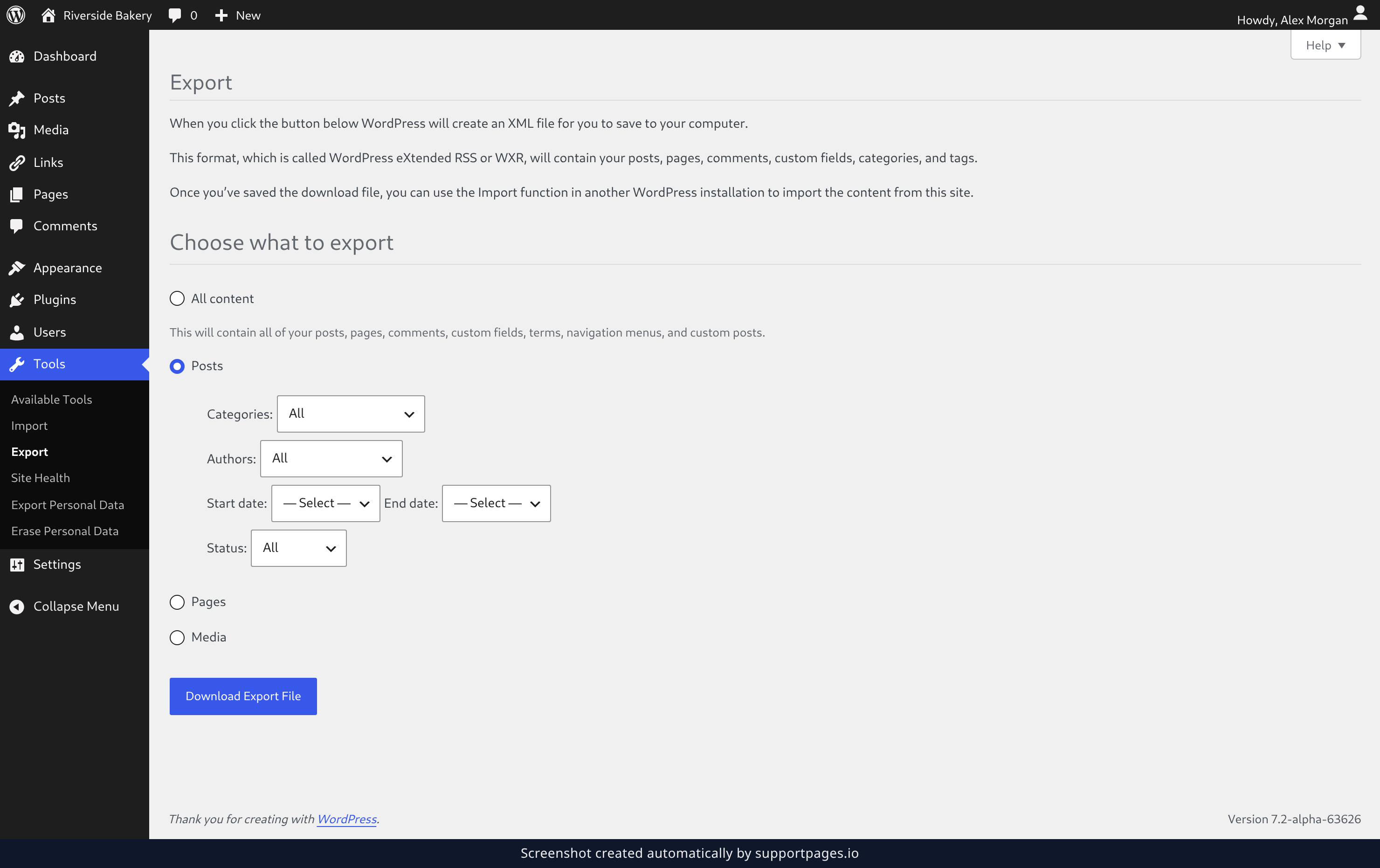
Click Download Export File and your browser saves the file straight to your computer. Put it somewhere you'll remember — you can import it into another WordPress site whenever you're ready.
Tips
- The download is a plain XML file named after your site and the date. This format is called WordPress eXtended RSS, or WXR.
- It holds content only — your themes, plugins, and settings stay behind.
- Exporting changes nothing on your live site, so run it as often as you like.
Summary
One visit to the Export screen and your content is in a file that's yours to keep. Save it as a backup, or use it to bring everything across to a new site.
Was this article helpful?
Generated by supportpages.io, an AI changelog generator for SaaS teams.
Have a question?
Search our articles, or ask and get an answer straight away.