
How to import content from another site
Updated about 1 month ago
Browse All
Moving to a new site doesn't have to mean starting over. WordPress can bring your posts, pages, and comments across from your old home — whether that's another WordPress site or a completely different platform.
Before you start
- An account that's allowed to import content. Site administrators have this by default.
- If you're leaving another WordPress site, an export file from it — open that site's dashboard, go to Tools → Export, and download your content.
- Your old site stays online while the import runs, so WordPress can fetch your images and other media.
Steps
Choose where your content is coming from
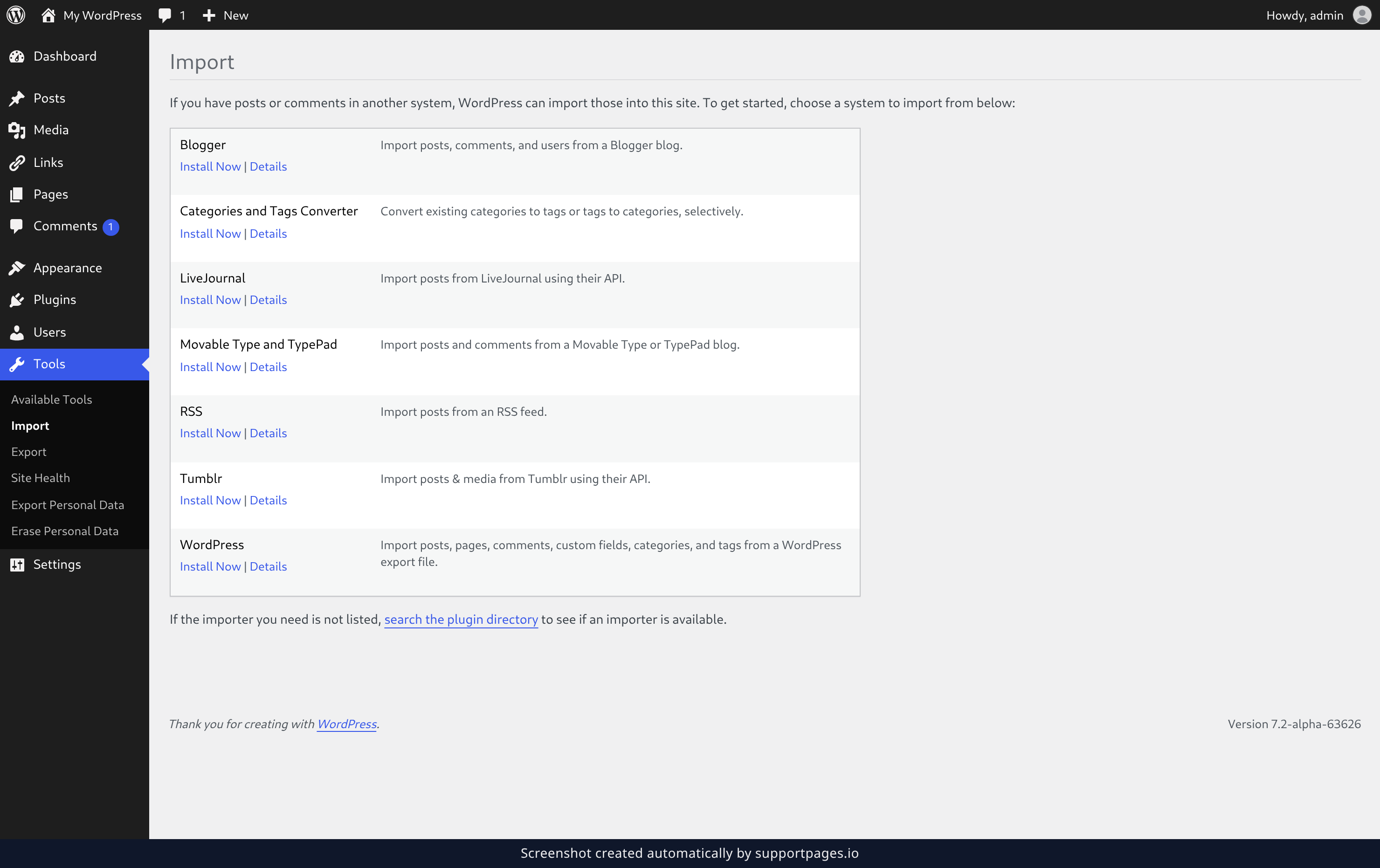
In your dashboard, go to Tools → Import. You'll see every system WordPress can bring content in from, so pick the row that matches your old site. If nothing fits, click search the plugin directory at the bottom of the page.
Install the importer and start it
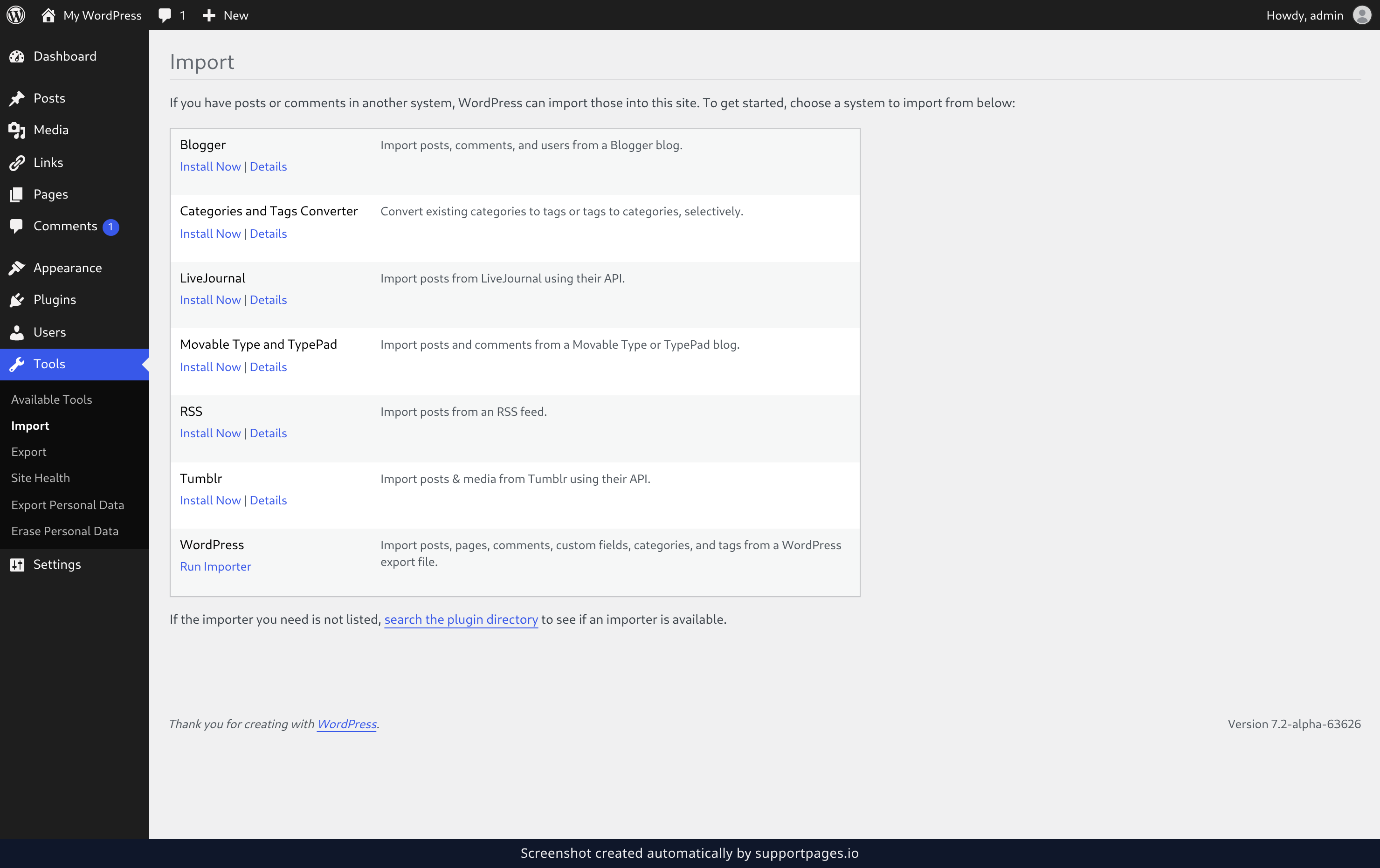
Click Install Now on the row you picked and let WordPress fetch the importer for you. When that row changes to Run Importer, click it to open the importer's own screen.
Hand over the file from your old site
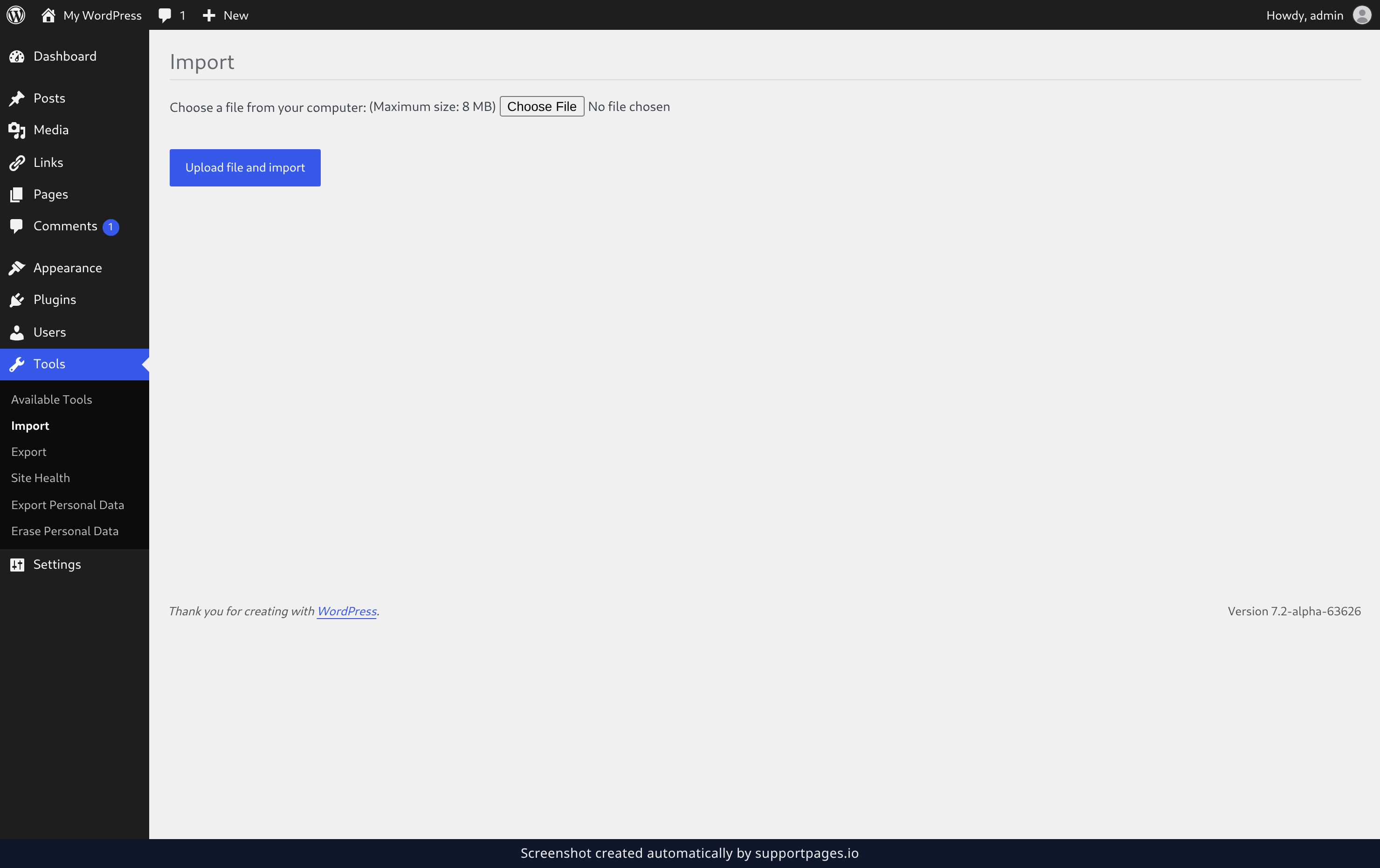
Click Choose a file from your computer: and pick the file from your old site, then click Upload file and import. A big site takes a few minutes, because WordPress adds each post, page, and comment as it reads along. If the file names authors who don't exist here yet, WordPress asks how you'd like to handle their content — pick whatever suits you and carry on.
Your Posts, Pages, and Comments lists fill up as the import runs, and everything lands as ordinary content you can edit, publish, or delete. Running the importer a second time is safe — it quietly skips whatever is already here.
Tips
- Coming from another WordPress site is the easiest trip of all: export the old site first, then import that file here.
- There's no clean-up afterwards — imported content behaves like anything else you've written.
- The importer downloads your media as it goes, so it's happiest when it can work without interruption.
Summary
That's the whole trip: pick your old platform under Tools → Import, install the importer, and hand it the file from your old site. Everything it brings across is yours to edit and publish as usual.
Was this article helpful?
Powered by supportpages.io — help centre software for SaaS.
Have a question?
Search our articles, or ask and get an answer straight away.