
How to update your themes
Updated about 1 month ago
Browse All
Theme updates bring fixes, fresh features, and the security patches that keep your site safe. You can install one from the Themes screen, or catch up on several at once from Updates — whichever suits how many are waiting.
Prerequisites
- An administrator account on your WordPress site.
- A recent backup of your site, in case anything goes sideways.
- A quiet moment — the site can look odd for a moment or two while theme files are swapped out.
Steps
Update a theme from the Themes screen
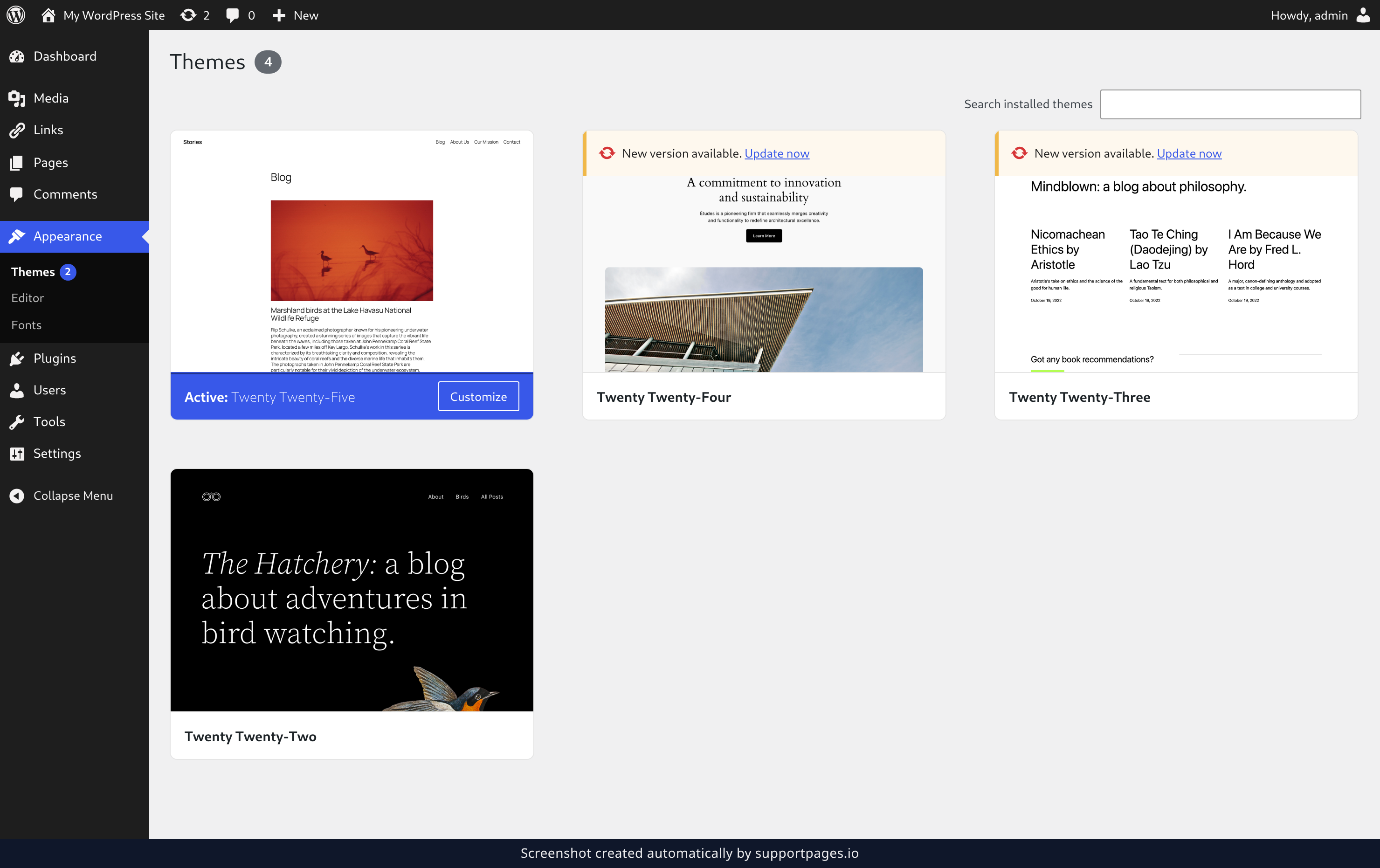
In your dashboard, open Appearance and then Themes. Any theme with an update waiting shows a New version available. notice right on its card. Select Update now and WordPress installs that one theme for you.
Update several themes from the Updates screen
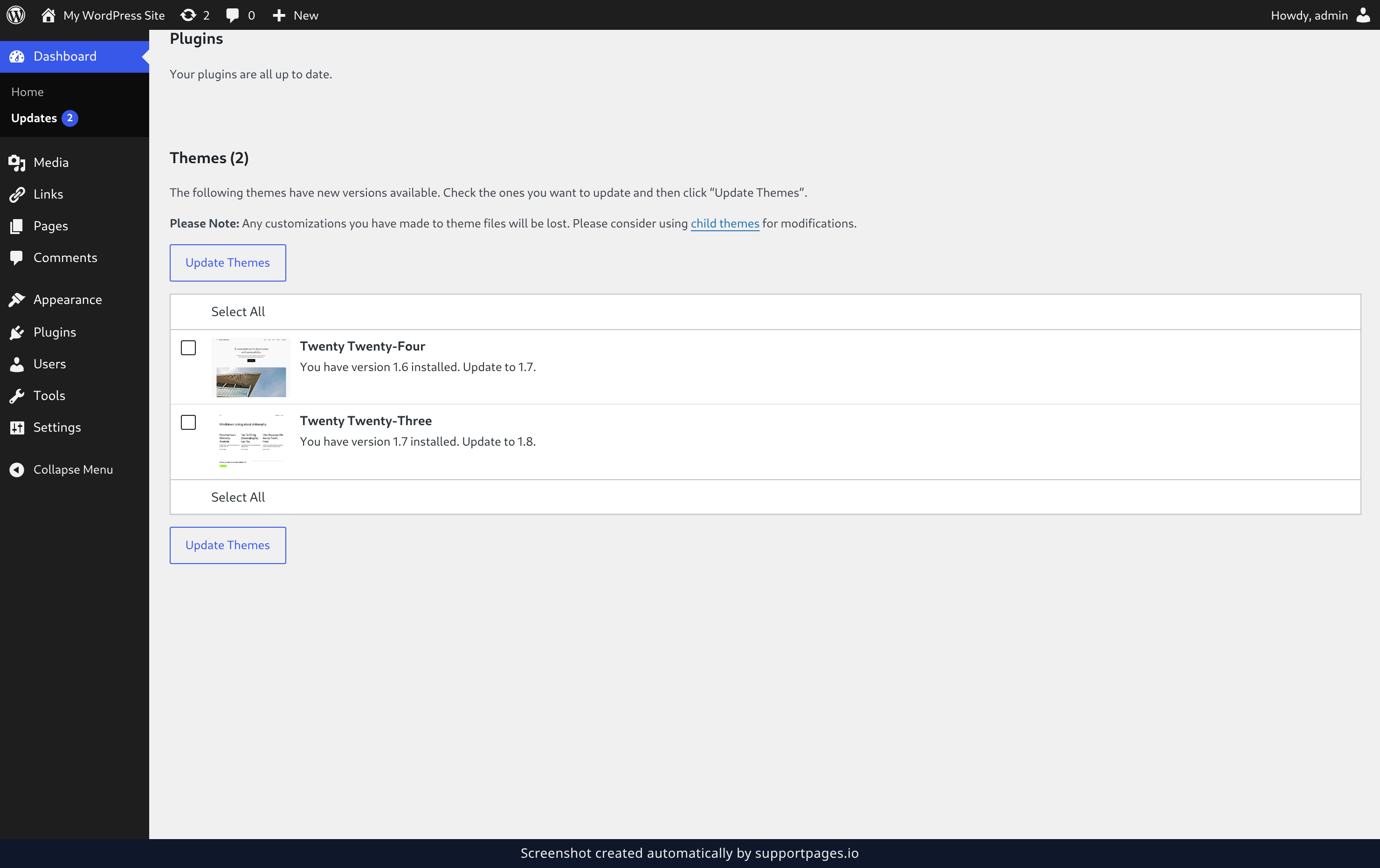
Open Dashboard and then Updates to see everything that's waiting for you. In the Themes section, tick the themes you want — or the Select All box at the top of the list to take the lot — then select Update Themes. WordPress works through them one by one and tells you how each one went.
Tips
- Not sure whether an update is safe? Open the Themes screen first — anything that isn't compatible with your version of WordPress says so on the card, and its checkbox is left out on the Updates screen.
- Seeing a theme you don't recognise? It's probably a default theme that shipped with WordPress. Leave it ticked and it stays current at no cost to you.
- Want to add a brand-new theme rather than update one? Use Add Theme on the Themes screen.
Summary
You now know both routes: a single theme from the Themes screen, or a batch from Updates. Either way your themes stay current — and your site stays secure.
Was this article helpful?
Maintained by supportpages.io, a self-updating help centre for SaaS teams.
Have a question?
Search our articles, or ask and get an answer straight away.