
How to choose who can comment on your site
Updated about 1 month ago
Browse All
Comments can make a site feel like a conversation instead of a broadcast. Your Discussion settings are where you decide who gets to join in, what they have to share first, and how much of it lands in your inbox.
Before you start
- An account that can manage your site's settings
- A rough idea of how open you want your comment section to be
Steps
Open your Discussion settings
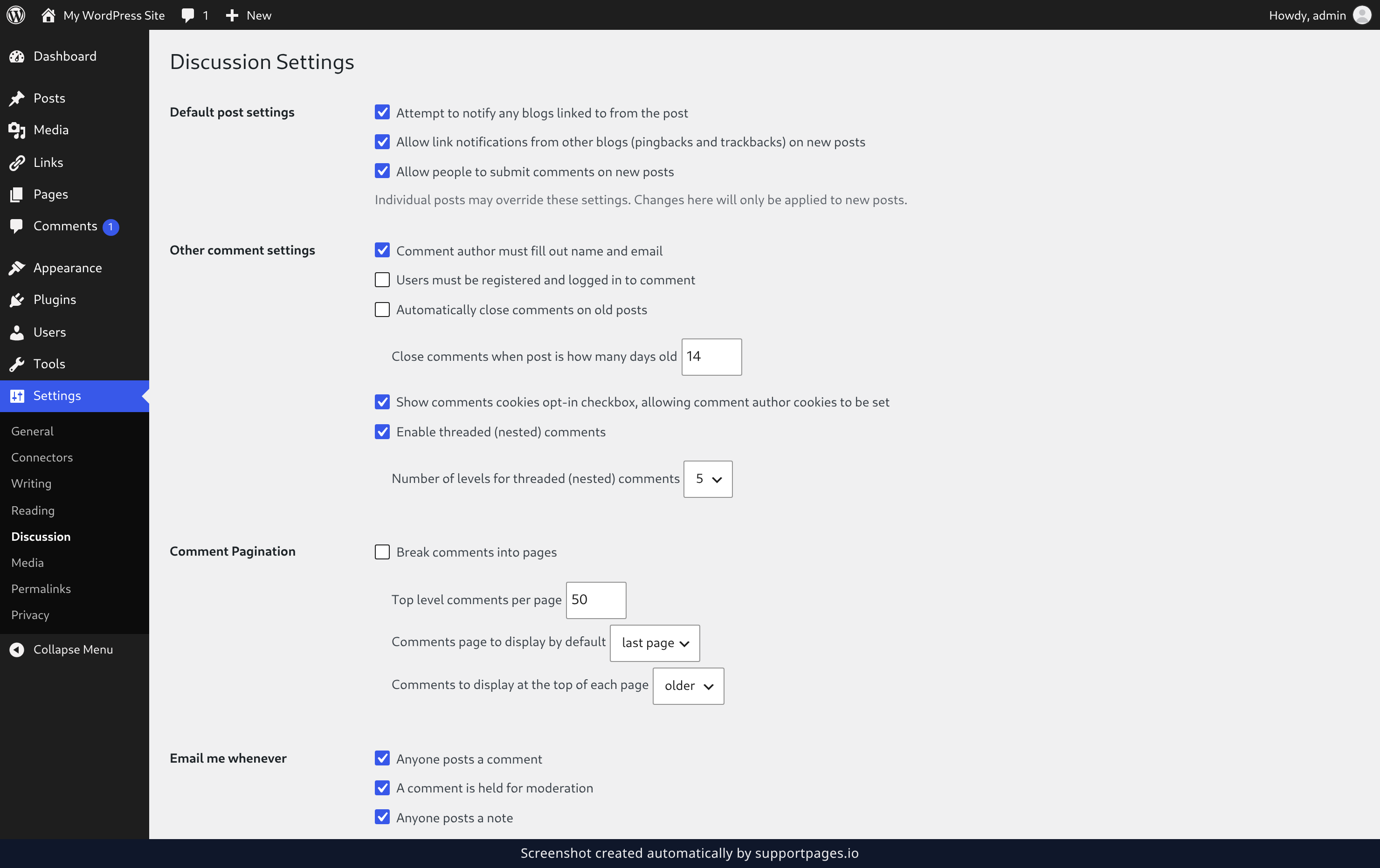
In the admin menu on the left, hover over Settings and click Discussion. Every comment option lives together on this one screen.
Decide whether new posts take comments
Under Default post settings, tick Allow people to submit comments on new posts. With it left unticked, your new posts publish with comments switched off and you can open them up later, post by post.
Ask commenters for a name and email
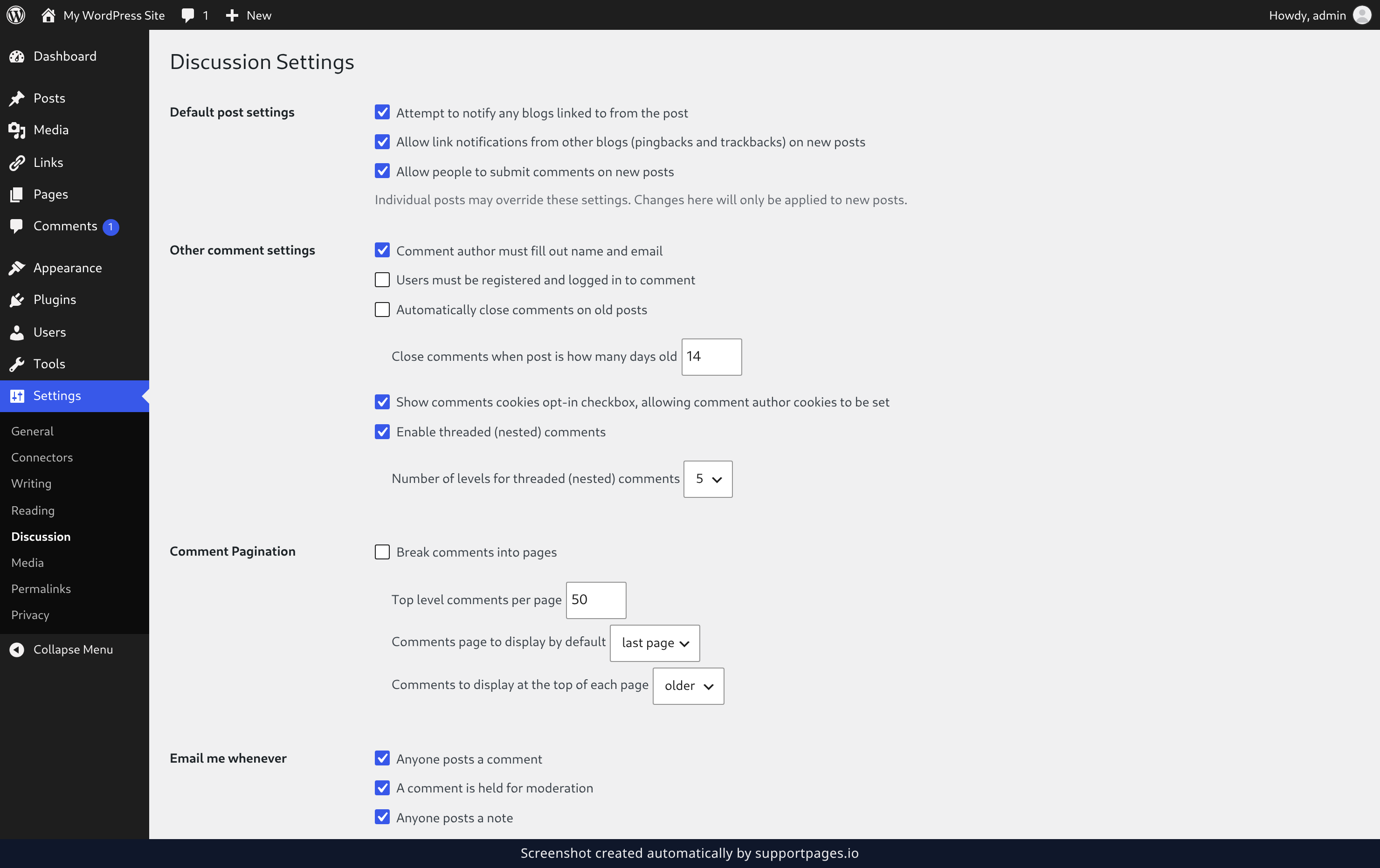
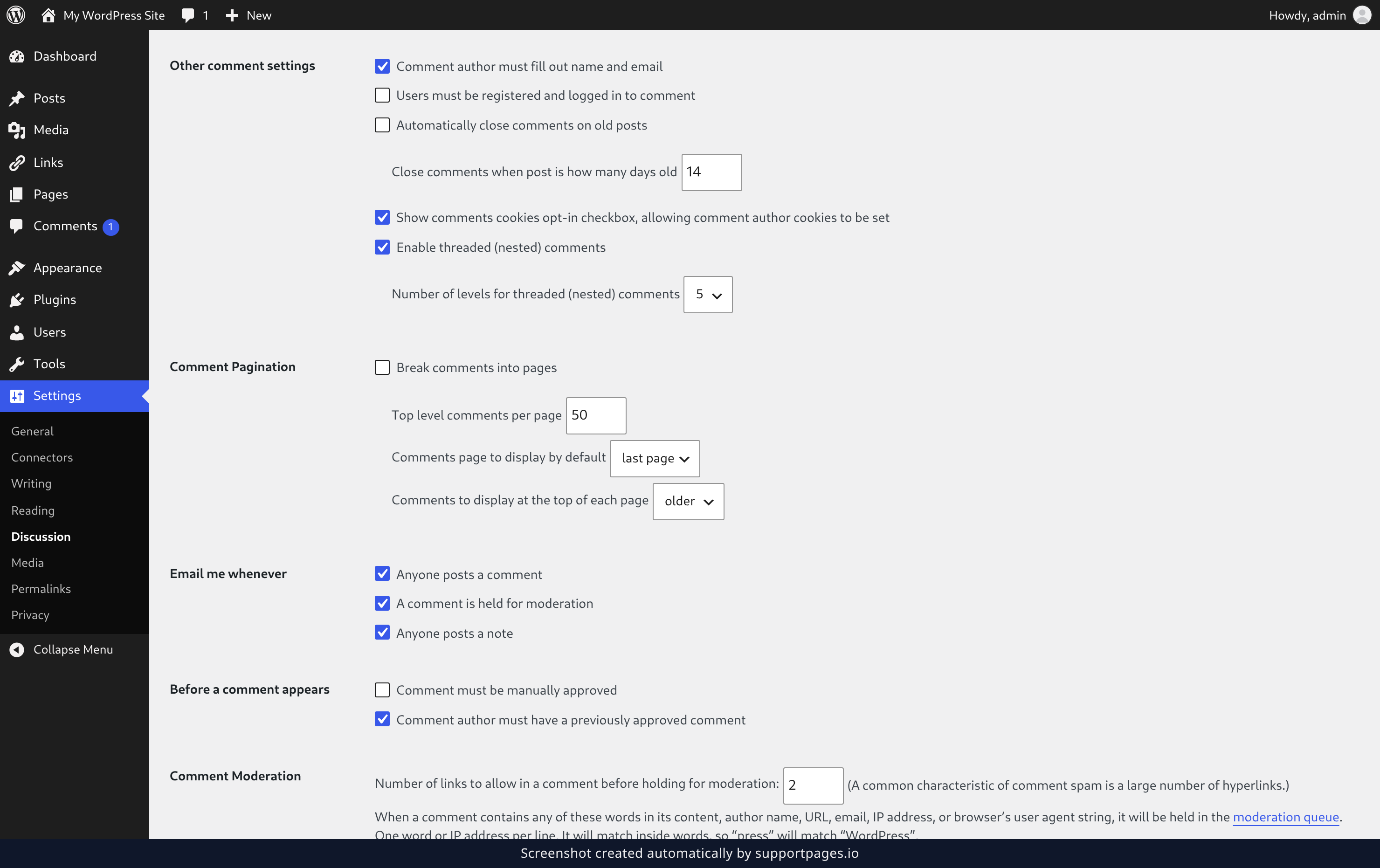
Under Other comment settings, tick Comment author must fill out name and email so nobody can comment anonymously. If you'd rather keep the conversation to people who have signed up, tick Users must be registered and logged in to comment as well.
Close comments on your older posts
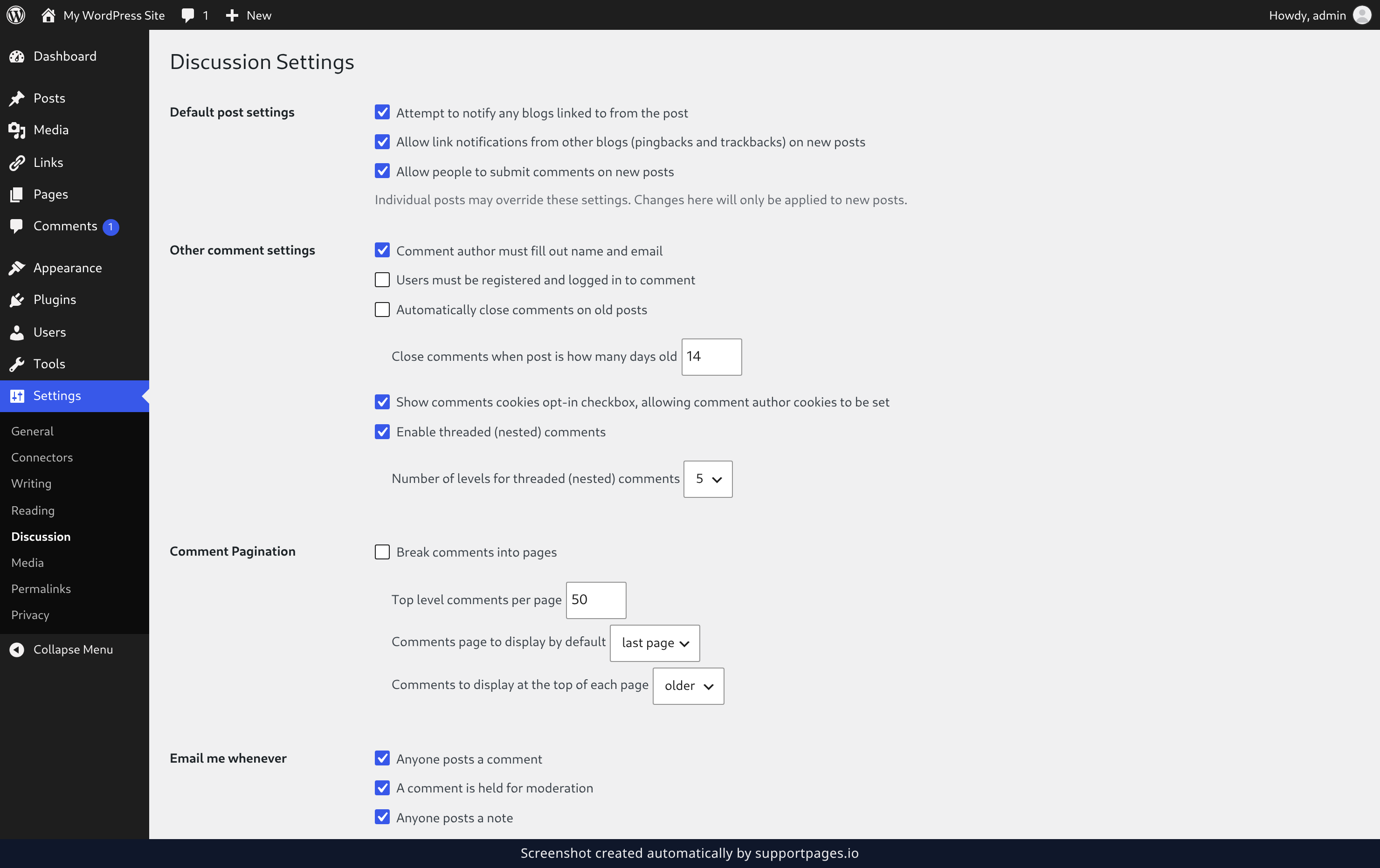
Tick Automatically close comments on old posts, then type a number into Close comments when post is how many days old. Once a post passes that age it stops accepting new comments, which quietly shuts the door on spam on posts you wrote months ago.
Shape how replies and pages work
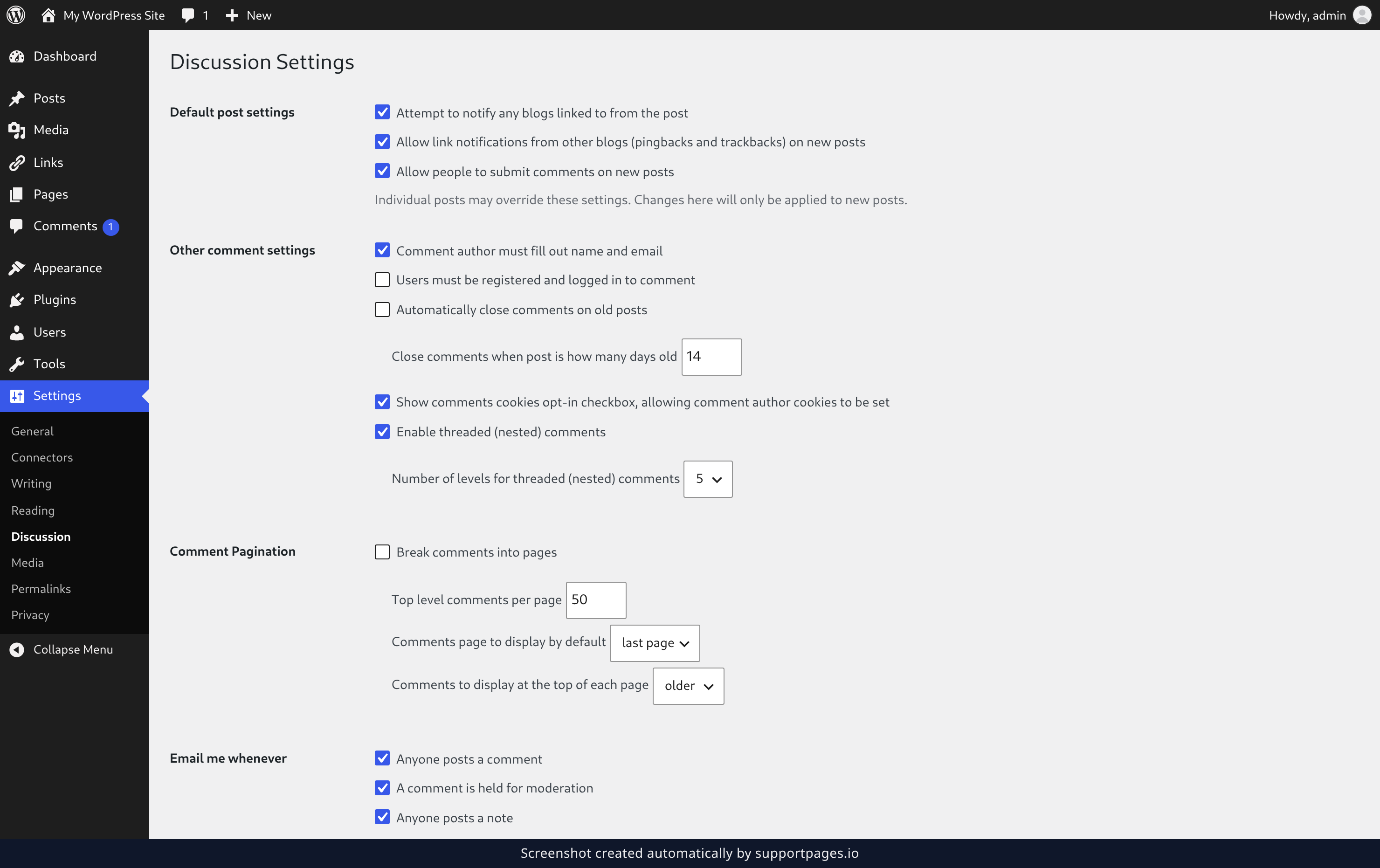
Tick Enable threaded (nested) comments, then pick a depth from Number of levels for threaded (nested) comments. If your comment sections tend to run long, tick Break comments into pages and set a Top level comments per page number.
Choose which comment emails reach you
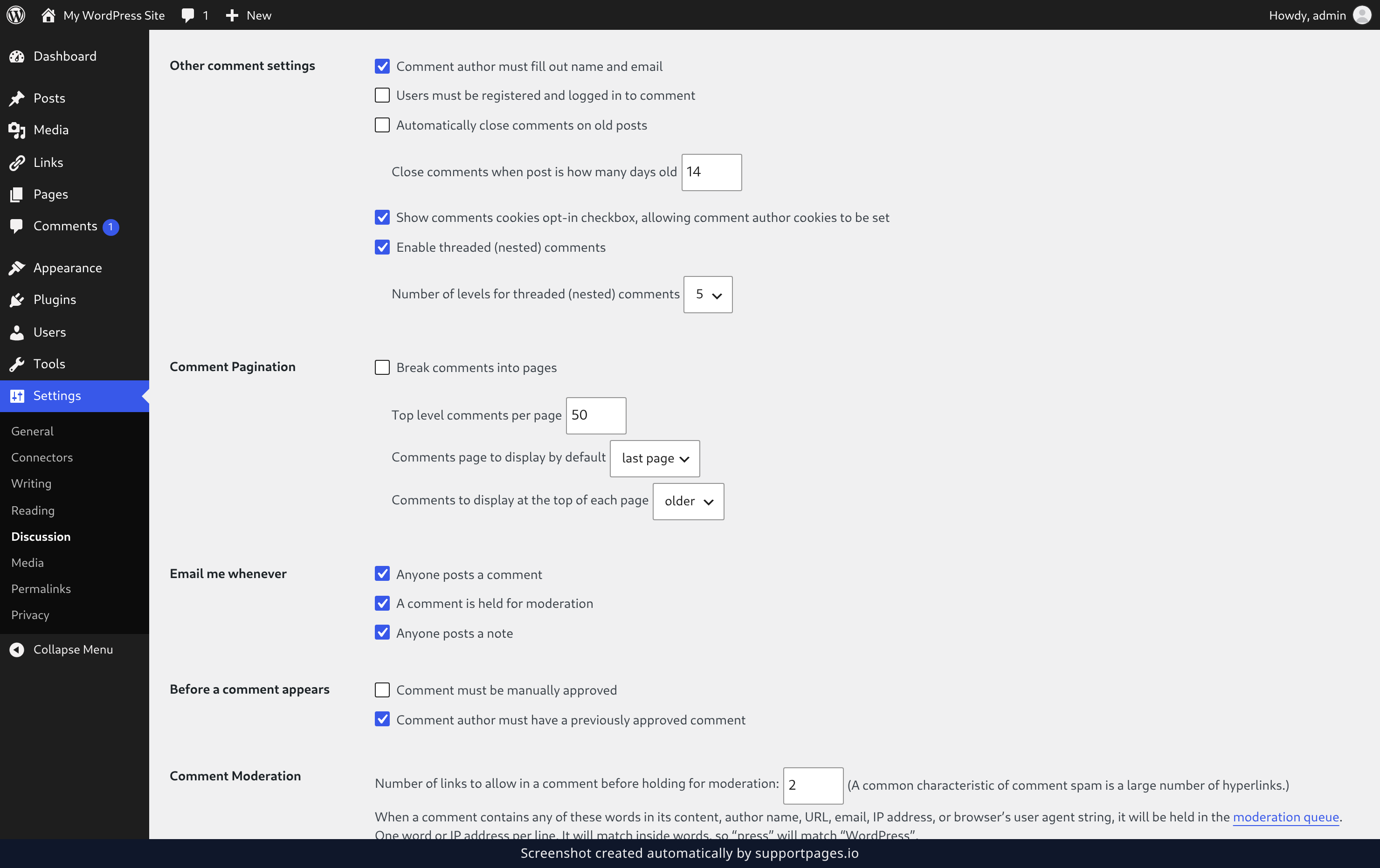
Under Email me whenever, tick Anyone posts a comment if you like knowing the moment someone replies, and A comment is held for moderation if you want to catch spam as it arrives.
Decide whether comments wait for you
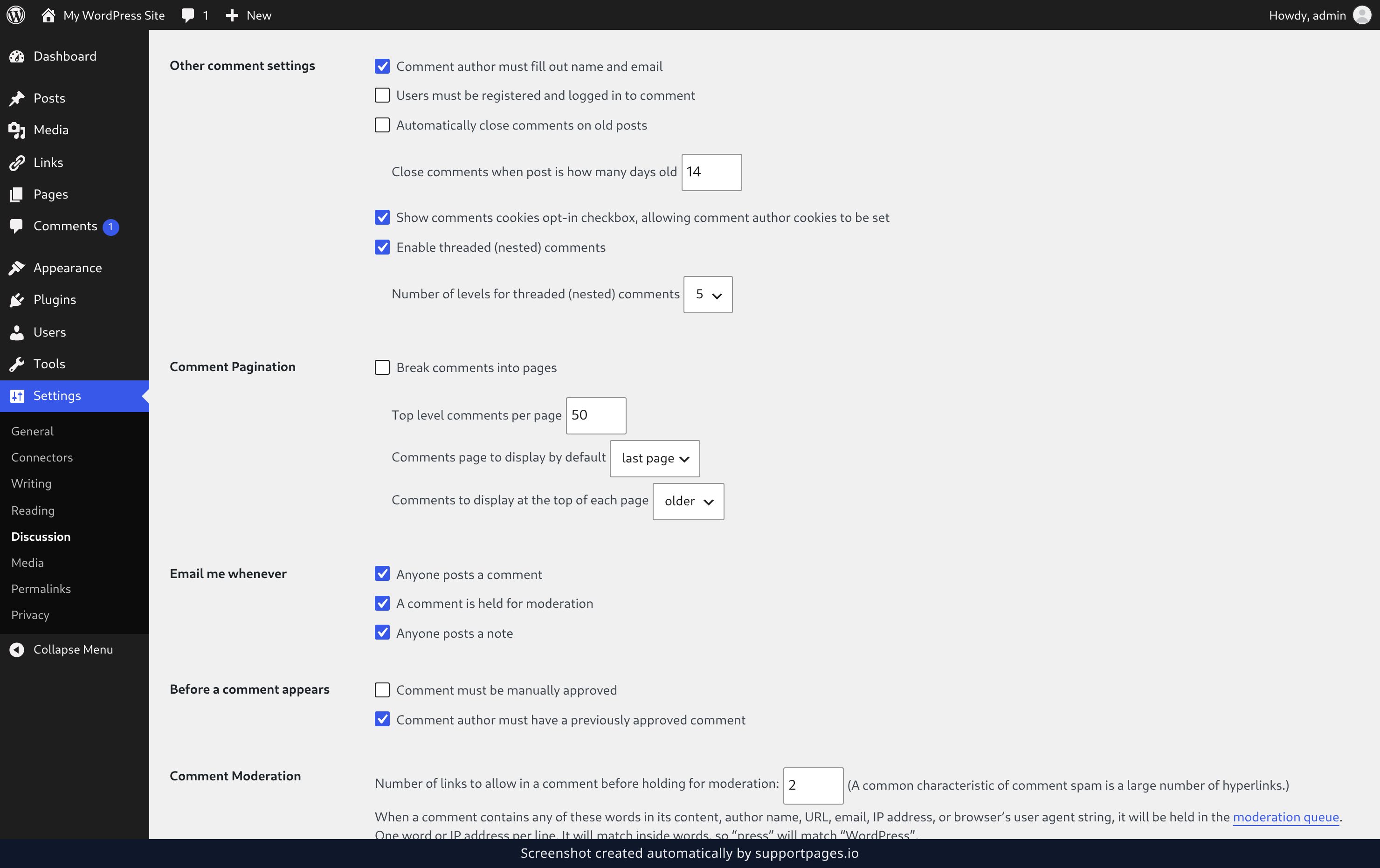
Under Before a comment appears, tick Comment must be manually approved to read every comment before it goes live. Tick Comment author must have a previously approved comment instead if you'd rather let your regulars post straight away.
Save your changes
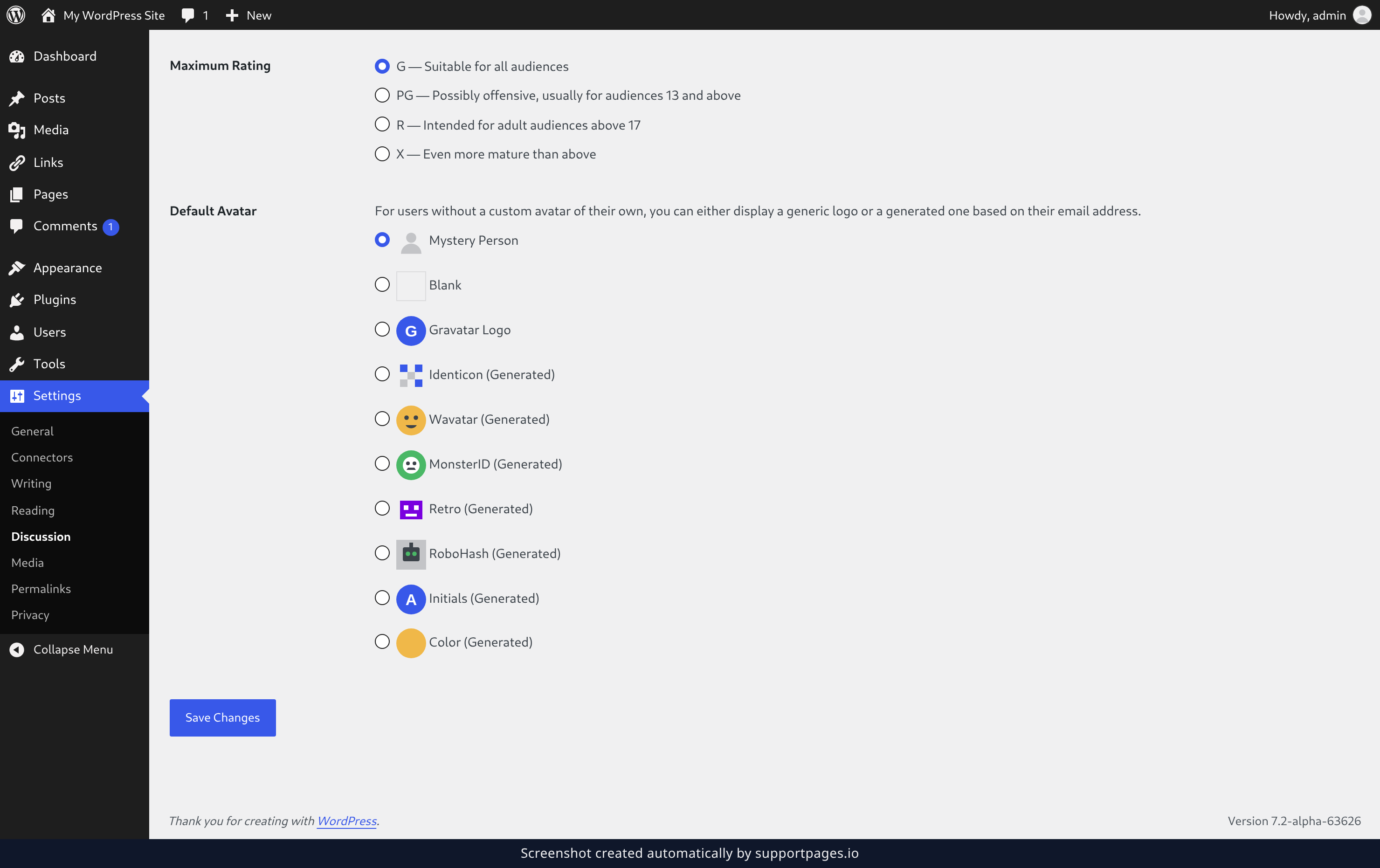
When everything looks right, click Save Changes at the bottom of the screen. None of your new settings take effect until you do.
Tips
- Individual posts can override these settings, and anything you change here only applies to posts you create from now on.
- Tick Show comments cookies opt-in checkbox, allowing comment author cookies to be set if you'd like visitors to choose whether their details are remembered for next time.
Summary
You've set the ground rules: who can comment, what they need to provide, and how their words reach you. Come back to these settings whenever your comment section needs a different tone.
Was this article helpful?
Built with supportpages.io — an AI documentation generator.
Have a question?
Search our articles, or ask and get an answer straight away.